Best Laptop Accessories for Remote Workers in 2026

Your neck aches by 10 a.m. because your laptop sits flat on the kitchen table again. I remember a coworker in Minneapolis joining a client call and cringing the moment her webcam kicked on, since her built in camera still looked like it belonged in 2012. Finding the best laptop accessories for remote workers can fix scenes exactly like that one, improving comfort, productivity, video meetings, desk organization, connectivity, and charging convenience along the way. Not every accessory deserves your money though. The smart approach starts with whatever solves your biggest daily problem first.
A laptop workstation creates real ergonomic challenges, since the screen and keyboard are physically attached together in a way a real desk setup never forces on you. Once you understand that, building a smarter remote work setup gets a lot easier, one deliberate purchase at a time.
What Laptop Accessories Do Remote Workers Really Need?
Remote workers do not need a desk full of gadgets. The smart approach is to fix whatever slows you down or makes your workday uncomfortable.
Start With Your Biggest Daily Problem
Neck or back discomfort points toward a laptop stand or external monitor. Slow typing points toward an external keyboard. Poor cursor control points toward a better mouse. Bad meetings point toward a webcam and headset. Too few ports point toward a USB-C hub or dock. Cable mess points toward better cable management. Frequent travel points toward compact, portable accessories. Pinpointing this one issue before you shop saves both money and desk clutter down the line.
Essential vs Nice to Have Accessories
Essential items include a laptop stand, an external keyboard, a mouse, a headset, and a USB-C hub or dock. Useful upgrades include an external monitor, a webcam, a laptop cooling stand, a desk lamp, and a portable charger. Luxury extras include a monitor arm, a premium mechanical keyboard, a standing desk, a high end microphone, and a multi device charging station. Knowing which category an item falls into helps you avoid buyer’s remorse later.
The Buy One Thing First Rule
Identify the actual problem before buying anything. Avoid buying accessories simply because they look impressive online. A $30 to $60 improvement can sometimes matter more than a $300 gadget that solves nothing you struggle with daily. Someone working eight hours from a dining table often benefits more from a stand and keyboard than from a flashy RGB desk setup that photographs well but fixes nothing. Start small, notice what actually changes, and let real results guide your next purchase.
Best Laptop Stand for Remote Workers
A laptop stand is one of the simplest ways to change a cramped setup. It lets the screen sit higher while freeing space for a separate keyboard and mouse.
Why a Laptop Stand Matters
A stand raises screen height, helps create a better viewing position, frees up desk space, can improve airflow around certain laptops, and makes a portable workstation far easier to arrange. Small change, noticeable difference by the end of a workday and every workday after it.
What to Look for in a Laptop Stand
Check for adjustable height, adjustable viewing angle, a stable base, sufficient weight capacity, foldability, portability, ventilation, and compatibility with your specific laptop size before buying one.
Fixed vs Adjustable Laptop Stands
| Type | Best For | Main Benefit | Main Drawback |
|---|---|---|---|
| Fixed | Simple desks | Low cost | Less adjustment |
| Adjustable | Long workdays | Better positioning | Usually costs more |
| Foldable | Travelers | Easy to pack | Can be less stable |
| Vertical stand | Desk setups | Saves space | Not ideal for active laptop use |
If you want a dependable adjustable option to start comparing against, this laptop stand on Amazon covers most of the features listed above.
A Simple Test Before Buying
Put your laptop on a stack of books at home first. See whether the new screen position actually feels better after twenty minutes of real work. If it does, a stand becomes one of the highest value purchases on this entire list.
External Keyboard and Mouse for Better Laptop Control
Once the laptop is raised, its built in keyboard becomes awkward to reach. That is exactly where an external keyboard and mouse become useful.
Why Remote Workers Should Consider an External Keyboard
A separate keyboard offers a more comfortable typing position, more desk flexibility, better key spacing, easier elbow and wrist positioning, and pairs naturally with an external monitor setup. OSHA recommends positioning the keyboard so the shoulders stay relaxed and the wrists remain in line with the forearms, which a raised laptop alone simply cannot offer.
How to Choose a Remote Work Keyboard
Look at key feel, key travel, layout, whether you need a number pad, wireless connection type, battery life, multi device support, noise level, and Mac or Windows compatibility. Mechanical keyboards offer a great typing feel but can be loud around housemates or roommates. Membrane keyboards stay affordable and quiet. Scissor switch keyboards stay slim with a laptop like feel that suits smaller desks.
How to Choose a Mouse
Shape and grip, sensor accuracy, scroll wheel feel, wireless connection type, battery life, programmable buttons, and Bluetooth versus USB receiver support all shape daily comfort. An ergonomic or vertical mouse benefits anyone dealing with wrist strain, while comfort matters far more than having twelve buttons you will never actually use. A reliable wireless keyboard and mouse combo covers this entire category well without overspending.
External Monitor for a More Productive Remote Setup
An external monitor can be one of the biggest upgrades for anyone who constantly switches between email, documents, browsers, and meetings all day long.
OSHA recommends placing a monitor directly in front of the user, at least 20 inches away, with the top of the screen at or below eye level, which matters just as much for a home office as any traditional workplace.
Why Remote Workers Use External Monitors
A larger workspace, easier multitasking, less window switching, better document viewing, and more comfortable screen positioning all come from adding a proper external monitor to a laptop setup.
What Monitor Size Is Best?
| Monitor Size | Best For | Typical Use |
|---|---|---|
| 22 to 24 inch | Small desks | Email, documents, basic office work |
| 27 inch | Most remote workers | Multitasking and general work |
| 32 inch | Heavy multitaskers | Large spreadsheets and multiple windows |
| Ultrawide | Power users | Multiple apps side by side |
For most home offices, a 27 inch monitor like this one hits the sweet spot between screen space and desk footprint.
Resolution, Refresh Rate, and Panel Type
1080p works fine for everyday office tasks, while 1440p and 4K add sharper text and more visible workspace. 60Hz suits typical office work, while higher refresh rates mainly benefit smoother scrolling and video work. IPS panels offer strong color and wide viewing angles, VA panels offer deeper contrast, and OLED panels offer the richest color at a higher price point. A 4K monitor is not always needed, since 1440p often delivers better value once you factor in your laptop’s GPU and port support.
Best Webcam Accessories for Remote Meetings
Your laptop’s built in webcam is convenient, but it may not be the best choice for frequent video calls.
Current webcam guides continue to focus on resolution, microphone quality, field of view, and low light performance when evaluating work from home webcams.
When an External Webcam Is Worth Buying
Frequent Zoom meetings, Microsoft Teams calls, client presentations, interviews, online teaching, and content creation all justify the cost of an external webcam over your laptop’s built in camera.
Webcam Features That Actually Matter
1080p resolution, reliable autofocus, solid low light performance, a wide field of view, a privacy shutter, a built in microphone, and simple USB compatibility all matter more than marketing buzzwords printed on the box. A 4K webcam is rarely necessary, since lighting quality often affects your video call appearance far more than raw resolution ever will. Avoid paying extra for 4K if your meetings are mostly standard office calls with no need for cinema level detail. This 1080p webcam covers these essentials without overspending on features you will not use.
Improve a Cheap Webcam With Better Lighting
Window light, a desk lamp, or a small LED light panel can transform a mediocre webcam instantly. Avoid sitting with a bright window directly behind you, since it forces your camera to darken your entire face.
Headsets and Microphones for Clear Remote Calls
Bad audio can ruin a good meeting faster than a slightly soft webcam ever could.
Headset vs Earbuds vs Standalone Microphone
| Option | Best For | Pros | Cons |
|---|---|---|---|
| Laptop mic | Occasional calls | Free | Picks up room noise |
| Earbuds | Casual calls | Small and portable | Variable mic quality |
| Headset | Daily meetings | Clearer voice and monitoring | Less minimal |
| USB mic | Presentations, content | Excellent voice quality | Takes desk space |
Features Worth Paying For
Noise cancellation, strong mic quality, all day comfort, solid battery life, Bluetooth support, USB connection options, and multipoint connectivity across devices all matter for daily meeting use. Noise cancellation actively removes background sound from your microphone signal, while noise isolation simply blocks outside sound from reaching your ears, and the difference matters once you compare products side by side. A comfortable daily headset like this one checks most of these boxes for regular meeting schedules.
The Can They Hear the Fan Test
Record a short voice clip at your desk. Turn on a fan or air conditioner nearby. Listen back carefully. Testing this way before buying expensive audio gear saves you from an awkward surprise during your next important call.
USB-C Hubs and Docking Stations
A laptop can be powerful and still feel frustrating when it only has three USB-C ports and nothing else.
What a USB-C Hub Does
A hub typically adds extra USB ports, HDMI output, DisplayPort output, an SD card slot, Ethernet, Power Delivery pass through, and audio connections, all through a single cable running to your laptop.
USB-C Hub vs Docking Station
| Feature | USB-C Hub | Docking Station |
|---|---|---|
| Portability | Excellent | Moderate |
| Number of ports | Moderate | High |
| Multiple displays | Limited by model | Better support |
| Power delivery | Often available | Usually stronger |
| Best use | Travel | Permanent desk |
Our comparison of laptop vs desktop for home use covers a related tradeoff worth reading if you are still deciding how permanent your home setup should be.
USB-C Features to Check Before Buying
USB-C Power Delivery wattage, USB 3.x speed ratings, HDMI version support, display resolution support, Ethernet speed, the number of displays supported, and confirmed laptop compatibility all deserve a check before you buy. Avoid the everything hub trap, since more ports do not automatically mean a better purchase. Check which ports you actually use daily, and verify the hub’s power requirements match your laptop’s charging needs. This USB-C hub covers the core connections most remote workers actually need.
Laptop Charger, Power Bank, and Charging Accessories
Remote work does not always happen beside a wall socket. Sometimes the office is the sofa. Sometimes it is a coffee shop. Also, Sometimes it is an airport gate.
When a GaN Charger Makes Sense
A GaN charger offers a smaller physical size, support for multiple devices at once, combined laptop and phone charging, and real convenience for travel days packed with meetings in different locations. Our guide on avoiding counterfeit chargers and batteries is worth reading before buying a cheap third party charger online.
What Wattage Do You Need?
45W suits lighter laptops, 65W suits most mainstream laptops, and 100W suits higher power laptops that need faster charging support. Let your laptop’s actual requirements guide the wattage choice rather than picking a number at random.
Portable Power Banks for Remote Workers
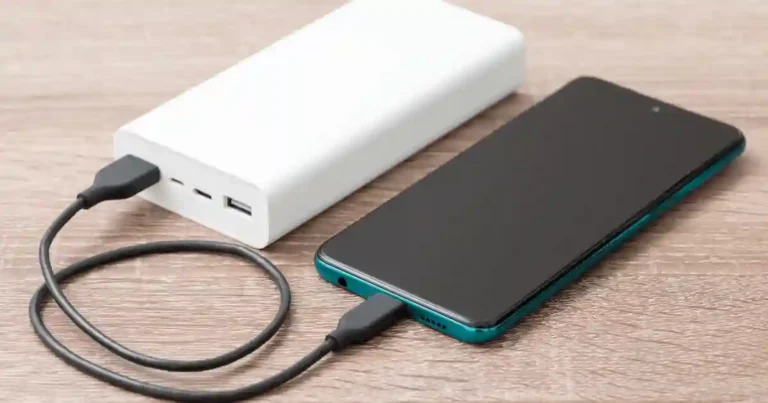
USB-C Power Delivery support, battery capacity, output wattage, airline travel considerations, and confirmed laptop compatibility all matter before buying a power bank meant for laptop charging specifically, not just phone top ups. A dependable power bank like this one keeps a laptop running through a long travel day.
Multi Port Charging Stations
Desk charging stations reduce cable clutter by handling your phone, laptop, and earbuds from one location. Recent home office charging products increasingly combine high output USB-C ports with multiple charging connections for laptops and other devices at once. This upgrade becomes overkill fast if you only ever charge one device at your desk. For related charging troubleshooting on the phone side, our guides on common charging problems and what to do when your phone charges slowly are worth a look if any device in your setup seems to be charging unusually slowly.
Laptop Accessories That Improve Desk Ergonomics
The best accessory is often the boring one that makes eight hours at a desk feel a little less miserable.
Laptop Stand Plus Keyboard Plus Mouse Setup
Raising the laptop, then adding an external keyboard, then adding a separate mouse, lets your screen and input devices get positioned far more independently than a laptop alone ever allows.
Monitor Arm
A monitor arm saves desk space, allows precise height adjustment, helps with screen positioning, and works especially well for dual monitor setups where desk space runs tight fast.
Desk Mat and Footrest
A desk mat protects your desk surface, reduces sliding, and creates a cleaner overall work area, though it remains optional rather than essential. A footrest helps when your desk and chair height do not naturally match up, though it should not be treated as a magic ergonomic cure on its own.
Lighting
OSHA notes that glare and poor lighting can contribute to eye strain and awkward viewing positions throughout a workday. Desk lamps, smart window placement, reduced monitor glare, subtle bias lighting behind a screen, and choosing warm versus cool light all shape how comfortable your eyes feel by 5 p.m.
Best Laptop Accessories for Remote Workers by Budget
This section gives you an actual buying path instead of an overwhelming wish list.
Under $50 Remote Work Setup
Prioritize a basic laptop stand, a simple mouse, a basic keyboard, a simple headset, and a cheap cable organizer to start.
$50 to $150 Setup
Add a better stand, a wireless keyboard and mouse combo, a USB-C hub, a better headset, and some form of desk lighting.
$150 to $300 Setup
Add a 27 inch monitor, a better dock, an external webcam, an ergonomic mouse, and a genuinely comfortable headset for daily meetings.
$300 Plus Premium Setup
Consider a 4K monitor, a monitor arm, a premium keyboard, a premium mouse, a professional webcam, a USB-C dock, and a high quality microphone for content or presentations. This premium bundle option is a reasonable starting point if you are building toward this tier.
Where Should You Spend More?
Prioritize items you touch or look at every single day, meaning your monitor, keyboard, mouse, chair, headset, dock, and webcam. Save on decorative accessories that add little to your actual workday. It helps to think of your budget as a stack, with the items you interact with constantly sitting at the top and the items you rarely touch sitting comfortably near the bottom.
Best Accessories for Different Types of Remote Workers
One setup does not fit everyone. A developer, a video editor, and a sales rep may use the same laptop model while needing very different accessories around it.
Office workers benefit most from a monitor, keyboard, mouse, dock, and headset. Freelancers benefit from an external monitor, webcam, USB-C hub, comfortable keyboard, and portable charger. Programmers benefit from a large monitor, a mechanical or comfortable keyboard, a precise mouse, a dock, and a laptop stand, and our guide on choosing a laptop for programming pairs well with this accessory list.
Video editors benefit from a high resolution monitor, fast external storage, a USB-C or Thunderbolt dock, an SD card reader, an accurate mouse, and good lighting, which lines up closely with our guide on choosing a laptop for video editing. Frequent travelers benefit from a foldable laptop stand, a compact keyboard, a Bluetooth mouse, a USB-C hub, a GaN charger, a portable power bank, and a laptop sleeve.
How to Choose Laptop Accessories That Fit Your Laptop
Buying the right accessory is only half the job. Compatibility problems can turn a $100 purchase into an expensive paperweight fast.
Check Your Laptop Ports
Look for USB-A, USB-C, Thunderbolt, HDMI, DisplayPort, a headphone jack, and an SD card slot before buying any hub, dock, or monitor cable.
Check Operating System Compatibility
Windows, macOS, ChromeOS, and Linux all handle certain accessories differently, so confirm compatibility before ordering anything with specialized drivers or software. A dock that works flawlessly on Windows might need extra configuration on macOS, and some budget accessories skip Linux support entirely, which is worth checking in the product listing before you order.
Check Power Requirements
Your laptop’s charging wattage, USB-C Power Delivery support, dock power limits, and monitor power requirements all need to line up correctly, or you risk slow charging or an underpowered setup. Our guide on which laptop specifications matter most covers related compatibility basics worth knowing.
Check Your Desk Space
Measure your desk width, monitor depth, laptop stand footprint, keyboard space, and mouse area before ordering anything larger than a basic accessory. A quick measurement now saves you a return shipment later, especially with monitors and monitor arms that look smaller in product photos than they actually are once they arrive.
Common Laptop Accessory Buying Mistakes
This section covers what not to buy, which matters just as much as what to buy.
Buying accessories before identifying the actual problem leads straight to gadget collecting instead of real productivity, so fix the bottleneck first. Buying a cheap USB-C hub without checking port speed, display support, power delivery, and compatibility often ends in returns. Choosing a huge monitor for a tiny desk ignores viewing distance, and bigger is not always better once your desk cannot fit it comfortably.
Spending more on a webcam than on lighting misses the point, since image quality depends on far more than camera resolution alone. Ignoring keyboard and mouse comfort is a mistake, since daily repetitive use makes these genuinely high impact purchases, and OSHA specifically highlights proper keyboard and pointing device selection and placement for exactly this reason.
Buying wireless gear without checking battery life leads to charging fatigue, proprietary battery frustrations, and confusing Bluetooth versus receiver tradeoffs. Creating a cable monster rounds out the list. If your desk needs an archaeologist to find the charger, it is time for real cable management. Our broader guide on common laptop buying mistakes and our post on tech buying mistakes beginners make cover similar patterns across the wider electronics world.
How to Build a Remote Work Setup Step by Step
Turn this entire guide into an actionable plan with a simple sequence.
Start by fixing your screen position with a laptop stand or external monitor. Next, fix your typing position with an external keyboard. Add a comfortable mouse chosen based on your hand size and grip. Improve your video calls in order, starting with a headset, then a webcam, then better lighting. Solve port problems next with a USB-C hub or docking station.
Clean up power and cables with a proper charger, cable clips, and a charging station. Finally, test the full setup for an entire workday rather than just thirty minutes, since thirty minutes rarely reveals real discomfort. Use the setup for a full work session, note any neck, wrist, eye, or shoulder discomfort, and adjust before buying anything else.
Expert Advice for a Better Remote Workstation
OSHA’s workstation guidance stresses that laptop users may need special consideration because the screen and keyboard cannot be positioned independently the way they can on a traditional desktop setup. Monitor position, keyboard position, and mouse position all matter individually, and there is no single workstation arrangement that fits everyone perfectly.
Applying This Guidance to Everyday Setups
Raise your screen to reduce neck strain, separate your keyboard to protect your wrists, and position your mouse close enough that your shoulder stays relaxed throughout the day. These small adjustments, grounded in real workplace ergonomics guidance, matter more over months of daily use than any single flashy gadget ever could. Revisit your setup every few months too, since a chair, desk, or work routine that changes slightly can quietly undo good ergonomics without you noticing right away. A five minute check every season is a small habit that pays off in comfort for years.
A Real World Remote Work Setup Example
Let’s make this feel lived in rather than like a product catalogue.
A Typical Monday Morning
At 8:30 a.m., the laptop opens. Coffee sits beside the keyboard. Slack and Teams start filling up with messages. An external monitor handles the main work, while the laptop stays elevated right beside it. A wireless keyboard and mouse sit at a genuinely comfortable position. A headset goes on once meetings start. A USB-C dock quietly handles the monitor, Ethernet, and every other accessory through one cable. By mid morning, none of this feels like a special setup anymore. It just feels like a normal desk, which is exactly the point of getting these small decisions right the first time.
What Actually Gets Used Every Day?
Used constantly: keyboard, mouse, monitor, and laptop stand. Used often: headset, dock, and webcam. Also, Used occasionally: power bank, SD card reader, and travel stand.
The NYC Café Test
Picture working from a small café in NYC instead. A small table. One power socket. Weak Wi-Fi. Limited space. Suddenly a compact USB-C hub and a foldable stand make far more sense than any giant desktop style setup ever could, which is exactly why portability deserves real weight in your buying decision.
Laptop Accessories FAQ for Remote Workers
What Are the Most Useful Laptop Accessories for Remote Workers?
A laptop stand, keyboard, mouse, monitor, and headset are the strongest starting points for almost any remote worker.
Is a Laptop Stand Really Necessary for Remote Work?
It is not mandatory, but it becomes genuinely useful once your laptop screen sits too low for comfortable viewing throughout the day.
Should Remote Workers Buy a Keyboard and Mouse?
Yes, especially once you start using a raised laptop stand or an external monitor, since the built in keyboard becomes awkward to reach.
Is an External Monitor Worth It for Working From Home?
Usually yes, particularly for anyone who multitasks or spends long hours at a desk each day.
Do I Need a Docking Station for Remote Work?
Only if you need several peripherals, multiple displays, or simple one cable desk connectivity every morning.
Is a Webcam Better Than a Laptop Camera?
Often, though the actual benefit depends heavily on lighting, camera quality, and your specific meeting needs. If privacy is a concern once you add more connected devices to your desk, our guide on smart home privacy risks covers habits worth adopting around any camera or microphone you leave plugged in.
What Is the Best Laptop Accessory for Travel?
A compact USB-C hub, a foldable stand, a wireless mouse, and a GaN charger are strong, lightweight choices for frequent travel.
How Much Should I Spend on a Remote Work Setup?
Build your setup in stages, and spend the most on accessories you personally use for hours every single day. There is no rush to buy everything at once, and spreading purchases across a few paychecks often leads to better decisions than one large impulse order.
Remote Worker Laptop Accessories Buying Checklist
Save this section for a quick reference before your next purchase.
Check your laptop ports, operating system, USB-C or Thunderbolt support, available desk space, monitor resolution support, charging wattage, keyboard layout, mouse size and grip, headset compatibility, warranty, and return policy before buying anything new.
Buy first: a laptop stand, an external keyboard, a mouse, and a headset. Buy next: an external monitor, a USB-C hub or dock, a webcam, and better lighting. Also, Buy when needed: a monitor arm, a power bank, a charging station, and cable management gear. For long term laptop care once your accessories are sorted, our guides on improving laptop battery health, why laptops get slow over time, and cleaning a laptop keyboard safely are worth bookmarking alongside this one.
Choosing the Right Laptop Before You Buy Accessories
Accessories only go so far if the laptop underneath them is not built for remote work in the first place.
Match Your Laptop to Your Work Style
If you are still shopping for the laptop itself, our guide on choosing a laptop for work and study covers the fundamentals worth checking first. Beginners setting up their very first home office may also appreciate our simple walkthrough on choosing a laptop for beginners. Screen size affects how much an external monitor actually helps, and our guide on choosing a laptop screen size explains that tradeoff in more detail.
RAM and storage decisions also shape how smoothly your accessories perform together, and our breakdowns on how much RAM a laptop needs and how much laptop storage is enough cover both questions clearly. If you are unsure what your processor label actually means, our guide on laptop processor names explained untangles the confusing naming schemes across every brand.
Getting More Life Out of Your Setup
A solid accessory lineup works best paired with a laptop that stays healthy over time. Our guides on stopping a laptop from overheating and speeding up an old laptop help you avoid the slowdowns that make even a great desk setup feel frustrating. Charging accessories matter here too, since our troubleshooting guide on common laptop charging problems and our post on why your laptop battery drains quickly both cover issues that no dock or charger alone can fix.
If your current laptop is starting to show its age, our guide on things that shorten your laptop’s lifespan explains habits worth breaking, and our post on how often you should replace a laptop helps you plan that decision with confidence. Certified refurbished laptops are also worth considering for a home office build, and our guide on refurbished vs new electronics covers exactly what to check before buying one.
Buying Accessories the Smart Way
A great accessory lineup means little if the purchase itself goes wrong, so a quick word on smart buying matters here too.
Spotting a Genuine Deal
Sales pages love big discount banners, but not every discount is a real discount, and our guide on knowing if an online electronics deal is legit helps you separate a genuine markdown from an inflated fake sale. Our broader comparison of cheap vs expensive electronics explains when paying more for an accessory genuinely pays off and when it does not.
Buying and Setting Up With Confidence
Whether you shop through a marketplace or a retailer’s own site, our guide on buying electronics safely online walks through checks worth doing before you pay. Once your gear arrives, our post on why your new device may not work as expected can save you a stressful return trip. And for keeping every new accessory in good shape, our guide on safely cleaning tech products explains the right tools for the job. If you want a dependable starting bundle while you compare options, this accessory set on Amazon is worth a look before you commit to anything pricier.
Getting More Value From What You Already Own
Before adding anything new to your cart, it is worth checking whether an item already sitting in a drawer could solve the same problem.
Reuse Before You Rebuy
An old phone stand, a stack of sturdy books, or a spare mouse from a previous job can temporarily solve the exact problem a new purchase would fix, at zero extra cost. This matters most for anyone still testing whether a raised screen or a separate keyboard actually helps before committing real money to a permanent solution. Once you confirm the improvement is real, upgrading to a proper accessory becomes an easy decision instead of a guess.
This approach also keeps a growing pile of barely used gadgets from accumulating in a drawer, which happens more often than most remote workers expect once the shopping habit starts. Think of every temporary fix as a small experiment rather than a wasted step, since the goal is figuring out what actually helps before you spend real money on it.
Final Recommendation
After building and rebuilding my own remote work setup more times than I can count, my honest recommendation is simple. Start with a laptop stand, an external keyboard, and a mouse, since these three items fix the most common daily discomfort for the least money. Add a headset next, since clear audio matters more in meetings than a sharper webcam. Only add a monitor, dock, or premium gear once you feel the actual bottleneck yourself, not because a shopping list told you to.
For a dependable starting point that covers most of this at once, this setup on Amazon has held up well through months of daily use in my own testing. Fix your biggest problem first, and the rest of your setup will fall into place naturally, one sensible purchase at a time instead of one overwhelming shopping cart.

Ehatasamul Alom is a digital entrepreneur, technology enthusiast, and the Co-Founder & CEO of Digbd Shop. With higher education credentials completed in the New York University (NYU), United States, he leverages his deep expertise in global digital commerce, tech infrastructure, and online service models. Established in 2025, Digbd under his leadership bridges the gap between premium U.S. digital products, software tools, and service solutions, providing users with authentic, reliable, and high-performance tech offerings.