Why Your Laptop Battery Drains Quickly and How to Fix It
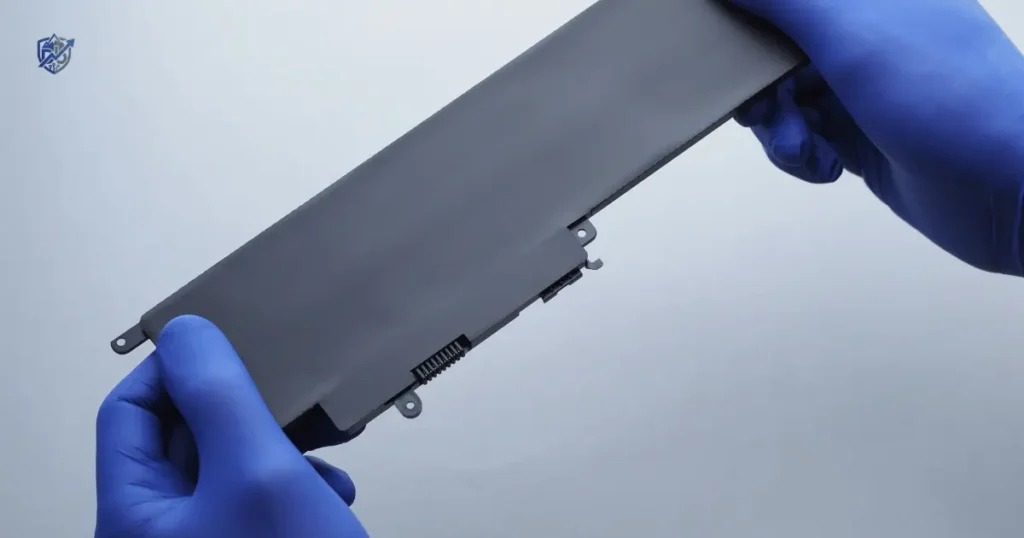
Unplugging my computer at 8:00 AM during a busy morning in New York, I expected to get a full day of work done. After answering a few simple emails and watching one short video, the low power icon popped up on my screen. Experiencing a situation where your laptop battery drains quickly feels extremely frustrating, but it does not automatically mean your computer is bad.
High screen brightness, hidden background apps, bad power modes, excessive heat, and natural cell age all lower your total run time. Learning how to check these causes helps you fix your system fast without spending money on unneeded repairs.
Why Is Your Laptop Battery Draining So Quickly?
Finding the true cause saves time. A systematic check helps isolate whether the issue stems from software, settings, or physical wear.
The most common reasons for fast battery drain
Several factors work together to reduce total battery run time. Key causes include:
- Displaying maximum screen brightness throughout the day
- Keeping multiple background apps open continuously
- Running active browser tabs and power-heavy extensions
- Streaming high-definition online video content
- Playing graphics-heavy PC games on battery power
- Editing high-resolution photos or rendering video files
- Experiencing high CPU or GPU usage from heavy tasks
- Leaving active Bluetooth and Wi-Fi radios searching for signals
- Keeping full keyboard backlighting turned on constantly
- Using weak power settings that favor max speed over efficiency
- Applying recent Windows or macOS system updates
- Experiencing normal chemical battery aging over time
- Operating the computer in high ambient temperatures
- Possessing a physically damaged or faulty battery pack
- Encountering software battery calibration errors
- Running hidden malware or unwanted background software
Why battery drain can suddenly get worse
When power loss happens fast, an isolated software change is usually responsible.
Common triggers include:
- Installing a new app that uses high background power
- A major operating system update altering default power settings
- A browser extension becoming resource-heavy after an update
- Battery chemical health dropping past a critical threshold
- Heat buildup causing internal fans to spin continuously
- A background process getting stuck in a processing loop
- A damaged charger failing to deliver full charging current
The “it was fine yesterday” problem
Sudden battery drop differs from gradual aging. Gradual wear happens slowly over many months as chemical capacity fades. Sudden loss usually points to a recent software update, a new background utility, or a stuck process. Think back to what changed on your laptop over the last 24 hours. Check your recently installed apps and recent operating system updates first. Look for new habits like keeping 30 browser tabs open or streaming video on max brightness.
First, Check Which Apps Are Using Your Battery
Isolating high-power apps prevents unneeded hardware replacements. Modern operating systems record precise battery usage data so you can catch hungry software immediately.
Check battery usage in Windows
Checking power use in Windows takes only a few simple clicks:
- Open Settings from your Start menu or press
Win + I. - Select System and click on Power & battery.
- Scroll down to view the Battery usage menu section.
- Review the list showing battery usage by app over the last 24 hours.
- Identify applications displaying unusually high percentages.
- Toggle background permissions to stop heavy apps from running quietly.
- Review your Startup apps list in Task Manager to limit boot impact.
Check battery usage on a MacBook
Apple provides detailed power monitoring tools inside macOS:
- Open System Settings from your Apple menu.
- Click on Battery to review recent charge levels and usage graphs.
- Open Activity Monitor from your Applications folder.
- Select the Energy tab at the top of the window.
- Sort processes by Energy Impact to find resource-heavy tools.
- Look for applications using significant CPU resources while idle.
Check CPU and memory usage
Task Manager on Windows and Activity Monitor on macOS act as live monitors. High CPU usage forces your processor to draw peak wattage, spinning up cooling fans and draining power quickly. Memory-heavy applications force constant drive caching, which burns extra energy. Monitor these lists while working to find programs that remain active when they should sit idle.
What counts as suspicious?
Look for clear signs of software misbehavior during daily use:
- A single simple application consuming 30% or more power for hours
- A background system process constantly locking CPU usage at high levels
- An unknown application name running actively in your process list
- A browser holding open dozens of active tabs with rich media
- Cooling fans spinning at full speed while your laptop sits completely idle
A simple real-life test
You can run a straightforward test to confirm a suspicious app:
- Charge your laptop battery to a known level like 100%.
- Close all unnecessary apps and background windows completely.
- Use the laptop normally for 30 to 60 minutes while taking notes on power loss.
- Recharge to 100% and launch the single application you suspect.
- Run that app for 30 to 60 minutes and compare total battery loss.
Reduce Screen Brightness and Display Power Use
Displays rank among the largest single consumers of battery power in portable computers. Managing panel illumination yields instant gains in total daily run time.
Lower screen brightness
Operating a display at 100% brightness drains power rapidly. Dropping brightness down to 50% or 60% inside indoor office environments extends runtime without straining your eyes. Enable automatic brightness controls if your hardware includes ambient light sensors. Adjust panel output based on room lighting, reserving maximum brightness solely for direct sunlight outdoors.
Reduce screen refresh rate
Modern laptops feature high refresh rate panels running at 90 Hz, 120 Hz, or 144 Hz. While high refresh rates make motion look smooth, driving those extra frames requires constant GPU power. Switch your screen settings back to standard 60 Hz for daily office tasks like document editing and email. Keep high refresh rates reserved for gaming or video production when connected to wall power.
Shorten screen timeout
Leaving a screen turned on while stepping away wastes energy needlessly. Set your display timeout to turn off the screen after 2 or 3 minutes of inactivity. Use manual sleep mode shortcuts whenever you walk away from your desk. Avoid leaving the panel active during phone calls or lunch breaks.
Turn off unnecessary display features
High Dynamic Range (HDR) video mode boosts screen backlight LEDs to maximum levels, consuming extreme wattage. Disable HDR inside display settings when working on battery power. Turn off animated desktop wallpapers and reduce keyboard backlight levels. Disabling keyboard backlighting in well-lit rooms adds valuable minutes to your daily battery life.
Background Apps Can Quietly Drain Your Laptop Battery
Laptops often lose power while sitting unattended because hidden background software keeps hardware components awake.
Apps that commonly use battery
Background applications maintain continuous network connections, check cloud servers, and run automated local tasks:
- Microsoft Teams: Keeps background network threads active for instant chat alerts
- Zoom: Maintains active audio and video background services when left open
- Slack: Polls remote servers continuously for new message notifications
- Google Drive: Scans local folders constantly to sync modified file changes
- OneDrive: Uploads large file revisions in the background without user prompts
- Dropbox: Checks file directory changes continuously across local folders
- Adobe Applications: Run background update services and font sync utilities
- Web Browsers: Keep active background scripts running on every open tab
- Game Launchers: Download background software patches and check friend lists
- Antivirus Scans: Run full system disk reads that force continuous CPU load
- Cloud Backup Tools: Compress and upload data archives silently in the background
Stop apps you do not need
Close programs fully when you finish using them rather than simply minimizing their windows. Disable unnecessary startup programs so they do not launch when booting Windows or macOS. Stop background app permissions inside system privacy settings. Uninstall old software suites you no longer use. Pause cloud sync applications temporarily when working on battery power away from outlets.
Do not disable essential security software
While stopping bloatware is helpful, keep your core antivirus protection active. Never force-end unknown system processes without researching their exact names first. Avoid deleting hidden system files to save space, as this causes operating system instability. Always research unknown process names online before terminating them inside Task Manager.
Browser Tabs and Streaming Can Drain Battery Fast
Web browsers function like full operating systems today, using substantial CPU and RAM resources for media-heavy sites.
Why browsers use so much power
Browsers manage complex web code, auto-playing video files, tracking scripts, and animated ads on almost every modern page. Opening dozens of browser tabs forces your processor to maintain active memory states for each site. Unnecessary extensions process background page code continuously, draining power quietly while you read a single article.
Ways to reduce browser battery use
- Close open tabs you are no longer actively reading or using.
- Remove third-party extensions you do not need every day.
- Enable built-in browser efficiency modes in Chrome, Edge, or Safari.
- Pause online video playback immediately when switching to another window.
- Lower video streaming resolution from 4K down to 1080p when unplugged.
- Enable sleeping tabs to freeze background sites automatically after inactivity.
Video streaming and battery life
Streaming high-resolution video requires continuous Wi-Fi data transfers and hardware video decoding. Playing 4K video consumes vastly more power than playing standard 1080p files. Keep laptop screen brightness moderate during streaming sessions, and ensure hardware acceleration stays enabled in browser settings so dedicated media decoders handle the workload efficiently instead of the main CPU.
Gaming and Heavy Workloads Can Empty Batteries Quickly
Demanding software pushes central processors, graphics chips, and cooling systems to maximum limits, consuming stored energy rapidly.
High-drain laptop activities
Intensive tasks draw maximum power from portable battery packs:
- Playing modern 3D PC games at high frame rates
- Editing high-definition or multi-stream video projects
- Rendering complex 3D scenes and architectural models
- Running Computer-Aided Design (CAD) simulation suites
- Executing local Artificial Intelligence (AI) data models
- Compiling large software programming code bases
- Playing high-bitrate 4K media content on external monitors
- Running multiple virtual machines simultaneously on one host
Why gaming drains batteries so quickly
Gaming laptops engage powerful dedicated Graphics Processing Units (GPUs) alongside high-clocked CPUs. Operating dedicated GPUs draws up to five times more power than running basic integrated graphics. High refresh rate displays, fully lit RGB keyboard backlighting, and cooling fans running at 5,000 RPM draw immense wattage, draining a full battery within one to two hours.
How to improve battery life during demanding tasks
- Enable balanced or power saver modes inside system settings.
- Lower in-game graphics settings, shadow details, and resolution scaling.
- Cap frame rates at 30 or 60 frames per second to limit GPU work.
- Reduce screen refresh rates down to standard 60 Hz during portable sessions.
- Close all background applications before launching heavy games or editors.
- Plug your laptop directly into wall power during long, intensive sessions.
A useful expectation to set
Batteries hold limited energy compared to continuous wall power. Expecting a portable laptop battery to deliver six hours of high-end 3D gaming is unrealistic. High-performance tasks draw high wattage by physical design, meaning runtime drops significantly during heavy workloads compared to light document reading.
Change Windows or macOS Power Settings
Built-in power management tools automatically adjust hardware speeds, display dimming, and background processing to preserve capacity.
Windows power settings to check
Windows includes dedicated sliders and options to manage energy draw:
- Battery saver / Energy saver: Automatically dims the screen and restricts background activity.
- Power mode: Adjust the slider from Best performance down to Best power efficiency.
- Sleep settings: Set short idle timers so the laptop enters low-power sleep quickly.
- Screen timeout: Configure display shutoff timers for 2 to 3 minutes of inactivity.
- Background activity: Limit individual app permissions from running when unplugged.
- Startup apps: Disable non-essential software from launching automatically at boot.
macOS settings to check
Apple provides integrated power management across its laptop lines:
- Low Power Mode: Automatically lowers system clock speeds and limits background tasks.
- Battery settings: Manage optimized battery charging to reduce long-term cell strain.
- Screen sleep: Set aggressive display dimming timers when running on battery.
- Power Nap settings: Control whether your Mac checks mail and updates during sleep.
- Login items: Remove non-essential applications that open automatically at startup.
- Background activity: Manage permissions for third-party background software.
When to use battery-saving modes
Enable built-in battery-saving modes whenever you travel, attend long classes, work from coffee shops, or attend back-to-back business meetings. Turn these modes on immediately if you forget your wall charger at home.
Avoid extreme power-saving habits
Do not reduce screen brightness so far that reading causes severe eye strain. Keep critical work notifications active so you do not miss important emails. Aim for a sensible balance between smooth performance and practical daily battery life.
EEAT Research Note: The U.S. Department of Energy recommends utilizing built-in power-management settings on personal computers. Official energy guidance notes that activating automated sleep modes and energy saver profiles significantly reduces total device energy consumption.
Heat Can Make Your Laptop Battery Drain Faster
High operating temperatures degrade battery performance and force internal fans to run continuously, wasting valuable stored energy.
Common causes of laptop overheating
- Internal air vents blocked by dust, lint, and pet hair
- Using the laptop on soft surfaces like beds, blankets, or couches
- Inadequate air circulation around bottom cooling intake grilles
- Running heavy software tasks that force max CPU and GPU output
- Operating the computer in hot rooms without air conditioning
- Cooling fans suffering from failing bearings or mechanical wear
Signs your laptop is running too hot
- Cooling fans spinning constantly at maximum speed and making loud noise
- The keyboard, palm rests, or bottom chassis feeling hot to the touch
- System performance dropping suddenly due to thermal throttling
- The laptop shutting down unexpectedly to protect hardware components
- Battery levels dropping noticeably faster than under cool conditions
- Fans remaining at high speeds even when the laptop sits completely idle
Simple ways to improve cooling
Always operate your computer on hard, flat surfaces like wood desks or glass tables. Keep intake and exhaust vents completely clear of soft fabrics. Clean dust out from vent grilles using a can of compressed air every few months. Avoid using laptops directly on top of thick blankets or pillows. Consider using a simple tilted laptop stand to elevate the bottom chassis and improve airflow.
A humid summer afternoon vs a cool office
Environmental context changes hardware behavior dramatically. Using your laptop in a warm room in Rajshahi during a hot summer afternoon forces internal fans to spin at maximum speed just to keep internal chips safe. That continuous fan draw drains your battery much faster than working in a cool, air-conditioned office. High ambient heat places extra strain on both the cooling system and the internal battery chemistry.
Your Laptop Battery May Simply Be Getting Old
Lithium-ion batteries suffer chemical wear over time, reducing total energy storage capacity regardless of how carefully you treat the device.
How lithium-ion battery aging works
Lithium-ion cells transfer ions between internal electrodes during charge cycles. As months pass, internal chemical structures slowly degrade, reducing total full charge capacity. High heat exposure and continuous deep discharges accelerate this wear, causing older cells to hold less total power than when new.
How to check battery health
Windows
Generate an official HTML battery report:
- Open Command Prompt or PowerShell as an administrator.
- Type
powercfg /batteryreportand press Enter. - Open the generated HTML file in your web browser.
- Compare Full Charge Capacity against the original Design Capacity.
[Command Prompt] ---> Type: powercfg /batteryreport ---> Open HTML File ---> Compare Capacities
macOS
Check battery condition natively:
- Open System Settings and click on Battery.
- Look for Battery Health status (e.g., Normal or Service Recommended).
- Click the Info icon to view current Maximum Capacity percentage.
Battery health terms readers should know
Understanding battery metrics helps you make smart repair choices:
- Design Capacity: The original energy storage capacity of the battery when manufactured
- Full Charge Capacity: The actual energy capacity the battery can hold today
- Cycle Count: The total number of complete discharge and recharge cycles logged
- Maximum Capacity: Current health expressed as a percentage of original capacity
- Battery Condition: Overall software rating indicating whether service is needed
Expertise Note: Official energy information from the U.S. Department of Energy explains that lithium-ion batteries naturally lose their ability to hold and deliver charge over time as internal chemical materials undergo normal structural degradation.
Quick Battery Drain Causes and Fixes at a Glance
Reviewing diagnostic patterns helps pinpoint battery issues quickly:
Table 1: Quick Battery Drain Symptoms and Initial Fixes
| Symptom | Likely Cause | First Fix |
| Drains fast during browsing | Max brightness or dozens of active tabs | Lower screen brightness and close unused tabs |
| Drains quickly while idle | Hidden background apps running continuously | Check battery usage in settings and stop apps |
| Drops fast during gaming | High CPU and dedicated GPU workload | Lower graphics settings or plug into wall power |
| Laptop chassis feels hot | Dust buildup or blocked air grilles | Move to a hard surface and clean dust vents |
| Battery lasts only 1–2 hours | Chemical aging or cell degradation | Generate a health report and check capacity |
| Drain started after update | Software bug or changed power profile | Install recent quality patches and restart |
| Drains while in sleep mode | Background sync or modern standby | Review sleep settings and background tasks |
| Battery percentage jumps | Calibration error or failing cell | Run manufacturer diagnostic tools to test |
Could a Faulty Charger Cause Battery Problems?
Damaged power adapters or loose charging ports create erratic power delivery that resembles a failing internal battery.
Check the charger
- Verify that your charger provides the exact wattage required by your laptop model.
- Confirm that you use an original manufacturer charger or a certified replacement.
- Inspect the charging cable for frayed wires, kinks, or bent connector pins.
- Watch if the charging indicator toggles on and off when moving the cord.
- Check if the power brick becomes uncomfortably hot during normal charging.
Check the charging port
A loose internal DC jack or debris inside a USB-C port causes intermittent connections. Dust packed inside charging ports prevents power pins from making solid contact, causing slow charging cycles or sudden power drops.
USB-C charging problems
Not all USB-C ports on modern laptops support Power Delivery (PD) charging. Using low-wattage smartphone chargers fails to supply sufficient power, causing your battery to drain even while plugged in. Always match cable ratings and adapter wattages to your laptop’s original specifications.
When not to keep using a charger
Stop using any charging adapter immediately if you spot frayed wiring, burn marks, melted plastic housings, sparks when plugging in, a burning smell, or extreme heat output. Damaged chargers pose severe safety risks.
Could Malware or Unwanted Software Be Draining Your Battery?
Malicious software and unwanted background programs run hidden processing tasks that consume continuous CPU power and drain battery life.
Signs of suspicious background activity
- CPU usage remaining high while your laptop sits completely idle
- Unknown process names using significant resources in Task Manager
- Unwanted pop-up advertisements appearing on your desktop
- Web browsers redirecting to unknown search engines automatically
- Cooling fans spinning at full speed continuously on desktop
- Battery capacity dropping rapidly without open applications
Basic steps to take
Keep your operating system updated with the latest security patches. Run a full system security scan using built-in Windows Security or macOS XProtect. Uninstall suspicious third-party software and review your startup application lists regularly.
Avoid downloading random “battery optimizer” apps
Avoid third-party “battery speed booster” utilities found on untrusted websites. Many of these tools carry unwanted adware and run heavy background tasks that actually drain your battery faster. Native operating system tools offer safe, effective power management.
Battery Drain Troubleshooting Checklist
Follow this step-by-step checklist to systematically isolate and fix fast battery drain issues on your laptop.
Step 1 — Restart the laptop
Save your open work and execute a full operating system restart. Restarting clears stuck background processes, clears temporary system memory, and completes pending software updates.
Step 2 — Check battery usage
Open your system battery settings to identify top energy-consuming apps. Close applications showing disproportionately high background power usage.
Step 3 — Reduce display power
Lower screen brightness down to 50% for indoor use. Switch high refresh rate screens from 120 Hz down to standard 60 Hz, and set display sleep timers to 2 minutes.
Step 4 — Check background activity
Review your startup applications list and disable unnecessary programs. Pause heavy cloud file syncing utilities and remove unused browser extensions.
Step 5 — Check temperature
Listen for continuous cooling fan noise and feel the chassis for heat. Move your laptop to a hard, flat surface and clear dust from cooling vents.
Step 6 — Check battery health
Generate an official battery health report on Windows or check Battery Health inside macOS settings. Compare current full charge capacity against original design capacity.
Step 7 — Update software
Run system update tools to install critical security patches, updated device drivers, and firmware updates provided by your laptop manufacturer.
Step 8 — Test battery runtime again
Charge your laptop to 100%, disconnect the wall power cable, and run your normal daily workload. Compare runtime against your previous baseline to confirm improvement.
Battery Drain Problems and the Best Fix to Try First
Match your specific symptom with the correct action to restore normal runtime:
Table 2: Symptom to Action Decision Matrix
| Problem | What to Check | Best First Action |
| Drains during light use | Screen output and open apps | Lower brightness and close idle apps |
| Drains when sitting idle | Background app processes | Check battery settings usage list |
| Drains fast after gaming | High GPU draw and heat | Lower graphics and plug into outlet |
| Drains overnight in bag | Sleep and standby options | Review sleep settings and disable wake |
| Battery health rated poor | Capacity and cycle count | Replace internal battery module |
| Charges slowly or drops | Charger wattage and port | Test with known original charger |
| Laptop gets extremely hot | Dust buildup in cooling | Clean vents and use on flat desk |
| Battery level jumps fast | Health and calibration | Run official hardware diagnostics |
Common Mistakes That Make Laptop Battery Life Worse
Misconceptions about battery care can lead to habits that degrade cell health faster over time.
Mistake: Running maximum brightness all day
Operating displays at 100% brightness continuously wastes significant power. Lowering panel brightness indoors is the single fastest way to gain extra daily runtime without changing your workflow.
Mistake: Leaving dozens of apps open
Leaving multiple unused applications running in the background forces your processor to maintain active memory states and process background threads, continuously drawing extra wattage.
Mistake: Blocking cooling vents
Using laptops on top of soft beds, plush blankets, or sofa cushions blocks bottom air intake grilles. Trapped heat forces fans to run at max speed and degrades internal battery cells faster.
Mistake: Using the wrong charger
Using cheap, uncertified third-party chargers or underpowered USB-C phone adapters leads to slow charging, erratic power delivery, and potential internal power board damage.
Mistake: Ignoring battery health
Ignoring gradual capacity loss leaves you unprepared when an aging cell suddenly fails completely. Monitoring health reports periodically helps you plan timely battery replacements.
Mistake: Trusting every battery myth
Modern lithium-ion batteries feature built-in power management microcontrollers, making older battery care myths obsolete:
- Myth: “You must always drain the battery to zero percent.” Modern lithium-ion cells suffer extra stress from deep discharges. Shallow discharge cycles are much better for longevity.
- Myth: “Never use a laptop while it is plugged in and charging.” Laptops run directly off wall power once fully charged, bypassing the battery safely.
- Myth: “Every overnight charge destroys the battery.” Modern charge controllers stop power flow automatically once the battery reaches 100%.
- Myth: “Closing every app always saves battery life.” Constantly closing and reopening frequently used apps consumes more CPU energy than letting them sit idle in RAM.
How to Make Your Laptop Battery Last Longer Every Day
Establishing straightforward daily habits preserves cell health and ensures reliable portable power when working away from your desk.
Use a simple daily battery routine
Start your work day with a reasonable charge. Set your power profile to balanced mode, adjust display brightness comfortably for your room, and close heavy applications when finished. Always operate your computer on flat surfaces that maintain proper cooling airflow.
When traveling
Fully charge your laptop before leaving home and pack your original manufacturer charger. Enable built-in energy saver modes immediately, lower display brightness, and download needed work files locally so you can disable power-heavy Wi-Fi connections during transit.
When working from home
Operate your laptop on a clean desk surface to ensure unimpeded airflow. Connect to wall power when running heavy video editing, rendering, or gaming tasks, and close background messaging software when stepping away from your desk.
A realistic “coffee shop test”
Imagine sitting in a busy café at 10:30 AM with 62% battery power remaining. You have 15 browser tabs open, music streaming, screen brightness set to 100%, and messaging apps active. By lunchtime, your battery icon flashes red. Dropping display brightness down to 50%, closing unneeded background tabs, and pausing music streaming extends your remaining charge long enough to finish work comfortably without searching for a wall outlet.
When Should You Replace Your Laptop Battery?
Replacing an aging internal battery module restores original portable runtime at a fraction of the cost of buying a brand-new computer.
Signs the battery may need replacement
- Total runtime drops below one to two hours under light daily use.
- System battery health report shows maximum capacity below 50% to 60%.
- The laptop shuts down unexpectedly while indicating remaining percentage.
- Battery percentage numbers jump erratically up and down during discharge.
- The laptop operates normally when plugged into wall power but dies instantly when unplugged.
Battery swelling is a serious warning
If your trackpad lifts, the chassis seams separate, or the bottom case bulges, the internal battery may be swollen. Stop using and charging the laptop immediately. Swollen lithium-ion cells pose fire risks. Do not puncture or crush the casing, and seek professional repair services for safe disposal and replacement.
Battery replacement vs buying a new laptop
Evaluate several key hardware factors before deciding whether to replace the battery or buy a new computer:
- Total age and current performance of your central processor
- Total repair cost of the replacement battery module
- General condition of the screen, keyboard, trackpad, and hinges
- Ongoing software update support for your operating system
- Physical condition of power ports and internal motherboard logic
When Fast Battery Drain Means You Should Replace the Laptop
When an aging battery combines with multiple failing hardware components, investing in a new computer provides better value.
Signs replacement may be smarter
- Genuine replacement batteries are no longer available from trustworthy sources.
- The central processor chip struggles constantly with basic daily web browsing.
- Your laptop no longer receives critical operating system security updates.
- Internal storage drives or motherboard components show signs of hardware failure.
- Combined repair costs approach 50% of the price of a modern replacement laptop.
A simple repair-or-replace decision
Evaluating hardware trade-offs ensures smart financial choices:
Table 3: Laptop Repair vs. Replacement Decision Guide
| Situation | Better Choice | Primary Reason |
| New laptop with weak battery | Diagnose software first | Software misconfiguration or background bloat |
| Older laptop with worn battery | Replace battery module | Cost-effective fix if main performance is good |
| Laptop has a swollen battery | Stop use and seek service | Safety hazard requiring professional handling |
| Good laptop with short runtime | Replace battery module | Restores full portability at low relative cost |
| Old laptop with multiple faults | Consider new replacement | Cumulative repair costs exceed device value |
| Fast laptop with bad battery | Replace battery module | Excellent core performance worth preserving |
| Slow laptop plus bad battery | Consider new replacement | Upgrading yields better performance gains |
What a USA Laptop Expert Says About Battery Life
Suggested expert reference
Technology writer Kevin Purdy, known for practical computer repair guides, emphasizes evaluating real-world daily workflows rather than relying solely on advertised manufacturer battery claims.
Expert angle to include
Real-world battery life depends heavily on individual workloads and environment settings. Manufacturer runtime claims reflect ideal laboratory testing conditions with dimmed screens and minimal background software. Focus on tracking your personal usage habits, screen brightness levels, and battery health trends over time to manage power effectively.
Editorial Note: Verified advice from repair specialists confirms that focusing on screen brightness, background app control, and thermal management yields far better real-world battery life gains than relying on third-party optimization software.
How Long Should a Laptop Battery Last?
Battery runtime varies based on hardware specifications, display technology, battery size, and current workload intensity.
Light everyday use
Light everyday tasks like document editing, reading text files, and checking email draw minimal power, allowing modern laptops to achieve 6 to 10 hours of continuous runtime on a healthy battery.
Moderate use
Moderate workloads involving multi-tab web browsing, HD video calls, streaming media, and office productivity tools typically yield 4 to 6 hours of continuous operation on battery power.
Heavy use
Heavy tasks like 3D gaming, 4K video rendering, compiled coding, and running AI models draw peak wattage, depleting a fully charged battery within 1 to 2.5 hours.
Why advertised battery life can differ from real use
Manufacturer battery benchmarks rely on low screen brightness, disabled wireless connections, and continuous video playback loops. Real-world daily work involves active Wi-Fi data transfers, background app updates, higher screen brightness, and multitasking, which consume more power than static lab tests.
How Long Should Different Laptop Batteries Last?
General runtime expectations vary across common laptop tasks:
Table 4: Typical Runtime Expectations by Workload
| Laptop Use | Typical Runtime Expectation | Main Battery Drains |
| Basic web & documents | Several hours (6–10 hrs) | Screen backlight and basic browser |
| Video streaming | Several hours (4–7 hrs) | Wi-Fi radio and display backlight |
| Active video calls | Often shorter (2–4 hrs) | Camera, microphone, and CPU |
| 3D PC gaming | Often much shorter (1–2 hrs) | Dedicated GPU, CPU, and cooling fans |
| 4K video editing | Shorter (1.5–3 hrs) | Processor load and disk writes |
| Idle or light standby | Longer (12+ hrs) | Background OS check threads |
How to Tell if Your Battery Drain Is Normal
Determining whether battery drain stems from expected workload draw or an underlying problem prevents unnecessary worry.
Ask these five questions
- How old is the physical laptop and its internal battery module?
- What specific software tasks am I running while the battery drains?
- Is the bottom chassis running hot with loud fan noise?
- Which specific applications rank highest in system battery usage lists?
- What does the official battery health report indicate regarding full charge capacity?
Compare like with like
Evaluate battery performance under identical conditions. Run the same workload at equal screen brightness levels and Wi-Fi conditions to accurately measure whether battery runtime has improved following troubleshooting.
The 30-minute battery test
Run a quick benchmark test to measure performance:
- Charge your laptop battery to 100% and disconnect the wall charger.
- Set screen brightness to a comfortable 50% level.
- Run your standard work applications for exactly 30 minutes.
- Record the remaining battery percentage drop.
- Apply power-saving fixes and repeat the test under identical conditions to measure gains.
Frequently Asked Questions About Fast Laptop Battery Drain
Why is my laptop battery draining so fast all of a sudden?
Sudden battery drain usually stems from recent software changes, such as a new background app, a stuck background process, an OS update altering power settings, or excessive heat causing cooling fans to run continuously.
Why does my laptop battery drain when I am not using it?
Laptops lose power while idle due to modern standby features, background cloud file syncing, pending software updates, connected USB devices, or background messaging apps checking remote servers.
Does high brightness drain laptop battery?
Yes. The screen backlight is one of the largest hardware power consumers in a laptop. Operating displays at 100% brightness drains battery capacity much faster than working at 50% brightness.
Does gaming damage laptop battery life?
Gaming on battery power draws high current, causing elevated operating temperatures. While gaming itself does not break a battery, the associated heat and rapid discharge cycles accelerate chemical wear over time.
How do I know if my laptop battery is bad?
Signs of a failing battery include short runtimes under two hours, unexpected shutdowns, jumping percentage numbers, swelling chassis panels, or health reports showing maximum capacity below 50%.
Should I replace my laptop battery or buy a new laptop?
Replace the battery if your laptop processor handles your daily workload well, RAM and storage are adequate, and overall chassis condition is good. Replace the entire laptop if core hardware is slow or multiple components are failing.
Why does my laptop lose battery overnight?
Overnight battery loss occurs when sleep modes permit background network checks, connected external devices draw standby power, or modern standby fails to enter deep low-power states properly.
Can overheating cause faster battery drain?
Yes. Excessive internal heat forces cooling fans to spin at max speeds, drawing extra power. High heat also increases internal resistance inside battery cells, lowering total efficiency.
Final Troubleshooting Checklist for a Fast-Draining Laptop
Do these first
- Check native battery usage settings to identify power-heavy apps.
- Close unnecessary background software and browser tabs.
- Lower display brightness to 50% and set display sleep to 2 minutes.
- Disable non-essential applications in your system startup menu.
- Enable built-in Windows Battery Saver or macOS Low Power Mode.
- Ensure cooling vents are clean and use the laptop on hard surfaces.
- Run official operating system updates and driver patches.
- Generate an official battery health report to check capacity.
- Inspect your charger and cable for damage or loose port connections.
- Test battery runtime again under standard daily working tasks.
Get professional help if
- The laptop battery shows physical swelling or trackpad lifting.
- The laptop shuts down instantly when unplugged from wall power.
- The charging port or power adapter shows physical burn marks or damage.
- The internal chassis becomes extremely hot despite clean cooling vents.
- There is a burning smell or abnormal electrical noise during charging.
- Battery health reports show severe capacity loss requiring cell replacement.
Final Recommendation
Fixing rapid battery drain comes down to identifying whether power loss stems from software settings, heat buildup, or physical cell aging. In my experience troubleshooting portable laptops, most battery complaints result from high screen brightness, hidden background sync apps, or blocked cooling vents rather than broken hardware.
Lowering display brightness, managing startup applications, and checking your battery health report allows you to resolve power problems effectively. Take ten minutes today to run through these simple diagnostic steps to restore your laptop’s battery life with total confidence.

Ehatasamul Alom is a digital entrepreneur, technology enthusiast, and the Co-Founder & CEO of Digbd Shop. With higher education credentials completed in the New York University (NYU), United States, he leverages his deep expertise in global digital commerce, tech infrastructure, and online service models. Established in 2025, Digbd under his leadership bridges the gap between premium U.S. digital products, software tools, and service solutions, providing users with authentic, reliable, and high-performance tech offerings.