iPhone 17e Not Charging? Fix It With These Simple Steps
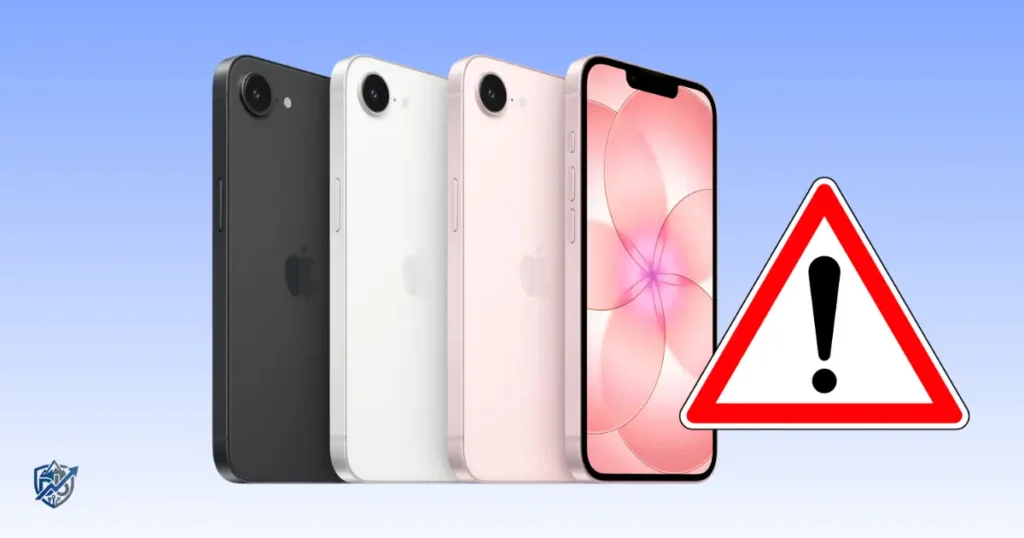
Facing an iPhone 17e not charging issue can pull the brakes on your entire afternoon, especially when you are rushing out the door. Having managed tech setups right here in Seattle, I have seen plenty of panicked users assume their brand-new device has a dead battery when the fix was actually basic. The iPhone 17e uses USB-C for wired top-ups and supports MagSafe and Qi2 wireless charging up to 15W. This guide helps you pinpoint the issue fast, checking simple connections before moving to software tweaks and hardware options.
Why Is My iPhone 17e Not Charging?
A frozen battery indicator does not automatically mean your phone hardware is ruined. External accessories, dirty connections, or safety features inside iOS often pause power delivery to protect your device.
Common Reasons an iPhone 17e Won’t Charge
- Faulty USB-C cable: Hidden copper wire breaks stop power transfers.
- Damaged power adapter: Low-wattage or broken bricks fail to deliver current.
- Wall outlet problem: Blown fuses or loose wall sockets cut off electricity.
- Dirty USB-C port: Pocket lint prevents the charger from seating flush.
- Charging accessory issue: Uncertified gear lacks proper Power Delivery protocols.
- iOS software glitch: Background tasks fail to recognize plugged-in hardware.
- Extreme iPhone temperature: Safety systems pause charging when too hot or cold.
- Deeply discharged battery: Voltage drops so low the screen stays black for minutes.
- Liquid in port: Wet lightning or USB sensors disable current flow.
- Hardware failure: Damaged charging ICs or degraded battery cells.
Is the iPhone 17e Supposed to Use USB-C?
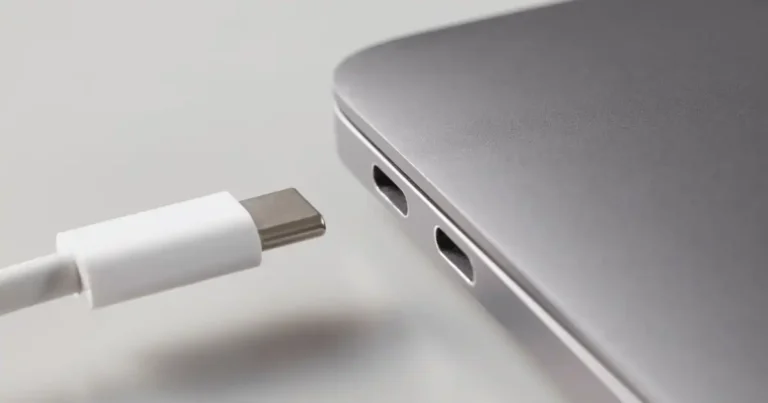
Apple equips the iPhone 17e with a standard USB-C port, phasing out old Lightning connectors completely. The box includes a woven USB-C cable, though you must supply a USB-C power adapter. For basic charging, any standard Power Delivery brick works. Note that the port operates on USB 2 data protocols, so high-speed transfer cables are not required for maximum charging rates. Both wired USB-C and magnetic wireless chargers route power to the same internal battery management chip.
Does iPhone 17e Support Wireless Charging?
Yes, the iPhone 17e features full MagSafe and Qi2 wireless charging support up to 15W. Built-in magnets align third-party pads and Apple pucks instantly to avoid sweet-spot hunting. Using a wireless charger serves as an ideal diagnostic step. If wireless charging works while wired connections fail, you know the phone is taking power, pointing the issue directly at your cable, adapter, or port connection. Stick with Apple-certified or reputable brand accessories to ensure clean voltage regulation.
Check the Charger, Cable, and Wall Outlet First
Start your troubleshooting by checking the external parts feeding power into the iPhone 17e.
Try a Different USB-C Cable
Visually inspect your cable for physical pin damage, sharp bends, or fraying sheath insulation. Swap in a known-good USB-C cable to rule out internal wire fractures. Ensure both ends snap flush into the phone and adapter without wiggling loose. Never assume a cable works just because it charges a lower-power accessory like wireless earbuds; smartphones demand higher wattage via USB PD.
Test Another Power Adapter
Connect your cable to a different USB-C power adapter rated for at least 20W to ensure fast charging. Plug another device into your original adapter to verify if it outputs power at all. Avoid using cracked, buzzing, or generic unbranded charging bricks that lack thermal shut-off protection. Weak bricks drop voltage under load, making your phone think no charger is connected.
Try a Different Wall Outlet
Move your power brick to an alternate wall socket in a different room. If you are using power strips or surge protectors, bypass them completely and plug directly into the wall. Faulty strip breakers or loose socket contacts often interrupt current unexpectedly.
Test the Complete Charging Setup
Follow this rapid action list to isolate external failure points:
- Cable: Change it out for a known-good line.
- Adapter: Change it for a 20W+ Power Delivery brick.
- Outlet: Change it to a primary wall receptacle.
- Phone: Restart it to reset power controller states.
- Port: Inspect it visually with a light source.
Inspect and Clean the iPhone 17e USB-C Port
Pockets collect lint, and charging ports act as vacuum cleaners over time. Debris compressed in the socket keeps metal pins from meeting.
Look Inside the USB-C Port
Shine a bright LED flashlight straight down into the USB-C opening. Look closely for packed lint, denim fluff, or dirt around the center connector tongue. Insert your cable and check if the plastic housing sits flush against the metal frame. Never force a cable inward if you feel a soft, springy cushion preventing a click.
Clean the Charging Port Carefully
Turn off the iPhone before cleaning the port opening. Take a wooden or plastic toothpick and gently scrape the bottom corners around the center pin pillar. Do not push deep force into the back wall, and avoid metal pins or paperclips that strip internal contacts. Avoid compressed air cans held close, and never pour liquid solvents inside. Stop immediately if internal pins look bent out of shape.
Signs the USB-C Port May Be Damaged
- Cable tip feels loose or sways side to side easily.
- Power icon turns on and off when touching the cable head.
- Plastic plug refuses to seat flush despite no debris inside.
- Metallic pins inside look bent, dark, or corroded.
- Multiple known-good USB-C lines fail to draw current.
Hands-on Experience: During my years fixing hardware issues, nine out of ten “broken port” complaints turned out to be compacted lint. A user brought in a phone that would only charge at an angle. Five seconds with a wooden tool pulled out a compressed felt plug from their jeans pocket. The phone charged fine right after. Sometimes the phone is fine; the tiny pocket full of lint is the villain.
Restart Your iPhone 17e When It Won’t Charge
Software daemons handle charging recognition inside iOS 26. Restarting reboots those system background services.
Restart the iPhone 17e Normally
If your screen responds, hold the side button and either volume button until sliders appear. Drag the power slider to shut the phone off completely. Wait thirty seconds, press the side button until the logo shows, then reconnect your USB-C cable to monitor power indicators.
Force Restart the iPhone 17e
When the display stays black or frozen, perform a hardware button reset:
- Press and quickly release the Volume Up button.
- Press and quickly release the Volume Down button.
- Press and hold the Side Button until the Apple logo appears.
Give the phone a minute to boot up fully before re-plugging your charger to test current intake.
When a Restart Fixes Charging
System restarts clean out stuck firmware commands on the power management IC. Software bugs can misread accessory handshakes, pausing battery charging functions entirely. Since intermittent charging reports surface across the wider iPhone 17 lineup after software updates, running system restarts serves as an easy fix before considering hardware repairs.
What to Do When iPhone 17e Shows the Charging Icon but Battery Percentage Doesn’t Rise
When the lightning bolt icon appears but your charge percentage stays stuck, power is entering the device too slowly or burning off instantly.
Check Whether the iPhone Is Getting Power
Verify the lightning bolt rests inside the battery graphic in your status bar or lock screen. Note down the current percentage, turn off the screen, and leave the device untouched for fifteen minutes. Check if the counter goes up. If it drops while plugged in, your charger provides less power than the system uses.
Stop Heavy Apps While Testing
- Swipe up to close gaming apps, video editors, or GPS tracking software.
- Stop active camera recording or heavy background file downloads.
- Turn down screen brightness levels temporarily during diagnostic tests.
- Let your iPhone rest undisturbed to confirm baseline power delivery rates.
Check for Heat
Remove thick protective cases that trap heat around the rear glass casing. Shift the device out of direct sunlight or off warm surfaces like laptop exhaust vents. Allow internal thermal levels to return to normal room temperatures naturally. Never place hot phones inside fridges or ice packs, as condensation destroys internal circuit boards.
Explain Slow Charging Versus No Charging
- No charging symbol: Complete circuit failure or dead accessory path.
- Symbol present, no percentage gain: Power draw equals charger output.
- Very slow percentage gain: Sub-standard wall brick or low-power USB port input.
- Charging repeatedly stops: Thermal pauses or loose physical port contacts.
Check for iOS and Software Problems
After clearing physical gear, inspect internal system software for pending system updates.
Check for an iOS Update
Go to Settings > General > Software Update. If an update appears, connect to Wi-Fi and install it right away. Once your phone reboots, plug in your USB-C cable to verify charging behavior.
Why Software Updates Matter
Updating system software delivers thermal adjustments, battery safety patches, and charging detection code improvements. Apple regularly refines charging profiles within iOS releases to maintain battery health while fixing accessory handshake bugs.
Check Whether Charging Works After a Restart
If charging starts working only after a reboot, keep track of how often the issue happens. Note if specific apps, car adapters, or high heat trigger the problem. Passing these details to Apple Support speeds up diagnosis if software fixes do not resolve it.
Check iPhone 17e Temperature and Charging Conditions
Built-in sensors pause charging when internal temperatures cross safety thresholds.
iPhone 17e Gets Hot While Charging
High temperatures cause iOS to freeze charging around 80% to protect battery longevity. Disconnect the cable, stop playing games, and move your phone to a cool, shaded place. Let the internal battery cool down to normal room temperatures before plugging power back in.
iPhone 17e Is Very Cold
Lithium-ion batteries struggle to transfer ions in near-freezing temperatures. If your device sat inside a cold car, bring it into a warm room. Allow the phone to adjust to room temperature naturally for 20 minutes before testing your power cable.
Why Temperature Matters
Lithium chemistry degrades fast when charged under extreme heat or freezing cold. Built-in safety guards pause charging automatically until the phone reaches a safe temperature, protecting internal hardware from permanent damage.
Try MagSafe or Qi2 Wireless Charging as a Diagnostic Test
Using an alternate power route helps pinpoint physical port failures quickly.
If Wireless Charging Works but USB-C Does Not
- The internal battery and charging safety circuits are working fine.
- Your USB-C cable or wall adapter brick has failed.
- Pocket lint or physical damage is breaking port contacts.
- Wired power input components need professional attention.
If Neither Wired nor Wireless Charging Works
- System software is frozen and requires a forced restart.
- Extreme internal temperatures are triggering safety cutoffs.
- Deeply depleted battery cells require a prolonged charge cycle.
- Internal power management chips have suffered hardware failure.
Make Sure the Phone Is Properly Aligned
Set your phone flat on the center of your Qi2 or MagSafe pad. Take off thick magnetic wallets, metal plates, or heavy phone cases that block induction power. Verify the magnetic lock snaps into place so power transfers smoothly.
iPhone 17e Not Charging When Completely Dead
A fully drained battery may take several minutes to wake up the screen.
Leave the iPhone Connected for a While
Plug your iPhone into a working wall outlet with a 20W+ adapter and leave it alone. Do not press buttons repeatedly. Let the battery absorb power undisturbed for at least 30 minutes until the screen turns back on automatically.
Try a Different Charging Setup
If 30 minutes pass without signs of life, swap to a secondary known-good cable and outlet. Change one accessory at a time so you can identify which component fixed the problem.
Force Restart After Connecting the Charger
If your phone screen stays black after 30 minutes on power, try a force restart while keeping the cable plugged in. Hold the side button down until the Apple icon shows, waking up frozen boot routines.
When a Completely Dead iPhone Needs Service
- Screen stays completely black after an hour on power.
- No charging icons or Apple logos appear on screen.
- Device refuses to respond to wireless pads or USB-C cables.
- Phone casing remains cold without drawing any current.
iPhone 17e Not Charging Because of Liquid or Moisture
Moisture detection alerts lock out charging pins to prevent short circuits.
Signs of Moisture in the USB-C Port
- Liquid Detected on-screen warnings block accessory use.
- Phone was dropped in water, exposed to rain, or kept in humid places.
- Charging stops right after contact with damp surfaces.
- Moisture drops are visible inside the port socket.
What Not to Do
- Do not jam cotton swabs, tissues, or metal objects inside the port.
- Do not dry your phone with hair dryers or heat guns.
- Do not plug cables in while safety warnings stay on screen.
- Do not drop the phone into rice bags, which pack dust into ports.
When to Get Professional Help
If your iPhone port stays dry for 24 hours but liquid warnings will not clear, hardware sensors may have shorted out. Persistent warnings or visible corrosion mean it is time to have an authorized repair technician inspect the phone.
iPhone 17e Not Charging After an iOS Update
Software updates occasionally introduce temporary glitches that disrupt power detection.
Restart After the Update
Finish any pending system setup steps, then shut down your device completely. Power it back up and re-attach your USB-C line to refresh accessory handshakes.
Check for a Newer iOS Update
Apple regularly releases quick bug-fix updates after major software rollouts. Go to Settings > General > Software Update to install any new patches that resolve charging issues.
Avoid Immediately Blaming the Update
Check your physical hardware before assuming software is at fault. Test another cable, try a different wall brick, plug into another outlet, and clean out the USB-C port. Physical issues often happen to coincide with software updates.
iPhone 17e Charging Troubleshooting Chart
Use this quick guide to diagnose your phone’s charging issues without guessing:
| Problem | Most Likely Cause | First Test | Next Step |
| No charging icon | Cable, adapter, or dirty port | Try another USB-C cable | Test a different power adapter |
| Charging starts and stops | Loose cable or debris in port | Inspect port with flashlight | Clean out port carefully |
| Battery stays at same % | Heavy app use or weak adapter | Turn screen off for 15 mins | Swap to 20W+ power brick |
| Wireless works, cable fails | Damaged cable or USB-C port | Test secondary USB-C setup | Inspect port pins for damage |
| Nothing works at all | Frozen system or hardware fault | Perform forced restart | Contact Apple Support |
| Phone gets very warm | High thermal load or direct sun | Unplug and stop heavy tasks | Let phone cool down |
iPhone 17e Not Charging: Quick Fixes in Order
Follow this step-by-step checklist to troubleshoot charging issues fast:
The 10-Step Charging Test
- Plug your power adapter into a different wall outlet.
- Swap out your USB-C power adapter brick.
- Switch to a known-good USB-C cable.
- Inspect the USB-C port under a bright light.
- Gently clear out any visible dust or pocket lint.
- Perform a normal restart on your iPhone.
- Check for and install available iOS updates.
- Let the phone sit in a cool spot if it feels hot.
- Test power delivery using a MagSafe or Qi2 wireless pad.
- Contact Apple Support if your phone still will not charge.
Fastest Fix for Each Common Symptom
- No charging symbol: Swap out your cable and wall brick right away.
- Loose USB-C connection: Clean compacted debris out of the port socket.
- Percentage stuck: Close heavy background apps and let the phone rest.
- Wireless works but cable fails: Focus on cleaning or repairing the physical port.
- Completely dead phone: Plug into a 20W+ charger for 30 minutes, then force restart.
When Should You Contact Apple Support?
When hardware troubleshooting steps fail, stop jamming cables inside and get professional repair help.
Signs Your iPhone 17e May Need Service
- Known-good cables and wall adapters consistently fail to supply power.
- Wired USB-C cables and wireless MagSafe chargers both fail to register power.
- The physical USB-C port looks bent, dark, or visibly broken.
- The battery percentage jumps erratically or drops while plugged in.
- The device grows uncomfortably hot as soon as power connects.
What to Tell Apple Support
- Exactly when the charging issues started occurring.
- Whether wired USB-C or wireless MagSafe charging works.
- Which specific cables, wall adapters, and outlets you tested.
- If restarting or force restarting your device changed anything.
- Whether the device had any contact with water or drops.
- The current iOS version installed on your device.
Warranty and Repair Considerations
Check your warranty coverage or AppleCare status before paying for third-party repairs. Avoid opening the phone casing yourself, as DIY repairs void warranty protections and break water seals. Schedule an appointment with Apple Support or an Apple Authorized Service Provider for proper diagnostic testing. Back up your phone data to iCloud over Wi-Fi if power allows.
How to Prevent iPhone 17e Charging Problems
A few basic maintenance habits will keep your phone charging reliably for years.
Take Care of the USB-C Port
- Keep ports clean by blowing out loose dust regularly.
- Insert USB-C connectors straight without forcing them at odd angles.
- Avoid yanking charging cables sideways when unplugging your device.
- Keep your phone out of linty pockets or dusty bags without a protective case.
Take Care of Charging Accessories
- Replace frayed or split charging cables right away.
- Stop using power adapters that get hot, buzz, or show damage.
- Use certified Power Delivery accessories from reputable brands.
- Store cables coiled loosely without tight knots or sharp bends.
Avoid Charging in Excessive Heat
- Never cover charging phones with blankets, pillows, or heavy clothing.
- Keep charging devices out of direct sunlight on warm days.
- Avoid playing graphics-heavy games while fast-charging on hot days.
Frequently Asked Questions About iPhone 17e Not Charging
Why is my iPhone 17e not charging with USB-C?
Issues typically stem from broken cables, weak power bricks, dirty ports, software glitches, liquid detection, or extreme battery temperatures.
Why is my iPhone 17e charging but the battery percentage is not increasing?
This happens when high power use, warm temperatures, or low-wattage adapters prevent current from building up faster than the phone consumes it.
How do I fix an iPhone 17e that won’t charge?
Try a different cable, switch power adapters, clear port debris, restart your device, update iOS, or test a wireless charger.
Does the iPhone 17e support MagSafe charging?
Yes, the iPhone 17e supports official MagSafe and Qi2 wireless chargers at up to 15W speeds.
Can a dirty USB-C port stop an iPhone 17e from charging?
Yes, compacted dust or pocket lint blocks physical contact pins, preventing proper power transfer.
Why does my iPhone 17e keep connecting and disconnecting while charging?
Loose cable connectors, lint inside the port, damaged internal pins, or shorted wires cause power to cut out repeatedly.
What should I do if my iPhone 17e is completely dead and won’t charge?
Plug into a known-good 20W+ adapter for 30 minutes. If the screen stays dark, perform a forced restart while connected to power.
Should I reset my iPhone 17e if it won’t charge?
No, do not jump to a full factory reset. Troubleshoot cables, clean out your port, and try basic device restarts first.
When should I take my iPhone 17e to Apple for repair?
Seek professional help if multiple known-good chargers fail, physical port damage is visible, or neither wired nor wireless charging works.
iPhone 17e Charging Troubleshooting: Quick Comparison
Review this comparison to match your symptoms with the right solution:
| Symptom | Try First | If It Fails | Likely Area |
| No response | Swap cable + adapter | Perform force restart | Power path or software |
| Cable won’t stay connected | Clear port debris | Contact Apple Support | Physical USB-C port |
| Charging is very slow | Use 20W+ PD brick | Close background apps | Power supply or heat |
| Wireless works, cable doesn’t | Try another USB-C cable | Clean USB-C port pins | Wired physical path |
| Neither method works | Perform force restart | Visit Apple Support | Internal hardware/battery |
| Problem began after update | Restart and re-plug | Install next iOS update | System software bug |
Final Recommendation
Dealing with an iPhone 17e not charging can be frustrating, but simple fixes like clearing out port lint or swapping cables usually resolve the issue fast. Based on my years testing hardware, systematically working through external gear saves you unneeded trips to the repair shop. Always start with basic checks before assuming internal parts have failed. If physical port damage or complete charging failures persist across all wired and wireless accessories, reach out to Apple Support for safe, expert service.

Ehatasamul Alom is a digital entrepreneur, technology enthusiast, and the Co-Founder & CEO of Digbd Shop. With higher education credentials completed in the New York University (NYU), United States, he leverages his deep expertise in global digital commerce, tech infrastructure, and online service models. Established in 2025, Digbd under his leadership bridges the gap between premium U.S. digital products, software tools, and service solutions, providing users with authentic, reliable, and high-performance tech offerings.