How Often Should You Replace a Laptop? A Practical Guide
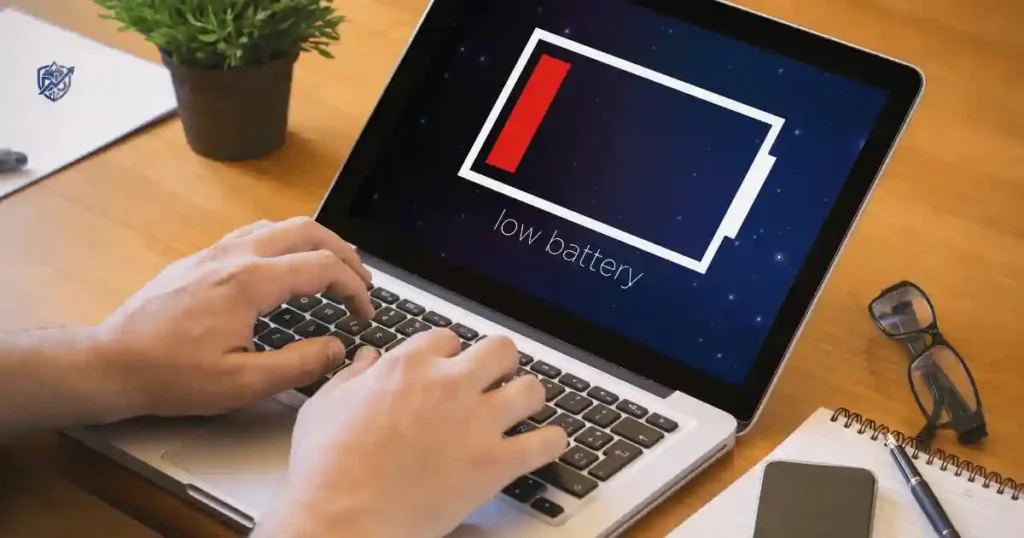
You are sitting in a cozy New York cafe, trying to edit a document, but your laptop fan sounds like a tiny jet taking off. Then the battery drops from 40% to 8% in two minutes, and opening a new browser tab feels like waiting for a bus in the rain. So, how often should you replace a laptop? The truth is that there is no single expiration date for every user. A well-maintained device can last many years, while a heavily used or poorly supported one may need replacement much sooner.
Knowing when to upgrade depends on your laptop age, daily performance, battery health, and software and security updates. It also comes down to repair costs, hardware limitations like storage, RAM, and processor performance, screen and keyboard condition, and your personal workload. This guide will help you decide when to replace a laptop, when to repair it, and when to keep using it safely.
How Often Should You Replace a Laptop?
The first question most people ask is simple: how many years should my laptop last? The honest answer depends on how you use it and how well you care for it.
How Many Years Does a Laptop Usually Last?
Different laptops serve different needs, so their useful life varies:
- Basic home use: 5 to 8 years. Web browsing and streaming do not demand much power.
- Student use: 4 to 6 years. Daily travel and assignments take a physical toll.
- Office and business use: 3 to 5 years. Productivity requires fast multitasking and tight security.
- Creative work: 3 to 5 years. Video editing and 3D rendering strain hardware over time.
- Gaming: 2 to 4 years. New games require faster graphics cards and better cooling.
- Professional workloads: 3 to 5 years. Heavy coding and data analysis need peak speed.
The physical lifespan of a device is how long the parts actually turn on. The usable lifespan is how long the machine runs your daily tools without slowing you down. A laptop can physically turn on for ten years, but its usable life might end much sooner.
Is Five Years Too Old for a Laptop?
A five-year-old laptop is not automatically useless. Many five-year-old machines run basic office apps and web browsers with ease.
Your five-year-old device is still fine if:
- It runs your daily apps without freezing.
- It receives current security updates from the maker.
- The battery gives you a few hours of unplugged work.
- You have enough storage space for your files.
- The fans stay quiet and the case does not overheat.
- Minor repairs remain cheap and easy to do.
Is Seven or Eight Years Too Old?
When a machine reaches seven or eight years of age, several hidden problems start to build up:
- Older processors struggle with modern web pages.
- Chemical battery degradation leaves you tied to a wall outlet.
- Limited RAM causes sudden app crashes during multitasking.
- Mechanical hard drives or early solid-state drives become very slow.
- Operating system makers stop sending vital security patches.
- Hardware compatibility fails with new printers, Wi-Fi routers, and external drives.
- Repair costs often exceed the total value of the machine.
Why Laptop Age Alone Does Not Tell the Whole Story
Judging a device by its age alone is a common mistake. A high-end business laptop built with strong metal and a fast chip can easily outlast a cheap budget laptop bought on the exact same day.
For instance, a carefully maintained corporate machine used on a clean desk might last six smooth years. Meanwhile, an entry-level plastic machine taken on daily subway rides might slow down after just two years. Gaming models also age faster because heavy heat degrades internal parts quicker than light office work.
The 10 Signs You Should Replace Your Laptop
You do not need to be a computer repair expert to know when your machine is reaching the end of its life. Here are ten clear warning signs that tell you it is time for a new device.
1. Your Laptop Is Too Slow for Basic Tasks
When simple tasks become a chore, your hardware is telling you something. Common signs include:
- Boot times that take several minutes.
- Long app loading times for simple tools like word processors.
- Browser lag while scrolling basic web pages.
- Frequent freezing during video calls or typing.
- Delayed key responses on screen when typing fast.
- Slow file transfers when copying photos to a drive.
2. The Laptop Cannot Run the Software You Need
Software updates make apps faster, but they also demand better hardware over time. Modern operating systems need faster chips and more memory to run smoothly.
If your work requires modern browsers, updated office tools, video editing software, or new AI tools, older hardware will hold you back. Gamers will notice this when new titles refuse to load or run at unplayable frame rates.
3. It No Longer Receives Important Security Updates
Running an unsupported operating system is a major security risk. Without regular security patches, your private files, banking details, and passwords become easy targets for web threats.
When your device maker stops sending system updates, your web browsers also stop updating. This leaves your system open to new viruses and malware that basic safety habits cannot block.
4. The Battery Barely Lasts
Batteries are consumable parts that wear out over time. Common signs of a dying battery include:
- The battery drains in under an hour.
- Sudden shutdowns happen when the battery meter shows 30% power left.
- The battery percentage jumps wildly up and down.
- The laptop only stays powered on when plugged directly into the wall.
5. Repairs Are Becoming Too Expensive
Fixing an old machine makes sense until the costs stack up. Paying for one small repair is fine, but paying for repeated fixes is a waste of money. Major issues like a failed motherboard, a cracked high-resolution screen, or a dead logic board often cost as much as a new entry-level device.
6. It Overheats or Shuts Down Often
Laptops generate a lot of heat in tight spaces. Over time, dust buildup inside the vents and failing cooling fans trap hot air inside the case.
When internal parts get too hot, the computer slows down its speed to protect itself. If the heat stays high, the machine shuts down without warning to prevent permanent chip damage.
7. You Constantly Run Out of Storage
Full storage drives do more than stop you from saving new files; they also slow down your entire operating system. When your internal solid-state drive is completely full, the computer struggles to run background tasks. While external drives and cloud storage help with extra photos or videos, your main drive needs breathing room to keep the system snappy.
8. You Cannot Upgrade What You Need
Older machines often allowed users to pop off the back cover and add more RAM or a larger drive. Modern laptops usually weld these parts directly onto the main board. If your RAM is soldered in place and your storage cannot be expanded, you cannot upgrade your way out of slow performance.
9. The Physical Hardware Is Failing
Physical wear and tear can make a device painful to use every day:
- Worn hinges that cannot hold the screen upright.
- Cracked display panels with dead color lines.
- Loose or broken charging ports that cut power when bumped.
- Missing keycaps or sticky key switches that mess up typing.
- Glitchy trackpads that jump across the screen.
10. Your Needs Have Changed
Sometimes a computer works fine, but it no longer matches your daily life. A student entering the workforce might need a lighter device with a better webcam for remote meetings. An office worker starting photo editing needs a brighter, color-accurate screen. When your laptop holds your daily productivity back, replacing it is a smart move.
How Laptop Age Affects Replacement Decisions
Age is a great guide when paired with performance and software support. Here is how to evaluate your device based on how long you have owned it.
Laptops Under 3 Years Old
Machines in this age bracket are usually in their prime. If your system runs fast, holds a good charge, and receives regular updates, keep it. Replacing a laptop this young is rarely necessary unless it suffered major water damage or a severe drop.
Laptops Around 3 to 5 Years Old
This is the classic decision zone for most users. Your device might show mild battery wear or feel slightly slower during heavy multitasking. Take a close look at your SSD health, total RAM, and thermal performance before deciding to buy a new one.
Laptops Around 5 to 7 Years Old
At this stage, hardware components show clear signs of aging. You might experience failing fans, short battery life, and sluggish responses in modern web applications. Repairing machines in this bracket is rarely worth the money unless it is a very cheap battery swap.
Laptops Over 7 Years Old
Devices past the seven-year mark have reached the end of their design life. They lack modern security chips, struggle with basic video calls, and miss out on operating system updates. Moving to a new machine gives you better speed, longer battery life, and total peace of mind.
Should You Replace or Repair Your Laptop?
Not every slow or broken machine belongs in the trash. A quick, low-cost fix can easily buy you two more years of comfortable use.
When Repairing Makes More Sense
Fixing your current machine is the smart move if:
- The rest of the hardware runs fast enough for your needs.
- The total repair cost is low compared to a new machine.
- The battery can be swapped out easily.
- You can add a faster SSD or more memory for a low price.
- A broken screen is the only actual flaw on a young device.
When Replacement Makes More Sense
Buying a new machine is better if:
- Multiple internal parts are failing at the same time.
- You have already paid for two or more repairs this year.
- The main motherboard has electrical damage.
- The hardware cannot run the software you need for work.
- Security support from the maker has completely ended.
- The repair quote is more than half the price of a new machine.
The Repair Cost Rule of Thumb
When deciding between a fix and a new purchase, look at the big picture. Add the current repair quote to any likely future repair costs over the next year. Compare that number to the cost of a brand-new device with a fresh warranty, better battery life, and much faster speed.
Example: A $150 Repair on a $600 Laptop
Spending $150 to replace a worn battery or a damaged keyboard on a three-year-old $600 laptop is a great investment. It gives you a fast, healthy machine for a fraction of the cost of a new one.
Example: A $400 Repair on a $500 Laptop
Paying $400 to fix a broken display on an old $500 budget machine is a bad financial choice. Putting that $400 toward a modern, fast device gives you far better value, updated security, and a fresh warranty.
Laptop Replacement Decision Table
A repair technician would not judge a device by age alone. The better question is whether the machine still does its job at a reasonable cost. Use this decision chart as a starting guide for your machine.
| Laptop Condition | Device Age | Recommended Action |
| Fast and reliable performance | 1 to 3 years | Keep using the device |
| Good speed, but weak battery life | 3 to 5 years | Consider a simple battery replacement |
| Slow speed, but parts are upgradeable | 3 to 6 years | Upgrade RAM or SSD storage first |
| Frequent hardware glitches and repairs | 5+ years | Plan for a new laptop replacement |
| Official security support has ended | Any age | Replace or update OS if supported |
| Major motherboard or logic board failure | 5+ years | Replace the machine entirely |
| Broken screen on an otherwise fast unit | Any age | Compare local repair cost to a new device |
| Meets all daily needs without trouble | 7+ years | Keep using it while software stays secure |
How Battery Health Should Affect Laptop Replacement
Battery issues are the most common reason people think they need a new computer. However, a weak battery does not always mean the entire computer is trash.
How Long Does a Laptop Battery Usually Last?
Most modern lithium-ion batteries are designed to handle 300 to 500 full charge cycles. For average users, that equals roughly two to three years of daily use before the capacity drops below 80%. High operating heat and keeping the charger plugged in 24/7 can shorten this lifespan even faster.
Signs Your Laptop Battery Needs Replacing
Watch for these clear indicators that your battery is failing:
- The charge depletes in a fraction of its original time.
- The machine shuts off abruptly while showing plenty of power.
- The battery percentage fluctuates wildly during light tasks.
- The system only stays on when connected to the charger.
- The trackpad bulges due to an expanding internal cell.
When a Battery Replacement Is Worth It
Swapping out an old battery is often cheap and simple. If your machine still boots fast, runs your favorite apps, and receives security patches, dropping $50 to $100 on a new battery can extend its life by two or three years.
Battery Replacement vs Buying a New Laptop
Compare the small price of a fresh battery against the high cost of a new machine. If the processor handles your work easily and software support is active, swapping the battery is the smartest economic choice.
What About a Swollen Battery?
A swollen battery is a critical safety threat that needs immediate care. As gas builds up inside failing battery cells, it pushes against the trackpad and bottom case. Never charge or use a device with a swollen battery. Turn it off, disconnect the charger, and take it to a qualified repair technician right away.
How Performance Tells You It Is Time to Upgrade
Age matters much less than how your device handles your actual workload each afternoon. When everyday tasks feel sluggish, your productivity suffers.
Slow Startup and Boot Times
If turning on your computer gives you enough time to brew a cup of coffee, your system is struggling. Old mechanical hard drives, packed storage drives, and bloated startup software cause painfully slow boot times on older machines.
Browser Tabs Keep Freezing
Modern web pages eat up a lot of system memory. If switching between browser tabs causes pages to reload or freeze, your system is running out of available RAM.
Multitasking Feels Painful
Trying to run a video call while taking notes and keeping several web tabs open tests your system hardware. When switching between apps causes mouse lag, audio stutters, or temporary screen freezes, your processor and RAM have reached their absolute limit.
The Laptop Struggles With Modern Apps
Software developers design modern applications for current hardware. As apps add new features, visual tools, and AI capabilities, older processors get left behind, resulting in slow responses and random crashes.
When a Simple Upgrade Can Fix Slow Performance
Before spending money on a new computer, check if cheap upgrades can fix the speed:
- Swap an old mechanical hard drive for a super-fast solid-state drive.
- Add an extra stick of RAM to help with heavy multitasking.
- Clean up your operating system by removing unused apps.
- Turn off unnecessary background programs that launch at startup.
How Software and Security Support Affect Laptop Lifespan
A computer can turn on and run fine while still being an unsafe choice for daily internet use. Security support is a critical part of your device’s total lifespan.
Why Operating System Support Matters
Operating system makers release regular updates to patch newly discovered security holes. They also issue bug fixes and driver updates that keep your hardware running smoothly with newer printers, webcams, and software.
What Happens When a Laptop Becomes Unsupported?
Using an unsupported operating system leaves you exposed to serious risks:
- Web hackers can exploit unpatched security holes in your system.
- Banks and official sites may block your outdated web browser.
- Essential apps like Zoom, Word, or Slack will stop working.
- New peripheral devices will fail to connect due to missing drivers.
Can You Keep Using an Old Laptop Safely?
You can continue using an older machine safely if it still receives official operating system updates. However, installing third-party antivirus software on an unsupported, outdated operating system will not protect you completely. When core security updates end, replacing the machine or switching to a supported lightweight operating system is the safest path forward.
Does Your Type of Laptop Change How Often You Replace It?
The way you use your computer plays a massive role in how quickly it wears down. Light web browsing is far easier on hardware than heavy gaming or video work.
Home and Basic Everyday Use
Basic home machines handle light tasks like reading news, checking email, streaming movies, and making family video calls. Because these tasks do not require massive computing power, a simple home computer can easily last five to eight years with basic care.
Students
Student laptops lead a tough life packed in heavy backpacks, moving between classrooms, and running on battery power all day. They face constant bumps, hinge strain, and spilled drinks. Students usually need a new machine every four to six years to keep up with school software and battery demands.
Remote Workers
Remote workers need rock-solid reliability for daily video calls, cloud apps, and constant multitasking. A failing webcam, weak battery, or slow browser directly hurts daily job performance. Replacing an office remote machine every four to six years keeps work running smoothly without frustrating downtime.
Business Professionals
Corporate environments require high security, fast processing, and reliable field operation. Companies typically replace business devices every three to five years to ensure data protection, maintain warranty coverage, and give employees reliable tools for daily travel.
Creators and Video Editors
Video editors, graphic designers, and 3D animators push system hardware to its limits. Rendering high-resolution video clips requires fast multi-core processors, dedicated graphics cards, and massive RAM. Creators usually replace their machines every three to five years to stay competitive and speed up export times.
Gamers
Modern video games push graphics technology forward at a rapid pace. Gaming laptops also run hot, which puts extra stress on internal cooling fans and power circuits. Gamers often replace or upgrade their portable rigs every two to five years to play new games at high frame rates.
Laptop Replacement Lifespan by User Type
A computer that spends its days handling basic email has a much easier life than one rendering 4K video clips or running heavy games. These ranges offer a practical guide for different user workloads.
| User Type | Typical Replacement Window | Main Reason for Replacement |
| Basic Home User | 5 to 8 years | Slow overall speed and ending software support |
| Student | 4 to 6 years | Outdated software requirements and weak battery |
| Office Worker | 4 to 6 years | Lower productivity and declining system reliability |
| Remote Worker | 4 to 6 years | Poor webcam performance, weak battery, and lag |
| Business Professional | 3 to 5 years | Corporate security needs and warranty coverage |
| Content Creator | 3 to 5 years | High processing demands for media editing |
| Gamer | 2 to 5 years | New graphics requirements for current games |
How to Know If Your Laptop Still Has Life Left
Before shopping for a new device, check what you already own. You might find that a quick settings tweak or a small component upgrade gives your current machine a second life.
Check Your Laptop’s Age
Find your exact model number and original purchase date:
- Look at the small sticker printed on the bottom case.
- Check your original store receipt or email invoice.
- Type your serial number into the maker’s support website to see the build date.
Check RAM
Open your system settings to see how much memory is installed:
- 8GB of RAM: Fine for basic web browsing and simple office tasks.
- 16GB of RAM: Great for smooth multitasking, editing, and work apps.
- 32GB or more: Needed for heavy creative work and high-end gaming.
Check if your machine has an open RAM slot so you can add more memory cheaply.
Check Storage
Take a close look at your main storage drive:
- Ensure you have at least 15% to 20% free space available.
- Identify whether your machine uses an old mechanical HDD or a fast SSD.
- Upgrading an old mechanical drive to an SSD speeds up any old machine dramatically.
Check Battery Health
Also, Check your actual battery condition using built-in system tools:
- On Windows, generate a full battery report via the command prompt.
- On a MacBook, option-click the battery icon to check condition status.
- Look at the cycle count and maximum charge capacity compared to new.
Check Software Support
Check your operating system settings to see if your unit accepts current software builds. If your maker no longer supports your model with current security patches, it is time to plan an upgrade.
Check Real-World Performance
Ask yourself a few simple, practical questions:
- Do your daily apps open quickly without annoying delays?
- Does the system freeze during simple video calls?
- Does the casing get uncomfortable to hold on your lap?
- Can it handle your everyday workload without causing frustration?
Can Upgrades Extend Your Laptop’s Life?
Sometimes the best computer upgrade is the one you already own sitting on your desk. Simple hardware fixes can save you hundreds of dollars while delivering like-new performance.
Upgrade to an SSD
If your older computer still runs on an old mechanical hard drive, replacing it with a solid-state drive (SSD) is the single best upgrade you can make. An SSD boots your operating system in seconds, opens apps instantly, and makes an old machine feel remarkably fast again.
Add More RAM
Adding extra RAM gives your system the breathing room it needs to handle multiple web tabs and apps at once. If your memory is not soldered directly to the motherboard, buying a cheap RAM stick is a simple way to eliminate everyday freezing.
Replace the Battery
Installing a fresh battery removes the hassle of hunting for wall outlets everywhere you go. If the rest of the machine runs fast, a simple $50 battery swap gives you total wireless freedom again.
Clean Dust and Improve Cooling
Over time, dust blocks tiny cooling vents and coats internal fans. Opening the bottom case carefully and blowing out trapped dust with compressed air restores proper airflow. This keeps your system cool, reduces fan noise, and prevents thermal throttling.
Upgrade the Operating System When Supported
Always install supported operating system updates when your hardware allows it. Current software keeps your system secure, fixes bugs, and improves power management for better battery life.
Laptop Upgrade vs Replacement Cost Comparison
The cheapest option is not always the best value over time. Spending $100 on a small upgrade that adds two useful years beats spending $800 on a new device you did not really need.
| Situation | Possible Upgrade Cost | Smart Financial Choice |
| Worn battery, fast performance | Low to Medium ($50 – $120) | Replace the battery cell |
| Storage drive is completely full | Low to Medium ($60 – $140) | Upgrade to a larger SSD |
| Memory is low, multitasking lags | Low to Medium ($40 – $100) | Add extra RAM if slots exist |
| Cracked display screen panel | Medium to High ($150 – $350) | Compare repair cost to new unit |
| Broken main logic motherboard | High ($350 – $700+) | Replace the entire laptop |
| Very slow speed on old hardware | Varies depending on fix | Inspect parts before buying |
| Security updates ended completely | Varies depending on system | Replace unit or swap OS |
USA Expert Advice on Laptop Replacement
Getting advice from active electronics technicians helps put your purchase decision into perspective.
Expert View: Replace Based on Use, Not Just Age
“When clients ask me if they should toss a five-year-old laptop, I always tell them to look at their actual daily tasks first,” says Mark Richardson, a veteran hardware repair specialist based in Chicago, Illinois. “A five-year-old machine used for basic typing and email can easily run for two more years with a $60 SSD upgrade. But if that same machine is blocking security patches or failing during work calls, replacing it is the smarter financial move.”
Expert View: Do Not Ignore Battery or Security Problems
Experienced IT technicians emphasize that safety should always come first when evaluating old hardware:
- Never ignore an expanding battery that pushes against the top trackpad.
- Avoid using unsupported operating systems for online banking or sensitive work files.
- Stop paying for repeated minor fixes on a machine with a failing logic board.
Practical Expert Advice for Buyers
When evaluating an old computer, a professional technician looks at six key factors:
- Current daily performance under full workload.
- Physical condition of hinges, screen, and ports.
- Official software security support status.
- Total estimate for all required repairs.
- Upgrade options for memory and storage.
- Expected work demands over the next three years.
Real-Life Laptop Replacement Scenarios
These real-world examples show how to weigh repair costs against buying a new machine in everyday situations.
Scenario 1: The Six-Year-Old Student Laptop
A six-year-old student device boots fine and has a healthy SSD, but its battery drains in 30 minutes. Basic school writing apps run smoothly without freezing.
Smart Decision: Replace the worn battery for $60 rather than spending $600 on a new machine.
Scenario 2: The Four-Year-Old Office Laptop
A four-year-old business unit freezes whenever the user opens ten web tabs and a spreadsheet. It has a fast processor, but only 8GB of memory and a full drive.
Smart Decision: Upgrade the RAM to 16GB and clear unused files before considering a replacement.
Scenario 3: The Seven-Year-Old Laptop With Security Issues
A seven-year-old home machine runs an outdated operating system that no longer receives security updates. Web browsers refuse to update, and modern apps crash frequently.
Smart Decision: Replace the device to keep personal data safe and enjoy modern web speeds.
Scenario 4: The Three-Year-Old Laptop With a Broken Screen
A three-year-old fast computer suffers a cracked display from a drop. The quote for a screen replacement is $200, while a comparable new unit costs $750.
Smart Decision: Pay for the screen repair since the internal hardware remains fast and healthy.
Scenario 5: The Laptop Used in a Hot, Humid Environment
A computer used in a warm, dusty office runs its fans constantly at max speed. Internal heat degrades the battery cells and causes sudden thermal shutdowns during video calls.
Smart Decision: Clean out internal dust with compressed air first. If thermal shutdowns continue, upgrade to a new machine with better cooling design.
Common Laptop Replacement Mistakes to Avoid
Making a smart buying choice means avoiding common pitfalls that waste your hard-earned money.
Replacing a Laptop Just Because It Is Old
Age alone does not make a computer useless. If your older system runs your daily tools quickly and stays secure, keep using it and save your money.
Keeping a Laptop That No Longer Receives Security Updates
Holding onto an unsupported computer to save money often backfires. A single malware infection can compromise your banking details, personal photos, and sensitive personal files.
Ignoring Repair Costs
Keeping track of small repairs prevents you from sinking money into a dying system. If you spend $100 on a charger, $120 on a battery, and $150 on a screen fix in a single year, you should have put that money toward a new device.
Buying More Performance Than You Need
Avoid spending extra money on high-end gaming GPUs, massive RAM, or top-tier processors if you only plan to browse the web, stream movies, and write documents.
Buying Too Little Performance for Future Needs
When buying a new computer, think three to five years ahead. Getting a bit more memory and storage today ensures your new device stays fast as software demands grow over time.
Forgetting About Repairability
Before buying a new model, check if the battery, storage, and memory can be serviced easily. Choosing a repairable design makes future maintenance much cheaper down the road.
A Laptop Replacement Decision Checklist
Use this quick checklist to guide your final choice.
Keep Your Laptop If:
- It runs all your daily applications quickly.
- The operating system receives official security patches.
- The battery gives you enough unplugged power for your needs.
- The physical case, screen, and keyboard remain in good condition.
- Repair costs stay low and manageable over time.
Upgrade Your Laptop If:
- Storage space is running out on your main drive.
- System memory is low, but open RAM slots exist.
- The battery is weak, but internal hardware runs fast.
- Performance improves significantly by swapping to an SSD.
Replace Your Laptop If:
- Essential work software refuses to run on your hardware.
- Official operating system security updates have ended completely.
- Major internal parts like the logic board are failing.
- Total repair estimates approach the cost of a new unit.
- Frequent freezing and slowdowns disrupt your work daily.
How Often Should You Replace a Laptop? Quick Reference
Keep this quick reference summary in mind as you make your decision:
Replace Around 3 to 5 Years If:
- You rely on your machine for heavy daily work.
- You need top-tier performance for video, design, or games.
- Your job demands absolute system reliability and active warranties.
Consider 5 to 7 Years If:
- You use your computer for moderate office tasks and web browsing.
- The system remains fully supported with official security updates.
- Everyday performance feels smooth and reliable.
Keep It Longer If:
- It handles your basic tasks easily without lag.
- Operating system security patches stay active.
- The battery and hardware remain healthy and safe.
Replace It Sooner If:
- Safety issues like a swollen battery appear.
- Security updates end, leaving your system exposed.
- Hardware failures stop you from getting daily work done.
Frequently Asked Questions About Replacing a Laptop
How Often Should You Replace a Laptop?
Most users replace their computers every four to seven years. The ideal time depends on your specific workload, battery condition, software support, and repair costs.
Is a 5-Year-Old Laptop Still Good?
Yes, a five-year-old computer is often still great for basic web browsing, word processing, and streaming, provided it receives security updates and runs on a fast SSD.
Is a 7-Year-Old Laptop Too Old?
A seven-year-old computer is approaching the end of its design life. It may suffer from slow processing, weak battery health, limited memory, and lack of security support.
How Do I Know When My Laptop Needs Replacing?
The biggest warning signs are severe system lag, an unsupported operating system, short battery life, frequent crashing, and high repair quotes.
Should I Repair or Replace My Laptop?
Repair your device if the fix is cheap and the machine is otherwise fast. Replace it if major components are failing or the repair estimate exceeds half the cost of a new model.
How Long Should a Laptop Battery Last?
A standard computer battery lasts two to three years (about 300 to 500 charge cycles) before its capacity drops below 80%.
Can an SSD Make an Old Laptop Feel New?
Yes, upgrading from an old mechanical hard drive to a solid-state drive (SSD) is the single most effective way to boost boot speed and system responsiveness on an older machine.
Is It Worth Upgrading an Old Laptop?
Upgrading RAM or installing a cheap SSD is worth it if the rest of the machine is healthy. Upgrading major parts on a very old device with no security support is rarely worth the money.
Should I Replace My Laptop When the Battery Dies?
Not necessarily. If the computer runs fast and stays secure, buying a replacement battery is much cheaper than purchasing an entirely new machine.
Can an Old Laptop Still Be Safe to Use?
An old computer is safe to use as long as it receives official security updates from the operating system maker and runs updated web browsers.
What Is the Best Time to Buy a New Laptop?
The best time to buy is during major holiday sales, back-to-school discount periods, or right after makers release new hardware lines.
Final Laptop Replacement Action Plan
Follow these six simple steps to make the right decision for your budget and productivity.
Step 1: Check Your Laptop’s Age
Find your model number and original purchase date to establish a clear baseline.
Step 2: Check Performance
Test your everyday apps, web browser tabs, and startup speed to spot real bottleneck issues.
Step 3: Check Battery and Hardware
Inspect your battery cycle count, check for case bulging, and ensure your cooling vents stay clear of dust.
Step 4: Check Security Support
Verify that your operating system still receives active security patches and system updates from the manufacturer.
Step 5: Compare Repair and Upgrade Costs
Calculate the total cost of keeping your current machine running for two more years versus buying a modern replacement.
Step 6: Make Your Final Decision
Follow this simple rule of thumb: Keep your computer if it works well. Upgrade it if a low-cost fix solves your issue. Replace it when performance, security risks, physical damage, or high repair bills stop you from getting your work done smoothly every day.
Final Recommendation
In my years of hands-on experience maintaining portable hardware, I have learned that knowing when you should replace a laptop comes down to balancing real productivity against practical repair costs. Do not let simple age dictate your choice; evaluate your daily performance, active security support, and battery health first.
If a cheap SSD upgrade or a quick battery swap gives you two more years of smooth typing in your local coffee shop, take the savings. But when hardware lags, security patches stop, or repair bills pile up, upgrading to a modern device is the smartest investment you can make for your peace of mind.

Ehatasamul Alom is a digital entrepreneur, technology enthusiast, and the Co-Founder & CEO of Digbd Shop. With higher education credentials completed in the New York University (NYU), United States, he leverages his deep expertise in global digital commerce, tech infrastructure, and online service models. Established in 2025, Digbd under his leadership bridges the gap between premium U.S. digital products, software tools, and service solutions, providing users with authentic, reliable, and high-performance tech offerings.