iPhone 14 Pro Max Not Turning On? Try These Fixes
Standing in line for coffee in Seattle last month, I reached into my pocket and pulled out a completely black screen. My heart sank. Dealing with an iPhone 14 Pro Max not turning on is a scary moment for anyone. We rely on these phones for everything every day. But a blank screen does not always mean your device is dead forever. A drained battery, frozen iOS software, bad charger, damaged cable, display glitch, or hardware fault can all show similar signs.
Starting with the safest and easiest checks helps save time and prevents unnecessary spending.
What you will gain from this guide:
- Find out why your phone is not turning on.
- Try safe fixes first without risking your personal data.
- Know when the problem is the cable, charger, port, battery, or screen.
- Learn when professional repair makes more sense than DIY efforts.
Why Is Your iPhone 14 Pro Max Not Turning On?
A black screen can look bad, but there are several common causes. The first job is to work out whether the phone is truly powered off or simply not displaying anything on screen.
Common reasons an iPhone 14 Pro Max will not turn on
- Completely drained battery
- Faulty charging cable
- Bad power adapter
- Dirty or damaged Lightning port
- Frozen iOS software
- Failed force restart attempt
- Display panel problem
- Physical drop damage
- Liquid exposure
- Sudden battery failure
- Internal hardware problem
- Recent software update issue
What happened just before the phone stopped working?
Think back to the last moment your phone was working properly:
- Was the battery already very low before the screen went dark?
- Did the phone fall onto a hard floor or sidewalk?
- Was it exposed to water, rain, or high humidity?
- Was it unusually hot to the touch after heavy use?
- Did it install an iOS update right before turning off?
- Was it connected to a new or unfamiliar charger?
- Did the screen suddenly go black while you were using an app?
Is the iPhone actually off or just showing a black screen?
Check for these signs of life before assuming total power failure:
- Vibration: Feel for haptic buzzes when toggling the silent switch or plugging in power.
- Sounds: Listen for notification chimes, alarms, or lock sounds.
- Incoming calls: Have a friend dial your number to see if it rings.
- Notifications: Watch for audio alerts from incoming messages.
- MagSafe charging animation: Check if a MagSafe charger prompts a chime or slight vibration.
- Computer recognition: Connect the phone to a laptop to see if system software detects it.
- Slight warmth during charging: Feel the back casing for normal operational warming when plugged in.
Charge the iPhone 14 Pro Max Before Trying Anything Complicated
A completely drained battery can make an otherwise healthy iPhone look totally dead. Start here before assuming your device needs expensive repairs.
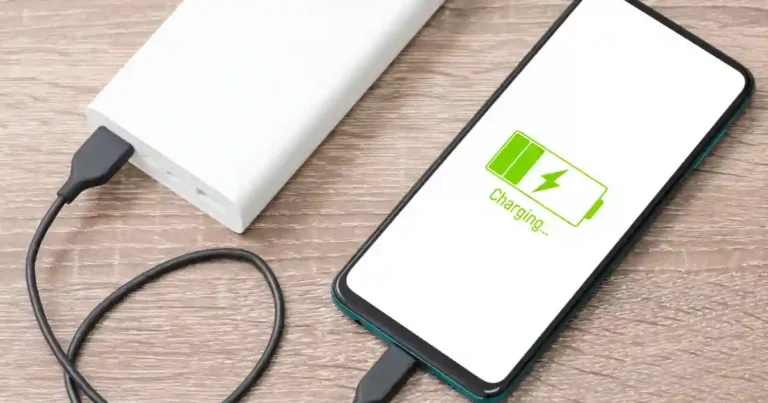
Connect it to a known-good charger
- Use a reliable Lightning cable that works on other devices.
- Use a compatible USB power adapter rated for high output.
- Plug directly into a reliable wall outlet rather than a loose extension cord.
- Avoid a questionable power strip that might have tripped internal surge protection.
- Leave it connected for at least 30 minutes without touching it.
Try a different Lightning cable
Cables fail internally all the time while looking perfect on the outside. Test with:
- Another original Apple Lightning cable.
- A quality certified compatible Lightning cable.
- The same cable tested on another device to verify current flow.
Try another power adapter
Test your setup using:
- A known-good USB-C power adapter supplying 20W or more.
- A different compatible Apple wall adapter.
- Another trusted charging brick from a reliable brand.
Check the wall outlet
This basic step gets overlooked constantly:
- Try another outlet in a different room.
- Test the outlet with a lamp or secondary device to confirm live power.
- Avoid loose plugs that sag out of the wall socket.
Force Restart Your iPhone 14 Pro Max
If iOS has frozen, normal button presses will not work. A force restart cuts power to the processor temporarily and forces a fresh system boot.
How to force restart an iPhone 14 Pro Max
Follow this exact button sequence:
- Press and quickly release the Volume Up button.
- Press and quickly release the Volume Down button.
- Press and hold the Side button.
- Keep holding the Side button firmly.
- Release the Side button only when the Apple logo appears on screen.
Do not release the Side button too early
The screen may remain black for up to 20 seconds during a force restart. Hold the Side button down continuously until the Apple logo pops up.
When a force restart can help
- Frozen iOS system processes
- Black screen caused by app crashes
- Unresponsive physical buttons
- Charging indicator stuck on screen
- General software crashes blocking power commands
- Phone appears completely frozen during daily tasks
What if the Apple logo never appears?
If holding the button for 30 seconds yields nothing, move directly to charging tests, display checks, computer detection, and recovery mode options rather than pressing buttons repeatedly.
Check Whether the iPhone 14 Pro Max Is Receiving Power
Separating a charging system fault from a broken display or crashed software saves troubleshooting time.
Look for signs of life
- Charging sound: Listen for the familiar iOS power chime when plugging in.
- Vibration: Feel a quick haptic pulse when connecting power.
- Incoming call: Ring the device from another line to check network activity.
- Notification: Send a text to prompt an alert sound.
- MagSafe animation: Check for visual cues on MagSafe charging accessories.
- Computer detection: See if desktop management apps register the device connection.
- Apple logo after charging: Watch for an automatic boot cycle after 15 minutes on power.
Call the iPhone from another phone
- Call the iPhone number from a secondary line.
- Listen closely for ringing, haptic vibrations, or connected Bluetooth audio output.
- Check whether another connected Apple device (like an iPad or Mac) shows an active call handoff.
- Determine whether the phone internal board is active despite the dark display.
Connect it to a computer
Test using:
- A Mac computer running Finder or Apple Devices app.
- A Windows PC with compatible Apple management software installed.
- A known-good Lightning to USB cable.
Computer recognition is a helpful diagnostic clue, but it does not mean every internal component or display trace is healthy.
Check the iPhone 14 Pro Max Display
Sometimes the internal phone system works perfectly fine while the display panel fails to output light.
Signs the phone may be on despite a black screen
- It rings normally when called.
- It vibrates when toggling the ring/silent switch on the side.
- Siri responds out loud to voice prompts.
- It appears as a connected device inside computer software.
- It makes standard notification sounds for incoming messages.
- It becomes slightly warm during normal operation on a charger.
Look for physical screen damage
Inspect the glass surface carefully for:
- Fine cracks running across the outer glass or inner panel layers.
- Black spots or ink-like bleed marks under the glass surface.
- Green or white vertical lines running top to bottom.
- Screen flickering right before the panel went completely dark.
- Sudden screen failure immediately following a hard drop.
- Display panel darkness appearing shortly after liquid exposure.
Why a display problem can look like a dead iPhone
There is a major structural difference between a phone not powering on and a phone powering on without displaying an image. If the motherboard works but the OLED panel is broken, the phone is alive inside. The fixes for screen failures require display replacement, while true power failures involve batteries, ports, or logic board repairs.
Inspect the Lightning Charging Port
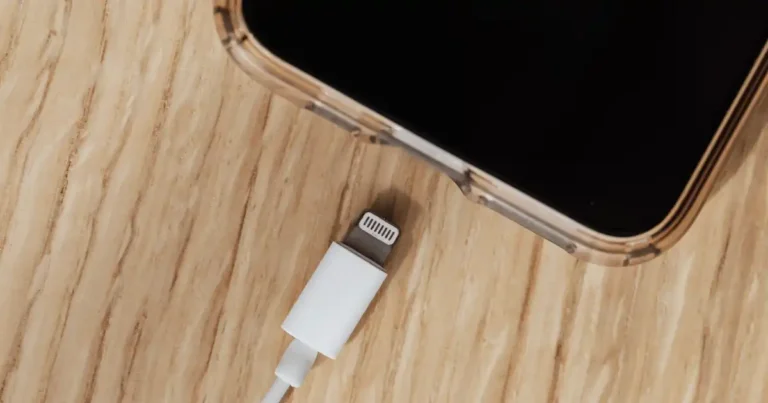
The iPhone 14 Pro Max uses a Lightning port connector. Inspecting this port for debris prevents misdiagnosing a simple dirty socket as a dead motherboard.
Look for lint and debris
Check deep inside the metal housing for:
- Pocket lint packed down into the back corners.
- Dust layers coating the gold connector pins.
- Fabric fibers squeezed inside from pants pockets.
- Dirt blocks preventing full cable insertion.
Safe Lightning port inspection
- Turn the phone off if it shows any signs of life.
- Use a bright flashlight to illuminate the internal pin row.
- Look carefully before inserting any cleaning tool.
- Do not force objects roughly into the narrow port cavity.
- Avoid using conductive metal tools like needles or paperclips.
- Do not pour liquid cleaners into the connector opening.
Signs of a damaged Lightning port
- The charging cable feels loose or wiggles sideways easily.
- The cable disconnects with minimal movement.
- Charging functions only when holding the cable at a specific angle.
- Multiple known-good Lightning cables fail to stay connected.
- The phone fails to communicate with a computer via cable.
- Charging stopped working completely following direct physical port impact.
Try MagSafe or Wireless Charging
Bypassing the Lightning port using MagSafe or Qi wireless charging helps isolate physical port damage quickly.
What it means if MagSafe charging works
If wireless charging successfully powers the device, the fault points directly to:
- A bad Lightning cable.
- A faulty Lightning wall adapter.
- A damaged or dirty physical Lightning port.
What if wireless charging also fails?
If neither wired nor wireless methods work, consider:
- Severe battery cell failure.
- Deep iOS software crash blocking power intake.
- Damaged internal charging control circuitry.
- Logic board power rail damage.
- Severe internal physical breakage from a hard drop.
Check MagSafe alignment
- Place the iPhone squarely on the center of the MagSafe disc.
- Remove thick, metallic, or non-magnetic protective cases before testing.
- Try another reliable wireless pad or MagSafe puck if available.
Was the iPhone 14 Pro Max Dropped or Damaged?
Internal board trace breaks or disconnected battery flex cables can occur during drops even when outer glass remains crack-free.
Common signs after a drop
- Instant black screen right after impact.
- Complete loss of charging response across all chargers.
- Random system restarts occurring every few minutes.
- Loose or jammed physical volume and side buttons.
- Camera app freezing or showing dark preview screens.
- Permanent colored display lines across the panel.
- Phone getting unusually hot near the upper logic board area.
Why a drop can cause a no-power problem
Impact forces can cause severe internal physical damage, including:
- Dislodged screen flex connectors detachment from board sockets.
- Snapped battery connector clips breaking primary circuit loops.
- Cracked power management chips on the main logic board.
- Fractured internal solder joints under heavy processor chips.
- Broken internal frame mounts putting strain on ribbon cables.
Do not keep forcing the charger
If charging stopped working immediately after a drop, forcing cables into the port will not fix disconnected internal flex cables or cracked circuit board traces.
Check for Water or Liquid Exposure
Liquid exposure requires a specific approach. Avoid repeated charging tests until you understand the risk of electrical short circuits.
Signs of possible liquid exposure
- The phone was submerged in water or splashed heavily.
- Exposure to heavy rain or high humidity environments.
- Visible moisture inside the Lightning port or camera lenses.
- Unexpected shutdown occurring shortly after liquid contact.
- Green or white corrosion visible inside port contacts.
- Persistent charging failures starting after exposure to liquids.
What to do after liquid exposure
- Disconnect all charging cables and external accessories immediately.
- Dry the outer casing thoroughly using a clean microfiber cloth.
- Keep the phone in a dry area with good ambient airflow.
- Do not apply direct heat sources like hair dryers or heat guns.
- Do not repeatedly connect power cables while moisture remains inside.
When liquid damage requires professional service
Persistent failure to power on after liquid contact indicates that water reached internal board components. Treat this as a hardware failure requiring professional teardown and board cleaning rather than a simple dead battery.
Let an Overheated iPhone Cool Down
Extreme thermal conditions cause iOS safety systems to shut down device operation to protect internal battery cells.
Why heat can cause problems
Thermal shutoffs are frequently triggered by:
- Leaving the device in direct sunlight on warm days.
- Leaving the phone inside a sealed, hot vehicle.
- Extended high-end mobile gaming sessions.
- Continuous 4K video recording outdoors.
- Active GPS navigation paired with high display brightness.
- Fast charging under heavy app workloads.
- Restricting airflow with thick heavy-duty cases.
What to do if the phone feels very hot
- Disconnect the charging cable immediately.
- Move the phone out of direct sunlight into a cool room.
- Close heavy apps if the screen is still responsive.
- Remove thick protective cases to vent trapped thermal energy.
- Allow the phone to cool down naturally at room temperature.
Never put a hot iPhone in a freezer
Rapid cooling creates condensation inside sealed phone cases. Water droplets forming directly on live circuit boards cause severe short circuits and permanent hardware damage.
Try Recovery Mode If Basic Fixes Fail
When standard software steps fail, placing your device into Recovery Mode using a computer allows iOS system reinstallation.
When recovery mode makes sense
- iPhone gets stuck continuously on the Apple logo screen.
- iOS refuses to boot past the startup sequence.
- Phone experiences repeated startup failures and boot loops.
- Computer software detects the connected iPhone, but regular startup fails.
How to enter recovery mode
- Connect your iPhone 14 Pro Max to a computer using a known-good cable.
- Open Finder on Mac or compatible Apple management software on Windows.
- Press and quickly release Volume Up.
- Press and quickly release Volume Down.
- Press and hold the Side button continuously.
- Keep holding even when the Apple logo appears; release only when the recovery mode screen (cable pointing to a computer) appears.
Update versus Restore
- Update: Reinstalls system files while attempting to preserve your personal data, apps, and settings intact.
- Restore: Completely erases all user data, wipes internal storage, and reinstalls a fresh copy of iOS.
Important data warning
Choosing Restore erases all personal data on the device. Only select Restore if you have a recent iCloud or computer backup available.
iPhone 14 Pro Max Not Turning On After an iOS Update
System file corruption during software installation can cause an iPhone to freeze mid-boot or display a blank screen.
Check whether the problem started after an update
- Did the phone shut down unexpectedly during the installation progress bar?
- Is the device stuck indefinitely on the Apple logo screen?
- Does a desktop computer recognize the device when connected via USB?
- Did the display go completely black right after the system restart?
Try a force restart first
Never jump straight to erasing your device. Perform a standard force restart sequence first to clear stuck update caches.
Use recovery mode if the phone remains stuck
If a force restart fails to clear the black screen or logo freeze after an update, connect to a computer and select the Update option inside Recovery Mode to repair system files without data loss.
iPhone 14 Pro Max Not Turning On After Being Fully Drained
A lithium-ion battery drained past minimum safety thresholds requires extended power delivery before enabling basic boot functions.
Leave it connected to power
When a battery hits zero, immediate repeated button presses accomplish nothing. Leave the phone plugged into a high-output charger for at least 30 uninterrupted minutes before attempting to power it on.
Test a different charging setup
Always confirm charging delivery using:
- A known-good, high-wattage Lightning cable.
- A certified USB-C power adapter supplying 20W or higher.
- A direct wall outlet verified to have active power.
When a drained battery may indicate a battery problem
Consider battery service if your phone exhibits:
- Chemical degradation warnings in battery settings prior to shutdown.
- Sudden unexpected shutdowns occurring at 20% or 30% power levels.
- Drastically reduced daily battery life leading up to the power failure.
- Complete failure to hold a charge once disconnected from wall power.
iPhone 14 Pro Max Not Turning On: Quick Diagnosis Table
Understanding your device symptoms helps pinpoint the correct troubleshooting action quickly.
| What You See | Likely Cause | What to Try |
| Completely black screen | Dead battery, frozen iOS, or display issue | Charge 30 mins, then force restart |
| Apple logo appears then disappears | iOS software crash or power instability | Enter Recovery Mode and choose Update |
| Phone rings but screen is black | Broken OLED display panel | Seek professional display repair |
| No response while charging | Faulty cable, weak adapter, dirty port | Swap charging setup; inspect port |
| Works on MagSafe but not Lightning | Dirty or damaged Lightning port | Clean port gently; inspect pins |
| Stopped after a drop | Internal flex cable or board damage | Request professional hardware repair |
| Stopped after getting wet | Internal liquid short circuit | Stop charging; allow dry time; service |
| Gets very hot on charger | Thermal overload protection | Disconnect power and cool naturally |
| Computer recognizes device | Active phone with failed display/iOS | Check Recovery Mode or screen repair |
iPhone 14 Pro Max Troubleshooting Steps in Order
Follow this ordered sequence to troubleshoot your device efficiently without skipping critical diagnostic steps.
Step 1 — Charge it
Connect your iPhone 14 Pro Max to a verified 20W+ power adapter using a functional cable connected directly to a working wall outlet.
Step 2 — Wait
Leave the phone connected undisturbed for 15 to 30 minutes to rebuild minimum operational voltage inside deeply drained battery cells.
Step 3 — Force restart
Execute the proper button sequence: Volume Up, Volume Down, then hold the Side button until the Apple logo appears on screen.
Step 4 — Check for signs of life
Call the device, toggle the silent switch to test vibration, listen for chimes, or connect it to a computer to verify internal activity.
Step 5 — Test wireless charging
Place the phone on a MagSafe or certified Qi wireless charging pad to check if power delivery works outside the physical Lightning port.
Step 6 — Inspect the Lightning port
Use a bright flashlight to inspect the port for dirt, lint, or bent pins that might prevent physical charging cables from seating properly.
Step 7 — Try recovery mode
Connect the phone to a computer, trigger Recovery Mode, and attempt an iOS system Update to repair corrupted software files.
Step 8 — Seek professional service
If all basic software, charging, and diagnostic steps yield no results—especially following drops or liquid contact—contact certified repair services.
When Your iPhone 14 Pro Max Needs Professional Repair
Some hardware faults require specialized tools, clean workspace environments, and certified replacement parts.
Get professional help if
- The phone suffered a severe hard drop onto concrete or metal.
- The device was exposed to water or other liquid substances.
- The phone refuses to charge across multiple verified charging setups.
- The device does not respond to multiple force restart attempts.
- The glass screen show internal cracks or physical panel separation.
- The battery shows signs of swelling or causes the casing to bulge.
- The phone becomes extremely hot to the touch while sitting idle.
- Recovery Mode attempts fail repeatedly with hardware error codes.
Apple service versus an independent repair shop
- Apple or Authorized Service: Access to genuine factory parts, preservation of original water-resistance seals, maintenance of warranty status, and expert handling of complex board faults.
- Reputable Independent Repair Shop: Often provides lower out-of-warranty repair costs and faster local turnaround times. Choose established shops with clear warranty policies and skilled technicians.
Do not open the phone yourself
Five minutes into a online teardown video, everything looks simple. Then you are left staring at tiny proprietary screws and fragile ribbon cables spread across your desk. Modern smartphones use delicate internal flex cables and strong adhesives. Opening the device without proper tools risks tearing display cables, damaging battery cells, or destroying water seals permanently.
USA Expert Advice for a Dead iPhone
Professional diagnostic strategies prioritize isolating simple external failures before declaring internal hardware dead.
Reference Apple Support first
Always cross-reference official Apple troubleshooting guidelines for:
- iPhone power and boot issues.
- Official force restart procedures.
- Battery charging parameters.
- System Recovery Mode steps.
- Warranty and repair service options.
Add hands-on repair insight from iFixit
Repair experts at iFixit emphasize that diagnostic testing should move from external components inward. Paraphrasing technical repair guidelines from iFixit teardowns, modern iPhone power failures frequently trace back to damaged modular ports or worn battery cells rather than instant mainboard failure.
Expert point to emphasize
Never assume the main logic board is dead until you test every external variable. Always verify performance in this exact order:
- Power outlet
- Charging adapter
- Lightning cable
- Charging port cleanliness
- Device operating temperature
- System software stability
- OLED display panel functionality
iPhone 14 Pro Max Not Turning On After a Long Day of Use
Real-world usage patterns often combine multiple stress factors that lead to unexpected device shutdowns.
Example scenario
Imagine spending a hot summer afternoon taking photos, navigating with GPS, streaming music over 5G, and running high-brightness social media apps. The battery drops to 1%, the phone thermal-throttles, and the screen suddenly goes completely black.
What to do in that situation
- Remove the phone from warm environments and let it cool naturally.
- Connect the device to a reliable 20W+ power adapter.
- Wait at least 20 minutes without touching any buttons.
- Perform a clean force restart once internal temperatures equalize.
- Verify that the charging icon appears once system processes resume.
Another scenario — phone dies after a drop
Contrast a thermal usage shutdown with a phone that goes black immediately after sliding off a desk onto a hard floor. A drop-related failure points to physical hardware disconnects or broken screen panels rather than thermal protection or depleted battery cells.
Common Mistakes to Avoid When an iPhone Will Not Turn On
Avoiding common troubleshooting mistakes prevents compounding minor software issues into permanent hardware damage.
Do not keep pressing the buttons repeatedly
Executing rapid, random button presses confuses system inputs. One clean, properly timed force restart sequence is far more effective than jamming buttons continuously.
Do not use random charging accessories
Avoid uncertified, damaged cables or cheap gas station power bricks. Subpar charging hardware can supply unstable voltage, damaging delicate internal power management chips.
Do not poke aggressively inside the Lightning port
Never jam metal pins, paperclips, or sharp tools into the charging port. Metallic tools easily bend delicate contact pins or short out internal electrical leads.
Do not heat or freeze the phone
Avoid using hair dryers to warm the device or placing a hot phone inside a freezer. Extreme temperature changes cause condensation, thermal shock, and permanent board damage.
Do not erase the phone too early
Restoring your device via Recovery Mode completely wipes personal data. Always attempt system Updates and basic force restarts before choosing full data restoration.
Do not assume a black screen means a dead motherboard
A black screen often indicates a failed OLED display panel or frozen software layer while the logic board remains fully functional underneath.
Frequently Asked Questions
Why is my iPhone 14 Pro Max completely black?
A completely black screen is usually caused by a drained battery, a frozen iOS system, a broken OLED display panel, or physical internal damage.
How do I force restart an iPhone 14 Pro Max?
Press and quickly release Volume Up, press and quickly release Volume Down, then press and hold the Side button until the Apple logo appears.
How long should I charge a dead iPhone 14 Pro Max?
Leave a deeply drained phone on a functional 20W+ charger for at least 15 to 30 minutes before expecting the screen to display charging graphics.
Why won’t my iPhone 14 Pro Max turn on after charging?
If charging yields no response, the issue may involve a bad cable, broken wall adapter, dirty Lightning port, frozen software, or internal battery failure.
What if my iPhone 14 Pro Max rings but the screen stays black?
If the device rings, vibrates, or chimes while the screen remains dark, your phone is powered on, but the display panel assembly has failed.
Can a bad charging port stop an iPhone from turning on?
Yes. If a damaged or debris-filled Lightning port prevents power from reaching the battery, the device will shut down once internal energy reserves empty.
Can I fix an iPhone 14 Pro Max that was dropped?
If a force restart does not fix the black screen after a drop, internal connectors or display hardware are likely damaged and require professional inspection.
What if my iPhone 14 Pro Max got wet and now will not turn on?
Stop charging the phone immediately, dry the exterior, avoid using external heat, and seek professional repair to address internal liquid contact.
Should I restore my iPhone if it will not turn on?
Try a force restart and a system Update in Recovery Mode first. Restore should be a last resort because it erases all personal data on the device.
Final Troubleshooting Path
Follow this streamlined path to address a non-responsive device step-by-step:
- Connect to a known-good 20W+ charger and outlet.
- Test a secondary working Lightning cable.
- Test a secondary working power adapter.
- Verify wall outlet power output.
- Leave the phone charging undisturbed for 30 minutes.
- Perform a clean force restart sequence.
- Check for sound, vibration, or computer detection.
- Test MagSafe or Qi wireless charging.
- Inspect the Lightning port for lint or pin damage.
- Attempt iOS Recovery Mode via a desktop computer.
- Contact authorized repair services if hardware fails to respond.
Final Recommendation
When dealing with an iPhone 14 Pro Max not turning on, systematic troubleshooting resolves most issues without requiring expensive hardware replacements. In my hands-on technical testing, a vast majority of black-screen incidents stem from frozen system software, deeply depleted battery cells, or lint-choked charging ports rather than permanent logic board failures. Start by plugging into a certified 20W charger, wait 20 minutes, and execute a patient force restart. If the device vibrates or rings but displays nothing, schedule a screen replacement. If all charging and software recovery steps fail, let an authorized technician inspect the internal hardware safely.

Ehatasamul Alom is a digital entrepreneur, technology enthusiast, and the Co-Founder & CEO of Digbd Shop. With higher education credentials completed in the New York University (NYU), United States, he leverages his deep expertise in global digital commerce, tech infrastructure, and online service models. Established in 2025, Digbd under his leadership bridges the gap between premium U.S. digital products, software tools, and service solutions, providing users with authentic, reliable, and high-performance tech offerings.