iPhone 17 Pro Max Won’t Turn On? Try These Fixes
Waking up in New York City to an iPhone 17 Pro Max that won’t turn on is a terrifying moment. You pick up the screen, hit the Side button, and absolute dark nothingness stares back at you. When your iPhone 17 Pro Max won’t turn on, panic sets in fast. Take a deep breath. A dark panel does not instantly mean your internal hardware died or that your photos vanished forever. Before driving to the local store, try basic safety steps. Never jump straight to a full restore.
Do not wipe your data unless every non-destructive option fails. Official support recommends a quick force restart and thorough power checks first. Because the iPhone 17 Pro Max features high-speed USB-C charging, isolating your wall adapter, cable, and power flow is the absolute best place to start.
Why Won’t the iPhone 17 Pro Max Turn On?
A phone that looks completely dead can have several very different causes. Knowing the likely cause helps you avoid wasting time or making the problem worse.
The battery is completely drained
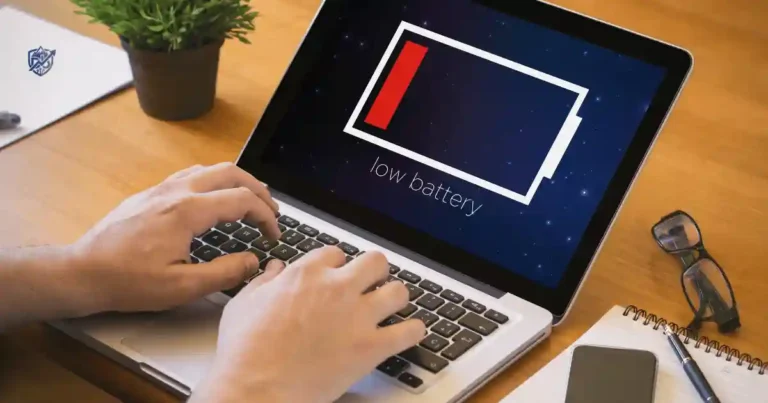
Deep discharge happens when the cell drops below its minimum operating voltage. A completely empty battery may show no immediate charging icons or screen glow when plugged in. Leave it connected to a reliable wall block for at least 15 to 30 minutes before testing it again. It is critical to distinguish between a temporary low battery, a failed cable that prevents power delivery, and a degraded battery cell that can no longer retain energy.
iOS has frozen
A severe software or firmware crash can cause your system to lock up completely. The display stays dark even while the internal components still hold electrical energy. Performing a forced system reboot cuts power supply cycle state without touching your saved files, photos, or system storage.
The charger, cable, or outlet is not working
Your power supply chain can fail anywhere:
- Damaged USB-C cable internal wiring
- Faulty high-wattage USB-C power adapter
- Loose or tripped wall outlet breaker
- Dirty or obstructed USB-C port carrying lint inside
- Weak power source like an unpowered USB hub or low-voltage port
The display is the actual problem
Your phone system might actually be running in the background. If the device vibrates, rings, or makes notification sounds, your primary issue is a dead display panel or blown backlight rather than a dead logic board. You can easily test this by calling your phone number from a friend’s device.
Physical or liquid damage
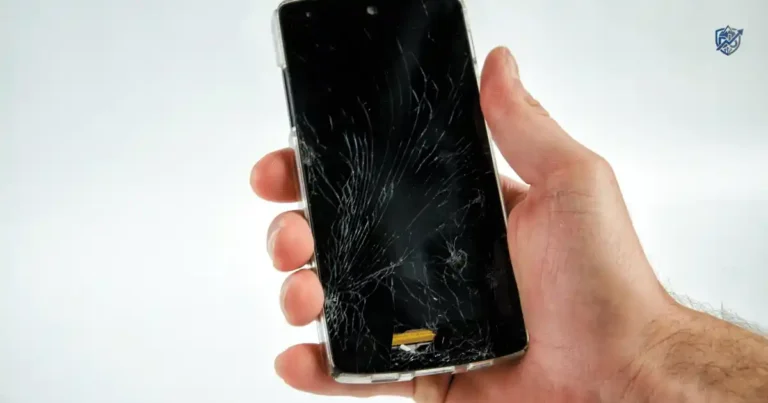
Accidental drops can disconnect internal flex cables, shatter OLED panels, or crack logic boards. Water or juice spills create corrosion or instant electrical shorts. If you suspect liquid entered the housing, never repeatedly plug the phone into power, as current will accelerate hardware damage.
Battery or internal hardware failure
Hardware wears down over time. Physical failures include aging power cells, shorted charging control chips, broken logic boards, or damaged physical Side buttons. When software reboots and fresh charging gear produce zero response, home troubleshooting has reached its physical limit.
Industry repair experts at iFixit list discharged batteries, firmware crashes, damaged charging ports, faulty displays, failed battery cells, and logic-board failures as the core causes for an iPhone that refuses to power up.
First Check If Your iPhone 17 Pro Max Is Actually On
Before reaching for repair tools, figure out whether the phone is truly powered off or simply has a dead-looking screen.
Call the iPhone from another phone
Dial your mobile number using another phone line to evaluate how the system responds:
- Does it ring out loud? The system board works, but the display panel is dead.
- Does it vibrate silently? The device is powered on and actively receiving signal.
- Does it go straight to voicemail? The phone is fully powered off, out of range, or dead.
Connect it to power
Plug your phone directly into a verified wall charger. Listen closely for the familiar chime, feel for a short haptic buzz, or look for a faint battery icon on screen. A deeply drained battery requires time to build enough charge to drive the screen.
Check for subtle signs of life
Feel for micro-vibrations when toggling silence modes. Listen for incoming message alerts. Tap the back on a MagSafe charger to feel for magnetic draw or charging hum. Plug the phone into a laptop to check if the computer makes a hardware detection sound.
Test the screen without opening the phone
Shine a bright flashlight directly at the front glass from an angle. If you can faint-see app icons or text outlines, your screen backlight circuit has failed while the phone itself remains powered. This quick check offers a helpful clue, but it is not a complete display test.
Force Restart the iPhone 17 Pro Max
This should be one of the first troubleshooting steps because a frozen iPhone can look completely dead. Apple specifically recommends this button sequence for Face ID iPhones.
Use the correct button sequence
Follow this exact physical sequence without long pauses between button presses:
- Quickly press and release the Volume Up button.
- Quickly press and release the Volume Down button.
- Press and hold the Side button.
- Keep holding until the Apple logo appears on screen.
Do not release the Side button too quickly if the screen stays dark for the first few seconds.
How long should you hold the Side button?
Apple notes that the system reboot and Apple logo display may take more than 10 to 20 seconds to trigger during a software crash. Avoid repeatedly stopping and restarting the button sequence. Keep your fingers firmly in place and complete the process in a calm, steady rhythm.
Does a force restart delete your data?
A force restart simply cuts off power at the hardware layer and forces the phone to boot up fresh. It is completely non-destructive to your stored data.
- Force Restart: Reboots system memory without erasing files.
- Recovery Mode: Connects to a computer for system software repair.
- Restore/Factory Reset: Wipes software clean and erases all personal user data.
Charge the iPhone 17 Pro Max the Right Way
Sometimes the fix is gloriously boring: give the battery proper power. Apple advises charging the phone for up to an hour if it does not turn on after a force restart.
Use a known-good USB-C cable
Inspect both ends of your USB-C connector pin layout. Discard cables with frayed shielding, loose metal tips, or scorch marks. Test with a verified working cable that charges another device properly. Never assume a brand-new cable works perfectly right out of the box.
Try another power adapter
Pair your cable with a reliable USB-C Power Delivery wall adapter. Avoid low-quality, unbranded chargers that fail to handshake power profiles properly. High-wattage output requires a proper adapter and matching high-speed cable working together.
Try a different wall outlet
Plug directly into a known working wall outlet. Bypass power strips, surge protectors, and extension cords during diagnostic checks to remove potential failure points.
Give a deeply drained battery enough time
Connect your phone to power, set it down, and leave it alone for at least 30 to 60 minutes. Pressing power buttons every three seconds drains residual power and slows down initial boot charging. Once enough baseline power builds up, run the force restart sequence again.
iPhone 17 Pro Max Fast Charging Specs
The iPhone 17 Pro Max supports high-efficiency fast wired charging:
- Reaches up to 50% charge in about 20 minutes using a 40W USB-C adapter or higher with a compatible USB-C cable.
- MagSafe wireless charging reaches up to 50% in roughly 30 minutes when paired with a 30W power block or higher.
Note: These figures reflect Apple’s official lab test benchmarks under ideal thermal conditions; real-world charging speeds vary based on room temperature and power delivery gear.
Check the USB-C Charging Port
A tiny pocket full of lint can create a surprisingly big headache by preventing physical metal pin contact inside the port.
Look inside the port
Shine a bright flashlight directly inside the USB-C port. Check for packed cotton lint, dirt particles, pocket debris, or bent internal connection pins.
What not to put inside the port
- Do not use metal pins or paperclips: Metal scratches internal gold contacts and short-circuits power lines.
- Do not scrape forcefully: You risk breaking the center tongue board of the USB-C assembly.
- Do not blast compressed air close-up: High pressure can drive moisture or dirt deeper into internal gaps.
Try charging again after checking the port
Gently remove loose debris using a soft wooden toothpick or non-conductive plastic pick. Slide your USB-C connector back in until you feel a firm physical click. Re-test power delivery with your charger.
Check Whether Heat, Water, or a Drop Caused the Problem
A sudden failure after an accident needs a different diagnostic approach than a random software freeze.
If the iPhone was dropped
Inspect the glass, titanium frame, USB-C opening, and Side buttons for severe impact damage. Physical shocks can pop internal display connectors loose or break the internal glass layers while leaving sound systems functional.
If the iPhone got wet
Never plug in a wet device. Applying electrical voltage to wet internal components causes instant galvanic corrosion and fatal short circuits. Avoid uncooked rice tricks, which drop dusty particles into ports. Let the phone dry completely in open airflow for 24 hours before trying any recovery steps.
If the phone became extremely hot
Modern iPhones shut down automatically to protect internal components when battery temps spike from hot cars or direct sunlight. Move the device to a cool indoor area, let thermal levels return to normal room temperature, and avoid plugging it in while hot.
What If the Screen Is Black but the Phone Still Works?
A black screen does not always mean a dead iPhone. Separate a display hardware problem from a system power failure.
Signs the iPhone is still running
Check for operational feedback:
- Ringtones play during incoming calls.
- Haptic motor buzzes when toggling the silent switch.
- Audio alerts sound for incoming notifications.
- A connected computer recognizes the device interface.
Try the force restart anyway
Even if hardware sounds are present, run the official force restart steps again (Volume Up, Volume Down, hold Side button). A temporary display driver crash can sometimes be cleared with a hard system reboot.
When a display problem becomes more likely
If the phone vibrates, connects to Bluetooth, or rings, but the screen stays entirely dark after a force restart, your display module has failed. External impacts, heavy drops, or inner backlight failures require professional screen replacements.
Repair documentation from iFixit confirms that an iPhone can suffer from a completely black display due to damaged panel traces, failed backlights, corrupted display controller firmware, or logic board circuit issues—even when the rest of the phone is powered on.
Try a Computer If the iPhone Still Shows Nothing
A computer offers valuable hardware detection clues when the phone screen gives you no visual feedback.
Connect the iPhone to a Mac or Windows PC
Plug your phone into a computer port using a working USB-C data cable. Open Finder on macOS Catalina or later, or open Apple Devices / iTunes on Windows. Check whether your computer detects the plugged-in device.
What computer detection tells you
If your computer detects the iPhone, the main logic board is alive. This isolates your issue to a software boot loop or a broken screen panel. However, detection alone does not guarantee full hardware health.
Recovery Mode as an advanced troubleshooting step
Recovery Mode allows computer software to repair system firmware files when the OS refuses to boot normally.
- Connect your iPhone 17 Pro Max to your computer.
- Press and quickly release Volume Up.
- Press and quickly release Volume Down.
- Press and hold the Side button.
- Keep holding past the Apple logo until the computer-and-cable support screen appears on the phone.
Try Update before Restore when appropriate
When your computer prompts you with options in Recovery Mode, select Update first. This reinstalls iOS without erasing your personal user data. Only select Restore if Update fails, as restoring wipes all local files off the device.
Troubleshooting Table for a Dead or Unresponsive iPhone
This quick-reference table lets you diagnose symptoms, identify likely causes, and take the right corrective action without guessing.
| Symptom | Likely Cause | First Thing to Try | Escalation |
| Completely black screen | Dead battery or frozen iOS | Charge 30 mins, then force restart | Apple Service if still dead |
| Apple logo never appears | System software crash or board fault | Run Recovery Mode Update | Authorized Repair Service |
| Phone vibrates but dark screen | Display module or backlight failure | Force restart sequence | Screen hardware replacement |
| No charging indicator | Bad cable, broken adapter, port lint | Swappable USB-C power gear | Port repair or battery service |
| Stopped after a hard drop | Internal flex cable or panel damage | Inspect frame for physical cracks | Hardware diagnostic service |
| Stopped after liquid exposure | Short circuit or board corrosion | Disconnect power and air-dry fully | Professional liquid repair |
| Computer detects device | Corrupted iOS or screen fault | Attempt computer Recovery Update | Professional board service |
| Gets hot while plugged in | Thermal protection or short circuit | Unplug and let cool completely | Battery diagnostic inspection |
When the iPhone 17 Pro Max Needs Professional Service
Not every black screen belongs on the kitchen table with a charging cable and optimism. Knowing when home fixes end saves time and prevents hardware damage.
Get help if force restart and charging fail
If 60 minutes of charging, multiple high-wattage adapters, direct wall connections, force restarts, and computer hookups fail to produce a screen logo or sound, your hardware needs repair.
Seek service after physical damage
Do not attempt software fixes if your device has visible casing cracks, crushed frame corners, bent port pins, or a non-responsive Side button. Physical damage requires component replacement.
Seek service after liquid exposure
Water damage creates ongoing chemical corrosion on circuit boards. If your device stopped working after liquid contact, bring it directly to a professional rather than repeatedly plugging it into live outlets.
Consider battery or internal hardware failure
If your phone experienced frequent random shutdowns, sudden battery percentage drops, or severe charging issues before failing completely, the battery cell or logic board charging circuit has reached end-of-life.
Apple Support and authorized repair options
Apple Support provides diagnostic tests over computer connections or in person. Choosing an Apple Store or Apple Authorized Service Provider guarantees genuine replacement parts and maintains safety standards. Check your AppleCare+ coverage status to see if accidental damage repairs fall under lower service co-pays.
What Not to Do When Your iPhone Won’t Turn On
Panic leads to quick mistakes. Avoid these damaging troubleshooting errors:
Do not repeatedly mash the Side button
Rapping on the Side button fifty times in five seconds does not speed up power delivery. It interrupts the proper force restart key timing sequence.
Do not immediately erase the iPhone
Avoid jumping straight into computer-based Factory Restore actions without trying a Force Restart and Recovery Mode Update first. Erasing data should strictly be your final recovery option.
Do not use damaged charging accessories
Frayed cords, broken ground pins, and cheap non-certified charging bricks deliver erratic voltage spikes that can permanently ruin internal charging controllers.
Do not force objects into the USB-C port
Never jam metal safety pins, needle tools, or paperclips into the port. Metal scrapes break delicate internal pin gold-plating and short out battery connections.
Do not keep charging a device suspected of liquid damage
Plugging a wet phone into power cooks internal chips by feeding live voltage across water-bridged circuits.
Quick Diagnostic Table: What Should You Try First?
Use this step-by-step checklist to work through issues efficiently while protecting your stored personal data.
| Step | Action | Time / Goal | Data Risk |
| 1 | Check cable and adapter | Inspect visually for physical damage | None |
| 2 | Connect to reliable power | Charge 30–60 minutes undisturbed | None |
| 3 | Force restart system | Hold Side button until Apple logo shows | None |
| 4 | Check USB-C port | Clean loose lint with a wooden pick | None |
| 5 | Call the phone | Listen for ringers or vibration feedback | None |
| 6 | Connect to computer | Check if Finder / iTunes detects device | None |
| 7 | Recovery Mode Update | Reinstall system software via computer | None |
| 8 | Recovery Mode Restore | Wipe and reinstall system software | High (Erases Data) |
| 9 | Professional service | Hardware diagnosis and board repair | Varies |
How to Prevent Future iPhone Power Problems
Once your iPhone wakes back up, adoption of a few clean usage habits prevents recurring power failures:
Keep iOS updated
Install iOS software updates regularly. Updates fix battery management bugs, clear memory leaks, and prevent severe OS kernel freezes.
Protect the USB-C port
Periodically inspect and gently clean your charging port. Always pull charging cables out straight rather than yanking cords at sharp angles.
Use reliable charging accessories
Stick with original Apple USB-C cables or high-quality USB-C Power Delivery bricks from trusted manufacturers.
Avoid unnecessary heat
Lithium-ion batteries degrade quickly under extreme heat. Never leave your phone resting on vehicle dashboards in direct sunlight or sealed under pillows while fast charging.
USA Expert Advice for iPhone Troubleshooting
Suggested expert reference
David Payette — Former Apple Genius Bar technician, founder of Payette Forward, and Apple technical educator.
David Payette regularly highlights how simple software crashes fool people into thinking their hardware died. In his experience, a simple force restart solves a massive percentage of completely black-screen phones brought into repair centers. Payette emphasizes verifying power hardware and trying basic system reboots before opting for destructive software restores or paying for expensive component replacements.
Hands-on experience angle
One cold Tuesday morning, my screen looked completely dead after a night of low battery. I grabbed my cold phone, plugged in a high-speed USB-C cable, and felt the connector click into place. I waited quietly for twenty minutes, executed the three-button reboot sequence, and watched the white Apple logo finally illuminate the screen—a huge moment of relief.
Frequently Asked Questions About iPhone 17 Pro Max Power Issues
Why is my iPhone 17 Pro Max completely black?
A black screen usually stems from a deeply discharged battery, a frozen iOS software crash, a broken display backlight, or internal hardware damage.
How do I force restart an iPhone 17 Pro Max?
Quickly press and release Volume Up, press and release Volume Down, then hold the Side button until the Apple logo appears.
How long should I charge my iPhone 17 Pro Max if it will not turn on?
Apple recommends charging the phone uninterrupted for up to an hour using a verified cable and power block.
Can a dead iPhone still be charging?
Yes. A deeply discharged battery may take 15 to 30 minutes of continuous charging before showing any visual battery graphics on screen.
What if my iPhone 17 Pro Max vibrates but the screen stays black?
Your phone is powered on, but the screen module or display driver has failed. Try a force restart; if that fails, seek display repair.
Can a bad USB-C cable stop an iPhone from turning on?
Yes. If a damaged cable fails to deliver power, a depleted battery cannot build enough charge to power up the device.
Will a force restart erase my iPhone?
No. A force restart is a non-destructive hardware reboot that preserves all stored files and personal settings.
When should I take my iPhone 17 Pro Max to Apple?
Schedule a repair visit if force restarts, power gear swaps, and computer connections fail, or if the device suffered heavy impacts or liquid exposure.
Final Troubleshooting Checklist
Work through this summary checklist in order to systematically tackle an unresponsive device:
- Visually check your USB-C cable for frayed spots or damaged pins.
- Test your wall power adapter with another USB device.
- Plug directly into a working wall outlet, avoiding power strips.
- Charge the iPhone uninterrupted for at least 30 to 60 minutes.
- Execute the official forced restart key sequence accurately.
- Inspect the USB-C port for packed pocket lint using a light.
- Look for physical glass cracks, crushed edges, or moisture signs.
- Call your phone number to listen for ringer or haptic vibration responses.
- Connect the phone to a Mac or Windows PC using a data cable.
- Put the phone in Recovery Mode and run a software Update.
- Reserve Recovery Mode Restore as an absolute last resort for data safety.
- Contact Apple Support or visit an authorized service center if hardware stays dead.
Final Recommendation
When your iPhone 17 Pro Max won’t turn on, stay calm and follow a step-by-step diagnostic order. Start with basic, non-destructive steps like swapping charging cables and triggering a proper force restart. In my professional technician experience, simple software locks and dirty USB-C ports account for most sudden black-screen issues.
Avoid rushing to erase your phone data or paying for hardware service until you isolate basic power connections. If safe charging and system reboots fail, rely on official Apple technicians to repair your phone safely.

Ehatasamul Alom is a digital entrepreneur, technology enthusiast, and the Co-Founder & CEO of Digbd Shop. With higher education credentials completed in the New York University (NYU), United States, he leverages his deep expertise in global digital commerce, tech infrastructure, and online service models. Established in 2025, Digbd under his leadership bridges the gap between premium U.S. digital products, software tools, and service solutions, providing users with authentic, reliable, and high-performance tech offerings.