iPhone SE Multiple Apps Not Working (3rd Generation): Fixes
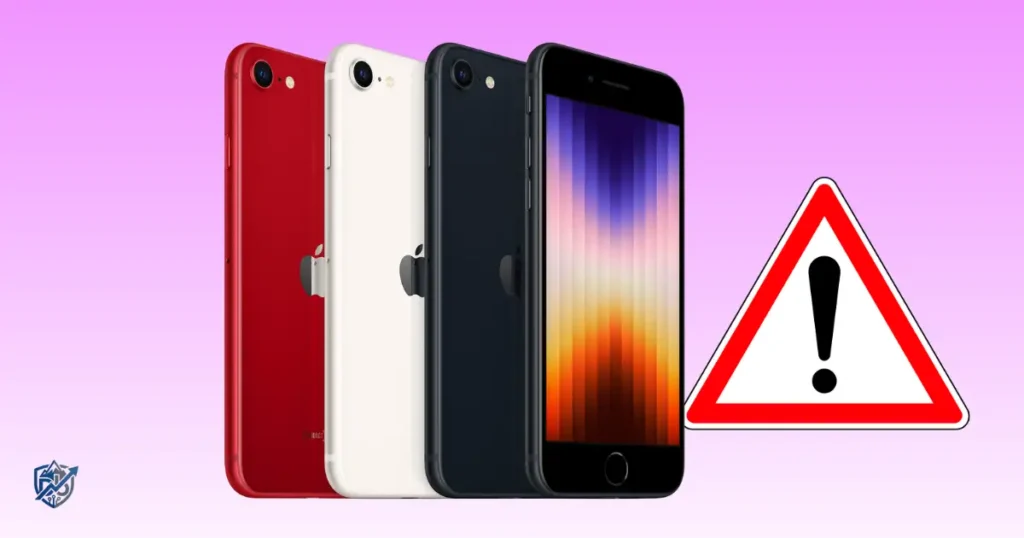
You tap on your favorite social app, and it closes instantly. You try your banking app, but it freezes on a blank screen. Facing an iPhone SE multiple apps not working scenario can make your whole phone feel completely broken. I was helping a client in Portland last month who had this exact nightmare after a busy work week. The good news is that an iPhone SE 3rd generation with crashing apps does not mean the phone is dead. A quick software refresh, freeing up storage, or checking permissions will usually solve the problem without a costly trip to the repair shop.
Why Are Multiple Apps Not Working on iPhone SE 3rd Generation?
A single crashing app usually means that specific app has a bug. When several unrelated apps crash together, the issue lies deeper within iOS, your available storage, network access, or system permissions.
What “Multiple Apps Not Working” Can Look Like
- Apps crashing immediately after you tap them.
- Apps freezing on launch or title screens.
- Apps stuck on a continuous loading screen.
- Apps opening normally but ignoring your taps.
- Apps refusing to connect to the internet.
- Apps suddenly closing while you are using them.
- App Store apps failing right after an iOS update.
Why Several Apps Can Fail at the Same Time
- Temporary iOS software glitches.
- Extremely low internal storage.
- Outdated app software versions.
- Outdated system software.
- Local network or Wi-Fi problems.
- Background system processes hanging up.
- Corrupted local app cache data.
- Temporary Apple service outages.
- Battery or peak performance limitations.
Is the Problem With One App or the iPhone?
Try opening built-in Apple tools like Safari, Messages, and Settings. If built-in apps work fine but third-party tools fail, your issue is software or network related. If system apps also crash, your iPhone SE is experiencing a full system-level glitch or heavy storage pressure.
Quick Checks Before You Try Bigger Fixes
Start with quick checks. A two-minute inspection can save you from performing a full factory reset.
Check Whether the iPhone Is Connected to the Internet
- Test your Wi-Fi connection in Settings.
- Test cellular data by toggling it off and on.
- Turn Airplane Mode on for ten seconds, then turn it off.
- Load a fresh website inside Safari to verify active throughput.
- Open an offline app like the Calculator or Notes to see if it works.
Check Apple’s System Status
- Look for App Store service outages on Apple’s status webpage.
- Check iCloud-related system outages.
- Review developer or service disruptions.
A server-side outage on Apple’s end can make several apps appear broken at the exact same time even when your hardware is fine.
Check iPhone Storage
- Open Settings → General → iPhone Storage.
- Check if free space is under two gigabytes.
- Identify giant games, offline videos, and large apps.
iOS needs breathing room to write temporary cache files. Extremely low space stops apps from launching.
Restart the iPhone SE
- Press and hold the Side button until the power slider appears.
- Drag the slider to power off the device.
- Wait thirty seconds for the phone to shut down completely.
- Press and hold the Side button until the Apple logo appears.
Restarting clears out temporary system memory and resets hung background tasks. It is the easiest fix to try before moving to deeper settings.
Force Close and Reopen the Problem Apps
Sometimes an individual app gets stuck in a bad memory loop. Force closing forces the system to start the app fresh.
How to Close Apps on the iPhone SE 3rd Generation
- Swipe up from the bottom of the screen.
- Pause your finger in the middle of the display.
- Swipe left or right to find the broken app.
- Swipe the app preview card straight up to close it.
- Tap the app icon on your home screen to reopen it.
When Force Closing Helps
- Apps that freeze right after launching.
- Apps stuck on an opening splash screen.
- Temporary RAM or memory bottlenecks.
- Apps that suddenly stop responding to touch input.
When Force Closing Does Not Help
- Multiple unrelated apps continue failing together.
- Apps crash immediately every time you touch them.
- The App Store itself fails to load content.
- Core system tools like Settings behave erratically.
Update iOS and Your Apps
Old app code running on newer system software can cause conflicts. Keeping everything updated keeps your device running smoothly.
Check for an iOS Update
- Open Settings → General → Software Update.
- Check if a new iOS version is available.
- Connect to Wi-Fi and install available updates.
- Keep your iPhone SE connected to a charger during the process.
Update Apps Through the App Store
- Open the App Store.
- Tap your personal account profile icon in the top corner.
- Scroll down to see pending updates.
- Tap Update All to refresh your installed apps.
What If Apps Stopped Working After an iOS Update?
- Give app developers a few days to release compatibility patches.
- Restart your iPhone SE right after finishing a system update.
- Check the App Store daily for fresh updates.
- Look up developer forums for known app bugs.
- Avoid assuming your iPhone hardware has suddenly failed.
Check iPhone SE Storage and Free Up Space
Low storage is a common cause of multiple apps crashing at once on an iPhone SE.
How Much Free Storage Should You Have?
Keeping at least five to ten percent of your total storage free lets iOS handle system files easily. Completely filling your storage locks up system tasks, prevents apps from expanding their temporary caches, and causes random app crashes.
What Usually Takes Up the Most Space?
- High-resolution photos and 4K video clips.
- Graphic-heavy games with large asset downloads.
- Downloaded music, movies, and podcast episodes.
- Message attachments, photos, and shared media files.
- Social media app caches that grow over time.
- Offline navigation maps and cached web files.
Safely Free Up Storage
- Delete unwanted long videos from your Photos library.
- Remove apps and games you no longer use.
- Review and clear out large Message attachments.
- Enable iCloud Photos to store original files in the cloud.
- Double-check your backups before deleting important files.
Do Not Delete an App Before Checking Its Saved Data
Some apps save your files directly on your device rather than syncing them to the cloud. Deleting an app without checking can permanently wipe local documents, offline drafts, or un-synced project files.
Check App Permissions and Restrictions
An app can crash or freeze if system permissions block it from reaching key features.
Review App Permissions
- Check Location Services in Settings → Privacy & Security.
- Verify Photos access for media-heavy apps.
- Confirm Camera and Microphone permissions.
- Check Cellular Data toggles in your mobile settings.
- Verify Notification settings for critical background apps.
Check Screen Time Restrictions
- Open Settings → Screen Time.
- Tap Content & Privacy Restrictions.
- Check if App Limits are blocking usage.
- Review Downtime schedules that pause app access.
Screen Time settings can quietly block apps once daily limits are reached, making them look broken.
Check Cellular Data for Individual Apps
- Open Settings → Cellular.
- Scroll down to the app list.
- Locate the apps that refuse to load content.
- Ensure the toggle switch beside each app is turned on.
- Test the app again while disconnected from Wi-Fi.
Reinstall Apps That Keep Crashing
If only a couple of third-party apps remain broken after basic fixes, deleting and reinstalling them gives you a clean setup.
Before Deleting an App
- Confirm your account login details and passwords.
- Check if your data syncs to a cloud service.
- Verify your latest device backup.
- Ensure files are not saved strictly on local storage.
Delete and Reinstall the App
- Touch and hold the app icon on your home screen.
- Tap Remove App, then select Delete App.
- Restart your iPhone SE to clear lingering cache files.
- Open the App Store and search for the app.
- Tap the cloud icon to download it fresh.
- Sign back into your account and test the app.
Why Reinstalling Can Fix an App
- Removes corrupted installation files.
- Fixes broken or incomplete past updates.
- Clears out damaged local database caches.
- Resets broken configuration settings back to defaults.
Reset Network Settings When Apps Cannot Connect
If your apps launch fine but display connection errors, your network setup might be glitched.
Signs of a Network-Related Problem
- Multiple apps fail to fetch online content.
- Safari loads web pages very slowly or times out.
- Home Wi-Fi works normally on other household devices.
- Cellular data fails to load content across several apps.
- Apps output “No Connection” error pop-ups instantly.
How to Reset Network Settings
- Open Settings → General → Transfer or Reset iPhone.
- Tap Reset.
- Select Reset Network Settings.
- Enter your passcode to confirm the action.
What Gets Erased?
- Saved Wi-Fi network names and passwords.
- Saved Bluetooth accessory pairings.
- Cellular data preferences.
- Custom VPN and APN configurations.
What Does Not Get Erased?
- Your photos, videos, and media files.
- Installed apps and app data.
- Text messages and call logs.
- Personal files and documents.
- Apple Account details and logins.
Check the iPhone SE Battery and Performance
Aging hardware can impact software reliability, especially under heavy workloads.
Check Battery Health
- Open Settings → Battery → Battery Health & Charging.
- Review your Maximum Capacity percentage score.
- Look for dynamic performance management alerts.
- Check for service messages recommending battery replacement.
How Battery Problems Can Affect Your Experience
- Unexpected shutdowns during peak processing tasks.
- Throttled system performance under heavy load.
- Apps closing suddenly to protect power delivery.
- Reduced overall system reliability when capacity drops.
Does Low Battery Health Mean Apps Will Stop Working?
A worn battery does not directly corrupt app code, but it can limit peak processor performance. If capacity drops below eighty percent, power delivery drops can cause resource-heavy apps to close suddenly under load.
Fix Multiple Apps After a New iOS Update
When multiple apps fail right after upgrading iOS, try these recovery steps.
Restart After Installing the Update
A quick reboot helps the operating system finish post-update indexing and clears out residual installation files.
Install Pending App Updates
Developers publish compatibility patches right after major Apple software launches. Check the App Store for fresh updates.
Check Available Storage
System updates need extra storage space to extract files. If space is tight after updating, free up storage right away.
Wait for App Developers to Release Compatibility Updates
Some app teams take a few days to resolve bugs with newly released iOS versions. Give them time to push a fix.
Look for Temporary iOS Bugs
If a system-wide bug slips into an official iOS release, Apple usually releases a point update (like iOS x.x.1) within a few days to fix it.
Use a Simple Troubleshooting Table to Find the Cause
In repair work, I prefer matching visible symptoms to quick solutions rather than trying random steps. Use this chart to identify your fastest fix.
| Symptom | Likely Cause | First Thing to Try |
| Several apps crash | iOS or storage issue | Restart and check storage |
| Apps open but do not load | Network issue | Test Wi-Fi and cellular data |
| One app crashes | App-specific problem | Update or reinstall |
| Apps stopped after iOS update | Compatibility/software issue | Update apps |
| App Store will not work | Network, Apple service, or account issue | Check connection and Apple services |
| iPhone is nearly full | Storage pressure | Free up space |
| Apps freeze often | Software or performance issue | Restart and update iOS |
| Apps cannot access photos/camera | Permissions | Review app permissions |
Compare the Main Fixes for Multiple App Problems
Choosing the least invasive repair first saves time and preserves your settings. Use this table to pick your troubleshooting path.
| Fix | Difficulty | Deletes Personal Data? | Best For |
| Restart iPhone | Easy | No | Temporary glitches |
| Update apps | Easy | No | Compatibility issues |
| Update iOS | Easy | No | System bugs |
| Free storage | Easy | Only if you delete files | Low storage |
| Reinstall app | Easy | May affect local app data | One app crashing |
| Reset network settings | Moderate | No personal files | Connection issues |
| Reset all settings | Moderate | No personal files | Persistent configuration issues |
| Erase iPhone | Advanced | Yes | Last-resort software troubleshooting |
Reset All Settings Without Erasing Your iPhone
If basic fixes fail, resetting system settings can fix persistent crashes without wiping your personal photos or messages.
What “Reset All Settings” Does
- Resets system settings to factory defaults.
- Resets Wi-Fi passwords, Bluetooth setups, and network options.
- Clears display, privacy, and sound preferences.
- Keeps all your photos, apps, messages, and personal files safe.
When Reset All Settings Makes Sense
- Multiple unrelated apps continue crashing together.
- System settings behave strangely after an update.
- Network, storage, and permission resets failed to resolve the issue.
- System-wide glitches affect core tools like Settings or Safari.
What to Check Before Resetting
- Make sure you know your home Wi-Fi passwords.
- Write down any custom VPN settings you use.
- Note special privacy or location permissions you prefer.
- Save specific notification settings for work apps.
When to Back Up and Factory Reset the iPhone SE
Erasing your device is the final step when software troubleshooting has failed.
Back Up Before Erasing the iPhone
- Open Settings → [Your Name] → iCloud → iCloud Backup.
- Tap Back Up Now over a stable Wi-Fi connection.
- Alternatively, plug your iPhone into a computer to create a full encrypted backup.
- Verify that your backup finished successfully before proceeding.
When an Erase May Be Worth Considering
- Dozens of unrelated apps fail continuously.
- Built-in Apple apps crash alongside third-party apps.
- Persistent software corruption survives all minor resets.
- Every other troubleshooting method has failed.
What Happens After an Erase?
Your iPhone SE restarts to the initial “Hello” setup screen. You will log back into your Apple Account and restore your backup to check if the app crashing issue is fixed.
Common Mistakes to Avoid When Fixing iPhone Apps
Avoid these common mistakes to prevent accidental data loss or further software issues.
Do Not Immediately Factory Reset
Wiping your entire phone for a minor app glitch wastes time. Always start with easy fixes like restarting or updating apps.
Do Not Delete Every App at Once
Deleting dozens of apps at once can erase un-synced local data. Troubleshoot one or two problem apps individually first.
Do Not Install Random “iPhone Cleaner” Apps
iOS manages memory automatically. Third-party cleaning apps are unnecessary and can slow down your system.
Do Not Ignore Storage Warnings
Running your iPhone SE with zero free storage causes performance issues, crashes apps, and can even cause boot loops.
Do Not Assume Every App Problem Is a Hardware Failure
Multiple app crashes are almost always caused by software bugs, network issues, or full storage rather than a broken processor.
Do Not Use Untrusted Repair or System Tools
Avoid uncertified desktop software promising one-click repair solutions. They can corrupt system files or cause security risks.
USA Expert Advice for iPhone Troubleshooting
I always recommend taking a methodical, step-by-step approach to diagnostic repair.
Expert Perspective From a U.S. Apple Repair Professional
Independent repair technicians, including electronics repair educator Louis Rossmann, often emphasize the importance of separating software issues from hardware failure before replacing components. Diagnosing the root cause first prevents unnecessary hardware repairs when a simple software reset or storage cleanup is all that is needed.
What Experienced Technicians Look For First
- Does the issue affect just one app or multiple apps?
- Did the crashing start immediately after a software update?
- Is internal storage completely full?
- Are system apps like Settings or Safari crashing too?
- Does restarting the device temporarily restore normal function?
Real-Life Troubleshooting Example: Several Apps Stop Working
Here is how a systematic troubleshooting process works in practice.
Example Scenario
A user wakes up, unlocks their iPhone SE 3rd generation, and opens a social media app. It crashes instantly. They try opening their banking app, but it freezes on a white screen. A weather app refuses to update. The user worries their phone’s hardware is failing.
The Diagnostic Process
- Step 1: Open Safari. Web pages fail to load, pointing to a network issue.
- Step 2: Toggle Wi-Fi off and test cellular data. Apps begin loading normally.
- Step 3: Restart the Wi-Fi router and reset Network Settings on the iPhone SE.
- Step 4: Reconnect to Wi-Fi. All apps open and function properly without crashing.
Why This Order Matters
Starting with simple, non-destructive steps isolates the root cause quickly and avoids unnecessary data wipes or hardware repairs.
When Multiple Apps Not Working Means a Hardware Problem
While rare, hardware failures can sometimes cause widespread software issues.
Warning Signs of a Deeper Hardware Issue
- Frequent, random system reboots or shutdowns.
- The iPhone SE becomes extremely hot during basic tasks.
- Physical screen damage, touch unresponsiveness, or liquid exposure.
- Charging issues happen alongside widespread app crashes.
- Crashes persist even after performing a full factory reset.
Signs You Should Contact Apple or a Qualified Repair Provider
- A full factory reset fails to stop system crashes.
- iOS fails to install updates and displays hardware error codes.
- The iPhone SE enters a continuous restart loop.
- Physical internal component damage is suspected.
What Information to Bring to a Repair Appointment
- Your current iOS version number.
- A specific list of apps that crash.
- Exactly when the crashing issue started.
- Notes on any recent software updates or drops.
- Screenshots of any system error codes.
- A summary of the troubleshooting steps you already tried.
Frequently Asked Questions About iPhone SE Apps
Why are multiple apps not working on my iPhone SE 3rd generation?
Multiple app failures are usually caused by low internal storage, an outdated iOS version, network connection issues, or temporary system glitches.
Why do all my apps keep crashing on my iPhone SE?
Apps crash when your device runs out of free storage, experiences memory glitches, or when installed apps are incompatible with your current iOS version.
Can low storage make iPhone apps stop working?
Yes. iOS requires free storage space to write temporary cache files. When storage is completely full, apps cannot open or run properly.
Why did my apps stop working after an iOS update?
System updates can create temporary compatibility issues with older app versions. Updating your apps via the App Store usually fixes the issue.
Will resetting my iPhone fix apps that are not working?
Resetting network settings or system settings can fix software glitches. A full factory reset should only be used as a last resort.
Should I delete and reinstall every broken app?
No. Try restarting your phone and checking your storage first. Reinstall individual apps only if specific third-party tools continue crashing.
When should I get my iPhone SE repaired?
Seek professional repair if your iPhone continues crashing after a factory reset, overheats constantly, or shows signs of physical damage.
Final Troubleshooting Checklist
Work through this practical checklist to get your apps running again:
- Test Wi-Fi and cellular data connections
- Check Apple’s System Status page for outages
- Restart your iPhone SE
- Check available internal storage
- Update iOS to the latest version
- Update all apps in the App Store
- Review app permissions and Screen Time limits
- Check individual cellular data access toggles
- Reinstall specific problem apps
- Reset Network Settings if connection errors persist
- Back up your personal data to iCloud or a computer
- Try Reset All Settings for system-wide glitches
- Contact Apple Support if hardware symptoms appear
Final Recommendation
Dealing with an iPhone SE multiple apps not working issue can be frustrating, but it rarely means your device is permanently broken. In my years of working with iOS devices, I have found that most multi-app crashes come down to low storage space, missing app updates, or simple network glitches.
Always restart your device, clear out old files, and update your software before considering a factory reset or repair. Taking a calm, step-by-step approach will save you time, keep your data safe, and get your iPhone SE working smoothly again.

Ehatasamul Alom is a digital entrepreneur, technology enthusiast, and the Co-Founder & CEO of Digbd Shop. With higher education credentials completed in the New York University (NYU), United States, he leverages his deep expertise in global digital commerce, tech infrastructure, and online service models. Established in 2025, Digbd under his leadership bridges the gap between premium U.S. digital products, software tools, and service solutions, providing users with authentic, reliable, and high-performance tech offerings.