Common Charging Problems and How to Troubleshoot Them
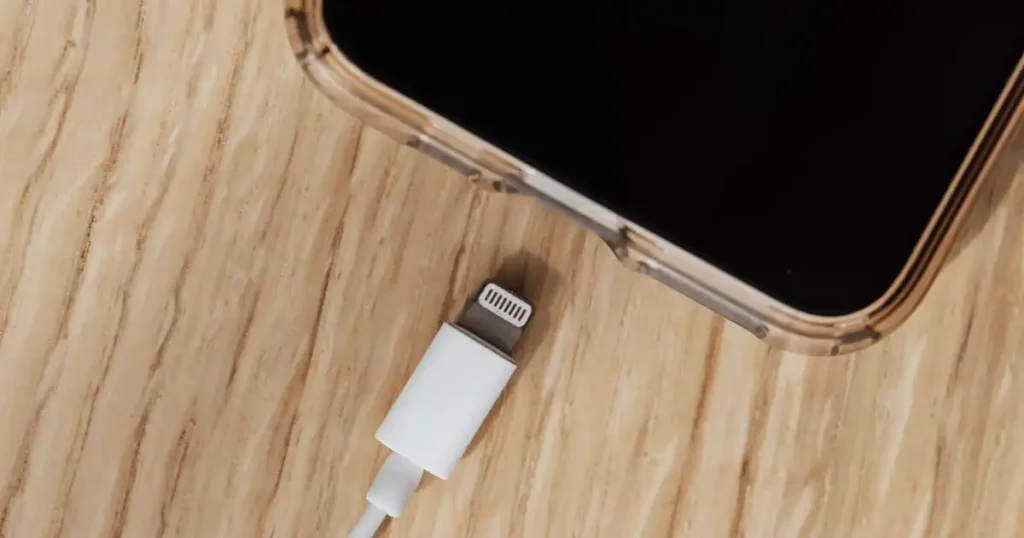
Imagine running late for a big meeting in New York, grabbing your phone, and seeing a dead screen. You plugged it in all night, yet nothing happened. We have all felt that sudden wave of panic. Over my years on the repair bench, I have seen thousands of dead devices. Most issues come down to simple fixes you can do at home. This guide covers easy troubleshooting steps, safe DIY tips, and expert advice. You will learn when a quick fix works and when to visit a pro for help with common charging problems.
What Causes Common Charging Problems?
Charging issues rarely happen without a reason. Understanding the root cause helps you fix problems faster instead of replacing perfectly good devices.
How a Charging System Actually Works
Power source
The wall outlet or USB port delivers electrical power to your device. If the source supplies weak or unstable current, charging slows down or stops.
Charging cable
Cables carry current from the plug to your device. Small wires inside can break easily when bent or twisted over time.
Charger or adapter
The adapter converts high voltage AC power from your wall into safe DC power. It regulates voltage to keep your device safe.
Charging port
This slot holds the cable connector tightly. Dust or bent metal pins inside the port can block the flow of power.
Battery
The battery stores electrical energy for later use. Old batteries lose their ability to hold a charge and may drain fast.
Charging controller (IC)
This tiny microchip on the logic board manages power flow. It protects the battery from high voltage, heat, and dangerous short circuits.
Software and firmware
Your operating system talks to the charging chip. Software decides how fast power flows based on heat and battery level.
Most Common Reasons Devices Stop Charging
- Dirty charging ports: Lint and dust block physical pins.
- Broken charging cables: Internal wires snap from bending.
- Damaged adapters: Internal circuits fail from power surges.
- Faulty wall outlets: Blown fuses or loose sockets cut power.
- Battery degradation: Old cells cannot hold power.
- Overheating: Thermal sensors pause charging for safety.
- Moisture detection: Sensors block power to stop corrosion.
- Software bugs: Glitches freeze the charging process.
- Fast charging incompatibility: Mismatched tech limits power speed.
- Hardware damage: Dropped devices break internal ports.
Signs Your Device Has a Charging Problem
- Charges slowly: Takes hours to gain a few percent.
- Won’t charge at all: No indicator light or battery icon appears.
- Stops charging randomly: Power cuts in and out constantly.
- Battery percentage jumps: Power levels jump up or down fast.
- Gets unusually hot: The back of the device feels burning warm.
- Only charges at certain angles: Cable must be held in place.
Quick Charging Problem Diagnosis Checklist
A few quick checks can often reveal the culprit before you spend money on replacements or repairs.
Start With These 10 Quick Checks
- Restart device: Clears temporary software glitches quickly.
- Try another outlet: Rules out a dead wall socket.
- Test another charger: Proves if your adapter works.
- Test another cable: Isolates a broken or frayed cord.
- Remove phone case: Helps cables seat fully into ports.
- Inspect charging port: Reveals dirt, lint, or bent pins.
- Check battery health: Shows if the battery is worn out.
- Update software: Installs bug fixes for power management.
- Look for moisture warning: Warns you of wet charging ports.
- Disable battery optimization temporarily: Tests if settings cap power.
Fast Charging Troubleshooting Checklist
Professional technicians always eliminate simple causes before opening a device. This checklist follows the same process used by repair shops across the USA. It saves time, money, and unnecessary stress.
| Problem | Possible Cause | Easy Fix | Difficulty |
| No charging | Dead cable | Replace cable | Easy |
| Slow charging | Weak adapter | Use correct wattage | Easy |
| Charging disconnects | Loose port | Clean port | Easy |
| Gets hot | Overheating | Cool device | Easy |
| Battery drains while charging | Background apps | Close apps | Easy |
Common Charging Problems and How to Troubleshoot Them (Complete Guide)
Every charging issue has different symptoms. This section walks through the most common problems, explains why they happen, and shows practical fixes you can try at home.
Device Won’t Charge At All
Check the power outlet
Plug a lamp into the outlet to make sure power flows. Try a different wall socket in another room to rule out a tripped breaker.
Inspect charger
Look for burn marks, melted plastic, or loose prongs on your wall block. A damaged adapter can stop working without warning.
Test another cable
Swap your current cord with a known good cable. Cable wires break inside without showing any damage on the outside.
Restart device
Turn your device off and on again. A simple reboot resets the operating system and fixes frozen power management tasks.
Force reboot
Hold down the power and volume down buttons together for ten seconds. This forces a hard restart when the screen stays dark.
Inspect charging port
Shine a bright light inside the port. Look for pocket lint, dirt, or bent metal pins blocking the connector cord.
Battery may be completely depleted
Leave the device plugged in for thirty minutes. Deeply drained batteries need extra time before the screen turns back on.
Device Charges Very Slowly
Wrong charger wattage
Using a 5-watt brick on a device that needs 20 watts slows down power intake. Always match your adapter to device specs.
Cheap cables
Low quality cables use thin wires that limit electrical current. Thicker cables carry more power safely and speed up charging.
Battery temperature
Warm environments slow down charging speed to protect internal parts. Charge your device in a cool spot away from direct sunlight.
Too many background apps
Heavy apps like maps or games drain power fast. Close all open apps so your battery stores energy instead of spending it.
Charging while gaming
Playing games while plugged in uses power instantly. Your phone uses energy as fast as the charger supplies it.
Battery aging
Old batteries take longer to absorb power. Chemical wear reduces energy efficiency as batteries pass two years of use.
Charging Keeps Disconnecting
Loose USB connection
The cable plug should snap firmly into the port. If it wiggles or falls out easily, clean out trapped lint.
Damaged charging port
Repeated tugs can break internal solder points. A worn port requires professional repair or component replacement.
Dirty connector
Wipe the metal tip of your charging cable with a dry microfiber cloth. Oil and grime on pins disrupt electrical contact.
Cable movement
If power cuts out when moving the cord, internal copper strands are snapped. Throw the cable away to prevent short circuits.
Internal hardware issue
A faulty power IC on the logic board causes random disconnections. This issue needs repair shop tools to diagnose accurately.
Wireless Charging Isn’t Working
Misalignment
Center your device precisely on the wireless pad. Coils inside must line up to transfer electrical power smoothly.
Thick phone case
Heavy protective cases block magnetic fields. Remove thick rubber or leather covers before setting your phone down to charge.
Metal accessories
Remove pop sockets, metal rings, or credit cards from your case. Metal gets extremely hot on wireless chargers and blocks power.
Charger compatibility
Ensure your pad supports Qi or Qi2 standards. Incompatible wireless docks fail to trigger the charging system properly.
Overheating protection
Wireless charging creates extra heat. Thermal sensors will cut off power if your device gets too warm during charging.
Fast Charging Doesn’t Work
Unsupported adapter
Fast charging needs specific power profiles. Standard USB ports cannot deliver the high wattage needed for fast power delivery.
Incorrect cable
Standard cords lack the internal chip needed for high power. You need an e-marked USB-C cable for high wattage fast charging.
Device settings
Check your settings menu to enable fast charging options. Some phones turn this feature off by default to save battery life.
Battery temperature
Fast charging stops if your phone feels hot. Let the device cool down completely before plugging it in again.
Battery health
Degraded batteries cannot handle high currents safely. Your phone automatically turns off fast charging as battery health drops.
Battery Gets Hot While Charging
Normal heat vs dangerous heat
Slight warmth during charging is completely normal. However, if the device feels too hot to hold, unplug it immediately.
Environmental temperature
Charging in hot rooms causes heat build up fast. Keep your device on hard, flat surfaces away from blankets or bright sun.
Charging under pillow
Never place a charging phone under pillows or bed sheets. Trapped heat damages internal parts and creates severe fire risks.
Gaming while charging
Running heavy graphics while charging generates double the heat. Give your device a break while it stays plugged in.
Faulty battery
A battery that swells or gets burning hot has damaged cells. Stop using the device at once and seek professional repair.
Charging Stops at 80%
Optimized Battery Charging
Modern phones pause charging at 80% overnight. Software learns your daily routine to reduce battery stress and chemical wear.
Battery Protection Mode
Laptops and tablets feature modes that cap charges at 80%. This extends overall battery lifespan when plugged in constantly.
Manufacturer settings
Check power settings to see if a charge limit is active. You can turn off these features whenever you need a 100% charge.
High temperature protection
Devices pause charging at 80% if internal heat rises. Charging resumes once the internal battery temperature returns to safe levels.
Moisture Detection Error
Why it appears
Sensors detect water or liquid inside the port. Power is blocked automatically to prevent short circuits and permanent corrosion.
Safe drying methods
Set your phone upright in a well-ventilated room. Let ambient air currents dry out the charging port for several hours naturally.
What NOT to do
Do not insert cotton swabs or paper towels inside. Never use hot hair dryers or put your phone in bags of uncooked rice.
Charging Port Feels Loose
Pocket lint
Packed lint prevents cables from seating deeply into the port. Clearing debris usually fixes a loose connection completely.
Bent pins
Forceful plugging can bend delicate metal pins inside. Bent pins require delicate straightening or full port replacement by a tech.
Connector wear
Repeated use wears down the locking clips inside USB ports. Over time, cable plugs lose their tight, snappy fit.
When replacement is needed
If cleaning fails and cables fall out, the port is worn out. Replacing the port assembly restores a tight electrical fit.
Charging Problems by Device Type
Different devices fail in different ways. A phone, laptop, smartwatch, or earbuds each have unique charging systems and troubleshooting steps.
Smartphone charging problems
Smartphones live in pockets and collect dust constantly. Cleaning ports and swapping broken cables fixes most smartphone power problems.
Laptop charging problems
Laptops demand high wattage to charge properly. Weak adapters, broken DC jacks, and software drivers cause most laptop power failures.
Tablet charging problems
Large tablet screens draw lots of power during use. Using low-wattage phone bricks results in very slow charging or battery drain.
Smartwatch charging problems
Sweat and skin oils build up on magnetic charge docks. Wipe clean the metal contacts on watch backs regularly with alcohol wipes.
Wireless earbuds charging problems
Earbud cases fail when charging pins stick down inside. Clean gold contacts with a dry cotton swab to restore charging connections.
Bluetooth speaker charging issues
Outdoor speakers face dirt, water, and rough handling. Rubber port covers prevent damage, while heavy use wears out Micro-USB connectors.
Power bank charging problems
Power banks feature separate input and output ports. Using the wrong port or cheap wall adapters keeps power banks from recharging fully.
USB rechargeable flashlight charging problems
Flashlights use high-drain lithium cells inside heavy bodies. Ensure tail caps are screwed tight and O-rings stay clean for proper charging.
Charging Issues by Device
Years of testing consumer electronics show that charging failures often follow predictable patterns. This comparison table helps you narrow down the issue based on your device type.
| Device | Most Common Issue | First Thing to Check |
| Phone | Dirty port | Clean USB port |
| Laptop | Bad adapter | Charger wattage |
| Earbuds | Dirty contacts | Charging pins |
| Smartwatch | Misaligned charger | Magnetic dock |
| Tablet | Damaged cable | USB cable |
| Power bank | Faulty battery | Input/output ports |
Charging Cable Problems Explained
Many charging failures come down to the cable itself. Understanding cable quality and wear can save you from replacing a perfectly good device.
Cable fraying
Outer plastic rubber splits near stress points near connectors. Frayed insulation exposes copper wires to short circuits and dangerous shocks.
Broken internal wires
Cables look fine outside while internal wires snap inside. Sharp bends and tight coils ruin thin wire stands over short periods.
USB-C issues
USB-C connectors use delicate center pins inside ports. Cheap cables miss internal resistors, causing severe power issues across devices.
Lightning cable failures
Gold pins on Lightning cables corrode from moisture exposure. Black marks on connector pins cause loose connections and power cutouts.
Micro USB problems
Older Micro-USB plugs use tiny hooks that wear out fast. Worn hooks fail to lock into ports, causing cables to fall out easily.
Magnetic charging cables
Magnetic tips gather tiny iron dust particles over time. Clean magnetic connectors regularly to ensure solid power transmission without sparks.
Cable certification (USB-IF, MFi)
Certified cables undergo strict safety tests before sale. Look for MFi or USB-IF logos to protect hardware from voltage spikes.
Charger Adapter Problems
Not all power adapters are created equal. Using the wrong charger can slow charging, generate excess heat, or even damage a battery over time.
Wrong voltage
Adapters must deliver the exact voltage your hardware requires. High voltage damages circuits, while low voltage fails to charge batteries.
Wrong amperage
Amperage dictates how much power your device draws. Low amperage adapters overheat trying to supply power to large electronic devices.
Fast charger compatibility
Fast charging tech varies between different device brands. Ensure your wall charger supports matching fast charge protocols like PD or QC.
GaN chargers
Gallium Nitride adapters offer high power in compact sizes. GaN chargers run cooler and charge power-hungry laptops and phones faster.
USB Power Delivery
USB PD delivers smart, adjustable power up to 240 watts. It safety negotiates current between chargers, laptops, tablets, and phones.
Qualcomm Quick Charge
Quick Charge powers compatible Android devices up to 70% faster. It uses custom voltage steps to speed up power intake safely.
PPS charging
Programmable Power Supply adjusts voltage in real time. PPS lowers heat during charging, protecting delicate phone batteries from unnecessary stress.
Charger Types Comparison
As someone who regularly tests charging accessories, I always compare charger standards before recommending one. The right adapter improves both charging speed and battery health.
| Charger Type | Speed | Compatible Devices | Best For |
| 5W | Slow | Older devices | Overnight charging |
| 18W | Moderate | Phones | Everyday use |
| 30W | Fast | Phones & tablets | Travel |
| 65W | Very Fast | Laptops | USB-C laptops |
| 100W+ | Ultra Fast | High-performance devices | Workstations |
Charging Port Maintenance Guide
Your charging port collects dust, lint, and debris every day. Regular maintenance helps prevent connection issues and extends your device’s lifespan.
Safe cleaning tools
Use wooden toothpicks, plastic picks, or soft anti-static brushes. Compressed air cans help blow out loose dust without touching sensitive pins.
Tools to avoid
Never insert metal needles, paperclips, or safety pins into ports. Metal scrapes off pin plating and creates fatal battery short circuits.
Removing lint safely
Gently insert a wooden pick into the port bottom. Drag debris up along the back wall carefully without bending center pins.
Preventing corrosion
Keep devices away from humid bathrooms or wet environments. Wipe dry moist ports immediately before plugging in any charging cable connectors.
Avoiding moisture damage
If your device gets wet, leave it off completely. Allow ports to dry naturally for twenty-four hours before connecting power cables.
Battery Health and Charging Performance
Even with a perfect charger and cable, an aging battery can cause frustrating charging behavior. Knowing your battery’s condition helps you decide whether to troubleshoot or replace it.
Battery cycle count
Every full discharge cycle degrades internal battery chemicals slightly. Most device batteries perform well for about five hundred total cycles.
Battery aging
Lithium batteries degrade over time regardless of heavy use. After two years, capacity drops, causing fast drain and slow charging speeds.
Battery calibration myths
Draining batteries to 0% does not restore lost capacity. Modern lithium cells prefer shallow charge cycles between 20% and 80%.
Lithium-ion battery basics
Lithium cells store energy through moving ions inside liquid electrolytes. High heat and extreme full charges speed up chemical degradation.
Battery replacement indicators
Replace your battery if it drains in two hours, swells up physically, or shuts off randomly at 30% power remaining.
When Should You Repair or Replace Parts?
Some charging problems are quick DIY fixes, while others require professional attention. Knowing the difference can prevent accidental damage.
Replace cable
Swap cables immediately if insulation frays or power cuts out. Cable replacement is cheap and eliminates common charging problems easily.
Replace charger
Buy a new adapter if your brick gets burning hot or buzzes loudly. Faulty chargers risk sending dangerous voltage spikes into devices.
Replace battery
Install a fresh battery when capacity drops below 80%. Replacing old batteries restores fast charging speeds and daily usage times.
Replace charging port
Worn or broken ports need physical replacement on sub-boards. Techs unsolder old jacks and install fresh ports safely.
Motherboard repair
Failed power management ICs require delicate micro-soldering work. Professional technicians swap fried chips using specialized heat guns and microscopes.
Professional repair costs
Simple port cleaning costs under $30 at repair shops. Port or battery replacements range between $50 and $150 depending on brand.
Repair or Replace Decision Guide
Experienced repair technicians usually weigh repair costs against device value before recommending a solution. This table can help you make the same practical decision.
| Issue | DIY Fix | Replace Part | Professional Repair |
| Dirty port | Yes | No | No |
| Broken cable | No | Yes | No |
| Dead charger | No | Yes | No |
| Damaged port | Sometimes | Yes | Yes |
| Battery failure | No | Yes | Yes |
| Charging IC | No | No | Yes |
Charging Safety Tips Everyone Should Follow
Safe charging habits protect both your device and your home. A few simple precautions can reduce battery wear and lower the risk of overheating.
Avoid overnight overheating
Do not leave devices charging on soft beds overnight. Trapped heat stresses batteries and creates dangerous fire hazards while you sleep.
Don’t use damaged chargers
Discard power adapters with cracked casings or bent prongs. Damaged electronics risk sending raw high voltage directly to your device.
Avoid counterfeit accessories
Cheap uncertified chargers skip basic safety fuses and shields. They ruin internal device chips and pose severe fire risks to homes.
Charge in cool places
Set devices on hard surfaces like desks while charging power. Cool air circulation prevents thermal throttling and keeps charging speeds high.
Protect from water
Never plug in devices with wet hands or in damp rooms. Water conducts electricity, causing instant short circuits and physical board damage.
Use certified accessories
Buy cables labeled with MFi or USB-IF safety certification badges. Certified gear regulates power delivery to protect delicate battery cells.
Travel charging safety
Use high-quality power converters when traveling overseas to handle foreign electrical currents safely. Protect gear from unstable hotel wall sockets.
Expert Advice From a USA Electronics Repair Specialist
Real-world experience often reveals patterns that manuals miss. Here are practical insights from the repair bench.
Common mistakes people make
Most customers waste money buying new phones when ports are just dirty. Pushing cables harder into clogged ports damages delicate connector pins.
Repair shop insights
Eight out of ten non-charging phones brought into my shop need simple lint cleanouts. Taking five minutes to clean ports fixes most issues.
Maintenance routine professionals recommend
Blow compressed air into charging ports once every month. Wipe cable ends clean using isopropyl alcohol to keep power contacts corrosion-free.
Expert Quote
“About eight out of ten charging problems I see are caused by damaged cables or debris packed into charging ports not failed batteries. Always check the simple things first.” — Justin Ashford, Certified Electronics Repair Technician (USA)
Frequently Asked Questions
Why is my device plugged in but not charging?
A dirty port, broken cable, or frozen software usually causes this issue. Clean your port, switch cables, and restart your device to fix it.
Why is fast charging suddenly slow?
Overheating, dirty ports, or degraded batteries slow down fast charging speeds. Ensure your device is cool and turn on fast charging options in settings.
Can a bad cable damage my battery?
Yes, cheap or damaged cables deliver unstable power currents. Unstable power degrades battery health fast and ruins delicate logic board chips over time.
Is wireless charging bad for battery health?
Wireless charging generates extra heat compared to wired options. Excess heat degrades lithium cells slightly faster if used as your primary charger daily.
Why does charging stop at 80%?
Smart battery protection settings pause charging at 80% to lower battery stress. Devices resume charging automatically before your usual wake-up time.
How often should I clean my charging port?
Clean out pocket lint every few months using a wooden pick. Regular cleaning prevents debris buildup and keeps cable plugs snapping in tightly.
When should I replace my battery?
Replace your battery when max capacity drops below 80% in settings. Fast battery drain, swelling, and random shutdowns also mean it is time for a replacement.
Can software updates fix charging problems?
Yes, updates fix operating system bugs that control power management settings. System patches restore normal charging speeds when software glitches freeze power intake.
Final Recommendation
Fixing power issues on your devices does not have to be stressful. In my years testing and repairing tech gear, I have learned that simple checks solve most common charging problems. Always inspect your cord and clean out pocket lint before spending money on new parts.
Use certified wall adapters to keep your hardware safe from dangerous power spikes. If your device still fails after trying these practical steps, visit a local technician for a quick port or battery replacement. Staying proactive with maintenance keeps your gear powered up and running smoothly every day.

Ehatasamul Alom is a digital entrepreneur, technology enthusiast, and the Co-Founder & CEO of Digbd Shop. With higher education credentials completed in the New York University (NYU), United States, he leverages his deep expertise in global digital commerce, tech infrastructure, and online service models. Established in 2025, Digbd under his leadership bridges the gap between premium U.S. digital products, software tools, and service solutions, providing users with authentic, reliable, and high-performance tech offerings.