How to Stop a Laptop From Overheating and Running Slow
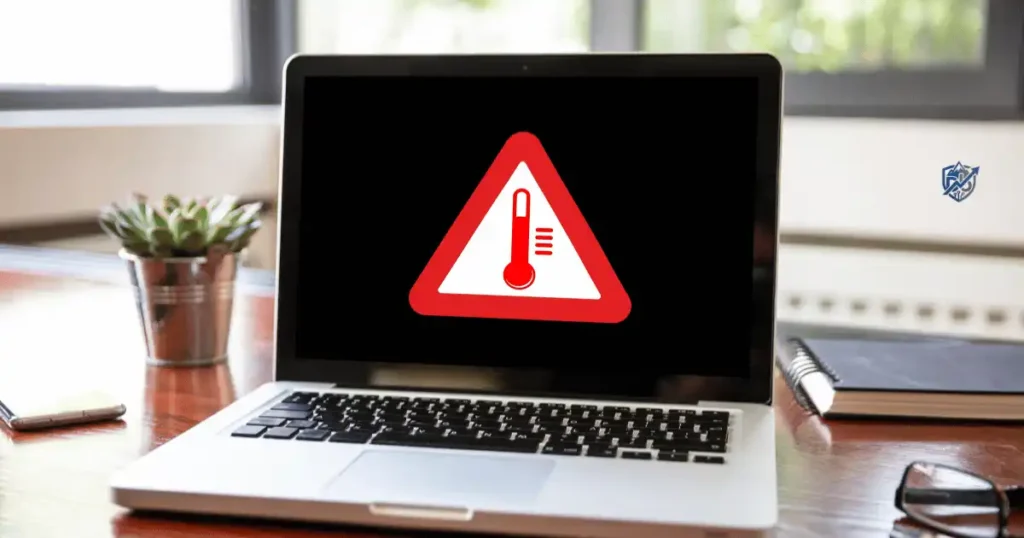
Sitting in a tiny coffee shop in New York during a humid summer afternoon, my laptop fan suddenly roared like a jet engine while the keyboard became burning hot to the touch. Learning how to stop a laptop from overheating saved my machine from permanent damage and brought back its fast, quiet performance.
Extreme heat can cause sudden shutdowns, battery stress, system lag, and permanent hardware failure over time. This detailed guide takes you through quick immediate fixes, air vent cleaning, workload management, thermal paste updates, and expert hardware repairs.
Why Does a Laptop Overheat?
Laptop overheating happens when the internal cooling system fails to dissipate heat generated by the central processing unit (CPU) and graphics card (GPU). Identifying whether heat stems from blocked vents, dust buildup, heavy app workloads, or broken components helps you fix the right problem.
What counts as an overheating laptop?
Several clear signs show that your laptop is running dangerously hot:
- The laptop body feels uncomfortably hot near vents or the keyboard area.
- The internal cooling fan runs constantly at maximum speed.
- The fan produces unusually loud whirring or grinding sounds.
- System performance drops sharply after twenty minutes of work.
- The laptop shuts down suddenly without displaying any error message.
- Programs freeze or lock up during resource-heavy tasks.
- The palm rest area becomes too warm for comfortable typing.
- Battery power drains much faster than usual.
Common reasons laptops overheat
Heat builds up inside portable computers due to physical blockage, heavy software tasks, or degraded internal components:
- Air intake and exhaust vents covered by soft surfaces
- Dust buildup blocking airflow through internal heat sink fins
- Restricted airflow around the bottom or sides of the laptop chassis
- Placing the laptop on a soft bed, pillow, or thick blanket
- High CPU usage caused by demanding software or background tasks
- High GPU load during 3D gaming or video rendering
- Excessive background programs running hidden background tasks
- Old, dry, or cracked thermal paste on processor chips
- A broken, slow, or noisy cooling fan mechanism
- Working in a hot room with warm surrounding air temperatures
- Malware or crypto-mining scripts taking over system resources
- Battery wear or faulty charging adapters generating excessive heat
Why overheating can make a laptop slow
When internal temperatures cross safe operating limits, the CPU triggers thermal throttling to protect its delicate silicon circuits. The processor automatically cuts its clock speed to generate less heat, which causes your operating system to freeze, lag, or run applications at a snail’s pace.
[High CPU Workload] ---> Heat Builds Up ---> Safe Thermal Limit Crossed
                                                     |
                                                     v
[System Recovers Speed] <--- Laptop Cools Down <--- [CPU Cuts Clock Speed]
Is a warm laptop always a problem?
Laptops naturally feel warm during everyday work like streaming video or editing photos. Brief temperature spikes during heavy software updates or gaming sessions are completely normal. However, sustained heat that remains high for hours damages hardware, reduces battery lifespan, and causes continuous thermal throttling.
What to Do Right Now When Your Laptop Gets Too Hot
If your computer feels extremely hot right now, take these immediate cooling steps to protect your hardware before tweaking settings or opening the case.
Stop demanding tasks
Pause 3D video games, close video rendering software, pause large file downloads, and stop heavy applications immediately to reduce processing load on your CPU and GPU.
Shut down or restart the laptop
A quick system restart terminates stuck background tasks that cause CPU spikes. If the chassis feels dangerously hot, perform a full system shutdown and let the computer sit idle for fifteen minutes to cool off.
Move the laptop to a hard, flat surface
Place your laptop on a smooth wooden desk, glass table, or hard lap board. Hard surfaces ensure that bottom air intake vents remain clear and unobstructed.
Disconnect unnecessary accessories
Unplug external hard drives, USB hubs, drawing tablets, and external monitors. Powering multiple accessories through USB ports adds internal thermal stress to power management chips.
Check whether the laptop is still charging
Charging a lithium-ion battery generates substantial internal heat. If you are running heavy apps while charging, unplug the power cable briefly until the laptop cools down.
Do not put a hot laptop in a refrigerator
Never place a hot computer inside a refrigerator or freezer. Rapid temperature changes create condensation inside the case, causing short circuits and permanent liquid damage to circuit boards.
Keep Your Laptop on a Surface That Allows Airflow
Allowing your laptop’s cooling system to breathe is the simplest and most effective way to prevent thermal buildup during daily use.
Why beds and blankets cause problems
Soft surfaces like beds, blankets, plush carpets, and couch cushions block bottom air vents entirely. They trap warm exhaust air around the chassis and pull loose fabric fibers into internal fan assemblies.
Best surfaces for laptop use
- Flat wooden, metal, or glass office desks
- Dedicated laptop stands with open mesh bottoms
- Hard plastic or wooden lap desks with smooth surfaces
- Clean kitchen or dining room tables
Improve airflow around the laptop
Keep at least three inches of clear space around the sides and back exhaust vents. Avoid placing books or cups near exhaust ports, and never cover the keyboard area with protective cloth covers while working.
Can a laptop stand help?
Using a laptop stand raises the bottom chassis off your desk, creating a generous air pocket that improves passive airflow. Elevating the display also improves viewing angles and neck ergonomics.
Clean Dust From Laptop Vents and Cooling Fans
Dust acts like an insulating blanket inside your laptop, clogging air vents and trapping heat around internal components over time.
Signs your laptop needs cleaning
- The internal fan sounds much louder than when the computer was new.
- Exhaust air coming from side vents feels weak or barely noticeable.
- You can see visible dust bunnies clinging to air intake grilles.
- The laptop runs hot even when sitting idle on the desktop.
- Internal temperatures rise quickly within minutes of turning it on.
How to safely clean external vents
Step-by-step cleaning process
- Shut down the laptop completely and unplug the charging adapter.
- Disconnect all external cables, USB drives, and peripherals.
- Allow the laptop to cool down to room temperature for ten minutes.
- Place the laptop upside down on a clean, hard table surface.
- Inspect intake and exhaust grilles for visible dust accumulation.
- Gently clear surface dust using a soft, dry micro-fiber cloth or soft brush.
Should you use compressed air?
Using a can of compressed air helps clear trapped dust from heatsink fins. Hold the can upright and deliver short, gentle bursts of air into the exhaust vents. Hold the fan blades stationary with a plastic toothpick to prevent them from over-spinning and damaging internal bearings.
When internal cleaning is needed
If persistent overheating continues after cleaning external grilles, thick dust blankets may be clogging the internal fan and heatsink assembly. Users comfortable with minor electronics repair can open the bottom access panel to clean the fan, or seek assistance from a certified repair shop.
Avoid these cleaning mistakes
- Never spray liquid cleaners directly into air vents or keyboard keys.
- Do not use high-powered household vacuum cleaners, which create dangerous static electricity.
- Avoid opening the chassis without consulting your model’s service manual.
- Never clean internal components while the laptop is powered on or plugged in.
Check Which Apps Are Making Your Laptop Hot
Heavy or poorly optimized software programs can push processor usage to 100%, generating massive amounts of internal heat.
Check CPU usage in Windows
Press Ctrl + Shift + Esc to open Task Manager. Click on the CPU column header to sort running processes by resource usage, making rogue background apps instantly visible.
Check CPU usage on macOS
Open Activity Monitor from your Applications folder. Click the CPU tab and sort processes by % CPU to identify resource-heavy applications draining power.
Apps that commonly create high workloads
- Professional video editing software (Adobe Premiere, DaVinci Resolve)
- Modern 3D PC games
- Web browsers running dozens of media-heavy tabs
- Group video conferencing apps (Zoom, Microsoft Teams)
- 3D modeling and CAD software
- High-resolution photo editing suites
- File compression and decompression utilities
Close unnecessary background programs
Close background chat clients, game launchers, auto-syncing cloud tools, and updater utilities when performing primary work tasks to lower CPU utilization.
Check for malware or unwanted software
Unintended background software, such as hidden cryptocurrency miners or adware, runs your processor at maximum capacity continuously. Perform a full system scan using built-in security software to locate and remove suspicious files.
Reduce CPU and GPU Workloads to Lower Heat
Lowering processing demands on your system hardware directly cuts down on heat generation and fan noise.
Reduce browser workload
Close browser tabs you are not reading, uninstall unnecessary browser extensions, and restart your web browser daily to clear temporary memory leaks.
Lower graphics settings for gaming
Lower screen resolution, reduce shadow and texture quality, disable ray tracing features, and cap your frame rate (FPS) to 60 FPS inside game settings to reduce GPU thermal load.
Reduce video editing workload
Use proxy files during timeline editing, close secondary project files, and disable background rendering features to keep CPU load manageable.
Manage power settings
Switch your operating system power plan to Balanced or Power Saver mode to cap maximum processor frequency and prevent unnecessary thermal spikes during everyday tasks.
Limit unnecessary startup programs
Disable non-essential applications from launching automatically when your computer turns on, keeping idle background activity to a minimum.
Check Your Laptop’s Temperature and Performance
Monitoring real-time processor temperatures helps you measure baseline heat levels and verify whether your cooling fixes work effectively.
Why temperature monitoring matters
Tracking thermal metrics allows you to establish baseline temperatures, catch heat spikes early, and confirm whether thermal throttling is responsible for sudden system slowdowns.
Check temperatures safely
Install reputable hardware monitoring software like Core Temp or HWMonitor on Windows, or Fanny on macOS, to view live CPU and GPU thermal sensors accurately.
Compare idle versus load temperatures
Idle temperature
When sitting idle on the desktop with minimal background activity, a healthy laptop CPU should measure between 35°C and 50°C (95°F to 122°F).
Load temperature
Under heavy workloads like gaming, video rendering, or stress tests, operating temperatures naturally rise to between 70°C and 85°C (158°F to 185°F). Temperatures consistently exceeding 90°C (194°F) signal serious overheating.
Look for temperature patterns
Watch out for temperatures that spike immediately upon opening basic apps, fans that run at maximum speed constantly, or performance drops that coincide with thermal spikes.
Table: Laptop Overheating Symptoms and Likely Causes
Understanding symptoms helps you diagnose and fix thermal issues step by step.
Table 1: Thermal Diagnostic Matrix
| Symptom | Possible Cause | First Step |
| Loud, continuous fan noise | Heavy CPU load or dust buildup | Check Task Manager CPU load and clean external vents |
| Hot chassis underside | Restricted airflow underneath | Move laptop to a hard, flat desk surface |
| Sudden, unannounced shutdown | Severe thermal threshold protection | Stop heavy tasks immediately and let hardware cool |
| Sluggish system speed | Thermal throttling reducing clock speed | Monitor CPU temperatures and clear background apps |
| Weak exhaust airflow | Dust clogging internal heatsink | Clean vents gently using short bursts of compressed air |
| Excessive heat while idle | Rogue background app or malware | Run a full anti-malware security scan |
| Extreme heat when charging | High charging current plus heavy load | Unplug power cord briefly and reduce active tasks |
Replace Old Thermal Paste When Necessary
Thermal paste is a heat-conductive compound applied between the processor surface and the copper heatsink. Over years of use, it can dry out, harden, and lose its ability to transfer heat effectively.
What thermal paste does
Thermal paste fills microscopic gaps between the metal surfaces of your CPU/GPU chips and the cooling system heatsink, ensuring smooth heat transfer away from delicate silicon circuits.
Signs thermal paste may be a problem
If your laptop is more than three years old, continues to overheat after thorough dust removal, and shows extreme thermal spikes despite full fan speeds, the original thermal paste has likely dried out.
Should beginners replace laptop thermal paste?
Replacing thermal paste requires opening the laptop chassis, removing fragile ribbon cables, unbolting the cooling assembly, and applying fresh thermal compound. Beginners should exercise caution or seek help from a professional repair technician to avoid damaging internal components.
How often should thermal paste be replaced?
Avoid replacing thermal paste on a rigid calendar schedule. Only reapply fresh thermal paste when clear overheating symptoms appear after cleaning vents and verifying fan operation.
Check the Laptop Cooling Fan
A failing or broken cooling fan prevents heat from escaping your laptop, resulting in rapid thermal build-up within seconds of booting.
Signs of a faulty cooling fan
- The fan does not spin at all when the computer gets hot.
- Loud grinding, clicking, or scraping noises come from the fan housing.
- The fan spins constantly at maximum speed without dropping.
- Exhaust ports produce zero noticeable airflow despite high temperatures.
What to do if the fan stops working
If your cooling fan fails completely, stop using heavy software immediately and shut down the computer. Operating a laptop without active fan cooling risks permanent hardware damage. Order a replacement fan unit or take the machine to a qualified repair shop.
Can a cooling pad help?
Active cooling pads supply auxiliary airflow to the bottom chassis. While helpful for lowering ambient temperatures, an external cooling pad cannot compensate for a broken internal cooling fan.
Choosing the right cooling pad
- Select a pad size that matches your laptop’s physical footprint.
- Look for adjustable fan positions that line up with bottom intake vents.
- Choose a sturdy design with quiet bearings and non-slip rubber grips.
- Ensure power consumption fits comfortably within standard USB port limits.
Use a Cooling Pad Without Expecting Miracles
Cooling pads offer supplementary thermal assistance during heavy workloads, but they complement—rather than replace—proper internal laptop maintenance.
When a cooling pad can help
Cooling pads work best during long gaming sessions, extended video rendering tasks, or when using a laptop in hot ambient environments with limited desk airflow.
When a cooling pad may not solve the problem
An external cooling pad will not resolve thermal issues caused by thick internal dust buildup, dried-out thermal paste, malware infections, or broken internal fans.
Cooling pad versus laptop stand
Cooling pads use powered fans to blow air actively against the bottom chassis, whereas simple laptop stands rely on elevated height and open design to improve passive airflow without adding fan noise.
Table: Cooling Options Compared
Selecting the right cooling method depends on your specific thermal bottleneck and budget.
Table 2: Cooling Solutions Comparison Guide
| Cooling Method | Best For | Main Benefit | Key Limitation |
| Hard Desk Surface | All daily laptop use | Free, immediate airflow boost | Delivers passive cooling only |
| Elevated Laptop Stand | Desk setup & ergonomics | Improves natural passive airflow | Does not add active airflow |
| Active Cooling Pad | Heavy gaming & video rendering | Supplies direct external airflow | Uses USB power and adds mild fan noise |
| Internal Vent Cleaning | Dusty or older laptops | Restores factory cooling efficiency | Requires careful handling or tools |
| Fan Replacement | Broken or noisy internal fans | Restores active internal cooling | Requires hardware repair skills |
| Thermal Paste Service | Laptops older than 3 years | Restores optimal heat transfer | Requires opening the chassis and disassembly |
Keep Your Laptop Cool in Hot Weather
High room temperatures directly impair your laptop’s ability to shed internal heat into surrounding air.
Why hot rooms increase laptop temperatures
Cooling systems rely on the temperature difference between internal heatsinks and external room air. Warm room temperatures shrink this thermal gap, forcing cooling fans to work harder while internal temperatures rise faster.
Practical hot-weather tips
- Work in air-conditioned spaces whenever available during hot summer days.
- Set up a small room fan to improve air circulation around your desk setup.
- Position your workstation away from sunny windows and direct sunlight.
- Avoid using laptops inside enclosed cabinets or cramped desk cubbies.
- Keep the computer elevated on a hard surface to maximize air movement.
Real-life context: A hot afternoon in Bangladesh
Imagine sitting at a desk on a hot, humid summer afternoon in Rajshahi. The indoor temperature is warm, the laptop rests on a bed blanket, and the cooling fan whines constantly. Simply moving the computer to a clean wooden table, clearing side exhaust vents, and closing unused background browser tabs will immediately lower CPU temperatures and eliminate annoying system lag. Small environmental tweaks make a massive difference in warm climates.
Humidity and condensation
Never move a cold laptop directly into a hot, highly humid environment, as condensation can form on internal electronic traces. Allow your computer to acclimate gradually to room temperature changes before powering it on.
USA Expert Advice on Preventing Laptop Overheating
Incorporating expert insights helps you maintain long-term laptop health and avoid common thermal pitfalls.
The expert principle to emphasize
Focus on proactive thermal prevention. Keep air vents clean, monitor unusual thermal patterns, address sudden performance slowdowns right away, and fix underlying causes rather than hiding symptoms with temporary accessories.
A practical U.S. home-office example
Consider a remote worker in Phoenix, Arizona, working on a sunny afternoon. The laptop sits near a window running dual video streams while plugged into a charger. Moving the computer away from direct sunlight, closing unnecessary browser tabs, elevating the chassis on a stand, and adjusting power settings resolves the heat issue without buying extra accessories.
Expert Insight: “Diagnose the root cause of excessive heat before spending money on external accessories.” Address dust buildup, app workloads, and airflow bottlenecks first.
Editorial Note: This expert commentary represents an original synthesis of practical technology principles focused on effective thermal management and hardware care.
How to Stop a Laptop From Overheating While Gaming
3D games push both the CPU and GPU to maximum capacity, producing intense thermal output that requires careful airflow management.
Lower graphics settings
Lowering resolution, disabling demanding visual effects, lowering shadow maps, turning off anti-aliasing, and restricting ray tracing reduce graphics processor load instantly.
Limit FPS when appropriate
Cap your frame rate to match your screen’s refresh rate (such as 60 Hz or 120 Hz) inside game display menus to stop your GPU from rendering unnecessary extra frames.
Improve gaming airflow
Always game on a hard table surface or elevated laptop stand. Never place a gaming laptop on soft bedding or lap pillows during extended play sessions.
Monitor temperatures during gaming
Keep an eye on real-time hardware temperatures using in-game overlay tools to detect thermal spikes before performance drops occur.
Give the laptop breaks
Take brief ten-minute breaks during long gaming sessions. Minimizing or closing demanding games allows internal heat sinks to cool down completely.
How to Stop a Laptop From Overheating While Charging
Charging a lithium-ion battery generates natural thermal energy. Heavy usage during charging multiplies heat buildup significantly.
Avoid heavy workloads while charging when possible
Try to delay heavy video editing, 3D rendering, or gaming until after the battery reaches full charge to avoid combined thermal stress.
Check the charger
Use original factory charging adapters or verified replacement units that supply correct voltage and wattage ratings. Underpowered or faulty third-party chargers generate dangerous electrical heat.
Check battery health
Monitor battery health using built-in operating system diagnostic tools. Worn-out batteries struggle to maintain stable voltage and generate higher heat during charging cycles.
When a hot battery is a serious warning
If the battery area becomes scalding hot, emits unusual chemical smells, or causes the bottom case to bulge, stop using the laptop immediately.
Safety Warning: A swollen or damaged battery presents a serious fire risk. Stop using the laptop, disconnect the charger immediately, and seek professional battery replacement service.
What Not to Do When Your Laptop Overheats
Avoid dangerous “cooling hacks” that risk permanent hardware damage or cause electrical short circuits.
- Do not put your laptop in a refrigerator or freezer: Rapid temperature drops cause moisture condensation on sensitive circuit boards.
- Do not block intake or exhaust vents: Covering vents traps heat inside, causing rapid thermal throttling and hardware stress.
- Do not ignore repeated sudden shutdowns: Frequent heat shutdowns indicate severe thermal problems that can permanently damage processor chips.
- Do not rely on unverified third-party software: Aggressive cooling software can cause system instability and fan control conflicts.
- Do not open the case without proper preparation: Opening the chassis without unseating the battery or taking anti-static precautions risks short-circuiting internal electronics.
- Do not keep using a swollen battery: Swollen batteries are dangerous and require immediate professional handling.
How to Prevent Laptop Overheating Long Term
Building simple maintenance habits prevents thermal issues and extends your laptop’s operational lifespan.
Create a simple laptop cooling routine
- Weekly: Wipe down desk surfaces and check external air intake grilles for visible dust.
- Monthly: Review running background apps and clear unneeded startup programs.
- Every few months: Clean air vents gently using short bursts of compressed air.
- When needed: Monitor hardware temperatures if fan noise increases unexpectedly.
Keep the operating system updated
Install official operating system updates regularly to receive performance fixes, system stability improvements, and optimized hardware driver profiles.
Keep storage reasonably free
Maintain at least 15% free space on your main storage drive so the operating system can process virtual memory swap files smoothly without overheating the storage controller.
Manage demanding workloads
Pace resource-heavy tasks, pause background file transfers, and close idle applications to keep processing demands balanced.
Use the laptop in a suitable environment
Always operate your laptop on a hard surface, in a well-ventilated room, at moderate ambient temperatures, and out of direct sunlight.
Table: Laptop Cooling Maintenance Schedule
Regular maintenance keeps internal cooling systems working efficiently year after year.
Table 3: Cooling Maintenance Schedule
| Maintenance Task | Suggested Frequency | Why It Matters |
| Check external vents | Weekly | Prevents surface dust from entering cooling fans |
| Audit background apps | Monthly | Lowers CPU usage and cuts idle heat generation |
| Clean external vents | Every few months | Maintains clear airflow through heatsink fins |
| Monitor hardware temps | When symptoms appear | Identifies thermal throttling patterns early |
| Clean internal fans | As needed | Clears deep dust buildup clogging internal fans |
| Inspect fan noise | When noise changes | Catches worn fan bearings before total failure |
| Replace thermal paste | Based on age & heat | Restores efficient heat transfer from processors |
When Laptop Overheating Means You Need Professional Repair
If basic maintenance steps fail to resolve excessive heat issues, professional hardware repair may be required.
Get professional help if
- The laptop continues to shut down repeatedly despite clean vents and hard surfaces.
- The internal cooling fan stops spinning entirely or makes loud grinding noises.
- The laptop chassis or battery shows visible swelling or warping.
- You detect burning plastic or electrical odors coming from exhaust vents.
- Internal hardware temperatures remain above 90°C during light tasks.
Back up your data first
Always create complete backups of your personal files, work projects, and browser data to an external drive or cloud service before handing your computer over for repair.
Ask the repair technician to check
- Internal cooling fan operation and bearing condition
- Heatsink alignment and copper heat pipe integrity
- Thermal paste condition on CPU and GPU chips
- Battery health and charging circuit operation
- Motherboard power delivery circuits
Repair versus replacement
If repair costs exceed 50% of the price of a new replacement laptop, or if your machine features an ancient processor that cannot support modern operating systems, investing in a new laptop is the wiser choice.
A 15-Minute Laptop Overheating Fix Checklist
Follow this fast step-by-step checklist to resolve heat issues quickly:
Minute 1–3: Stop heavy workloads
Close demanding 3D games, pause video rendering tasks, stop large file downloads, and close heavy background applications.
Minute 3–5: Move the laptop
Transfer the laptop to a clean, hard, flat wooden or glass desk surface. Ensure side and bottom air vents are completely unobstructed.
Minute 5–8: Check resource usage
Open Task Manager (Windows) or Activity Monitor (macOS). Sort processes by CPU usage and terminate rogue background apps.
Minute 8–10: Check the environment
Verify that the room temperature is comfortable, move the workstation out of direct sunlight, and ensure adequate surrounding airflow.
Minute 10–12: Check the charger
Confirm that you are using an official power charger. If the battery feels extremely hot, unplug the charger cable briefly.
Minute 12–15: Decide what comes next
Monitor fan noise and chassis temperature. If overheating continues, schedule a vent cleaning, run an anti-malware scan, or seek professional hardware repair.
Frequently Asked Questions About Laptop Overheating
How do I stop my laptop from overheating quickly?
Move your laptop to a hard, flat surface immediately, close resource-heavy applications, unplug accessories, and let the fans clear trapped heat.
Can overheating permanently damage a laptop?
Yes. While processors use thermal throttling to prevent instant damage, sustained exposure to extreme heat degrades silicon chips, wears out battery cells, and shortens hardware lifespan.
Does a cooling pad really help a laptop?
Cooling pads help lower ambient temperatures during heavy gaming or video rendering, but they cannot fix blocked internal heatsinks, broken fans, or dried thermal paste.
Why does my laptop overheat when gaming?
Games push both the CPU and GPU to maximum capacity simultaneously, producing high heat that requires unobstructed airflow and clean cooling vents.
Why does my laptop get hot while charging?
Charging a lithium-ion battery generates natural thermal energy. Running resource-heavy applications while charging multiplies heat build-up.
Can dust make a laptop overheat?
Yes. Dust clogs heatsink fins and wraps around fan blades, preventing the cooling assembly from dissipating internal heat.
How often should I clean my laptop fan?
Clean visible external vents every few months. Perform deeper internal cleaning whenever heat increases or fan noise becomes noticeably louder.
Should I worry if my laptop fan is always running?
If the fan runs continuously at full speed while sitting idle, check Task Manager for background app usage, check for malware, and clear intake vents.
Why is my laptop slow when it gets hot?
Processors lower their clock speeds automatically during extreme heat (thermal throttling) to protect silicon circuits from permanent thermal damage.
When should I replace an overheating laptop?
Consider replacing your laptop if repair costs are too high, the processor is outdated, or critical motherboard components have failed.
Final Practical Action Checklist
- Place the laptop on a clean, hard, flat surface.
- Ensure all air intake and exhaust vents remain completely uncovered.
- Close demanding applications and heavy browser tabs.
- Check CPU and GPU usage in Task Manager or Activity Monitor.
- Monitor internal hardware temperatures using reputable software.
- Clean surface dust from vents using short bursts of compressed air.
- Keep the laptop setup out of direct sunlight and hot rooms.
- Verify that you are using an official power charger.
- Inspect the battery for swelling or unusual heat.
- Keep your operating system and hardware drivers updated.
- Run a security scan to check for resource-draining malware.
- Consider using an elevated laptop stand or cooling pad for heavy workloads.
- Schedule professional internal vent cleaning if heat persists.
- Seek certified repair service for broken fans or hardware faults.
- Back up important personal data regularly to secure storage.
Final Recommendation
Fixing an overheating laptop requires systematic diagnosis, starting with simple airflow adjustments before pursuing technical hardware repairs. Based on my hands-on experience troubleshooting laptop thermal issues, moving your computer to a hard surface, clearing dust from intake vents, and terminating high-CPU background processes will resolve the vast majority of heat problems. Address airflow bottlenecks early to keep your computer running fast, quiet, and reliable for years to come.

Ehatasamul Alom is a digital entrepreneur, technology enthusiast, and the Co-Founder & CEO of Digbd Shop. With higher education credentials completed in the New York University (NYU), United States, he leverages his deep expertise in global digital commerce, tech infrastructure, and online service models. Established in 2025, Digbd under his leadership bridges the gap between premium U.S. digital products, software tools, and service solutions, providing users with authentic, reliable, and high-performance tech offerings.