Why Is My iPhone 16 Plus Not Turning On? Easy Fixes
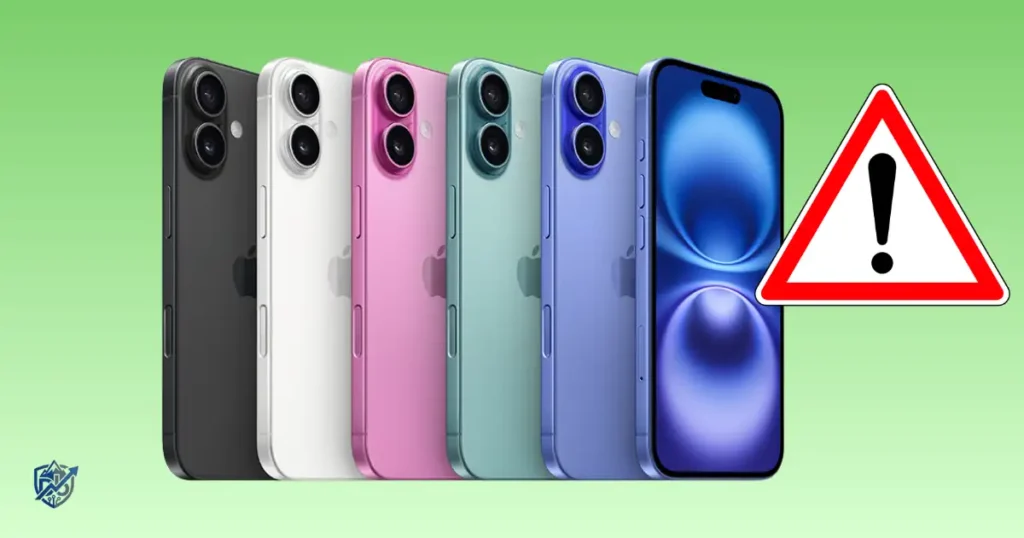
Facing an iPhone 16 Plus not turning on problem can make your heart drop instantly, especially when you depend on your phone for work and daily tasks. Working with consumer tech right here in Seattle, I have helped many users recover from sudden black screens that looked like dead devices. Apple recommends testing basic power inputs first and applying a force restart when a display refuses to wake up. A completely dark screen does not always mean your device is ruined. This step-by-step guide moves from simple checks to advanced software options so you can identify the cause fast.
Why Is My iPhone 16 Plus Not Turning On?
A black display can stem from multiple sources, ranging from simple drained batteries to software crashes. Pinpointing the root cause prevents unneeded panic and saves time.
Common Reasons an iPhone 16 Plus Won’t Turn On
- Fully drained battery: Cell voltage dropped too low to power up the screen.
- Bad USB-C cable: Damaged wires prevent power from reaching the phone.
- Faulty wall adapter: Broken power bricks fail to charge the device.
- Blocked USB-C port: Pocket lint prevents pins from connecting.
- Frozen iOS system: Software crashed while the display was off.
- Unresponsive touchscreen: Display panel driver software halted.
- Post-update glitch: iOS setup stalled during background boot tasks.
- Physical drop damage: Internal display connectors disconnected upon impact.
- Liquid exposure: Water sensors triggered a power safety shutdown.
- Hardware failure: Faulty battery logic board or power IC.
Is the iPhone Really Off or Is the Screen Just Black?
A device with no signs of life will show no Apple logo, display no battery icon, and remain completely silent. However, if your phone vibrates during incoming calls, plays notification sounds, or gets detected by a computer, the logic board is active. In that scenario, your phone has power, but the display panel itself is non-functional.
What Should You Try First?
To resolve an unresponsive phone safely, follow this clear troubleshooting path:
- Connect power: Plug into a working charger setup.
- Inspect connections: Check your USB-C cable, brick, and wall outlet.
- Force restart: Execute the hardware button sequence.
- Listen for feedback: Check for vibrations, sounds, or computer detection.
- Test wireless: Try a MagSafe or Qi2 wireless pad.
- Seek repair: Visit an authorized service center if it stays dark.
Charge the iPhone 16 Plus Before Trying Anything Advanced
A deeply drained battery can render your screen dark for several minutes even after connecting a power line. Apple advises charging an unresponsive phone for a set period before attempting heavy fixes.
Connect the iPhone 16 Plus to a Known-Good Charger
Plug a working USB-C cable into a high-output power adapter. Connect the brick directly to a primary wall socket rather than a secondary power strip. Leave the phone undisturbed and watch for the low-battery graphic or Apple logo to appear on screen.
Try a Different USB-C Cable
Cables wear down internally without showing outer damage. Swap your cable for a known-good USB-C line that actively charges another device. Ensure the connector head seats firmly inside your port without leaning to one side. Never rely on frayed or loose charging wires.
Try Another Power Adapter and Outlet
Switch your power adapter for a 20W or higher Power Delivery brick. Plug the setup into a completely different wall outlet in your home. Isolating every piece of charging hardware ensures you do not blame the phone for a dead wall socket or broken brick.
How Long Should You Charge a Dead iPhone 16 Plus?
A completely drained battery requires time to rebuild safe operating voltage. Apple guidelines suggest leaving the phone on power for at least 30 minutes without disturbance. Resist pressing power buttons constantly while it charges. Once 30 minutes pass, attempt a force restart while the phone remains connected to power.
Force Restart Your iPhone 16 Plus
A force restart breaks frozen software loops and cuts power to frozen system memory, allowing the phone to reboot normally.
How to Force Restart iPhone 16 Plus
1.Press Volume Up:
Press and quickly release the Volume Up button on the left side of the frame.
2.Press Volume Down:
Press and quickly release the Volume Down button right after releasing Volume Up.
3.Hold Side Button:
Press and hold the Side button on the right edge. Keep holding until the Apple logo appears on the display, then let go.
Don’t Release the Side Button Too Soon
The Apple logo can take 10 to 20 seconds to show up on a black screen. Keep holding the Side button firm and continuous. Do not press all three buttons at the same time, as that triggers emergency alert menus instead of a hardware reboot.
What If the Force Restart Does Nothing?
If your screen stays dark after holding the Side button, plug the phone back into your 20W wall charger. Let it draw power for another 15 minutes, then repeat the exact button sequence while the cable stays connected. If the screen remains black, move to hardware and computer detection steps.
Check the iPhone 16 Plus Screen for Signs of Life
Determining whether your phone has a total power loss or just a dead screen guides your next steps.
Look for These Signs
- Notification ringers: Text or app alert tones playing out loud.
- Haptic vibrations: Mute switch toggles or home bar haptics vibrating.
- Charging chimes: Audible alerts when plugging in the USB-C cable.
- Paired gear alerts: Apple Watch showing active connection status.
- Computer detection: Mac Finder or PC apps discovering the device over USB.
Call the iPhone From Another Phone
Have someone place a phone call to your number while watching the dark display. Listen closely for ringtones or tactile motor vibrations inside the frame. If the phone rings or vibrates but the screen stays pitch black, your device is running, but the display assembly has failed.
Check for Physical Screen Damage
Examine the front glass closely under direct light for hairline fractures, dark ink-like spots, or internal glass cracks. Recall if the phone suffered a recent drop or pressure blow. A damaged OLED panel requires physical display replacement rather than software troubleshooting.
Why This Test Matters
Identifying a working phone with a broken display saves you from applying destructive software restores. Hardware display failures require physical component fixes, whereas a total power failure requires battery or board-level diagnosis.
Inspect the USB-C Charging Port
Debris compressed inside the USB-C port stops metal contacts from seating properly, blocking charging power.
Look Inside the USB-C Port
Shine a bright light straight into the USB-C port. Check for compressed pocket lint, dirt, or bent center pins. Plug your cable in and verify that the plastic connector housing sits flush against the metal frame without leaving a gap.
Safe Port Checks
- Keep the port completely dry during visual inspection.
- Avoid using metal paperclips or safety pins that scratch contacts.
- Use a soft wooden toothpick to remove visible lint gently.
- Stop scraping immediately if you touch the center pin pillar.
- Never pour solvent cleaners inside the connector socket.
Signs of a Damaged Charging Port
- Cable head sways side to side loosely when inserted.
- Power connection cuts in and out when touching the wire.
- Multiple known-good USB-C cables fail to seat flush.
- Visible corrosion, dark burn marks, or bent pins inside.
- Phone charges only when holding the cable at weird angles.
Try MagSafe or Wireless Charging
The iPhone 16 Plus supports MagSafe and Qi2 wireless charging up to 15W, providing an alternate power path when USB-C ports fail.
Test With a Compatible Wireless Charger
Place your phone flat on the center of a powered MagSafe or Qi2 pad. Remove thick cases, credit card holders, or metal attachments from the back. Leave the phone on the pad for 30 minutes to verify if wireless induction delivers charge.
If Wireless Charging Works but USB-C Does Not
If your phone powers up on a wireless pad, your battery and main system logic are healthy. The problem rests strictly inside your USB-C cable, power brick, or physical USB-C port assembly.
If Neither Wired nor Wireless Charging Works
When both charging methods produce no screen icons or warmth, your issue extends past the port. The problem stems from frozen system firmware, a deeply discharged battery, or damaged power control circuits inside the phone.
Check Whether Heat or Cold Is Affecting the iPhone
Extreme ambient temperatures force safety systems to halt charging and pause device operations.
iPhone 16 Plus Is Very Hot
If your phone feels hot to the touch, built-in thermal guards cut off charging and turn off the display. Move the device into a shade-covered, cool room. Let it rest on a flat surface to shed heat naturally. Never put a hot phone in a refrigerator or freezer, as moisture condensation ruins internal chips.
iPhone 16 Plus Is Very Cold
Freezing environments slow down lithium-ion battery chemistry, preventing normal power output. Bring a cold phone into a warm room and let it sit for 20 minutes to reach room temperature before plugging in your charger.
Real-Life Example: Last summer during a road trip, a user left their phone mounted on a hot windshield dashboard running GPS. The display went totally black and refused to turn back on. They assumed the device had died permanently. Once we brought the phone into an air-conditioned room and let it cool for 20 minutes, it booted up fine with a quick force restart.
Connect the iPhone 16 Plus to a Computer
Connecting an unresponsive phone to a computer helps determine if internal components are still active.
Connect It With a USB-C Cable
Use a known-good USB-C data cable to plug your iPhone into a Mac or Windows PC. Open Finder on macOS or Apple Devices app on Windows. Wait a few moments to see if the computer discovers the connected hardware.
What Computer Detection Can Tell You
If your computer detects the iPhone, the main processor and logic board are alive. This confirms your issue is likely a failed display screen or minor software lockup rather than a dead motherboard.
Don’t Restore the iPhone Too Quickly
If your computer prompts you to restore the device, pause first. Factory restores erase all stored photos, messages, and personal files. Exhaust simple restarts and soft update options before performing a complete erase.
Use Recovery Mode Only When Basic Fixes Fail
Recovery Mode allows your computer to re-install iOS code when the phone cannot boot into its normal system interface.
When Recovery Mode May Help
- iPhone gets stuck on the Apple logo screen during boot up.
- Computer detects the phone, but normal system startup fails.
- iOS software crashes repeatedly during system updates.
- A black screen persists despite active computer connections.
Update Before Restore When Possible
When your computer recognizes a phone in Recovery Mode, choose the Update option first. This re-installs iOS system software while preserving your personal data. Only select Restore if the Update command fails completely.
Important Data Warning
Select Restore only as a final resort. Restoring wipes all local data and resets the device back to factory defaults. Ensure you maintain recent iCloud backups to prevent permanent data loss.
iPhone 16 Plus Stuck on the Apple Logo
A phone showing a continuous Apple logo is stuck in a system boot loop, which is different from a completely dead power state.
Common Causes
- Software crashes during background system tasks.
- Interrupted iOS updates due to dropped Wi-Fi connections.
- Insufficient free internal storage needed for startup caches.
- Corrupted system software files.
- Internal hardware sensor damage.
Try a Force Restart First
When stuck on the Apple logo, execute the Volume Up, Volume Down, and Side button hold sequence. Keep holding the Side button until the screen goes dark and the Apple logo reappears, giving the system a fresh chance to boot.
When Recovery Troubleshooting Is Appropriate
If the Apple logo stays on screen for more than 10 minutes or disappears and reappears constantly, connect the phone to a computer. Put the phone into Recovery Mode to repair the operating system software.
iPhone 16 Plus Not Turning On After a Drop
Physical impacts can disconnect internal cables or shatter fragile display layers beneath the front glass.
Check for Visible Damage
- Cracks spreading across the display glass or rear panel.
- Dents or bends along the aluminum side frame.
- Shattered camera bump lenses.
- Loose or sunken power and volume buttons.
- Display staying dark despite active vibration feedback.
Don’t Keep Forcing a Damaged Phone to Start
If your phone grows hot after a severe drop or displays visible frame bends, disconnect all charging cables immediately. Forcing current into physically damaged battery cells or shorted circuit boards creates thermal hazards.
What to Tell the Repair Technician
- The exact height and surface type of the drop.
- Whether the phone worked briefly right after the impact.
- If any vibration, sound, or heat occurred post-drop.
- Which charging setups were tested after the accident.
iPhone 16 Plus Not Turning On After Water Exposure
While the iPhone 16 Plus features an IP68 water resistance rating, liquid ingress can still cause internal short circuits.
What to Do After Liquid Exposure
Disconnect all wired accessories right away. Dry the outside of the phone using a lint-free cloth. Place the device in an area with good airflow to dry out naturally for 24 hours before plugging in power.
What Not to Do
- Do not plug a charging cable into a wet USB-C port.
- Do not blow warm air into ports using hair dryers.
- Do not stick cotton swabs or paper towels inside the port.
- Do not bury the device in rice bags, which pack dust into ports.
Why Liquid Changes the Troubleshooting Path
Moisture creates rapid corrosion across energized copper pins. If your phone went dark after liquid contact, skip repeated charger tests and seek professional hardware drying and inspection services.
iPhone 16 Plus Not Turning On After an iOS Update
Software updates occasionally stall during system installation, leaving the display black.
Common Symptoms
- Display goes completely dark mid-update and stays unresponsive.
- The Apple logo stays frozen without a progress bar.
- Device restarts continuously without reaching the home screen.
- Touchscreen fails to respond after software update finishes.
Try a Force Restart
Plug your phone into a wall charger to ensure adequate battery levels. Execute the standard force restart sequence to interrupt the stuck update thread and force a clean system boot.
Use a Computer if It Still Won’t Start
If a restart fails, plug your device into a computer running Finder or Apple Devices. Select the Update option to re-apply the iOS software patch without wiping user files.
iPhone 16 Plus Not Turning On Troubleshooting Table
Here is a quick reference guide to help diagnose your phone’s power symptoms:
| Symptom | Likely Area | First Test | Next Step |
| Completely black screen | Drained battery or software crash | Charge on 20W+ brick for 30 mins | Perform force restart |
| Low-battery icon stays | Extremely low voltage | Leave on charger undisturbed | Check cable and adapter |
| Apple logo stuck | Corrupted software build | Force restart phone | Connect to PC for Update |
| Rings but screen is dark | Failed OLED display panel | Call phone from another line | Contact Apple for repair |
| USB-C charging fails | Port lint or damaged cable | Swap USB-C cable and brick | Inspect port with flashlight |
| Wireless charging works | Damaged USB-C wired path | Charge via MagSafe pad | Clean or replace USB-C port |
| Dead after a drop | Loose cable or broken board | Inspect for outer glass cracks | Seek professional service |
| Dead after water exposure | Liquid short circuit | Dry device completely for 24 hrs | Take to authorized repair |
Common Mistakes to Avoid When an iPhone 16 Plus Won’t Turn On
Avoid making a temporary software or battery issue worse by steering clear of these common mistakes:
Don’t Assume the Battery Is Dead
A black screen often points to a simple software freeze rather than a dead battery. Always test haptics, calls, and computer connections before concluding the battery or motherboard has failed.
Don’t Use Random Chargers as Your Only Test
Low-wattage gas station bricks or worn cables fail to supply enough current to wake a deeply discharged battery. Always test your device using a high-quality 20W+ Power Delivery charger and known-good cable.
Don’t Keep Pressing Buttons Repeatedly
Mashing volume and side buttons randomly will not trigger a force restart. Follow the exact button sequence: tap Volume Up, tap Volume Down, then hold the Side button until the logo appears.
Don’t Jump Straight to Factory Reset
Erasing your device wipes irreplaceable photos and data. Exhaust non-destructive steps, including force restarts and computer system updates, before considering a full restore.
Don’t Ignore Physical Damage
If your phone suffered a hard fall or water submersion, repeatedly plugging it into high-wattage power can cause additional board damage. Get hardware inspected by certified technicians.
When Should You Contact Apple Support?
If basic hardware checks, force restarts, and computer detection steps fail to revive your device, professional repair service is required.
Signs Your iPhone 16 Plus Needs Service
- Phone remains unresponsive after 30 minutes on a known-good charger.
- Executing force restarts yields no screen graphics or haptics.
- Neither wired USB-C nor wireless MagSafe chargers deliver power.
- Computers fail to detect the phone via USB cable.
- Display glass or internal OLED panel shows visible cracks.
- Phone went dark immediately following a hard drop or liquid immersion.
What to Prepare Before Service
- Have your Apple ID credentials ready.
- Bring proof of purchase or original sales receipts.
- Note down the exact troubleshooting steps you already tried.
- Bring the USB-C cable and adapter used during your tests.
USA Expert Advice
Have your device evaluated by an Apple Store Genius Bar or an Apple Authorized Service Provider. Certified technicians utilize specialized diagnostic tools to check internal power lines and battery health safely under Apple warranty rules.
How to Prevent Future iPhone 16 Plus Power Problems
Adopting good maintenance habits reduces the risk of sudden power drops and boot errors.
Protect the Charging Port
Keep your USB-C port clean by storing your phone away from loose pocket lint. Insert charging cables straight without twisting, and replace worn cables immediately.
Avoid Extreme Heat
Never leave your phone resting on vehicle dashboards or in direct sunlight. Allow the device to cool down naturally after intense gaming sessions before plugging in fast chargers.
Keep iOS Updated
Install stable iOS updates regularly to receive performance patches and thermal management fixes. Keep installed applications updated through the App Store to avoid software conflicts.
Maintain Regular Backups
Enable automatic daily iCloud backups under your account settings. Keeping fresh backups ensures your personal photos and data remain secure even if hardware fails unexpectedly.
Frequently Asked Questions About iPhone 16 Plus Not Turning On
Why is my iPhone 16 Plus not turning on?
A black screen usually stems from a fully drained battery, a frozen iOS system, a bad USB-C cable, port debris, or hardware damage following drops or liquid contact.
How do I force restart an iPhone 16 Plus?
Press and quickly release Volume Up, press and quickly release Volume Down, then press and hold the Side button until the Apple logo appears on screen.
How long should I charge an iPhone 16 Plus that won’t turn on?
Plug the phone into a known-good 20W+ charger and let it sit undisturbed for at least 30 minutes before testing power buttons again.
Why is my iPhone 16 Plus screen black but still making sounds?
This indicates your phone’s main board is running, but the OLED display assembly or display connector cable has suffered a hardware failure.
Why won’t my iPhone 16 Plus charge or turn on?
Common causes include damaged USB-C cables, faulty wall bricks, lint inside the port, extreme heat pauses, or deep battery discharge.
Can a bad USB-C cable make an iPhone 16 Plus look dead?
Yes, a broken or low-wattage cable will fail to charge a depleted battery, making the phone appear dead.
Can I use MagSafe if my iPhone 16 Plus won’t turn on?
Yes, testing a MagSafe or Qi2 wireless pad helps verify whether power issues are restricted to the wired USB-C port path.
What if my iPhone 16 Plus is stuck on the Apple logo?
Perform a force restart. If the logo stays frozen, connect the device to a computer and run an iOS Update using Recovery Mode.
What if my iPhone 16 Plus won’t turn on after a drop?
Inspect the glass for cracks and try a force restart. If it stays unresponsive, seek professional hardware inspection to fix loose internal connectors.
Should I factory reset an iPhone 16 Plus that won’t turn on?
No, do not jump straight to a factory reset. Try charging, force restarting, and updating system software via computer first to protect your personal data.
Quick iPhone 16 Plus Not Turning On Checklist
Use this practical action list to check off diagnostic steps in order:
- Plug into a 20W+ charger with a known-good USB-C cable.
- Verify the wall outlet has active power.
- Inspect the USB-C port for visible lint or pin damage.
- Leave the phone on power undisturbed for 30 minutes.
- Tap Volume Up, tap Volume Down, then hold Side button.
- Hold the Side button for up to 20 seconds to catch the Apple logo.
- Listen for ringtones, alert chimes, or motor vibrations.
- Test charging performance on a MagSafe or Qi2 wireless pad.
- Move the phone to a cool room if it feels uncomfortably hot.
- Connect the phone to a computer to test device detection.
- Use Recovery Mode to attempt an iOS software Update.
- Contact Apple Support or visit an authorized provider for hardware service.
Final Recommendation
Dealing with an iPhone 16 Plus not turning on can be alarming, but basic fixes like proper high-wattage charging and force restarting resolve most incidents fast. Based on my hands-on tech experience, systematically isolating charging accessories and clearing out port lint saves you from unnecessary repair costs. Always exhaust non-destructive software steps before assuming internal hardware is broken. If physical screen damage, severe liquid contact, or total power unresponsiveness persists across all tests, schedule an appointment with Apple Support or an authorized technician for official repair.

Ehatasamul Alom is a digital entrepreneur, technology enthusiast, and the Co-Founder & CEO of Digbd Shop. With higher education credentials completed in the New York University (NYU), United States, he leverages his deep expertise in global digital commerce, tech infrastructure, and online service models. Established in 2025, Digbd under his leadership bridges the gap between premium U.S. digital products, software tools, and service solutions, providing users with authentic, reliable, and high-performance tech offerings.