How to Improve Smartphone Battery Life and Make It Last Longer
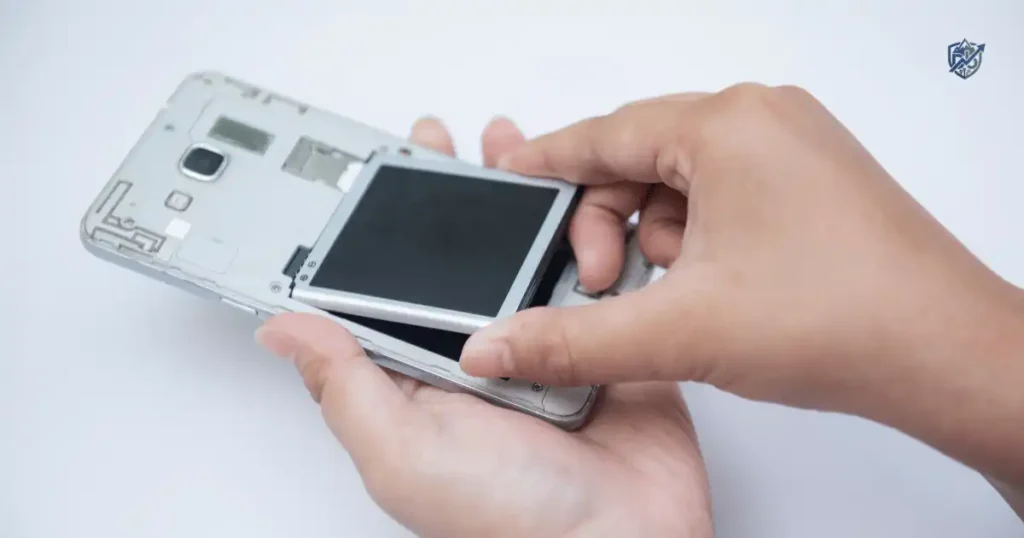
You step onto a busy New York street at 8 a.m. with a full charge. By lunch, your phone shows 61% power. Then maps, 5G, and a long chat push it into red zone. We all hate seeing that low battery warning when we need our phone. I have tested many phones over the years to fix this problem. This guide will show you how to improve smartphone battery life with easy steps that work.
How to Improve Smartphone Battery Life Quickly
Start with the fastest wins. You want practical actions right now, not a long lecture on chemical science. Small changes can save lots of power today.
Lower your screen brightness
The display is often one of the largest battery users on your phone. Keeping your screen at top brightness drains power very fast.
Use auto-brightness or adaptive brightness to let the phone adjust to room light. Avoid maximum brightness indoors where you do not need it. Reduce your screen timeout so the display turns off quickly. You can also use a lower refresh rate if your phone offers that option.
Turn on Battery Saver or Low Power Mode
Every phone has a built-in power saver mode. Android calls it Battery Saver, while iPhone calls it Low Power Mode.
These modes lower power use by turning off extra visual effects. They restrict background updates and stop apps from checking data every minute. Turn them on during travel or long workdays to save juice. Apple notes that Low Power Mode disables background app refresh and mail fetch to extend battery run time.
Check which apps are draining your battery
Your phone tracks which apps consume the most power. Open your main settings and tap on battery settings to view total usage. Look for apps that take up a huge percentage of power. Check if they run constantly in the background. Remove any power-hungry apps that you rarely use.
Use Wi-Fi when practical
Connecting to Wi-Fi uses less power than relying on cellular data. A weak cell signal makes your phone transmitter work much harder. This extra work heats up the device and drains the battery fast. Switch to Wi-Fi whenever a strong, safe network is available near you. Apple also recommends using Wi-Fi to lower daily energy consumption.
Reduce unnecessary notifications
Every push notification wakes up your screen and makes the phone vibrate. A busy group chat can trigger hundreds of alerts a day. This non-stop activity drains battery power quietly. Turn off alerts for apps that do not matter to stop unnecessary screen wake-ups.
The five-minute battery improvement checklist
- Lower screen brightness or use auto-brightness
- Reduce screen timeout to 15 seconds
- Turn on Battery Saver or Low Power Mode
- Check battery usage settings and limit heavy apps
- Switch to Wi-Fi instead of cellular data
- Turn off unnecessary app notifications
Find Out What Is Actually Draining Your Phone
Do not guess why your battery drops fast. The best way to improve smartphone battery life is to find the real cause of power loss.
Check battery usage on Android
Open your Settings app and select Battery. Tap on Battery Usage to see a full list of apps. You will see screen-on time and background app use clearly. Keep in mind that exact menu names vary by phone brand.
Check battery usage on iPhone
Go to Settings and tap Battery. Here you will see daily usage charts and app activity. Apple’s tools show screen activity and offer helpful battery suggestions. These insights highlight unusual app habits that burn through power.
Look for unusual battery drain
Unexpected battery loss usually stems from a few common issues. A newly installed app might be running wild in the background. Poor cell reception or constant location tracking can also kill your power. Heavy video recording, 3D gaming, hot weather, and fresh updates often cause sudden battery drops.
Battery drain after an update
Do not panic if your battery drops faster right after a software update. New system updates trigger many background setup tasks and data indexing. Give your phone two or three days to finish these background jobs. Check your usage metrics again after a few days to see if power drain returns to normal. Apple notes that temporary power loss is normal right after major updates.
Adjust Your Screen to Save More Battery
The display is the part of your phone you stare at all day. It is also the main place to make big power savings.
Reduce screen brightness
Manual top brightness burns through juice fast. Keep your display set to moderate levels indoors. Turn on auto-brightness so the sensor adjusts light automatically. Avoid cranking brightness to maximum unless you are outside under direct sunlight.
Reduce screen timeout
Screen timeout controls how long your display stays lit after you stop touching it. Set your timeout to 15 or 30 seconds. A long timeout keeps the screen glowing on your desk for minutes, wasting precious energy.
Use dark mode on OLED and AMOLED screens
Dark mode looks great and saves real power on OLED and AMOLED panels. On these displays, dark pixels turn off completely and use zero energy. The power benefit varies with your screen brightness and dark color usage, but it offers a steady daily boost.
Lower the refresh rate
Modern phones feature fast screens running at 90Hz or 120Hz. These high refresh rates make scrolling super smooth, but they demand extra power. Dropping back to a standard 60Hz setting or using an adaptive rate will help you improve smartphone battery life during long days.
The best screen settings for battery life
These display settings are very simple, but they add up quickly over a full day. A bright display running at top speed consumes lots of power. You do not need a dim or laggy screen to save energy. Find a low setting that remains comfortable for your eyes.
| Display Setting | Battery-Friendly Choice | Trade-Off to Expect |
| Brightness | Auto or moderate setting | Less visibility in bright sun |
| Screen Timeout | 15 to 30 seconds | Screen locks much sooner |
| Refresh Rate | Adaptive or standard 60Hz | Slightly less smooth scrolling |
| Dark Mode | On for OLED and AMOLED | Less benefit on basic LCDs |
| Always-On Display | Off or limited schedule | Less glanceable screen info |
Manage Apps and Background Activity
Some battery drain comes from what you do on your phone. Other drain happens when your phone works behind your back.
Restrict background activity for heavy apps
Social media networks, shopping apps, and video platforms love running in the background. Navigation tools and fitness trackers also request fresh data constantly. Go to your app settings and restrict background activity for these heavy apps to keep them quiet when closed.
Remove apps you do not use
Unused apps take up space and waste power with background tasks. Take a few minutes to clean out your app drawer. Uninstalling old apps cuts down background processes and reduces random notification noise.
Be careful with battery-saving apps
Be extra cautious with third-party battery booster apps. Many of these tools run non-stop, display pop-up ads, and consume extra resources. They offer very little real benefit because modern mobile operating systems manage memory much better on their own.
Do not obsessively force-close every app
Swiping away every app after you use it can actually hurt battery life. Modern phone software pauses background apps efficiently. When you force-close an app and open it again five minutes later, your phone spends extra energy reloading it from scratch. Only force-close apps when they freeze or act up.
Manage Location, GPS, Bluetooth, and Mobile Data
Wireless radios are super helpful, but you do not need to turn everything off forever. The goal is to choose smart settings for daily use.
Manage location services
GPS chips consume lots of energy when active. Set app location permission to While Using the App instead of Always Allow. Turn off location access completely for simple apps like games or photo editors that do not need your position.
Manage Bluetooth
Modern Bluetooth uses low-energy protocols, so keeping it on does not drain your phone fast. However, maintaining an active connection to wireless headphones, smartwatches, or speakers will draw small amounts of power over time. Disconnect accessories when you finish using them.
Use Wi-Fi instead of cellular data when practical
Connecting to Wi-Fi is generally much more power-efficient than using mobile data. Switch to Wi-Fi at home, in the office, or at coffee shops to protect your power reserve.
Manage 5G settings
5G network connections can draw extra power, especially in areas with poor coverage. If your phone searches for 5G constantly, it will drain the battery. Switch to LTE or use smart network options. Apple includes a 5G Auto mode on iPhones to switch between 5G and LTE depending on speed needs.
Use Airplane Mode in dead zones
Airplane Mode shuts off all radios instantly. Use it during flights or when traveling through remote wilderness. It is also great when you enter buildings with zero reception, stopping your phone from hunting for towers endlessly.
The weak-signal problem
Picture yourself traveling through a rural area on a long road trip. Your phone display shows one tiny bar, then zero bars, then one bar again. That constant search for a signal forces the internal modem to use top power. Switching to Airplane Mode in dead zones stops this heavy battery drain instantly.
Improve Battery Life by Managing Heat
Heat is a major enemy of lithium-ion batteries. Extreme temperatures drop short-term performance and speed up permanent hardware wear.
Why heat is bad for lithium-ion batteries
High heat speeds up chemical reactions inside the battery cell. This chemical stress leads to rapid capacity loss and battery degradation over time. When your phone gets too hot, it throttles performance to cool down, slowing your device.
Do not leave your phone in a hot car
Never leave your mobile phone sitting on a car dashboard or cup holder in direct sunlight. A parked car acts like an oven on warm days. Leaving your device inside a hot vehicle damages the internal battery chemistry quickly.
Avoid charging in extreme heat
Charging your phone creates natural heat. If you play graphic-heavy games while fast charging, temperature levels skyrocket. Thick phone cases can also trap heat during charging sessions. Take off heavy cases if your device gets warm while plugged in.
Remove the case if your phone becomes unusually hot
If your phone feels hot to the touch during fast charging or heavy use, pop off the protective case. Removing the case lets ambient air cool the metal and glass body much faster.
Apple temperature guidance
Apple states that iPhones work best in ambient temperatures between 62°F and 72°F (16°C to 22°C). They warn that using or storing your device in environments above 95°F (35°C) can permanently damage total battery capacity.
A hot afternoon in Texas
Imagine leaving your phone on a table outdoors on a hot Texas afternoon. The metal body feels scorching to the touch. You plug in a charger, but the power percentage stops rising. That heat warning is your device protecting its internal components from severe heat damage.
Charge Your Smartphone in a Battery-Friendly Way
Good charging habits separate real battery care from old internet myths. You can keep your battery healthy without stress.
Do you need to drain your battery to 0%?
No, you do not need to drop your battery to zero. Modern lithium-ion units do not have memory effects like old nickel batteries. Repeated deep discharges to 0% actually cause unnecessary strain on the internal cells. Partial charging is much better for long-term health.
Is charging to 100% bad?
Charging to 100% is fine for normal daily use. However, keeping a battery pinned at full charge while hot can add stress. Turn on optimized charging features to manage high charge states intelligently.
Is overnight charging safe?
Yes, overnight charging is safe on modern devices. Smart phones stop drawing current automatically once they hit full power. Built-in software manages charging levels to reduce strain. Excessive heat is a much bigger threat than staying plugged in overnight. Apple uses Optimized Battery Charging to delay charging past 80% until just before you wake up.
Should you keep your battery between 20% and 80%?
Keeping your charge level between 20% and 80% is a great strategy to extend battery lifespan. It lowers chemical stress on the internal cells over time. Do not panic if you need 100% for long travel days, but stick to mid-range levels when convenient.
The practical charging rule
Charge your phone whenever you need to during the day. Enable built-in battery protection settings in your menu. Avoid charging in hot spaces, and let smart software handle the rest.
Fast Charging vs Battery Health
Fast charging offers great convenience when you need power fast. Understanding how it works helps you protect overall battery health.
Does fast charging damage smartphone batteries?
Modern smartphones are built to handle fast chargers safely. Thermal management systems slow down charging speeds as the battery fills up or gets warm. Heat remains the main concern, so keep your device cool while using fast chargers.
When should you use fast charging?
Fast charging is great when you need quick top-ups. Use it before leaving home, during quick travel stops, or before emergency trips. It delivers high power in short windows when time matters most.
When can slower charging make sense?
Slower charging is ideal when you plug in overnight or work at a desk for hours. Speed does not matter while you sleep or sit at a workstation. Consumer Reports smartphone expert Rich Fisco notes that ultrafast charging can add battery stress, suggesting slower charging when speed is not needed.
Use a quality charger and cable
Always use name-brand chargers and certified cables. Cheap, unbranded wall bricks often lack proper voltage control and thermal safeguards. Damaged cords can short out or deliver uneven current, harming your internal battery.
Use Battery Saver and Power-Saving Features Wisely
Built-in power-saving modes do more than handle low-battery emergencies. They serve as valuable tools to stretch battery life during long days.
Android Battery Saver
Android Battery Saver limits background app activity and turns off location services when the screen is dark. It lowers processor power, pauses background data syncs, and delays non-vital notifications to keep your phone running.
iPhone Low Power Mode
iPhone Low Power Mode reduces display brightness and lowers screen refresh rates. It turns off Background App Refresh, pauses automatic downloads, and stops automatic email fetching to save maximum power.
Adaptive Power and charging optimisation
Modern operating systems include intelligent battery tools. Modern iPhones feature charge limit options and Optimized Battery Charging. These systems learn your daily routines and adjust power usage without manual input.
When to turn power-saving features on
- During long travel days or road trips
- On outdoor hikes and camping trips
- When working in weak cell signal areas
- At busy airports and outdoor festivals
- In emergency situations with low power
How to Improve Smartphone Battery Life While Travelling
Travel creates tough conditions for mobile batteries. High screen brightness, active GPS, camera use, and weak signals can drain a full charge in hours.
Before leaving home
Fully charge your device before heading out the door. Download offline maps and media content so you do not need mobile data later. Update your essential travel apps and pack a reliable portable power bank.
While travelling
Connect to safe Wi-Fi networks whenever available. Keep your screen brightness at moderate levels and turn on Airplane Mode when passing through dead zones. Download videos or music in advance to avoid continuous streaming on cellular networks.
During flights
Enable Airplane Mode as soon as you board the aircraft. Read offline e-books or watch pre-downloaded movies during the trip. This practice saves tons of power for when you land at your destination.
The airport survival strategy
Start your journey with a fully charged phone. Download your digital boarding passes and offline maps before leaving home. Drop screen brightness while inside bright airport terminals, and connect to official airport Wi-Fi. Save your remaining power for navigation, ride bookings, and emergency calls after you land.
How Gaming and Video Affect Battery Life
Action games and video streaming drain power faster than almost any other activity. They push your display and processor to maximum output.
Why mobile gaming drains batteries
3D games demand huge power from both CPU and GPU chips. Running high graphics at 120Hz refresh rates burns energy rapidly. This intense processing work generates heat, which speeds up battery discharge.
Reduce graphics settings
Open the settings menu inside your favorite mobile games. Lower the frame rate from 60fps or 120fps down to 30fps. Drop graphic quality details down a notch to reduce thermal output and prolong play sessions.
Avoid heavy gaming while charging
Never play demanding 3D games while your phone is plugged into a fast charger. This combination creates double the heat, causing thermal throttling. Excessive heat harms overall battery lifespan and slows down charging times.
Video streaming battery tips
Lower display brightness while watching movies or TV shows. Use Wi-Fi instead of cellular data whenever possible. Download media files directly to your device for offline viewing, and choose standard quality streams when saving battery power.
The 90-minute gaming test
Try a simple test to see how gaming impacts your device. Play your favorite game for 30 minutes on high settings and note the battery drop. Let the device cool down completely. Lower the game graphics settings, play for another 30 minutes, and check the percentage drop. You will notice a huge difference in battery consumption.
Keep Your Smartphone Software Updated
Software updates do more than add fun features. They refine power management protocols and fix background battery bugs.
Why updates can help battery life
Engineers release regular system patches to optimize battery use. Updates patch memory leaks, fix rogue app background activity, and tune system performance to keep hardware running efficiently.
Why battery life may drop after an update
Your phone performs heavy background tasks immediately after a major system update. It indexes local files, updates system caches, and optimizes installed apps. This temporary background work uses extra power for a short period.
What to do after an update
- Give your phone two or three days to settle down
- Restart your device once after a major update
- Check your battery usage menu for rogue apps
- Let system indexing finish naturally
How to Improve Long-Term Smartphone Battery Health
Daily battery life matters, but long-term battery health keeps your phone running strong for years. Smart habits stop premature hardware degradation.
Avoid extreme heat
Protect your phone from hot environments. Keep it out of sunlit cars and off hot surfaces to prevent thermal wear on internal battery cells.
Avoid repeated deep discharges
Do not let your phone drop to 0% regularly. Plugs in when your battery reaches 20% to keep chemical stress low.
Use charging optimisation
Turn on built-in charging limits and smart charge routines. These software tools help manage current flow and prevent unnecessary cell wear.
Avoid unnecessary time at very high charge levels
Leaving your battery at 100% in warm rooms adds unnecessary stress. Use smart charging features to delay full charges until right before you need your phone.
Store unused phones correctly
If you store a phone for several months, charge it to around 40% first. Keep it in a cool, dry place away from sunlight. iFixit recommends storing lithium-ion cells around 40% capacity to prevent deep discharge failure over long periods.
Battery lifespan vs battery life
These terms sound identical, but they refer to completely different aspects of your phone. Understanding the difference helps you care for your device properly over time.
| Term | What It Means | How to Improve It |
| Battery Life | Hours of use between daily charges | Lower screen brightness and stop background apps |
| Battery Lifespan | Total years before capacity degrades | Manage heat and avoid extreme charge levels |
| Battery Health | Remaining total chemical capacity | Use smart charging and avoid high heat |
| Charge Cycle | One full discharge of 100% capacity | Avoid unnecessary complete charge cycles |
Should You Replace the Battery or Buy a New Phone?
You do not always need a brand-new phone when power drops fast. Replacing an old battery is often a smart, affordable choice.
Signs your battery may need replacement
- Battery drains in just a few hours of light use
- Phone shuts down unexpectedly at 20% or 30%
- Device feels extremely sluggish during simple tasks
- System settings show a battery health warning
- Phone dies instantly when unplugged
When battery replacement makes sense
Replacing the battery makes total sense if your phone still runs fast and receives security updates. If the camera, screen, and body are in great shape, paying for a simple battery swap restores original performance for a small cost.
When buying a new phone makes more sense
Upgrading to a new phone is better if your device no longer gets software updates. Broken screens, faulty hardware, and slow processing mean a simple battery replacement will not fix your daily user experience.
The 80% battery-health question
Many phone makers suggest replacing the battery when maximum capacity drops below 80%. However, this is just a general reference point. If your phone easily lasts through your day, you do not need to hurry out for a replacement. iFixit notes that practical daily performance matters far more than an arbitrary capacity number.
Smartphone Battery-Saving Myths You Should Ignore
Old myths about battery care continue to spread online. Separating fact from fiction saves time and hassle.
Myth: You must drain your battery to 0%
This advice comes from old nickel-cadmium batteries. Modern lithium-ion batteries do not have memory effects, so draining them to zero adds unnecessary strain.
Myth: Overnight charging always ruins your battery
Modern smartphones feature intelligent charge controllers that cut off power automatically at 100%. Built-in protections keep overnight charging perfectly safe.
Myth: You should turn off Wi-Fi and Bluetooth all the time
Modern Bluetooth and Wi-Fi modules use low energy states when idle. Constantly toggling these switches in settings saves very little real power.
Myth: Closing every app saves lots of battery
Force-closing paused background apps forces the system to reload them from scratch later. This bad habit can actually consume more power over time.
Myth: Battery saver should always be on
Running Battery Saver all day limits background syncs and delays notifications. Use power saver modes when you actually need extra battery boost, not every hour.
Myth: A battery app can magically fix an old battery
No software app can reverse physical battery wear. If internal cells have degraded chemicals, a third-party app cannot restore lost physical capacity.
The biggest battery myth
The biggest myth is believing you must change every setting on your phone to save battery. Focusing on major power drains like screen brightness and high-drain apps produces 90% of your results without making your phone frustrating to use.
USA Expert Advice on Improving Smartphone Battery Life
Adding expert opinions helps separate real technical advice from internet rumors. Industry experts highlight key habits that preserve your device.
Recommended expert reference: Rich Fisco
Rich Fisco, the lead smartphone tester at Consumer Reports, offers clear advice regarding fast charging. A verified statement from Consumer Reports highlights Fisco’s view:
“Ultrafast charging could cause undue battery stress, ultimately reducing the number of times the phone can be recharged.”
Fisco recommends using standard charging speeds when fast power is not needed, such as overnight charging at your bedside table.
Expert advice to highlight
- Heat is the single biggest cause of battery degradation
- Smart charging habits preserve internal capacity over time
- Fast charging is safe, but standard speeds work best overnight
- Simple battery swaps extend total phone lifespan easily
Real-Life Smartphone Battery Scenarios
Everyday situations call for tailored battery strategies. Adapting your habits to your daily environment keeps your phone alive when you need it.
The Dhaka commuter
A commuter uses their phone for ride-hailing, maps, mobile data, streaming music, and endless WhatsApp messages. Weak signals combined with bright sunlight destroy power quickly. Downloading map data in advance, keeping display brightness moderate, and using Wi-Fi at stops fixes these daily battery drops.
The New York office worker
A typical office worker in New York spends hours on podcasts, Slack messages, work emails, and video calls. Screen time and video meetings burn through power fast. Keeping display brightness at moderate levels and connecting to stable office Wi-Fi keeps power steady all day.
The Texas road-trip traveller
A Texas road trip brings high heat, active GPS navigation, bright sunshine, and continuous 5G usage. Mount your phone away from direct sunlight on the dashboard. Keep the vehicle interior cool, download maps for offline use, and pack a power bank for rest stops.
The weekend mobile gamer
Mobile gamers run high display refresh rates, top graphics, and heavy processing power. To protect battery life, drop internal game graphics settings and take cooling breaks. Never play heavy games while fast charging to avoid extreme temperature spikes.
The “10% at dinner” moment
We all know the stress of sitting at dinner with only 10% power left. You need maps to get home, but your charger is back at the hotel. Turn on Low Power Mode immediately, drop screen brightness to minimum, and close background apps to preserve those final percentage points.
A Simple 24-Hour Smartphone Battery Test
Run a quick 24-hour test on your phone instead of guessing which settings work. This simple experiment shows you exactly where your energy goes.
Morning baseline
Check your phone at 8 a.m. after taking it off the charger. Note your starting battery percentage, check battery health in settings, and look at your top consuming apps from yesterday.
During the day
Use your phone normally throughout the day. Pay attention to screen brightness levels, time spent on mobile data versus Wi-Fi, and heavy app usage like gaming or video streaming.
Evening comparison
Check your settings menu at 8 p.m. Review your total screen-on time and look at the app usage list. Identify which apps burned through the most power during your day.
Change only three things
Try making just three small changes tomorrow:
- Lower screen brightness slightly and use auto-brightness
- Restrict background activity for one high-drain app
- Switch to Wi-Fi whenever you are sitting at your desk
Compare your remaining percentage at 8 p.m. to see how much power you saved.
Smartphone Battery Settings Cheat Sheet
Use this cheat sheet as a quick reference guide whenever you need to optimize your device settings fast.
| Phone Setting | Recommended Setting | Potential Battery Impact |
| Display Brightness | Auto or moderate level | High power savings |
| Screen Timeout | 15 to 30 seconds | Moderate power savings |
| Refresh Rate | Adaptive or standard 60Hz | Moderate power savings |
| Location Permissions | Only while using app | Moderate power savings |
| App Notifications | Limit non-essential alerts | Low to moderate savings |
| Background Activity | Restrict heavy apps | Moderate power savings |
| 5G Data Settings | Set to 5G Auto or LTE | Varies by cell signal |
| Power Saver Mode | Turn on when below 20% | High power savings |
Frequently Asked Questions About Smartphone Battery Life
How can I improve my smartphone battery life quickly?
Lower display brightness, turn on Battery Saver, reduce screen timeout to 15 seconds, and switch from cellular data to Wi-Fi.
What drains a smartphone battery the most?
High screen brightness, heavy background app activity, 3D gaming, weak cell signals, and continuous GPS location tracking drain power fastest.
Does lowering brightness save battery?
Yes, lowering screen brightness is one of the single most effective ways to save battery power on any mobile device.
Does dark mode save battery?
Dark mode saves real battery power on OLED and AMOLED displays because dark pixels shut off completely and draw zero energy.
Does turning off Bluetooth save battery?
Modern Bluetooth uses very little power when idle, so turning it off provides only tiny power savings unless connected to accessories.
Does 5G drain more battery than 4G?
Yes, 5G can use more battery power than LTE, especially in areas with weak 5G coverage where the phone searches constantly for signal.
Is it bad to charge your phone overnight?
No, modern phones stop charging automatically when full. Built-in management chips prevent overcharging, making overnight charging safe.
Should I charge my phone to 100%?
Charging to 100% is fine for daily use, but keeping your battery between 20% and 80% reduces long-term chemical stress on internal cells.
Is it bad to let my phone reach 0%?
Yes, letting lithium-ion batteries drop to 0% repeatedly causes extra chemical strain and degrades total battery lifespan faster.
Does fast charging reduce battery lifespan?
Fast charging creates extra heat, which can stress the battery over time. Use slower charging overnight when speed is not needed.
How do I stop apps from draining my battery?
Go to battery settings, check which apps use top power, and restrict their background activity or uninstall unused apps completely.
Does Battery Saver damage the battery?
No, Battery Saver is a safe software feature that lowers power consumption by reducing performance and limiting background tasks.
Why does my phone lose battery overnight?
Background app updates, continuous data syncs, weak cell signals, and push notifications cause natural battery drain overnight.
Why is my phone battery draining after an update?
System updates perform heavy indexing, setup tasks, and app optimizations in the background, causing temporary power loss for a few days.
How long should a smartphone battery last?
A healthy phone battery should deliver 1-2 days of light use per charge and last 2-3 years before chemical capacity drops noticeably.
When should I replace my smartphone battery?
Consider replacing your battery when maximum capacity drops below 80% or when the phone drains in hours and shuts down unexpectedly.
Final Smartphone Battery Action Plan
Follow this simple action plan to keep your device running strong every single day without unnecessary confusion.
When Do these today
- Check your battery usage menu to spot power-hogging apps
- Enable auto-brightness and lower display brightness slightly
- Set your screen timeout to 15 or 30 seconds
- Delete old apps that you no longer use
- Turn on built-in battery optimization settings
Do these when charging
- Keep your phone out of hot rooms and direct sunlight while charging
- Use high-quality, certified wall chargers and charging cables
- Turn on optimized battery charging features in your system menu
- Use standard chargers overnight when speed does not matter
Do these for long-term battery health
- Keep your phone cool and avoid leaving it in hot vehicles
- Plug in your phone before the battery drops below 20%
- Use built-in charge limit features if you keep your phone plugged in
- Store unused phones in cool places with around 40% charge
- Swap out worn batteries when daily capacity drops too far
The simplest rule to remember
Keep your phone cool, manage your display brightness, restrict heavy background apps, and let smart charging software handle the rest.
Final Recommendation
I have spent years testing phones and managing digital tools under tough daily conditions. From my hands-on experience, learning how to improve smartphone battery life comes down to controlling heat and screen output. You do not need to turn off every fun feature on your phone. Simply drop your screen brightness, switch to Wi-Fi when possible, and avoid charging your device in hot environments. Following these practical steps will keep your phone powered up when you need it most.

Ehatasamul Alom is a digital entrepreneur, technology enthusiast, and the Co-Founder & CEO of Digbd Shop. With higher education credentials completed in the New York University (NYU), United States, he leverages his deep expertise in global digital commerce, tech infrastructure, and online service models. Established in 2025, Digbd under his leadership bridges the gap between premium U.S. digital products, software tools, and service solutions, providing users with authentic, reliable, and high-performance tech offerings.