VPN Causing Website Problems? 12 Tested Easy Fixes to Try
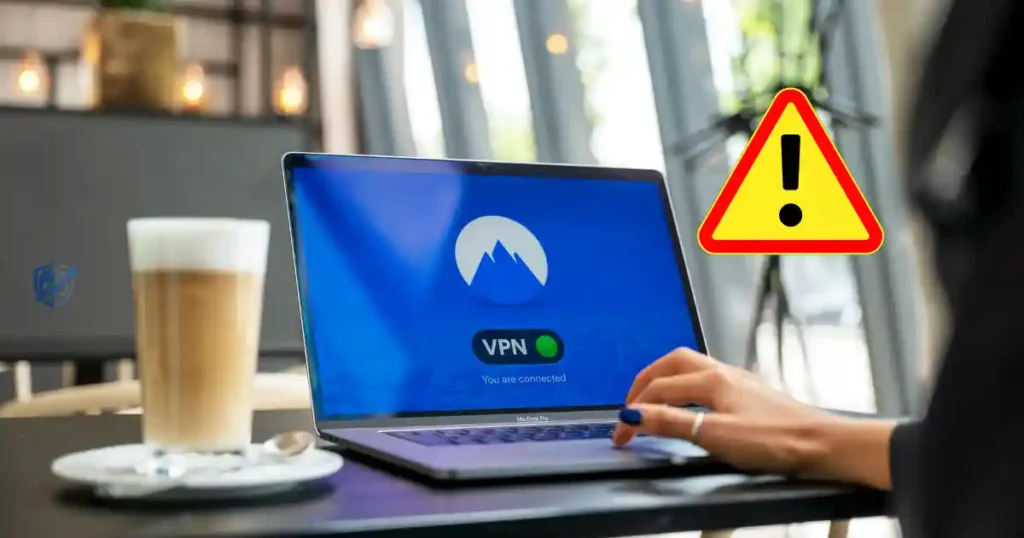
While sitting in a quiet café in Minneapolis, I tried to access a critical dashboard, but my browser suddenly showed a connection error. My internet was working fine, and my secure client app showed a green status. Yet the page refused to load until I paused my connection. Having a VPN causing website problems is a very common issue for remote workers and everyday users.
A VPN routes your traffic through remote servers, which can trigger security checks, DNS errors, or IP blocks. The good news is that you rarely need to give up your privacy setup completely to restore smooth web browsing.
Why Is My VPN Causing Website Problems?
A VPN changes how your data travels across the web. That extra hop can sometimes cause friction with site security systems, regional filters, and local network tools.
How a VPN Changes Your Website Connection
Without a VPN, your laptop talks directly to your internet service provider, which sends you straight to the destination server. When you turn on a secure app, your data gets encrypted and routed through a private server first. This process swaps your real IP address for a shared one, masks your actual geographic location, and changes your default DNS routing. Mozilla notes that DNS translates web names into IP addresses, and VPN settings directly impact how those requests get handled.
The Most Common VPN Website Problems
- Websites will not load or time out.
- Pages load very slowly or freeze.
- Security systems block access completely.
- You see endless CAPTCHA human tests.
- Account login pages fail or loop.
- Pages display in the wrong language.
- Regional video or news content changes.
- Browsers show domain DNS lookup errors.
- Online banking tools trigger security alerts.
- Page images, buttons, or scripts fail.
Is the VPN Really the Problem?
Before changing your system settings, run a simple isolation test. Open the broken page while connected and note the exact error code. Next, turn off your privacy app for 30 seconds and refresh the page. If the site loads instantly, your private connection is the clear trigger. Reconnect your app and switch to a new server to confirm if the issue is tied to a single IP address.
VPN Website Problems Quick Diagnosis Table
Matching your specific symptom to a root cause saves time and prevents unnecessary setting changes. Use this quick reference table to find the right fix for your specific issue.
| Website Problem | Possible Cause | First Fix to Try |
| Website will not load | VPN routing or server issue | Change VPN server |
| Endless CAPTCHA | Shared or flagged VPN IP | Switch server |
| Wrong country content | VPN location | Choose another location |
| Website is very slow | Distant VPN server | Connect to a closer server |
| DNS error | VPN or custom DNS conflict | Test DNS settings |
| Login fails | Security or location check | Disable VPN temporarily |
| Images do not load | Privacy filter or ad blocker | Disable filtering temporarily |
| Only one website fails | Website blocks VPN traffic | Test another VPN location |
Mozilla identifies server distance, server load, home bandwidth, and app setup as key factors that affect connection performance.
The Five-Minute VPN Website Test
- Refresh the stubborn web page twice.
- Open a generic site to test overall internet access.
- Switch your privacy app to a new server.
- Pick a server location closer to your home.
- Pause your privacy app for one minute.
- Refresh the original site to see if it loads.
- Check your app for active ad or tracker filters.
VPN Connected but Websites Will Not Load
Your connection app may display a green “Connected” status while your web browser acts like you have no internet access at all.
Restart the VPN Connection
Disconnect your privacy tool, wait five seconds, and reconnect. This forces your device to establish a fresh encrypted tunnel. Mozilla’s official troubleshooting guides recommend restarting the app when sites fail to open despite an active connection status.
Restart Your Device
Rebooting your computer or phone clears temporary background processes, resets active browser connections, and restarts stuck network adapters that might be stalling your traffic.
Switch to Another VPN Server
Individual servers can experience temporary outages, heavy traffic, or routing glitches.
Choose a Server Near Your Actual Location
Picking a nearby server reduces latency and physical travel distance for your data packages.
Check Whether All Websites Are Affected
If only one page fails, the target site is likely blocking known privacy IP ranges. If every page fails, your app settings or local network adapter need attention.
Why Does a Website Work Without My VPN but Not With It?
When a page loads the second you turn off your privacy app, the site is likely reacting to your modified IP address or modified path.
The Website May Restrict VPN IP Addresses
Websites often restrict incoming traffic based on geographic origin, host provider networks, or automated risk scores. Cloudflare notes that site owners can block entire IP ranges, countries, or rapid traffic patterns to prevent malicious activity.
Shared VPN IP Addresses Can Trigger Security Systems
Hundreds of users often share a single privacy IP address. Security tools flag this high-volume traffic as potential bot activity. Providers like NordVPN document that shared connections frequently trigger repeated human verification tests on strict sites.
Try a Different VPN Server
Switching servers gives you a fresh public IP address and a clear routing path.
Do Not Rapidly Switch Servers Dozens of Times
Jumping across dozens of servers in two minutes can look suspicious to security tools and make troubleshooting far more confusing.
VPN Causing CAPTCHA and “Verify You Are Human” Problems
Solving five puzzle tests just to read a simple article is exhausting.
Why VPNs Can Trigger More CAPTCHAs
- Shared IP addresses mask many simultaneous users.
- Prior bad traffic from that IP flagged the network.
- Automated systems mistake shared traffic for spam bots.
- Strict firewall rules target public data center ranges.
OpenAI specifically advises users encountering unusual security loops to check whether an active VPN is triggering automated defense checks.
Change Your VPN Server
Switching to an underutilized server gives you an IP address with a clean security reputation.
Temporarily Disable the VPN for the Trusted Website
If you are on a trusted home network, pausing your app briefly allows you to pass security checks without endless loops.
Check Browser Extensions
Ad blockers, script controls, and secondary proxy extensions can interact poorly with private networks and trigger extra security checks.
Try Private or Incognito Mode
Opening an incognito window disables most third-party extensions and eliminates bad cookies that might be triggering site blocks.
VPN Causing Website Problems Because of DNS
Domain Name System errors stop your browser from locating the correct server address for a domain name.
What Is DNS?
DNS acts as the phonebook of the web, translating human names like example.com into numerical IP addresses. Mozilla describes DNS as the core translation system that allows browsers to connect to web servers correctly.
How VPN DNS Settings Can Affect Websites
- App-provided DNS servers may fail to resolve specific domains.
- Custom local DNS settings can conflict with encrypted app tunnels.
- Built-in ad-filtering DNS lists may block core page assets.
- Secure DNS-over-HTTPS in browsers can clash with network rules.
Mozilla notes that Firefox’s built-in DNS-over-HTTPS settings can sometimes override the DNS rules configured inside your private network client.
Common DNS-Related Browser Errors
- The target website cannot be found.
- Server DNS address could not be resolved.
- Standard
ERR_NAME_NOT_RESOLVEDerror messages appear.
Google identifies ERR_NAME_NOT_RESOLVED as a hostname lookup failure and cites network tool conflicts as a frequent trigger.
Test Default VPN DNS Settings
Reset your privacy app to its default DNS configuration before attempting complex network modifications.
VPN Privacy Features Can Break Websites
Many privacy tools include built-in features that block ads, trackers, and malicious domains before they load.
Ad Blockers and Tracker Blockers
These built-in filters can accidentally block essential site components like checkout scripts, layout code, or interactive user widgets.
Malware and Phishing Filters
Security tools will actively drop connections to subdomains flagged for suspicious code or outdated certificates.
Custom DNS Filters
Aggressive DNS filters can block data tracking tools, third-party media embeds, and external font scripts required for proper layout rendering. Mozilla warns that aggressive privacy filters can cause pages to display incorrectly or break entirely.
Disable One Privacy Feature Temporarily
Keep your privacy app connected, turn off just the built-in ad blocker, refresh the site, and see if the missing content reappears.
VPN Making Websites Slow? Try These Fixes
Routing traffic through encrypted servers adds extra distance, which can increase loading times and latency.
Choose a Closer VPN Server
If you are in Seattle, connecting to a local server is faster than routing through a server thousands of miles away in Europe.
Avoid Busy Server Locations
Server speeds drop during peak user hours. Mozilla notes that local time of day and high server demand directly impact connection speeds.
Compare Speed With and Without the VPN
- Run an online speed test on your normal connection.
- Record your ping, download, and upload scores.
- Turn on your privacy tool and re-test.
- Compare the drop in performance across multiple locations.
Check Your Original Internet Connection
A private connection cannot fix a slow or unstable home Wi-Fi signal.
Test Another Website
Test multiple independent web pages to confirm whether the slowdown affects your whole connection or just one busy remote server.
VPN Causing Login Problems on Websites
Financial institutions and secure account portals closely track login locations to protect user security.
Banking and Financial Websites
Banks monitor incoming connections for rapid location changes and known data center IP ranges. A sudden shift from your home city to a remote region can trigger instant account lockouts.
AI Tools and Online Accounts
AI platforms, email services, and cloud tools enforce strict regional rules. Major platforms explicitly suggest turning off private routing apps when user account authentication fails.
Try the Same Server Consistently
Connecting through the same server location prevents security systems from flagging your account for unusual geographical jumps.
Complete Account Recovery Without a VPN When Appropriate
If you are locked out of an account, complete identity verification tests over your standard, trusted home network connection.
Why Does My VPN Show the Wrong Website Language or Country?
Websites adjust their content based on the geographical location linked to your public IP address.
Websites Use Location Signals
- Visible IP address ranges.
- Browser preferred language settings.
- Stored user account preferences.
- Device GPS and location permissions.
- Tracking cookies from past visits.
Change the VPN Server Location
Select a server located in your home country to restore your default language, search results, and local pricing.
Check Browser Language Settings
Ensure your browser’s primary language preference is set to your preferred native option.
Clear Site-Specific Cookies
Sites store your past geographic choice in tracking cookies. Clearing data for that specific domain forces it to detect your new location settings.
VPN Location Does Not Control Every Location Signal
A private connection masks your IP, but sites can still detect your location through device GPS or stored cookies. Mozilla confirms that private routing can cause non-regional content to appear when sites rely solely on IP lookup data.
VPN Website Problems Troubleshooting Table
Use this symptom mapping table to isolate technical issues quickly without making unnecessary configuration changes.
| Symptom | Likely Cause | Best First Test |
| Website won’t load | VPN server or routing issue | Change server |
| Only one site fails | Site restriction | Test without VPN |
| CAPTCHA keeps appearing | Shared IP reputation | Switch VPN server |
| Wrong country content | Server location | Select another region |
| Website is slow | Distant or busy server | Choose a closer server |
| DNS error | Resolver conflict | Check VPN DNS settings |
| Login fails | Security check | Test without VPN |
| Site content is missing | Privacy filter | Disable one filter |
How to Fix VPN Website Problems Step by Step
Follow this clear, sequential diagnostic process to systematically find and resolve connection issues.
Step 1: Identify Whether One or Many Websites Fail
Test three separate websites. If only one fails, focus on site-specific fixes. If all three fail, troubleshoot your core network app.
Step 2: Reload the Website
Perform a hard refresh by holding Ctrl + F5 on Windows or Cmd + Shift + R on Mac to clear cached errors.
Step 3: Restart the VPN
Disconnect your privacy application completely, wait five seconds, and turn it back on to reset the connection.
Step 4: Change the VPN Server
Select a different server location in the same region to get a fresh IP address with a clear reputation.
Step 5: Try a Closer Location
Pick the server closest to your physical location to minimize latency and speed up page load times.
Step 6: Temporarily Disable VPN Privacy Filters
Turn off built-in ad blockers, tracker shields, and strict security filters inside your app settings.
Step 7: Check DNS Settings
Set your application to use its default DNS resolution settings rather than third-party custom providers.
Step 8: Test Another Browser
Open the page in a clean browser like Firefox, Chrome, or Edge to rule out bad browser extensions or corrupted cache files.
Step 9: Test Without the VPN
Pause your privacy app briefly to verify if the target site is completely offline or actively blocking your private IP.
Step 10: Check the Website’s Official Support Information
Review the target website’s help center or status page for known outages or explicit policies against private network connections.
Record What Changes
Keep track of the specific server, browser, and error codes you observe. Having accurate notes makes it easier to get quick help if you need to contact support.
VPN Causing Website Problems on Chrome, Firefox, and Edge
Browser-specific features can conflict with private network software.
Google Chrome VPN Problems
Chrome uses internal security rules and secure DNS options that can conflict with system-level privacy software. Google lists network software conflicts among the primary causes of connection drops in Chrome.
Firefox VPN Problems
Firefox includes native DNS-over-HTTPS settings and strict privacy controls. If these options clash with your app rules, web pages can time out or display broken code.
Microsoft Edge VPN Problems
Edge features built-in efficiency tools and network proxies that can interfere with private connections.
Why Testing Another Browser Helps
Opening a broken page in a secondary, uncustomized browser confirms whether the issue is caused by your primary browser’s settings or your privacy software.
VPN Causing Website Problems on Mobile
Smartphones use aggressive power management tools and frequent network switching, which can disrupt background connections.
Restart the VPN Application
Force close the app on iOS or Android, wait a few seconds, and relaunch it to refresh your background connection.
Switch Between Wi-Fi and Mobile Data
Toggle your phone from Wi-Fi to cellular data to check if your local router is blocking encrypted connections.
Check Battery Optimization Settings
Ensure your mobile operating system is not putting your privacy app to sleep in the background.
Update the VPN Application
Outdated mobile apps can experience security protocol bugs. Keep your software updated through the official app store.
Check for Other VPN or Proxy Applications
Running two mobile security apps or proxy tools simultaneously causes routing conflicts. Private Internet Access notes that competing background tools are a primary source of mobile connection failures.
Test the Same Website in a Mobile Browser
Try loading the page in Safari or Chrome rather than a standalone native mobile app to isolate connection issues.
Expert Advice for Troubleshooting VPN and Website Problems
Systematic isolation is the fastest path to fixing broken web connections.
The “Change One Variable” Method
Avoid altering multiple settings at once. Change one single option—like switching your server location—and test the page immediately. If that fails, revert that setting before testing another change, such as toggling your ad blocker. This approach yields clear answers instead of confusion.
USA Expert Reference — Bruce Schneier
Security expert Bruce Schneier emphasizes that while privacy software and encryption tools are essential for digital security, they inevitably add operational complexity to basic web standards. Balancing online privacy with site usability requires understanding how automated firewalls filter incoming traffic.
Security Advice Before Turning Off Your VPN
- Only pause privacy tools on trusted home or office networks.
- Avoid entering passwords or credit card data on open Wi-Fi without protection.
- Reconnect your privacy app immediately after completing your troubleshooting test.
- Avoid downloading unverified “VPN repair” utilities from untrusted sources.
Common Mistakes When a VPN Causes Website Problems
Avoid these common missteps when trying to resolve connection errors:
- Changing five different application settings at the same time.
- Reinstalling your entire operating system for a simple IP block.
- Closing error messages without reading the specific error code.
- Forgetting that browser extensions can block page assets independently.
- Running two privacy apps or proxies simultaneously.
- Downloading unverified third-party “network repair” software.
- Assuming the target website is fine when the server itself is offline.
Always Test the Website Without the VPN
Pausing your app briefly is the fastest way to confirm whether the site block is caused by your privacy app or an issue on the site’s end.
How to Prevent VPN Website Problems
While you cannot prevent every website from blocking public server IP addresses, maintaining clean settings minimizes unnecessary bugs.
Keep Your VPN Application Updated
Software updates patch broken protocols, resolve server bugs, and keep your software compatible with modern OS updates.
Use Recommended or Nearby Servers
Default, auto-selected servers offer optimal balance between low latency, balanced server load, and clean IP reputations.
Avoid Running Multiple VPN Services
Keep only one network protection client active to prevent internal routing conflicts.
Review Custom DNS Settings Carefully
Stick with your provider’s native DNS resolution options unless you have a specific technical reason to use custom addresses.
Check Privacy Filters When Websites Break
If a page fails to load properly, check whether built-in ad or script blockers are dropping necessary site elements.
Keep Your Browser Updated
Modern browsers fix web standard bugs that could otherwise cause issues when routing data through secure tunnels.
Use Trusted VPN Providers
Established providers actively maintain their server networks, monitor IP health, and quickly replace flagged IP ranges.
When Should You Turn Off Your VPN for a Website?
Knowing when to temporarily pause your connection saves time while keeping your personal data safe.
When Temporary Disconnection May Be a Useful Test
- A essential website refuses to open completely.
- You need to pass an urgent identity verification check.
- You are confirming whether your privacy app is causing a bug.
When You Should Be More Careful
- You are using open, unencrypted public Wi-Fi networks.
- You are managing sensitive personal accounts over unknown networks.
- You are visiting unfamiliar web pages without baseline protection.
Turn It Back On After Testing
Once you finish your quick test or task, re-enable your privacy app to keep your daily web traffic encrypted.
When Should You Contact VPN Support?
If basic diagnostic steps fail to fix your connection, reach out to your provider’s support team for assistance.
Information to Collect First
- Name of your provider and current app version.
- Your device model and operating system version.
- The specific server location you are trying to use.
- The exact web address and error code displayed.
- Whether the site works when your privacy app is turned off.
Problems That May Need VPN Support
- Your app connects successfully, but no websites load anywhere.
- Every single server location results in instant connection failures.
- Internal DNS settings fail consistently across multiple networks.
- Your privacy app drops its connection repeatedly without notice.
- Connection errors persist across multiple separate devices.
Mozilla offers dedicated support documentation and reset utilities for users experiencing persistent client connection bugs.
Frequently Asked Questions About VPN Website Problems
Can a VPN stop websites from loading?
Yes. Private network routing, server overloads, DNS mismatches, built-in privacy filters, and site-level IP blocks can all prevent pages from loading.
Why do websites work when I turn off my VPN?
Turning off your app removes the shared IP address, custom DNS rules, and remote routing, connecting you directly through your home internet provider.
Why am I getting CAPTCHAs while using a VPN?
Shared server IP addresses host traffic from many users at once. Security systems flag this high-volume activity and prompt human verification tests.
Can VPN DNS cause website problems?
Yes. Misconfigured DNS settings prevent your browser from looking up the correct web server address, resulting in domain resolution errors.
Should I disable my VPN if a website will not load?
Pausing your app is a great diagnostic step. However, avoid entering sensitive details over untrusted public Wi-Fi without encryption.
Why is my VPN making websites slow?
Physical distance to the server, heavy server load, processing overhead from encryption, and home Wi-Fi limits all impact speed.
Can a VPN change a website’s language?
Yes. Sites look up your public IP address to guess your location and may default to the local language of the server you selected.
Final Recommendation
I have spent years testing web applications, managing secure connections, and dealing with unexpected site blocks while working on the go. In my experience, a VPN causing website problems is almost always tied to a flagged shared IP address or an overeager privacy filter rather than a broken internet connection.
Before changing complex network controls or reinstalling software, simply switch to a nearby server location or pause built-in ad filters. Taking a calm, step-by-step diagnostic approach helps you resolve connection bugs quickly while keeping your online data safe.

Ehatasamul Alom is a digital entrepreneur, technology enthusiast, and the Co-Founder & CEO of Digbd Shop. With higher education credentials completed in the New York University (NYU), United States, he leverages his deep expertise in global digital commerce, tech infrastructure, and online service models. Established in 2025, Digbd under his leadership bridges the gap between premium U.S. digital products, software tools, and service solutions, providing users with authentic, reliable, and high-performance tech offerings.