Why Your New Device May Not Work as Expected

Opening a brand new box should bring pure joy. Last week in New York, a close friend opened a new tablet, pressed power, and nothing happened at all. We felt that instant spike of frustration right away. Before you throw your hands up, take a deep breath. A new device may not work as expected due to basic setup steps or quick software updates. You can fix most of these issues at home in just a few minutes.
Before assuming you bought a lemon, check the setup, software, power source, compatibility, and settings. Sometimes the fix takes two minutes. Sometimes the device really is defective. The trick is knowing the difference.
Why Does a Brand-New Device Sometimes Not Work Properly?
A new device can have problems for many reasons, and not every strange behavior means the hardware is faulty. Most issues come from background tasks, missing updates, or small setup glitches that resolve quickly.
The device is still completing its first-time setup
A new device often runs many heavy tasks right after you turn it on. It works hard behind the scenes to prepare your system for daily use.
- Installing system updates
- Indexing files
- Syncing cloud data
- Restoring backups
- Downloading apps
- Optimising background processes
- Setting up security features
The device needs a software update
Gadgets sit in boxes for weeks or months before you buy them. The code inside them is often out of date the day you open the box.
- Day-one firmware updates
- Operating system patches
- Driver updates
- App updates
- Compatibility fixes
The device may need a restart
A quick reboot acts like a fresh start for your system. It clears out bad code and resets temporary hardware locks.
- Temporary software bugs
- Setup glitches
- Network problems
- Bluetooth issues
- Stuck background processes
The problem may be with an accessory
A healthy device will act broken if it receives bad power or signals from external gear.
- Faulty charging cable
- Wrong power adapter
- Incompatible USB device
- Damaged HDMI cable
- Third-party case
- Poor-quality memory card
Your expectations may not match the product’s actual specifications
Marketing claims often highlight maximum speeds achieved in lab tests. Real use feels quite different from ideal test lab numbers.
- Advertised maximum performance
- Real-world performance
- Battery-life testing conditions
- Storage capacity differences
- Display refresh rates
- Wi-Fi speed limits
The unit may actually be defective
Sometimes a bad unit escapes the factory. Genuine hardware faults require a return or warranty repair.
- It fails from the first use
- It repeatedly crashes
- It cannot complete setup
- It overheats under normal use
- It has physical damage
- A core feature does not work
- The same fault remains after troubleshooting
First, Decide What “Not Working as Expected” Means
Be specific before troubleshooting. “It feels wrong” is a useful starting point, but a clear symptom makes the next step much easier.
Is the device completely dead?
Check basic power flows first. A completely dead unit often suffers from a simple power link issue.
- Power button
- Charging indicator
- Power adapter
- Cable
- Wall outlet
- Battery
Does it turn on but run slowly?
Slow performance during early use usually points to heavy background tasks or pending setup files.
- Background updates
- Storage space
- First-day setup
- System updates
- Startup apps
- Network speed
Does one feature fail?
When a single part fails, focus only on that specific hardware piece or permission setting.
- Camera
- Speaker
- Microphone
- Wi-Fi
- Bluetooth
- Touchscreen
- Fingerprint reader
- Face recognition
- USB port
Does the device work sometimes?
Random drops or intermittent glitches often point to thermal limits, bad cables, or software bugs.
- Loose connections
- Software bugs
- Network problems
- Overheating
- Faulty accessories
Is the problem actually normal behaviour?
Some behaviors seem like bugs but are actually safe, design-chosen functions of modern hardware.
- Warmth during initial setup
- Battery drain during data transfer
- Fan noise during updates
- Slow performance while indexing files
Write down the exact symptom
Keeping notes helps you talk to tech support if you need a replacement later.
- What happened
- When it happened
- What app was open
- What accessories were connected
- Any error code
- How often it happens
New Device Troubleshooting Checklist
Use this quick table as the first diagnostic stop. These are low-risk checks that can solve many new-device problems without opening the product or spending money.
| Problem | First thing to check | Next step |
| Won’t turn on | Charger and outlet | Try known-good power |
| Won’t charge | Cable and adapter | Check charging port |
| Runs slowly | Updates and setup | Restart after updates |
| Battery drains fast | Background activity | Check battery usage |
| No Wi-Fi | Router connection | Restart network |
| Bluetooth fails | Pairing | Forget and reconnect |
| Screen looks wrong | Settings | Check resolution/brightness |
| No sound | Volume/output | Check audio device |
| Camera fails | App permissions | Restart and update |
| Overheats | Setup activity | Let it cool and update |
| App crashes | App update | Reinstall if needed |
| Feature missing | Model/specs | Check product documentation |
1. Give the New Device Time to Finish Setting Up
The first few hours with a new gadget can be surprisingly busy behind the scenes. It may look idle while quietly doing a mountain of work.
What happens during first-time setup
Your unit works extra hard to build cache files, pull user data, and secure your accounts during initial boot steps.
- Operating system updates
- Cloud synchronization
- Photo indexing
- App downloads
- Account verification
- Security scans
- File transfers
Why this can make a device feel slow
Background tasks use high CPU power. This leaves less processing room for your quick taps and swipes.
Why battery drain may be higher at first
Heavy file downloads and high screen times drain small internal cells faster than normal daily use.
What to do
Let your unit work through its initial tasks uninterrupted to clear early performance bottlenecks.
- Connect to reliable Wi-Fi
- Keep the device powered
- Allow updates to finish
- Restart afterward
- Test performance again
Real-life context
You unpack a new laptop on a Saturday morning. You expect instant speed. Instead, the fan starts humming, the battery falls faster than expected, and Windows is updating three things at once.
This heavy load is completely normal during initial setup. Give the system a few hours to finish indexing before assuming it is slow.
2. Check the Power, Charger, and Cable
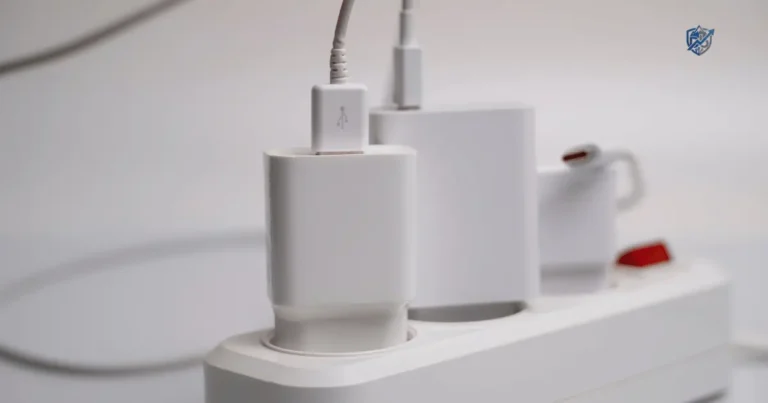
Power problems are among the easiest to overlook. A new device can be perfectly healthy while the charger, cable, adapter, or outlet is the real culprit.
Confirm the charger is compatible
Check that your power brick meets the exact voltage and wattage needs of your gear.
- Voltage
- Wattage
- Connector
- USB standard
- Manufacturer requirements
Test another wall outlet
Outlets fail or connect to wall switches that are turned off. Try a direct wall plug in another room.
Test another compatible cable
Cords sustain internal wire breaks during shipping or packing. Swapping cables isolates simple power faults fast.
Check whether the charging indicator appears
Look for a tiny battery icon on screen or a small status light near the port.
Avoid using random third-party power adapters
Cheap power bricks often fail to output steady current, causing erratic touch responses or slow charging.
When a charger is not powerful enough
Laptops plugged into low-wattage phone blocks will drain power even while plugged in. Fast-charging phones need specific power standards to draw high current safely. High-power gaming laptops will drop performance if powered by weak travel adapters.
Safety warning
Stop using equipment with:
- Frayed wires
- Burn marks
- Melted plastic
- Excessive heat
- Burning smell
3. Install Every Important Software and Firmware Update
New products often leave the factory before every software update is available. Your device may need a patch before it behaves properly.
Update the operating system
Head to system settings to pull the newest OS patches. These updates fix day-one bugs and improve system stability.
Update device firmware
Firmware updates improve how hardware parts talk to main processors. They solve battery drain and screen glitches.
Update drivers
Laptops need fresh display, network, and audio drivers to process graphic data and maintain stable wireless links.
Update apps
Built-in apps often crash until updated to match the newest operating system build installed on your device.
Restart after updates
Always reboot your system after installing patches. A restart lets new system files load into memory cleanly.
Check the manufacturer’s support page
Official brand sites post accurate updates and help articles. Avoid unofficial forums when seeking core system files.
Be careful with unofficial firmware
Warn against:
- Unknown downloads
- Modified firmware
- Fake driver tools
- Suspicious “one-click repair” software
4. Restart the Device Properly
It sounds almost too simple. Yet a proper restart can clear temporary glitches that appeared during setup.
Perform a normal restart
Use the software power menu to shut down cleanly. This saves active system logs and clears old cache data.
Try a forced restart when necessary
If screen taps freeze completely, hold hardware power buttons down to cut power and trigger a fresh boot.
Restart connected accessories too
Peripherals store small software files that freeze. Power cycling external gear clears bad connections quickly.
- Router
- Bluetooth headphones
- Dock
- Printer
- Smart home hub
When restarting does not help
If problems stay after three reboots, move on to deeper setting checks and hardware diagnostic steps.
- Updates
- Settings
- Diagnostics
- Manufacturer support
5. Check the Settings Before Blaming the Hardware
Sometimes the device is doing exactly what you told it to do. The problem is that you did not realise you told it.
Check display settings
Adjust your visual settings to fix dark screens, dull colors, or blurry text outputs.
- Resolution
- Refresh rate
- Brightness
- HDR
- Colour profile
Check sound settings
Confirm audio paths direct sound to the correct internal speakers or connected Bluetooth devices.
- Output device
- Volume
- Mute
- Bluetooth audio
Check network settings
Verify network switches let your unit connect to local Wi-Fi bands and internet gateways freely.
- Wi-Fi
- VPN
- Airplane mode
- DNS
Check privacy permissions
Apps cannot use internal cameras or microphones until you flip permission switches to ON inside security menus.
- Camera
- Microphone
- Location
- Bluetooth
Check battery settings
Battery saver modes throttle processor speed and dim displays to preserve power, making new devices feel slow.
- Battery saver
- Background activity
- Power mode
Sound check humor
The speaker was not broken. It was simply muted. Technology has a talent for making us question our entire existence.
6. Check Whether the Device Is Actually Compatible
Buying a new gadget does not guarantee that every accessory, app, or network will work with it.
Check accessory compatibility
Older cables and docks often fail to support high-speed data standards used by modern gear.
Check operating system requirements
Confirm your essential desktop apps support the operating system version installed on your new unit.
Check regional restrictions
Smart gear bought abroad may miss local Wi-Fi frequencies or regional app store access.
Check network compatibility
Smartphones must match cellular bands used by local network providers to make calls and transfer data.
Check storage requirements
Games and video editors need fast internal storage to load assets without dropping frames or freezing.
Check Bluetooth or Wi-Fi standards
Older Bluetooth 4.0 gear may pair poorly with new Bluetooth 5.3 chips built into modern phones.
Common compatibility mistakes
- Wrong USB standard
- Incompatible charger
- Unsupported app
- Older Bluetooth accessory
- Incorrect memory card
- Wrong regional model
7. Remove Third-Party Accessories and Test Again
Cases, hubs, docks, screen protectors, and adapters can create problems. Remove them temporarily and test the device in its simplest setup.
Disconnect USB accessories
Unplug thumb drives, external mice, and card readers to eliminate electrical noise or driver conflicts.
Remove hubs and docks
Expansion docks pass power and video through shared chips that can overheat or block signals.
Remove external displays
Unplug HDMI and DisplayPort cords to confirm video chips output picture data to primary screens correctly.
Remove memory cards
Faulty micro SD cards slow down system file reads and cause camera apps to freeze during saves.
Remove third-party cases
Thick cases trap internal heat and block wireless charging coils from touching power pads closely.
Test with original accessories
Use only cables and wall adapters shipped inside the original retail box during diagnostic tests.
Why this works
Testing gear without extra attachments isolates variables fast. If the core unit works alone, your accessory is the true problem.
8. Check the Internet Connection
Many modern devices depend on the internet for setup, updates, streaming, cloud backups, and account services. A network problem can look like a device problem.
Test another device on the same Wi-Fi
Connect a phone or tablet to your network. If both fail, your router or provider is down.
Restart the router
Unplug your home router for thirty seconds. Power cycling clears clogged network channels and drops bad connections.
Move closer to the router
Thick walls and metal appliances weaken Wi-Fi signals, causing slow downloads and dropped connections on new gear.
Forget and reconnect to Wi-Fi
Delete stored network credentials in system settings, then re-type your password to establish a fresh connection.
Check for service outages
Check online status boards to see if cloud services or internet service providers suffer widespread local drops.
Test another network
Connect your unit to a mobile hotspot. If it works fine, troubleshoot your primary home Wi-Fi setup.
Separate device problems from network problems
- If every device fails → network issue
- If only the new device fails → device/settings issue
9. Check Storage and Memory
Some devices feel slow because they are busy or nearly full. A new device may also be restoring a large backup in the background.
Check available storage
Operating systems need at least ten percent free space to move swap files and run background tasks smoothly.
Check memory usage
Check active RAM load in system managers. High RAM usage forces gear to compress background apps.
Check background processes
Close extra apps that auto-start on boot. Unneeded background tasks waste precious processing power.
Remove unnecessary apps
Delete pre-installed bloatware apps you do not plan to use to free up internal storage space.
Allow cloud syncing to finish
Pause photo or file sync tasks temporarily if you need full processing power for immediate daily tasks.
Why storage speed and capacity matter
Fast solid-state drives load files in seconds, whereas older magnetic drives spin slowly. High RAM capacities let systems hold many open apps at once without reloading them. Cloud storage frees up internal drive space but requires constant internet connections. Expandable memory cards offer cheap extra space, but low-speed cards slow down video recording apps.
10. Test One Feature at a Time
Do not troubleshoot everything at once. Isolate the fault. This is where a little patience saves a lot of frustration.
Test the screen
Check for stuck pixels, uneven backlight bleed, dark patches, or unresponsive touch areas along edges.
Test the speakers
Play clear audio files at high and low volumes to check for distortion, crackling, or missing channels.
Test the microphone
Record a short voice note to verify your voice sounds clear and crisp without background static.
Test the camera
Take photos using front and rear lenses in bright light to verify focus motors work smoothly.
Test Wi-Fi
Download a test file near your router to confirm wireless antennas sustain high transfer speeds.
Test Bluetooth
Pair a wireless speaker or headset to test audio range and signal stability through walls.
Test charging
Plug in your original charger to verify power flows steadily without dropping connection when moved.
Test ports
Insert cables into every USB, HDMI, and audio jack to check for loose physical fits.
Create a simple symptom log
Write down precise failure details to speed up support claims if you need a replacement.
- Feature tested
- Result
- Date
- Error message
- Troubleshooting performed
11. Run Built-In Diagnostics
Many modern devices include diagnostic tools. Use them before guessing which component has failed.
Smartphone diagnostics
Open phone diagnostic menus through system settings or hidden dialer codes to test sensors, screens, and vibration motors.
Laptop hardware tests
Hold key shortcuts during initial boot to trigger manufacturer hardware scans for memory, storage, and battery health.
Windows diagnostics
Run built-in Windows diagnostic tools to scan system memory, check drive sectors, and repair corrupted operating system files.
Mac hardware diagnostics
Use Apple Diagnostics during boot to scan internal hardware sensors, memory modules, and power controller chips.
Smart TV diagnostics
Use built-in TV self-diagnosis menus to test video panels, speaker outputs, and internal Wi-Fi reception modules.
Game console troubleshooting tools
Run network and display diagnostic tests inside console settings menus to fix resolution drops and multiplayer drops.
What diagnostic results can tell you
Diagnostic tools output pass or fail codes that confirm whether issues stem from software bugs or hardware defects.
- Battery health
- Storage health
- Memory errors
- Hardware faults
- Network problems
12. Check for Physical Damage Before Returning It
New does not always mean untouched. A device can be damaged during shipping, handling, or delivery.
Inspect the packaging
Look for crushed box corners, deep tears, or water stains on shipping containers that point to rough handling.
Look for dents and cracks
Examine outer metal or plastic frames under bright light to spot hairline cracks or dropped frame dents.
Check the screen
Check display glass closely for tiny cracks, edge chips, or internal panel bleeding beneath the top layer.
See/ Check ports
Look inside open charging and video ports to spot bent gold pins or packed debris.
Check buttons
Press every volume, power, and home button to ensure they click cleanly without sticking inside frames.
Check hinges
Open and close laptop lids or folding screens to verify hinges move smoothly without popping sounds.
Photograph visible damage
Take clear, well-lit photos of shipping boxes and damaged hardware before filing damage claims with sellers.
Do not attempt a repair first
Never open cases or break factory seals on damaged new gear. Doing so voids return policies and manufacturer warranties.
13. Reset the Device as a Last Software Fix
A factory reset can solve deep software problems, but it is not a magic hammer. Use it after simpler troubleshooting and back up your data first.
Back up important data
Save photos, documents, passwords, and app data to cloud storage or external drives before wiping system storage.
Try a settings reset first
Reset network, display, or accessibility settings back to factory defaults before wiping your entire internal drive.
Consider a factory reset
A full factory reset wipes corrupt updates and bad code, returning software back to clean out-of-box states.
Reinstall only essential apps
Install core apps one by one after a reset. Testing between installs helps you spot apps that cause crashes.
Test the device before restoring everything
Run your clean device for a few hours before pulling down large cloud backups to verify hardware stability.
When a reset will not help
Software resets clear bad code lines, but they cannot mend broken physical hardware parts.
- Cracked screens
- Faulty batteries
- Damaged ports
- Broken buttons
- Dead speakers
- Physical board damage
14. Compare the Device With Its Advertised Specifications
Sometimes “not as expected” means the product is working correctly but the buyer expected something different. Specifications help separate disappointment from defect.
Check advertised battery life
Manufacturer battery ratings reflect low-brightness video playback tests, not heavy gaming or multi-tasking sessions.
Check storage capacity
System software takes up gigabytes of space out of the box, leaving less usable storage than advertised drive labels state.
Check display specifications
High refresh rates and peak brightness levels require manual activation inside screen settings menus on many devices.
Check processor performance
Ultra-thin laptops limit processor power under sustained heavy loads to prevent overheating inside tiny frames.
Check camera claims
Smartphone camera samples online use ideal studio lighting that natural indoor environments rarely match.
Check network speeds
Wi-Fi speed claims represent theoretical peak lab transfers that real-world home network interference lowers.
Advertised performance vs real-world performance
Lab tests isolate devices in temperature-controlled rooms with minimal background apps. Real use includes warm rooms, background cloud syncs, bright screens, weak Wi-Fi signals, and resource-heavy software. These factors reduce real-world performance compared to marketing claims.
15. Contact the Seller or Manufacturer
If the device still fails after basic troubleshooting, stop guessing. A new product that genuinely has a defect should be handled through the correct support or return process.
Contact the seller first when appropriate
Retailers handle returns and direct replacements faster than manufacturers during initial purchase windows.
Contact the manufacturer
Reach out to brand support for official technical help or warranty service after store return windows close.
Have your information ready
Gather your proof of purchase and serial numbers before calling or chatting with customer support teams.
- Order number
- Receipt
- Serial number
- Model number
- Purchase date
- Error messages
- Photos or videos
Clearly explain the problem
State exact symptoms and troubleshooting steps you already tried to avoid repeating basic steps with support agents.
- What happened
- When it happened
- What you tried
- What result you got
State the outcome you want
Be clear about whether you want troubleshooting help, an exact replacement, a repair, or a full refund.
- Troubleshooting
- Replacement
- Repair
- Refund
- Exchange
The FTC advises consumers dealing with product problems to contact the seller, keep purchase records, and clearly explain the resolution they want.
What to Do If Your New Device Is Defective
If the device is genuinely faulty, your next step is usually not more DIY repair. It is documentation, return, exchange, or warranty support.
Check the return window immediately
Most stores enforce strict 14-day or 30-day return windows for electronic items. Check your receipt date right away.
- Return deadline
- Restocking fee
- Exchange policy
- Refund method
- Original packaging requirements
Check the manufacturer’s warranty
Standard brand warranties cover internal hardware defects and factory assembly flaws for one full year.
- Coverage period
- Covered defects
- Exclusions
- Repair process
- Replacement terms
The FTC recommends keeping copies of warranties and purchase receipts and checking what the warranty covers, how long it lasts, and whether the seller or manufacturer handles claims.
Do not throw away the packaging too soon
Keep original boxes, foam inserts, and accessories until you confirm your new unit works perfectly.
- Box
- Accessories
- Manuals
- Receipts
- Serial number labels
Document the fault
Capture visual proof of screen glitches, physical defects, or error codes using another phone or camera.
- Photos
- Videos
- Screenshots
- Error messages
Do not open the device unnecessarily
Opening screws or breaking void seals ruins warranty protections and gives sellers reasons to deny returns.
Why documentation matters
Clear records prove your device arrived defective, protecting you from false claims of user damage.
- When the problem started
- What the defect looks like
- What troubleshooting you tried
New Device Problem vs Genuine Defect
Use this table to help readers decide whether they are seeing normal behaviour, a setup issue, or a likely hardware fault.
| Symptom | Could be normal | Could indicate a problem |
| Warm during setup | Yes | Extreme heat |
| Battery drains quickly | Initial syncing | Severe drain after setup |
| Fan runs often | Updates/setup | Constant high load |
| Slow first day | Updates/indexing | Still slow after setup |
| Apps crash once | Possible software glitch | Repeated crashes |
| Wi-Fi fails once | Network issue | Fails on every network |
| Screen flickers | Driver/update issue | Persistent flickering |
| Device won’t charge | Cable issue | No charger works |
| Camera fails | Permission issue | Hardware failure |
| Random shutdowns | Possible update | Frequent after updates |
Should You Return, Exchange, Repair, or Keep the Device?
This is the decision point readers often need most. A new device with a small setup issue may be worth keeping. A device with a clear hardware defect usually deserves a return or warranty solution.
| Situation | Best next step |
| Setup is still running | Wait and update |
| Minor software glitch | Restart and update |
| Wrong settings | Correct settings |
| Faulty accessory | Replace accessory |
| Device damaged in shipping | Contact seller |
| Device fails out of box | Request exchange/return |
| Repeated hardware fault | Warranty claim |
| Feature differs from listing | Contact seller |
| Device works but disappoints | Check specifications |
| Problem remains after troubleshooting | Professional support |
Return it when the defect is obvious
If your device has dead screen pixels or broken charging ports out of the box, return it immediately.
Exchange it when the product is new and faulty
Ask for a fresh swap at the store if your unit fails during its initial return window.
Use warranty support when the return window has closed
File a warranty claim with the manufacturer if hardware issues develop after store return deadlines pass.
Keep it when the issue is normal setup behaviour
If slow speeds and battery drain disappear after background setup finishes, keep your device and enjoy it.
Consider returning it if the product does not meet advertised claims
If real-world performance falls far short of product claims, return the unit and choose a better model.
USA Expert Advice for New Device Problems
Use this section to add real authority without turning the article into a legal guide. The focus should be on practical consumer action and safe troubleshooting.
Expert reference: FTC consumer guidance
The Federal Trade Commission provides rules that protect buyers who receive defective products or misleading gear.
- Warranty information
- Product problems
- Returns
- Refunds
- Exchanges
- Documentation
- Seller communication
The FTC advises consumers to go back to the store or website, review return policies, gather purchase documents, and clearly state whether they want a refund, exchange, repair, or store credit.
Expert reference: manufacturer support
Always use official support portals provided by major technology brands to find safe troubleshooting steps and driver updates.
- Apple
- Microsoft
- Samsung
- Dell
- Lenovo
- HP
- Sony
Quote opportunity
“Consumers should document defects immediately, retain all original receipts, and contact sellers within stated return windows to protect their consumer rights.” — Federal Trade Commission Consumer Advice
Recommended expert message
Troubleshoot first, document second, then use your return or warranty rights.
Avoid risky consumer advice
- Do not claim every defective device must be refunded instantly
- Do not claim every warranty covers accidental drops or water damage
- Do not claim opening a device always voids warranty protection under local laws
- Do not claim every retailer offers the same 30-day return window
Terms vary by seller, manufacturer, product type, and local state laws.
A Real-Life Example: The New Laptop That Felt Broken
A friend of mine bought a sleek laptop last month. He unboxed it, turned it on, and felt instant panic. The fans spun loudly, the aluminum bottom felt warm, and the battery dropped fifteen percent in twenty minutes.
He immediately thought he bought a defective laptop. He was ready to pack it up and drive back to the store for a refund.
We took a breath and checked the task manager together. The laptop was downloading a major Windows update, syncing ten thousand cloud files, and building a search index.
We plugged the laptop into its wall charger, connected to Wi-Fi, and let it run for three hours. The fans quieted down, updates finished, and the system rebooted cleanly.
The next morning, the laptop booted in six seconds, ran silently, and held a full day of battery life. The laptop was fine; it simply had a lot of first-day work to finish.
Not every bad first impression means a defective device. Give new gear a little time to finish setting up before assuming the worst. For a few hours, the laptop behaved like it had already given up on life. It had not. It was simply very busy.
Common Mistakes People Make With New Devices
New gadgets invite excitement, impatience, and sometimes very questionable troubleshooting. Avoiding these mistakes can make the whole process easier.
Throwing away the box immediately
Discarding original retail packaging makes returning defective items back to stores much harder.
Ignoring the return deadline
Missing store return windows forces you through longer warranty repair paths instead of instant swaps.
Installing random driver software
Downloading driver update tools from third-party sites often installs adware and corrupts operating files.
Downloading unofficial firmware
Flashing custom or unofficial firmware can brick hardware chips and permanently void manufacturer warranties.
Opening the device too soon
Using screwdrivers on new gear strips delicate screws and voids store exchange policies instantly.
Using the wrong charger
Powering high-draw laptops with low-wattage phone bricks causes slow charging and performance drops.
Assuming slow setup means defective hardware
Replacing healthy gear that is simply indexing files wastes time and causes unnecessary returns.
Restoring everything before testing the device
Restoring large backups right away makes it hard to tell if crashes stem from old app data or new hardware faults.
Failing to document the defect
Heading to stores without photos or videos of intermittent glitches makes proving defects harder.
Trusting fake tech-support pop-ups
Fake pop-up warnings steal personal data. The FTC advises consumers not to call phone numbers shown in suspicious pop-ups and to contact companies through official websites instead.
How to Troubleshoot a New Device Without Making Things Worse
Good troubleshooting is slow and controlled. You want to identify the cause, not create three new problems while fixing the first one.
Change one thing at a time
Test one setting or accessory change at a time so you know exactly which action fixed your problem.
Start with reversible fixes
Begin with low-risk software checks before attempting invasive resets or diagnostic changes.
- Restart
- Update
- Change settings
- Replace cable
- Disconnect accessory
Do not open a new device unnecessarily
Keep factory seals intact. Let official repair technicians handle internal board checks on brand-new gear.
Do not install unknown repair software
Avoid registry cleaners and auto-fix utilities that promise one-click performance boosts.
Keep records of every support interaction
Log agent names, case numbers, and promised resolution dates whenever you contact customer support.
- Date
- Person contacted
- Case number
- Advice given
- Promised action
Keep the original accessories
Store included wall blocks, cords, and adapters together in the retail box until return windows end.
Protect your data
Back up your files and sign out of personal accounts before handing devices to support teams for repair.
- Back up files
- Sign out where appropriate
- Remove personal data when possible
- Follow manufacturer repair instructions
New Device Troubleshooting by Device Type
The same troubleshooting logic does not work equally well for every gadget. Use these quick device-specific paths to help readers move from symptom to solution.
Smartphone
Check power cables, force a restart, run pending OS updates, and verify SIM card activations. Check storage space and review camera permissions inside settings.
Laptop
Connect official power adapters, update graphics drivers, check task managers for high CPU usage, and test external screens using direct HDMI connections.
Tablet
Charge fully, inspect display glass for touch dead zones, restart the unit, and update apps to fix crashes during touch gestures.
Smart TV
Verify power cables fit snug, check HDMI input channels, test Wi-Fi connections near routers, and update TV firmware through settings menus.
Game console
Check HDMI connections, verify TV display modes match console outputs, test network NAT types, and clear system cache files.
Wireless earbuds
Place both earbuds inside charging cases, clean magnetic contacts with dry cotton swabs, reset Bluetooth pairings, and update earbud firmware apps.
Smartwatch
Charge on magnetic docks, confirm phone Bluetooth stays active, restart both phone and watch, and check companion app sync permissions.
What If Your New Device Still Does Not Work?
At some point, troubleshooting needs to stop. If the problem remains after sensible checks, move to support rather than repeatedly resetting or modifying the device.
Contact the seller
Request an immediate return or store exchange if your unit fails basic checks within the store return window.
Contact the manufacturer
Submit warranty claims online through official brand support pages to schedule repairs or receive refurbished replacements.
Request a replacement or exchange
Ask customer service for a brand-new exchange unit rather than accepting repairs on defective out-of-box products.
Use the warranty
Provide purchase receipts and serial numbers to trigger free hardware repairs covered under standard one-year warranties.
Ask for professional diagnosis
Let certified brand technicians run hardware tests to identify silent motherboard or power delivery failures.
Keep all records
Save chat transcripts, shipping receipts, and repair tickets until your replacement unit arrives and works properly.
What to say to customer support
Be clear, direct, and organized when explaining your device issue to customer support agents.
- Exact model
- Purchase date
- Serial number
- Clear symptom
- Troubleshooting completed
- Desired resolution
What not to do
Avoid actions that slow down support claims or damage your consumer rights.
- Angry threats
- Repeated unsupported claims
- Opening the device
- Throwing away evidence
- Missing return deadlines
Frequently Asked Questions About New Device Problems
Why is my new device not working properly?
It may need updates, a restart, proper setup, compatible accessories, or a settings change. If the problem continues after basic troubleshooting, it may be defective.
Should I return a new device that is not working?
If the device has a genuine defect and basic troubleshooting does not fix it, check the seller’s return or exchange policy promptly.
Why is my new phone battery draining so fast?
Initial setup, cloud syncing, app downloads, updates, and indexing can cause higher battery use during the first day or two.
Why is my new laptop running slowly?
It may be installing updates, syncing files, indexing data, or running background setup tasks. Check again after setup is complete.
Can a new device be defective out of the box?
Yes. Manufacturing defects, shipping damage, faulty components, and software problems can affect new products.
Should I update a brand-new device?
Usually, yes. Updates can fix bugs, improve compatibility, and address security issues. Use the manufacturer’s official update process.
Should I factory reset a new device?
Only after trying simpler fixes and backing up important data. A factory reset can fix software problems but cannot repair physical hardware damage.
What if my new device does not match the advertised specifications?
Compare the actual product with the listing and documentation. If there is a material difference, contact the seller and explain the issue clearly.
What should I do if a new device arrives damaged?
Photograph the damage, keep the packaging, and contact the seller or delivery provider promptly. Do not throw away evidence of shipping damage.
Can I repair a new device myself?
It depends on the device and the problem. For a new product that may be defective, it is usually wiser to check return and warranty options before opening or modifying it.
Final New Device Troubleshooting Checklist
End with a practical checklist readers can use while the device is sitting right in front of them. Keep it action-focused.
- Define the exact problem
- Finish first-time setup
- Charge the device fully
- Test the charger and cable
- Try another outlet
- Restart the device
- Install software updates
- Check firmware and drivers
- Review settings
- Check compatibility
- Remove third-party accessories
- Test Wi-Fi or another network
- Check storage and memory
- Run built-in diagnostics
- Document physical damage
- Compare actual performance with specifications
- Check the return deadline
- Read the warranty
- Save receipts and order records
- Contact the seller or manufacturer
- Ask for repair, replacement, exchange, or refund as appropriate
Final Recommendation
Having tested dozens of gadgets over the years, I know how frustrating it is when a new device may not work as expected right out of the box. My expert advice is simple: always give a new device a few hours to finish its background setup, install system updates, and complete a fresh restart before you pack it back up. Most first-day issues stem from temporary software loops or simple setting mistakes rather than broken hardware. If clear hardware faults persist after basic checks, use your seller return window right away for a swift exchange.

Ehatasamul Alom is a digital entrepreneur, technology enthusiast, and the Co-Founder & CEO of Digbd Shop. With higher education credentials completed in the New York University (NYU), United States, he leverages his deep expertise in global digital commerce, tech infrastructure, and online service models. Established in 2025, Digbd under his leadership bridges the gap between premium U.S. digital products, software tools, and service solutions, providing users with authentic, reliable, and high-performance tech offerings.