10 Things That Shorten Your Laptop’s Lifespan Quickly
Laptops cost too much money to replace every couple of years. During my years fixing PC hardware for clients from Chicago to Dallas, I saw great machines fail early. Everyday habits quietly ruin laptops long before their time. Heat, dust, bad power cords, and full drives stack up fast. Small daily mistakes shorten your laptop’s lifespan without you knowing it. Let us fix these bad habits today so your machine runs well for years.
What Shortens a Laptop’s Lifespan?
A laptop fails because parts wear out or habits destroy the hardware. Understanding how long a laptop should last helps you spot preventable damage early.
How long does a laptop usually last?
A basic budget laptop lasts about two to three years. Mid-range laptops can run well for three to five years. Premium business laptops often last five to seven years because they use tough metal frames. Gaming laptops run hot, so they last three to five years unless you clean them often.
Build quality matters because sturdy cases shield motherboard parts from flex damage. Software support also sets the limit for safe daily use. Swapping an old battery for a new one easily adds two more years of life.
The main causes of laptop ageing
- Excessive Heat: Trapped heat bakes internal chips and degrades glue.
- Dust Accumulation: Thick dust coats fans and blocks air intake vents.
- Battery Degradation: Constant high heat wears out lithium cells fast.
- Mechanical Damage: Drops, bumps, and rough handling snap plastic mounts.
- Liquid Spills: Drinks cause short circuits and corrode circuit boards.
- Poor Charging Habits: Using cheap power bricks damages charging ports.
- Full Storage: Packed drives slow down the operating system.
- Outdated Software: Missing security patches leaves system software vulnerable.
- Physical Stress: Lifting the device by the display screen bends display hinges.
- Lack of Maintenance: Ignoring fan noise leads to thermal failure.
Physical lifespan vs useful lifespan
When the hardware still works but feels slow
A laptop might turn on fine, but opening basic apps takes forever. This happens when background apps choke older processors.
When software becomes unsupported
Security patches eventually stop for older operating systems. Browsers stop updating, which makes online banking unsafe on older devices.
When repair costs exceed the laptop’s value
Fixing a broken screen or motherboard on an old laptop costs more than buying a replacement unit. At that point, the useful life ends.
Why some laptops last longer than others
Cooling system design makes a massive difference for hardware longevity. Laptops built with dual fans and thick copper pipes move heat out fast. Aluminum cases spread heat better than cheap plastic shells.
Repairable laptops with socketed RAM and removable SSD storage stay usable longer. Available spare parts and clear manufacturer repair guides let you fix minor faults easily.
10 Things That Shorten Your Laptop’s Lifespan
Here are the ten most common daily habits that destroy laptops early, along with quick steps to fix them.
1. Using Your Laptop on Soft Surfaces
Working from bed on a warm afternoon feels comfortable. Then, the fan roars like a tiny vacuum cleaner as the bottom of the case gets hot. Beds, blankets, and plush sofas smother your laptop’s cooling system.
Why beds and blankets cause problems
Fabric blocks air intake vents located underneath the laptop case. Soft surfaces press against fans and trap hot air inside the body. This forces internal fans to spin at maximum speed without cooling the hardware.
Long-term damage from poor ventilation
High heat places constant thermal stress on the central processor and graphics chip. Heat accelerates chemical battery ageing and dries out thermal grease on heat sinks. Over time, heat throttling causes permanent performance drops.
Better places to use your laptop
- A flat wooden or glass desk surface.
- A clean kitchen or dining room table.
- A raised laptop stand that opens airflow underneath.
- A hard lap desk if you want to work from a couch.
Quick fix
Keep all ventilation openings clear of soft materials while working. Never set a running laptop on a pillow, duvet, or carpet. Using a cheap mesh stand lowers internal temperatures by several degrees instantly.
2. Letting Your Laptop Overheat
Heat is the single greatest threat to electronic components. Running your machine hot day after day will shorten your laptop’s lifespan faster than almost anything else.
Common causes of laptop overheating
- Blocked intake and exhaust vents.
- Dust coats on fan blades and radiator fins.
- Demanding 3D gaming or long video rendering sessions.
- Dried thermal paste between the CPU and heat sink.
- Working inside hot rooms or under direct sunlight.
- Failing fan motors that spin too slowly.
Signs your laptop is overheating
Listen for loud, continuous fan noise while doing simple web browsing. A hot keyboard surface signals that heat cannot escape from inside the chassis. Sudden system slowdowns, random shutdowns, and frozen screens mean thermal safety cuts are triggering.
How to reduce laptop temperature
Clear dust away from intake grilles using gentle short bursts of compressed air. Set your laptop on a hard desk so air moves freely underneath. Close heavy background apps that tax the processor, and select balanced power modes in your settings.
When overheating becomes a repair issue
If the fan stops spinning or makes grinding noises, get it fixed immediately. Dried thermal paste must be cleaned off and replaced with fresh compound. Ignoring high temperatures leads to cracked solder joints under the processor.
3. Ignoring Dust and Dirt Inside Your Laptop
Dust looks harmless on your desk, but inside a laptop, it acts like a thick winter blanket over hot components.
How dust affects laptop cooling
Dust clings to fan blades and fills the tiny fins of heat sinks. This layer stops air from pulling heat away from copper cooling pipes. The cooling system loses efficiency, forcing fans to run flat out all day.
Where dust commonly collects
- Curved fan blades inside the cooling module.
- Air intake grilles on the bottom panel.
- Exhaust vents along the back edge or side edges.
- Fin arrays on copper heat exchangers.
- Gaps beneath keyboard keycaps.
How often should you clean a laptop?
Clean exterior vents every three months if you have pets or live in a dusty area. Homes with carpets or nearby road construction need more frequent checks. A quick dust check every six months keeps cooling channels open.
Safe laptop cleaning basics
Shut down the laptop completely and unplug the power cable. Use a soft microfiber cloth to wipe exterior vents and case panels. Spray short bursts of canned air into vent slots to dislodge loose dust safely.
When professional cleaning is better
Gaming laptops and high-end workstations collect heavy dust due to high airflow fans. Opening delicate laptop cases can break small plastic clips or dislodge ribbons. A local repair technician can open the case, clear out packed dust, and apply fresh thermal paste.
4. Constantly Keeping Your Laptop at Extreme Battery Levels
Lithium-ion batteries are consumable parts that degrade over time. Bad charging habits speed up capacity loss, leaving you tethered to a wall outlet.
How lithium-ion batteries age
Batteries age through charge cycles and natural chemical degradation. Exposure to high heat speeds up internal breakdown. Holding a battery at a 100% full state or a 0% empty state creates physical stress inside the cells.
Is it bad to keep a laptop plugged in?
Modern laptops use smart charge controllers that cut off power when the battery hits 100%. However, keeping the battery fully charged while the laptop runs hot creates continuous stress. Using built-in charge limits protects long-term battery health.
Use battery health features when available
Windows laptop battery management
Many Windows laptops feature power software with smart charging controls. These tools limit maximum charge levels to prevent high-voltage wear.
MacBook Optimized Battery Charging
macOS learns your daily charging routine to delay charging past 80% until you need to unplug.
Lenovo Conservation Mode
Lenovo laptops include Conservation Mode inside the Vantage app. This feature caps maximum charge at 55% to 60% for desk use.
ASUS Battery Health Charging
ASUS software lets users set Maximum Lifespan Mode, which stops charging at 60% to prolong battery health.
Dell Power Manager battery settings
Dell offers Primarily AC Use settings inside Power Manager to reduce stress from continuous wall power.
Signs your laptop battery is ageing
A healthy battery should run for hours. If runtime drops to under an hour, the cell capacity has degraded. Sudden power cuts or jumping percentage indicators mean internal cells are failing.
Warning: Never ignore a swollen battery
A swollen battery poses a severe safety hazard. If your touchpad pops up or the bottom case bulges, unplug the laptop immediately. Do not press down on a bulging battery, and take it to a certified repair technician right away.
5. Using Cheap or Damaged Chargers
Power adapters regulate voltage before sending power into sensitive laptop circuits. Cheap knockoffs or frayed cables put your laptop at risk of electrical damage.
Why the wrong charger can be a problem
Unbranded power adapters lack safety chips that prevent power surges. Wrong voltage levels stress internal charging circuits and generate excess heat. Weak wattage causes power dropouts when the laptop works hard.
Warning signs of a failing charger
- Frayed insulation or exposed wires near cable ends.
- Loose, wobbly connector plugs that cut out when moved.
- Excessive heat coming from the plastic adapter block.
- Burning plastic smells during daily charging.
- Sparking sounds when plugging the adapter into a wall outlet.
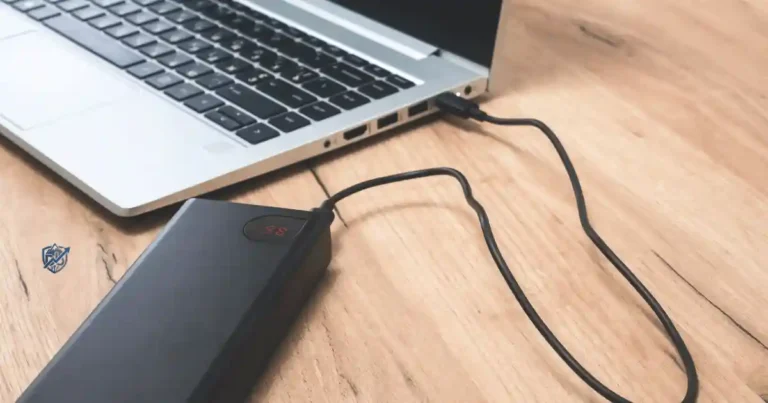
What charger should you use?
Stick with original chargers made by your laptop manufacturer. If you need a spare, buy from reputable accessory brands that list safety certifications. Make sure the replacement matches the exact voltage and amperage requirements.
USB-C charging is not automatically universal
USB-C ports look identical, but their power delivery capabilities vary. A low-wattage phone charger will not power a demanding laptop. Ensure your USB-C power adapter supports the correct Power Delivery standard for your device.
Laptop Charging Habits That Help It Last Longer
Small changes in how you charge your laptop pay off over years of use. Here is how to handle daily power needs without ruining your battery.
Should you leave your laptop plugged in all day?
Leaving your laptop plugged in is safe if you enable battery protection software. Setting a charge limit between 60% and 80% prevents voltage stress while on wall power. Always keep the laptop well-ventilated so heat escapes freely.
Should you fully drain a laptop battery?
Modern lithium-ion batteries do not suffer from memory effects. Deep discharges down to 0% put extra physical strain on the battery chemistry. Plug in your laptop when power drops to around 20% to maximize cell lifespan.
Can fast USB-C charging damage a laptop?
Fast USB-C charging is safe as long as you use certified chargers and cables. Power Delivery standards allow the laptop and charger to negotiate safe voltage levels. Extra heat generated during fast charges is normal, but keep the laptop in a cool area while charging.
What should you do if your laptop charger gets hot?
Power bricks naturally feel warm while charging a low battery. If the charger grows too hot to touch comfortably, unplug it and let it cool down. Check for pinched cables or dust around the brick, and replace adapters that overheat during normal tasks.
6. Eating and Drinking Around Your Laptop
A single spilled mug of coffee can ruin a motherboard in seconds. Food crumbs and liquid drips cause costly damage that standard warranties do not cover.
Why liquid damage is so serious
Liquids create instant electrical shorts across tiny motherboard traces. Mineral deposits in coffee, soda, or water corrode metal circuits even after the liquid dries. Corrosion slowly eats away at connections, causing complete board failure later.
Common spill risks
- Coffee mugs set right next to the laptop keyboard.
- Open water bottles on busy work desks.
- Sugary sodas that leave sticky residue behind.
- Condensation dripping off iced drink glasses.
What to do after a spill
Unplug the power cord immediately and press the power button to shut down. Disconnect all cables, mice, and flash drives. Turn the laptop upside down in an A-shape position so liquid drains away from the motherboard, and seek professional help.
Why “I dried it and it works” is not always good news
A wet laptop may turn back on after drying out, but liquid residue stays inside. Corrosion develops silently over weeks, slowly eating away at copper contacts. Unexpected crashes and dead keys usually show up later down the road.
Prevention tips
Keep all cups and bottles at least a foot away from your work surface. Use travel mugs with secure, leak-proof lids for morning coffee. Never eat snacks directly over the keyboard where crumbs drop into key switches.
7. Dropping, Carrying, or Physically Stressing Your Laptop
Laptops are built for travel, but rough handling weakens hinges, cracks glass, and snaps internal mounts over time.
Common physical damage
- Cracked display panels from corner impacts.
- Broken display hinges from lifting by the screen corner.
- Bent USB ports and damaged charging jacks from pulled cords.
- Dented metal chassis panels pressing against internal chips.
- Damaged mechanical hard drives from drops while spinning.
The danger of carrying a laptop by the screen
Grabbing a laptop by its display screen puts heavy torque on the plastic screen bezel and metal hinges. This leverage cracks display panels and pulls hinge screws right out of their internal mounts. Always pick up your laptop using both hands on the bottom base.
Why laptop bags matter
A dedicated laptop bag or sleeve provides foam padding that absorbs impact energy during drops. Padding shields corners from hard bumps against doors or train seats. A good sleeve also keeps keys and coins from scratching the outer finish inside your bag.
Safer laptop carrying habits
Close the lid completely before picking up your device. Support the bottom chassis with both hands when moving around the office. Slide the laptop into a padded sleeve before packing it into a crowded backpack.
8. Ignoring Operating System and Security Updates
Ignoring software updates leaves your laptop vulnerable to security threats and system bugs. Software maintenance keeps your hardware running fast and safe.
Why software updates matter
System updates patch security holes that hackers use to access personal data. Updates include bug fixes and revised hardware drivers that improve energy efficiency. Keeping software updated ensures new web apps and tools run smoothly.
What happens when a laptop becomes unsupported?
When security patches stop, your system becomes vulnerable to new online threats. Web browsers stop receiving updates, making modern websites load improperly. Financial apps and corporate remote portals eventually block access from outdated operating systems.
Windows and macOS update habits
Turn on automatic updates so crucial security patches install without hassle. Restart your laptop weekly to finish installing pending update files. Keep popular web browsers updated to protect your web browsing sessions.
Don’t confuse software ageing with hardware failure
An old laptop that runs slow often just needs software maintenance. Full storage, malware infections, and heavy startup programs drag down performance. Clearing out software clutter often brings an older machine back to speed.
9. Filling Your Storage to the Limit
Solid-state drives need empty space to manage files efficiently. Running your storage drive at full capacity slows down daily tasks and speeds up drive wear.
Why low free storage can cause problems
The operating system uses free storage space as virtual memory when running multiple apps. Low storage space stops system updates from installing correctly. Solid-state drives also slow down when they run out of fresh blocks for writing data.
What fills laptop storage?
- High-resolution photo libraries and 4K video clips.
- Large modern game installations taking dozens of gigabytes.
- Forgotten files sitting inside your Downloads folder.
- Cached media files from streaming and messaging apps.
- Uncleaned Recycle Bin contents and temporary system files.
How to free up storage safely
Delete old installer files sitting inside your Downloads folder. Uninstall games and heavy applications you no longer play. Move large video files and photo archives off to an external portable drive or cloud account.
SSD vs HDD lifespan considerations
Solid-state drives contain no moving mechanical parts, making them immune to physical drop damage. However, SSDs have a finite number of write cycles. Keeping free space available lets drive controllers balance write operations across memory chips evenly.
When storage replacement is worthwhile
If your storage drive is full or failing, upgrade to a larger SSD. Swapping an older mechanical hard drive for a modern solid-state drive drastically improves system speed. A fresh, spacious SSD gives an old laptop a whole new life.
10. Never Maintaining or Inspecting Your Laptop
Ignoring minor issues allows small defects to turn into expensive hardware repairs. A quick check every month prevents sudden hardware breakdowns.
What to inspect every month
- Check battery health metrics inside your power settings.
- Inspect power cords for fraying insulation or bent tips.
- Listen for unusual grinding noises coming from cooling fans.
- Review remaining free storage space on your main drive.
- Verify that automatic system updates are installing properly.
What to inspect every few months
Check air intake vents for dust buildup. Wipe down the screen, keyboard, and outer case using safe microfiber cloths. Inspect display hinges for loose movement or popping plastic covers.
Signs your laptop needs professional attention
- Bulging cases or touchpads caused by a swollen battery.
- Continuous overheating and thermal shutdowns during simple tasks.
- Acrid burning smells coming from charging ports or vents.
- Grinding or rattling sounds coming from worn fan bearings.
- Flickering screen displays caused by damaged display cables.
10 Habits That Can Shorten Laptop Life at a Glance
In my experience troubleshooting laptop failures, simple daily adjustments make a world of difference. The reference table below shows easy choices to keep your device safe.
| Habit | What it can cause | Better habit |
| Using laptop on a bed | Trapped heat and blocked airflow | Work on a hard, flat desk or lap stand |
| Ignoring overheating | Accelerated processor and battery wear | Keep vents clean and close heavy apps |
| Never cleaning vents | Dust clogs that stop heat exchange | Clear air vents every few months |
| Poor battery habits | Rapid loss of total battery capacity | Use built-in charge limit modes |
| Using cheap chargers | Electrical surge damage and fires | Stick to original or certified brand chargers |
| Drinking over laptop | Motherboard corrosion and shorts | Keep all liquid drinks a foot away |
| Carrying without protection | Cracked glass and broken hinges | Carry your laptop in a padded sleeve |
| Ignoring updates | Security flaws and driver bugs | Keep operating system updates turned on |
| Filling storage completely | System slowdowns and SSD wear | Keep at least 15% of storage space free |
| Ignoring warning signs | Small faults turning into dead hardware | Inspect your machine and repair issues early |
How to Make Your Laptop Last Longer
Shifting to a proactive care routine prevents hardware problems before they happen. Here is how to build simple habits that extend your laptop’s lifespan.
Daily laptop care
Keep vents clear while working by keeping your laptop on hard surfaces. Avoid setting drinks near your computer, and carry the machine securely using both hands on the base. Unplug power cables carefully without tugging on the cord.
Weekly laptop care
Check your available storage space to make sure the main drive has breathing room. Install pending software updates and reboot the system to clear temporary memory. Close unused background applications to save memory.
Monthly laptop care
Check battery health metrics inside your system software. Inspect your power adapter and cable for physical wear. Wipe down the display screen and keyboard, and clear light surface dust away from air vents.
Every 6–12 months
Consider opening the bottom case to clear out packed dust from fan blades. Inspect display hinges for smooth movement. Check your SSD health using diagnostic tools to catch storage failure early.
Laptop Lifespan Maintenance Schedule
Following a regular maintenance schedule keeps your computer running smoothly for years. Use this quick summary to keep your maintenance on track.
| Frequency | What to do | Why it matters |
| Daily | Avoid soft surfaces and keep liquids away | Prevents overheating and liquid damage |
| Weekly | Restart the system and check free storage space | Keeps system speed fast and installs updates |
| Monthly | Check battery health and inspect power cords | Catches battery and power issues early |
| Every 3–6 months | Clean exterior intake and exhaust air vents | Keeps internal airflow clear of dust |
| Every 6–12 months | Perform deep dust cleaning and check thermal health | Prevents long-term thermal damage |
| As Needed | Replace aging batteries or failing storage drives | Restores original performance at low cost |
Expert Advice on Extending Laptop Lifespan
Repair experts see firsthand why laptops fail early. Board-level technicians report that heat, liquid spills, and physically stressed power jacks cause most avoidable motherboard failures. Keeping heat low and power feeds clean saves computers from premature death.
Technicians emphasize that replacing a worn battery or upgrading an old SSD is far more cost-effective than buying a new laptop. Caring for your hardware saves money and cuts down on electronic waste.
“Heat and physical stress destroy more laptops than age ever will. Simple habits like keeping vents clear, using safe chargers, and replacing tired batteries extend a laptop’s life by years.”
How to Tell If Your Laptop Is Being Damaged
Catching warning signs early allows you to fix issues before they destroy your machine. Here are common red flags to watch for.
Laptop is unusually hot
A scorching bottom panel means heat cannot escape. Check intake vents for dust or fabric blockages. If vents are clear, the fan may have stopped spinning, or internal thermal paste needs replacement.
Laptop suddenly becomes slow
When chips reach dangerous temperatures, they drop clock speeds to prevent physical damage. Slow performance during basic tasks often signals thermal throttling or a full storage drive.
Battery drains very quickly
If your laptop dies minutes after unplugging, the battery has lost its chemical capacity. Check settings for rogue background apps, but prepare to order a replacement battery.
Laptop shuts down unexpectedly
Abrupt power cuts under heavy workloads mean thermal protection triggered to save the processor. Clean out dust immediately to prevent permanent board damage.
Fan is constantly loud
A fan running at full speed during simple tasks means cooling efficiency has dropped. Dust buildup on heat sinks forces fans to work harder to maintain safe temperatures.
Battery or case is swelling
A popping touchpad or bulging case panel points to a swollen battery cell. Stop charging the device immediately, and take it to a repair center for safe disposal.
Repair or Replace Your Laptop?
Deciding whether to repair an older laptop or buy a new machine comes down to practical costs and current performance.
Repair your laptop when
Replacing a worn battery or swapping an SSD restores swift performance at a fraction of a new laptop’s price. If software updates continue and the screen is intact, fixing minor faults is a smart move.
Consider replacement when
If the motherboard fails or multiple major parts break at once, repair costs often rival the price of a new laptop. Lack of security updates also means it is time to move to a modern platform.
Calculate the real cost
Divide the estimated repair quote by the additional years of useful life the fix provides. If a $100 battery gives you two more years of use, that costs just $50 a year—far cheaper than buying a new computer.
Consider sustainability
Extending your laptop’s life keeps electronic waste out of landfills. Choosing to repair minor faults delays manufacturing demand and saves valuable resources.
Repair or Replace? A Quick Decision Table
Use this quick guide to weigh common laptop issues before deciding whether to repair or replace.
| Problem | Repair? | Why |
| Weak battery | Usually yes | Replacing a battery is cheap and easy |
| Full storage | Usually yes | Upgrading to a larger SSD fixes capacity issues |
| Broken charger | Yes | Buying a certified original charger is inexpensive |
| Dusty cooling system | Yes | Cleaning fans and vents restores cooling performance |
| Cracked screen | Depends | Compare display panel repair quotes against device value |
| Broken hinge | Depends | Hinge repairs vary widely based on case damage |
| Failing motherboard | Often no | Board replacements are costly on older machines |
| No security support | Consider replacement | Outdated software leaves personal data vulnerable |
Common Myths About Laptop Lifespan
“You should always keep your laptop plugged in”
Modern laptops prevent overcharging, but holding a battery at 100% while internal temperatures run hot speeds up battery degradation. Set charge limits when keeping the charger connected.
“You must drain the battery to zero”
Deep discharging strains modern lithium batteries. Plug in your laptop around 20% to avoid chemical stress on internal cells.
“A laptop cooling pad fixes every overheating problem”
Cooling pads help blow air over the outer case, but they cannot blow through thick dust coats packed inside internal heat sinks. Clean out internal dust first.
“More RAM fixes every slow laptop”
Extra memory helps with multitasking, but it will not fix thermal throttling, an overfilled SSD, or a slow, aging processor.
“If my laptop turns on, it is healthy”
A computer can boot up fine while running dangerously hot inside or hiding a swelling battery. Regular inspections spot hidden problems early.
“You should replace your laptop every three years”
A well-maintained laptop with decent specifications can easily run well for five to seven years with basic care and a battery swap.
Frequently Asked Questions About Laptop Lifespan
What are the 10 things that shorten a laptop’s lifespan?
Soft surfaces, overheating, dust buildup, bad battery habits, cheap chargers, liquid spills, physical drops, ignoring updates, full storage, and a lack of regular maintenance.
What is the biggest thing that damages a laptop?
High heat exposure and physical drops cause the most catastrophic, unrepairable hardware failures in modern laptops.
How long should a laptop last?
A budget laptop lasts two to three years, while mid-range and premium laptops easily run four to seven years with proper maintenance.
Does overheating shorten laptop life?
Yes. Continuous high heat degrades battery chemistry, bakes thermal paste, and causes stress fractures in solder connections.
Is it bad to leave a laptop plugged in all the time?
It is safe if you use manufacturer software to set a charge limit, keeping battery capacity capped between 60% and 80%.
How often should I clean my laptop?
Wipe exterior vents every few months, and perform a deeper internal dust cleanup once a year.
Can a laptop last 10 years?
A laptop can physically function for ten years, but slow processing and lack of security updates make daily web use impractical.
Is it worth replacing a laptop battery?
Yes. Installing a fresh battery restores portable runtime for a fraction of the cost of buying a new computer.
How do I make my laptop last 10 years?
Keep cooling vents clear, protect against drops, cap battery charge levels, upgrade storage when full, and fix minor hardware issues early.
Your Laptop Longevity Checklist
- Always use your laptop on hard, flat surfaces.
- Keep air intake and exhaust vents completely clear.
- Clear dust out of air vents every few months.
- Avoid leaving your laptop in hot cars or direct sun.
- Use original or certified high-quality power chargers.
- Keep liquid drinks away from your work surface.
- Transport your laptop inside a padded sleeve.
- Install system security updates promptly.
- Keep at least 15% of your storage drive space free.
- Enable battery health management features in settings.
- Back up important files to external or cloud drives.
- Pay attention to loud fans and hot case surfaces.
- Take swollen batteries to a repair shop immediately.
- Fix minor hardware issues before they turn into major failures.
Final Recommendation
In my years repairing laptops and helping clients choose hardware, I have found that extending a computer’s lifespan comes down to simple daily habits. You do not need technical expertise to keep your machine fast. Focus on keeping air vents clear, avoiding soft surfaces, using good chargers, and setting battery charge limits.
Taking these simple steps protects your investment, saves you money, and prevents unnecessary electronic waste. Treat your laptop with care, address small issues quickly, and your machine will serve you reliably for years to come.

Ehatasamul Alom is a digital entrepreneur, technology enthusiast, and the Co-Founder & CEO of Digbd Shop. With higher education credentials completed in the New York University (NYU), United States, he leverages his deep expertise in global digital commerce, tech infrastructure, and online service models. Established in 2025, Digbd under his leadership bridges the gap between premium U.S. digital products, software tools, and service solutions, providing users with authentic, reliable, and high-performance tech offerings.