How to Choose a Laptop for Video Editing and Creators
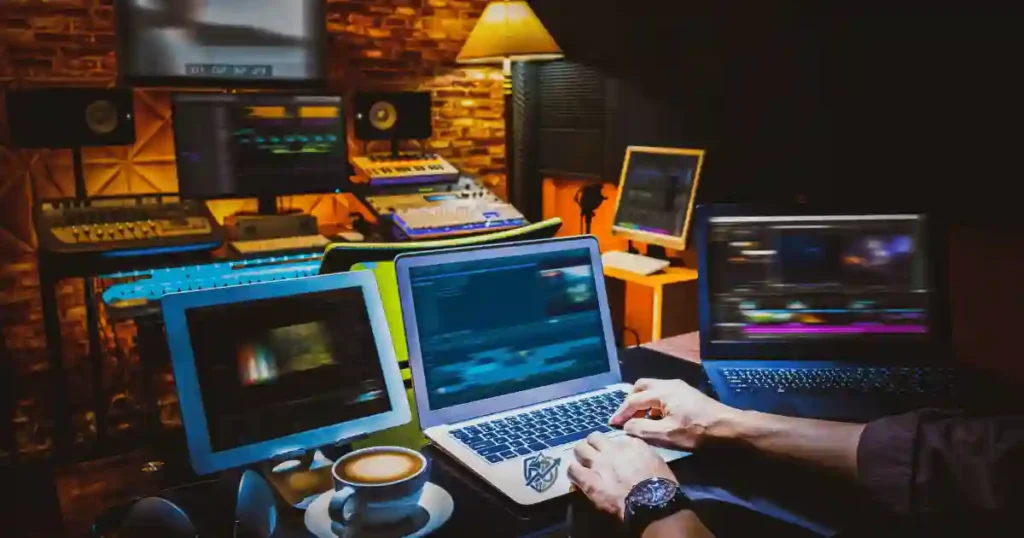
Imagine shooting a beautiful 4K clip, dragging it into your editor, and hearing your fans scream like a jet taking off. Sitting in a quiet New York studio recently, I watched a creator fight through dropped frames and lagging timelines. Finding the right laptop for video editing demands far more power than simple web browsing or office work. The ideal machine depends on your clip resolution, video codecs, project complexity, special effects, editing apps, and export speeds.
This guide outlines key buying factors: processors, graphics cards, system RAM, fast drives, color displays, thermal cooling, battery life, ports, and operating systems. A computer built for short 1080p web clips is not the same device needed for 4K multicam timelines, RAW clips, or heavy After Effects compositions. Real lab tests confirm that performance varies by workflow, so you must avoid choosing a system based on a single spec or benchmark alone.
Start With Your Video Editing Workflow
The first step is not picking Intel, AMD, Apple, or NVIDIA. It is figuring out what you actually edit on a normal Tuesday afternoon.
What Kind of Videos Do You Make?
Your content type dictates hardware demands.
Most creators produce a mix of these popular video styles:
- YouTube videos and tech reviews
- TikTok clips and Instagram Reels
- Short-form vertical social clips
- Multi-angle wedding videos
- Travel vlogs and cinematic montages
- Personal daily vlogs
- Corporate marketing videos
- Long-form documentary projects
- Commercial brand work
- Narrative film projects
- High-framerate gaming videos
- Aerial drone footage
- Action camera footage
What Resolution Do You Edit?
Higher pixel counts demand significantly more hardware power. Standard 1080p Full HD runs easily on budget hardware. Editing 1440p and 4K UHD video requires modern processors and dedicated graphics. Cutting 6K and 8K footage demands high-end hardware, massive system memory, and ultra-fast storage drives.
How Complex Are Your Projects?
Simple timelines use a single video track with light cuts. Complex projects stack multiple video layers, multicam angles, color grading nodes, motion graphics, audio noise reduction, and AI-powered mask tracking. Heavy green-screen compositing, custom transitions, and 3D visual effects multiply the rendering strain placed on your system.
How Often Do You Edit?
Occasional editors need basic stability for monthly clips. Weekly content creators need smooth timeline playback to hit regular post schedules. Daily creators and full-time professional editors require fast rendering, high sustained performance, and rugged system reliability to meet strict commercial deadlines.
The Most Important Question: What Software Will You Use?
- Adobe Premiere Pro: Relies heavily on high CPU clock speeds, fast system RAM, and hardware decoding.
- DaVinci Resolve: Scales aggressively with GPU power, dedicated VRAM, and neural engine processing.
- Final Cut Pro: Runs exclusively on macOS, leveraging Apple silicon media engines for incredible speed.
- Adobe After Effects: Demands maximum CPU single-core speed and huge amounts of system RAM.
- CapCut: Offers light, fast editing for vertical social media clips on entry-level hardware.
- Adobe Premiere Elements: Provides easy video tools for home users and beginner editors.
- Filmora: Delivers simple editing tools with moderate hardware requirements.
Check Your Camera and Codec Too
Your camera format changes processing loads instantly. Highly compressed Long-GOP formats like H.264 and H.265 (HEVC) require heavy CPU decoding during timeline playback. Intraframe codecs like Apple ProRes, Avid DNxHD, and DNxHR edit smoothly because each frame stands alone. RAW video formats demand fast drive reads and powerful graphics chips to process raw camera sensor data in real time.
Why Codec Choice Changes Laptop Requirements
Different codecs interact with computer hardware in distinct ways. Dedicated hardware media engines decode compressed video formats on the fly. Without hardware decoding, your CPU struggles, dropping frames during playback. Choosing codecs optimized for hardware acceleration lets mid-range laptops edit 4K video as smoothly as high-end workstations processing uncompressed RAW clips.
How Much Laptop Performance Do You Really Need?
A video editing laptop must balance several parts at once. A powerful CPU with weak cooling or limited RAM can still leave you staring at a spinning loading icon.
Basic Video Editing Laptop
This entry-level setup fits beginners cutting simple clips.
Best For
- 1080p projects
- Short YouTube videos
- Social media clips
- Simple cuts
- Basic transitions
- Light color correction
Suggested Target
- Modern mid-range processor
- 16GB system RAM
- 512GB fast SSD
- Integrated graphics or entry-level dedicated GPU
Mid-Range Editing Laptop
This balanced configuration serves active online creators and freelance editors.
Best For
- 4K video editing
- YouTube creators
- Freelance editors
- Multitrack timelines
- Moderate visual effects
- Secondary color grading
Suggested Target
- Powerful modern processor
- 16GB to 32GB system RAM
- 1TB fast SSD
- Dedicated GPU with 6GB+ VRAM
Professional Video Editing Laptop
This top-tier setup handles heavy commercial production work without compromise.
Best For
- Professional 4K production
- 6K and 8K raw projects
- Multicam editing
- RAW footage
- Heavy visual effects
- Advanced color grading
- Complex After Effects projects
Suggested Target
- Top-tier high-core processor
- 32GB to 64GB+ system RAM
- Powerful dedicated GPU or high-end Apple silicon
- 1TB to 2TB+ internal SSD
- Advanced thermal cooling design
Why “More Powerful” Is Not Always Better
Buying top-tier components brings unexpected trade-offs. Extreme power draws extra electricity, generates heavy heat, and triggers loud cooling fan noise. Top specs increase purchase costs, shorten battery life, and deliver diminishing returns if your daily work consists of simple social clips.
Choose the Right Processor for Video Editing
The CPU handles timeline operations, audio rendering, background tasks, and video exporting. Choosing the right processor depends directly on your software and primary camera formats.
Intel Processors
Intel Core and Core Ultra processors feature Performance cores for heavy calculations and Efficiency cores for background tasks. Also, Intel Quick Sync technology provides built-in hardware media acceleration for blazingly fast H.264 and H.265 video decoding and encoding in Premiere Pro and DaVinci Resolve.
AMD Ryzen Processors
AMD Ryzen 5, Ryzen 7, and Ryzen 9 processors deliver outstanding multi-core performance for rendering, long exports, and multitasking. Modern Ryzen laptop chips combine high processing efficiency with excellent battery life, making them ideal for mobile video editing workstations.
Apple Silicon
Apple M-series chips (M2, M3, M4) integrate CPU cores, graphics, and system memory into one efficient chip. Built-in media engines offer hardware acceleration for H.264, HEVC, ProRes, and ProRes RAW video, allowing thin MacBooks to playback multi-stream 4K timelines smoothly on battery power.
Qualcomm Snapdragon and ARM Windows Laptops
Snapdragon X Elite processors bring exceptional battery efficiency to Windows laptops. However, check native app compatibility before buying. While some video editors run well via emulation, native ARM optimization remains necessary for maximum performance, plugin stability, and hardware media acceleration.
CPU Cores vs Clock Speed
Single-core clock speed dictates how fast your editor processes timeline cuts, basic effects, and UI movements. Multi-core performance speeds up video exporting, background rendering, and multi-stream timeline processing. Balancing high clock speeds with ample core counts ensures smooth timeline editing and swift project exports.
Match the CPU to Your Editing Software
- Premiere Pro: Thrives on processors with high clock speeds and hardware media engines like Intel Quick Sync or Apple media engines.
- DaVinci Resolve: Relies heavily on GPU power, but benefits from strong multi-core CPUs during decoding and audio processing.
- Final Cut Pro: Runs at peak speed on Apple silicon chips built to process ProRes video streams.
- After Effects: Demands maximum single-core CPU clock speeds for preview rendering and expression processing.
USA Expert Advice
“Hardware performance varies wildly based on your specific media codecs and project complexity,” notes the testing team at Puget Systems, a leading US custom workstation specialist. “A system that excels at processing Apple ProRes media might struggle with 10-bit H.265 camera files unless it includes dedicated hardware decoding engines.”
How Much RAM Does a Video Editing Laptop Need?
System RAM holds active video frames, cache files, and project assets. Having sufficient memory prevents system lag and timeline stutter.
16GB RAM
This capacity serves as the absolute baseline for video creators. It handles 1080p timelines, basic social media clips, simple 4K cuts, and light multitasking. However, keeping multiple creative applications open simultaneously will consume available memory quickly.
32GB RAM
This represents the sweet spot for serious 4K video editing. It provides ample breathing room for multitrack 4K timelines, color grading in DaVinci Resolve, moderate motion graphics, background audio processing, and running Photoshop alongside your primary editor without slowing down.
64GB RAM or More
High-end commercial editors need 64GB or more system memory. This capacity handles 6K and 8K RAW video media, complex After Effects compositing, heavy multicam setups, multi-layered motion graphics, and large disk caches required for feature-length video projects.
Why RAM Usage Can Spike
Memory consumption spikes rapidly during video editing sessions. Opening high-resolution image assets, background rendering, loading motion graphic templates, maintaining large browser research tabs, and dynamic linking between Premiere Pro and After Effects quickly fill limited RAM.
Unified Memory on Apple Silicon
Apple silicon uses unified memory shared dynamically between the CPU, GPU, and Neural Engine. This architecture delivers incredible bandwidth and lower latency. While 18GB of unified memory handles heavy work efficiently, you must choose enough capacity at purchase because unified memory cannot be upgraded later.
Can You Upgrade the RAM Later?
Many thin modern laptops feature soldered memory that cannot be upgraded after purchase. Other laptops offer SODIMM slots for easy memory expansions. Checking upgrade flexibility before buying helps protect your long-term investment as video project demands grow.
Choose the Right Graphics Card for Video Editing
The GPU speeds up timeline playback, color grading, noise reduction, spatial effects, AI features, and final video rendering.
Integrated Graphics
Built-in graphics handle basic 1080p cutting and simple social video editing. Modern integrated GPUs work fine for lightweight software like CapCut or basic Premiere Pro projects, but they struggle with complex timeline effects, 4K rendering, and advanced color grading.
Dedicated NVIDIA GPUs
NVIDIA GeForce RTX graphics cards lead PC video editing performance. Built-in CUDA cores accelerate timeline playback and GPU effects. Tensor cores accelerate AI tools like auto-reframing and vocal separation, while dedicated NVENC hardware encoders speed up H.264 and H.265 exports.
AMD Radeon GPUs
AMD Radeon dedicated graphics cards provide strong GPU acceleration for creative apps supporting OpenCL and Vulkan APIs. They deliver great performance per dollar in video editing and color work, though NVIDIA retains advantages in CUDA-specific creative plugins and AI tools.
Apple Integrated GPU
Apple silicon integrates high-core GPUs directly onto the processor die. Sharing unified memory with the CPU allows Apple GPUs to handle massive 4K and 8K video textures smoothly without transferring data across slow system buses, making them exceptionally capable in Final Cut Pro and DaVinci Resolve.
How Much VRAM Do You Need?
Video Random Access Memory (VRAM) holds frame buffers, video textures, and color grading nodes. Use this guide to match VRAM to your workflow.
| Video Editing Level | Typical GPU Need | Suggested VRAM Direction |
| Basic 1080p | Integrated or entry GPU | Integrated memory or 4GB class |
| 4K creator work | Mid-range dedicated GPU | 6GB to 8GB VRAM |
| Heavy 4K editing | Strong dedicated GPU | 8GB to 12GB VRAM |
| 6K / 8K & advanced effects | High-end GPU | 12GB+ VRAM where supported |
When You Should Spend More on the GPU
Invest in a powerful GPU if you edit primarily in DaVinci Resolve, apply heavy noise reduction, perform advanced color grading, use AI tools, composite 3D elements, or work regularly in After Effects.
When You Should Not Overspend
Skip expensive high-end graphics cards if your daily routine consists of simple 1080p or 4K cuts, basic YouTube vlogs, short TikTok clips, and minimal special effects.
Pick Enough SSD Storage for Your Video Files
Video media files consume drive space rapidly. A small internal drive fills up instantly, slowing down your operating system and editing software.
Recommended Internal Storage
Choosing the right drive size prevents constant storage warnings. Based on years of media creation experience, here is how storage needs scale.
| Storage Size | Best For | Practical Use |
| 512GB | Beginners | Basic editing paired with external drives |
| 1TB | Most creators | Strong everyday starting point for 4K video |
| 2TB | Serious editors | Large local projects and active media libraries |
| 4TB+ | Professionals | Heavy local media workflows and RAW footage |
Why 1TB Is Often a Better Starting Point
A 1TB solid-state drive provides comfortable room for your operating system, primary editing applications, plugin libraries, scratch disk cache files, proxy media, and active 4K project media without forcing you to delete files constantly.
Internal SSD vs External SSD
Internal NVMe SSDs deliver blazingly fast read and write speeds up to 7000MB/s, making them ideal for active project caches. External USB-C and Thunderbolt SSDs (offering 1000MB/s to 2800MB/s speeds) provide excellent portable working drives for editing footage directly on location.
Why HDDs Still Have a Role
Traditional spinning Hard Disk Drives (HDDs) are too slow for editing modern 4K video media directly. However, large external HDDs remain the most cost-effective solution for long-term project archiving, media storage, and offline system backups.
Build a Simple 3-2-1 Backup Strategy
Protect your creative work with a reliable backup plan:
- Keep 3 copies of all important project data.
- Store backups on 2 different media types (such as an internal SSD and an external drive).
- Keep 1 backup copy off-site or backed up to encrypted cloud storage.
Do Not Fill Your Internal SSD to the Edge
Solid-state drives require free capacity to maintain peak performance. Filling your internal SSD beyond 80% capacity causes read and write slowdowns, crashes editing software, degrades cache performance, and destabilizes your entire operating system.
Choose a Display That Helps You Edit Accurately
Your laptop screen is where you judge focus, color saturation, exposure levels, and natural skin tones.
Choose the Right Screen Size
- 14-inch screens: Highly portable for travel, though timeline spaces feel cramped during long editing sessions.
- 15 to 16-inch screens: The ideal balance for creators, offering ample vertical timeline space while remaining easy to carry.
- 17-inch screens: Massive visual workspace for detailed editing, though overall system weight limits daily portability.
Resolution
Full HD (1920 × 1080) displays work fine for basic editing, but 2.5K (2560 × 1600) and 3K displays provide sharper video previews alongside extra screen real estate for your editing toolbars, audio meters, and media bins.
Color Accuracy
Look for displays covering 100% sRGB for general web video work. For professional broadcast, commercial, and cinematic projects, pick a display covering 98%+ of the DCI-P3 color gamut with a factory-calibrated Delta E score under 2 for precise color reproduction.
Brightness
A screen outputting 400 to 500 nits allows you to edit comfortably in bright rooms or near studio windows. HDR content creation requires displays capable of 1000+ nits peak brightness for accurate highlight monitoring.
IPS vs OLED
IPS displays deliver accurate colors, consistent brightness, and long battery life without risk of image retention. OLED displays offer infinite contrast, perfect black levels, and vivid colors, though they consume more power when displaying bright editing interfaces.
16:10 vs 16:9
A 16:10 aspect ratio display provides valuable vertical screen space. That extra height allows you to expand your video timeline tracks, audio meters, and effect controls without crowding your video preview window.
Do You Need a 4K Laptop Display?
While a 4K laptop display looks stunning, it drains battery life rapidly and scales interface text very small. Buying a crisp 2.5K display and connecting to a calibrated external 4K monitor at your home desk often yields better practical results.
Do Not Ignore Cooling and Sustained Performance
Video editing subjects your hardware to heavy, long-term processing loads. Exporting complex 4K timelines pushes your processor and graphics card to maximum power for extended periods.
Why Cooling Matters
When internal temperatures climb too high, processors automatically lower their clock speeds to prevent hardware damage. This process, known as thermal throttling, turns a fast editing laptop into a crawling machine during long render renders.
Look for Better Cooling Design
High-performance editing laptops rely on dual cooling fans, thick copper heat pipes, vapor chamber plates, and large airflow vents. A slightly thicker laptop chassis with effective cooling will outperform a thin laptop that thermal throttles after three minutes of rendering.
Why Thin Laptops Can Be a Trade-Off
Ultra-thin laptops offer sleek aesthetics and low weight, but their compact chassis limits thermal dissipation. High heat output forces cooling fans to run at maximum speed, creating distracting fan noise and triggering thermal throttling during sustained exports.
The Plugged-In Reality
Laptops require AC wall power to feed maximum wattage to the CPU and GPU. Running on battery power automatically limits performance to preserve charge, lengthening render times significantly. Puget Systems notes that its mobile Premiere Pro workstations are designed for high performance but need to be plugged in to deliver maximum rendering speeds, an important practical reality for creators expecting desktop-class power away from wall sockets.
Real-Life Scenario
Imagine editing a wedding video in a warm studio room. Your timeline contains multi-layer 4K clips, color nodes, and audio filters. As fans spin up, you move the laptop onto a bed for comfort. Soft blankets block bottom air vents instantly. Internal heat spikes, thermal throttling kicks in, timeline playback stutters, and your export time quadruples.
Practical Cooling Advice
- Work on hard, flat surfaces like wooden desks or glass tables.
- Keep air vents completely clear of obstructions.
- Avoid editing intensive video projects on soft beds or lap cushions.
- Use an active laptop cooling stand during long export renders.
Choose a Laptop Based on Your Editing Software
Picking hardware tailored to your primary editing application ensures maximum performance per dollar spent.
Adobe Premiere Pro
Premiere Pro performance scales with fast CPU clock speeds, Intel Quick Sync or Apple media engines for hardware decoding, 32GB system RAM, and an NVIDIA RTX GPU for CUDA-accelerated timeline effects and encoding.
DaVinci Resolve
DaVinci Resolve relies heavily on GPU processing power and fast video memory. Prioritize high VRAM capacity (8GB+), strong CUDA or Apple silicon graphics, 32GB system RAM, and fast internal NVMe storage drives for smooth color grading and Fusion visual effects.
Final Cut Pro
Final Cut Pro is deeply optimized for macOS and Apple silicon processors. It leverages hardware media engines for ProRes video streams, delivering fluid multi-stream 4K timeline playback and rapid rendering on MacBook Pro models with minimal power draw.
Adobe After Effects
After Effects demands high CPU single-core clock speeds for preview processing and substantial system RAM (32GB to 64GB+) to store preview caches. A fast NVMe SSD dedicated for disk cache files dramatically improves timeline responsiveness.
CapCut and Beginner Editors
CapCut and basic editors run smoothly on modest hardware. A modern mid-range CPU, 16GB RAM, integrated graphics, and a 512GB SSD handle 1080p and light 4K short-form social videos effortlessly without expensive workstation components.
Always Check Official Software Requirements
Before buying a new machine, check the official system requirements listed by your software developer. Verify supported operating system versions, recommended GPU architectures, minimum VRAM guidelines, and system RAM recommendations.
Windows vs Mac for Video Editing
Both operating platforms offer world-class video editing capabilities. The choice comes down to software preferences, ecosystem compatibility, hardware customization, and budget.
Choose Windows If You Want
- Maximum hardware choices across every price range
- Dedicated NVIDIA RTX GPUs with CUDA acceleration
- Upgradeable system memory and internal SSD storage
- A single versatile computer for heavy PC gaming and video production
- Broad custom workstation configurations
Choose Mac If You Want
- Outstanding Apple silicon performance per watt
- Exceptional battery life during real-world editing
- Near-silent cooling operation under creative workloads
- Native support for Final Cut Pro
- Seamless file sharing with iPhone and iPad ecosystems
- Color-accurate displays out of the box
Consider Software Compatibility
Verify that your preferred editing plugins, custom motion graphic templates, color LUTs, audio VST plugins, and collaborative team project files run seamlessly across your chosen operating system.
Think About External Hardware
Ensure your laptop operating system connects effortlessly with your camera gear, external capture cards, audio recording interfaces, external monitors, card readers, and storage drives without requiring complex driver configurations.
Check Ports and Connectivity Before Buying
Connecting camera gear, external drives, and monitors turns your editing laptop into a productivity hub.
Essential Ports
- USB-C / Thunderbolt: Handles ultra-fast external SSD transfers, monitor outputs, and high-wattage charging.
- USB-A: Connects classic flash drives, mice, keyboards, and legacy hardware.
- HDMI: Plugs directly into external studio monitors, TVs, and projectors.
- SD Card Reader: Enables fast footage transfers directly from camera memory cards.
- Headphone Jack: Standard 3.5mm audio port for latency-free headphone audio monitoring.
Why an SD Card Reader Is Useful
A built-in full-size SD card reader allows you to offload camera footage, drone clips, and audio files instantly without carrying extra dongles or card adapters in your camera bag.
Thunderbolt and High-Speed USB
Thunderbolt 4 and USB4 ports deliver transfer bandwidth up to 40Gbps. This speed allows you to edit 4K RAW video files directly from high-speed external NVMe SSDs while driving dual 4K external displays simultaneously.
When You Need a USB-C Hub
If your chosen laptop features only two USB-C ports, factor the cost and physical bulk of a multi-port USB-C adapter hub into your budget to handle external drives, card readers, and displays.
Battery Life and Portability for Video Editors
High-performance video editing components draw substantial power. Finding the right balance between processing muscle and portable battery life depends on your lifestyle.
If You Edit Mostly at Home
Prioritize raw processing power: pick a high-core CPU, powerful dedicated GPU, thick chassis with advanced cooling, large display, and multi-terabyte internal storage. System weight and battery life matter far less when working plugged into a home desk.
If You Travel Frequently
Prioritize physical mobility: choose an efficient laptop weighing under 4 pounds (1.8 kg), with long real-world battery life, compact USB-C charging support, a bright screen, and durable aluminum chassis construction.
If You Edit on Location
Look for high power efficiency on battery, high screen brightness (500+ nits) for outdoor visibility, strong cooling, USB-C Power Delivery charging, and rugged build quality that survives travel in heavy camera bags.
The Charger Is Part of the Laptop
Remember to account for power adapter weight. A lightweight laptop paired with a massive two-pound power brick ruins mobility. Look for laptops supporting compact Gallium Nitride (GaN) USB-C power adapters.
Laptop Recommendations by Video Editing Workload
Use these real-world spec profiles to match your specific editing workload.
Best Laptop Profile for 1080p Editing
- Modern mid-range CPU (Intel i5/Ultra 5, Ryzen 5, Apple M-series)
- 16GB system RAM
- 512GB fast NVMe SSD
- Integrated or entry-level GPU
- Crisp Full HD (1080p) IPS display
Best Laptop Profile for 4K YouTube Editing
- High-performance CPU (Intel i7/Ultra 7, Ryzen 7, Apple Pro series)
- 32GB system RAM
- 1TB fast NVMe SSD
- Dedicated GPU with 6GB to 8GB VRAM
- Color-accurate 2.5K display (100% sRGB)
Top Laptop Profile for DaVinci Resolve
- High-core CPU
- 32GB to 64GB system RAM
- 1TB to 2TB fast NVMe SSD
- Powerful NVIDIA RTX GPU with 8GB to 12GB+ VRAM
- Advanced thermal cooling design
Best Laptop Profile for Premiere Pro
- High clock speed CPU with hardware media engines
- 32GB system RAM
- 1TB fast NVMe SSD
- Dedicated NVIDIA RTX GPU with 6GB+ VRAM
- Color-accurate 100% sRGB or DCI-P3 display
Best Laptop Profile for After Effects
- Top single-core clock speed CPU
- 32GB to 64GB+ system RAM
- 1TB or 2TB high-speed NVMe SSD (with dedicated disk cache partition)
- Dedicated GPU for accelerated effects rendering
Top Laptop Profile for Professional 6K/8K Editing
- Top-tier high-core CPU or Apple Max/Ultra series chip
- 64GB+ system RAM / Unified Memory
- 2TB+ ultra-fast internal NVMe SSD
- Top-tier GPU with 12GB+ VRAM
- Factory-calibrated DCI-P3 display with advanced cooling
Three Video Editing Laptop Buying Budgets
Selecting the right budget tier ensures your money goes directly toward components that speed up your specific editing workflow.
Entry-Level Creator Budget
This budget setup provides high value for beginners and social media creators.
Target Specifications
- 1080p and light 4K editing
- Modern mid-range processor
- 16GB system RAM
- 512GB fast SSD
- Integrated or entry-level dedicated GPU
Best For
- Students
- Beginner editors
- TikTok and Instagram creators
Mid-Range Creator Budget
This sweet spot delivers smooth performance for active online creators and freelancers.
Target Specifications
- Smooth 4K video editing
- Powerful modern CPU
- 32GB system RAM
- 1TB fast SSD
- Dedicated GPU with 6GB+ VRAM or strong Apple silicon
Best For
- YouTubers
- Freelance video editors
- Serious creative hobbyists
Professional Creator Budget
This top-tier investment powers heavy commercial workflows without compromise.
Target Specifications
- 4K, 6K, and 8K RAW footage
- High-end CPU
- 32GB to 64GB+ system RAM
- 1TB to 2TB+ fast internal SSD
- Top-tier dedicated GPU or Apple Max chip
- Advanced thermal cooling
Best For
- Professional video editors
- Commercial production studios
- Full-time film and agency creators
Where to Spend Your Money First
Prioritize components in this order:
- CPU & GPU Balance: Processing cores and graphics acceleration handle core editing.
- System RAM: 32GB eliminates timeline lag during 4K multitasking.
- SSD Storage: 1TB minimum prevents fast cache buildup from slowing down system drives.
- Thermal Cooling: Keeps hardware running at peak sustained clock speeds.
- Display Quality: Ensures accurate color grading and exposure assessment.
- Port Selection: Built-in SD readers and Thunderbolt ports simplify file offloading.
Common Video Editing Laptop Buying Mistakes
Avoiding these common hardware traps will save you money and prevent timeline frustration.
Buying Only for CPU Speed
Video editing relies heavily on graphics acceleration, system memory bandwidth, dedicated hardware media decoders, and fast storage drives. A top-tier CPU paired with weak integrated graphics or slow storage will still struggle on complex timelines.
Buying Too Little RAM
Skimping on RAM is the single fastest way to cause timeline stutter and application crashes. While 8GB struggles with modern operating systems, 16GB serves as a baseline, and 32GB delivers smooth 4K multitasking.
Buying a Tiny SSD
Video media files, proxy clips, and editing cache files fill internal drives rapidly. A 256GB or 512GB drive fills up within weeks, slowing down your system and forcing you to offload files constantly.
Ignoring GPU Requirements
Color grading in DaVinci Resolve, AI reframing, spatial noise reduction, and heavy visual effects depend directly on GPU power and VRAM capacity. Ignoring graphics specs leads to dropped frames and slow rendering times.
Choosing a Thin Laptop With Weak Sustained Performance
Ultra-thin laptops often post high short-term benchmark scores, but their thin chassis limits cooling. During long render exports, internal heat forces thermal throttling, causing render times to balloon.
Ignoring Screen Colour Accuracy
Editing video on a dim display with poor color gamut coverage leads to inaccurate color grading. Your videos may look fine on your laptop screen but appear oversaturated, washed out, or dark on client screens and smartphones.
Forgetting Ports
Buying a laptop with only USB-C ports forces you to carry a collection of dongles and hub adapters to connect SD cards, external hard drives, HDMI studio monitors, and accessories.
Buying Based Only on Brand
Do not select a computer based on brand reputation alone. Compare specific hardware specifications, cooling designs, software optimizations, and workflow performance for your target editing software.
Assuming the Most Expensive Laptop Is Best
Match your machine directly to your actual media format and workflow complexity. Overpaying for extreme workstation graphics or 64GB RAM yields diminishing returns if you edit simple 1080p social media clips.
A Simple Video Editing Laptop Buying Checklist
Work through this checklist before purchasing to ensure your new machine handles your creative workflow smoothly.
Your Editing Workflow
- Footage Resolution: 1080p, 4K, 6K, or 8K?
- Primary Codec: H.264, H.265, ProRes, or RAW media?
- Timeline Setup: Single camera track or multicam angles?
- Effects Load: Light cuts, motion graphics, or heavy 3D compositing?
- Primary Software: Premiere Pro, DaVinci Resolve, Final Cut Pro, or After Effects?
Your Hardware
- Modern multi-core CPU with hardware media acceleration
- 16GB RAM minimum for 1080p (32GB preferred for serious 4K editing)
- 512GB SSD minimum (1TB+ strongly recommended for active creators)
- Dedicated GPU with sufficient VRAM for your software choice
- Effective thermal cooling design with clear air vents
See Your Screen
- 100% sRGB color gamut coverage (98%+ DCI-P3 for color grading)
- Accurate color calibration
- 400+ nits brightness
- Comfortable screen size (15 to 16-inch ideal for mobility)
Your Workflow Extras
- Built-in full-size SD card reader
- High-speed USB-C / Thunderbolt 4 ports
- HDMI video output port
- External high-speed SSD for active project media
- Reliable 3-2-1 backup strategy in place
FAQ About Choosing a Laptop for Video Editing
How Much RAM Do I Need for Video Editing?
For basic 1080p editing and simple social media clips, 16GB of RAM is sufficient. For serious 4K video editing, color grading, and running multiple creative apps at once, 32GB of RAM is the recommended sweet spot. Professional 6K/8K RAW workflows and heavy After Effects compositing require 64GB or more.
Is 16GB RAM Enough for 4K Video Editing?
Yes, 16GB of RAM can handle simple 4K video editing with basic cuts and light color work, especially when using optimized proxy files or efficient codecs like Apple ProRes. However, complex 4K timelines with multiple video layers, heavy special effects, or background multi-tasking will run significantly smoother with 32GB of RAM.
Is a Dedicated GPU Necessary for Video Editing?
While integrated graphics can handle light 1080p cutting, a dedicated GPU is essential for serious video editing. Applications like DaVinci Resolve, Premiere Pro, and After Effects rely heavily on dedicated graphics cards and VRAM to process GPU-accelerated effects, color grading, noise reduction, AI tools, and fast video exports.
Is a MacBook Good for Video Editing?
Yes, MacBooks powered by Apple silicon (M2, M3, M4 Pro/Max) are outstanding machines for video editing. They offer exceptional performance per watt, dedicated hardware media engines for ProRes and H.265 video decoding, quiet operation under load, color-accurate displays, and long real-world battery life.
Is Windows or Mac Better for Video Editing?
Neither platform is universally superior; the best choice depends on your software, hardware preferences, and budget. MacBooks excel in battery efficiency, quiet operation, and Final Cut Pro integration. Windows laptops offer broader price ranges, upgradeable storage and RAM, and maximum NVIDIA RTX GPU power for DaVinci Resolve and 3D creative workflows.
How Much SSD Storage Should a Video Editor Have?
A video editor should aim for at least a 1TB internal SSD as a practical starting point. While a 512GB SSD works for beginners who offload files immediately to external drives, a 1TB or 2TB drive provides essential space for the operating system, editing applications, large project caches, proxy media, and active high-resolution media files.
Is a 4K Display Necessary for Video Editing?
No, a 4K display is not strictly necessary on a laptop screen. A high-quality 2.5K (2560 × 1600) or 3K display provides sharp visual previews and extra timeline workspace while consuming significantly less battery power. Color gamut coverage (such as 100% sRGB or 98%+ DCI-P3) and brightness accuracy matter far more than pixel resolution alone.
Can I Edit 4K Video on a Budget Laptop?
Yes, you can edit 4K video on a budget laptop by using proxy workflows. Creating lower-resolution proxy files (like 1080p ProRes or DNxHR) allows your editing software to process timeline edits smoothly on modest hardware. Once editing is complete, the software links back to original 4K source files for final exporting.
How Long Should a Video Editing Laptop Last?
A well-built mid-range to high-end video editing laptop should last between three to five years of regular creative use. Lifespan depends on build quality, thermal management, hardware maintenance, software updates, and how rapidly your video camera formats and project resolutions increase over time.
Should I Buy a Laptop or Desktop for Video Editing?
Choose a laptop if you need to edit footage on location, travel frequently, or present work to clients in person. Choose a desktop if you work primarily at a fixed desk, as desktops deliver significantly more processing power per dollar, superior cooling performance, extensive internal storage expansions, and easier long-term hardware component upgrades. Puget Systems also notes the trade-offs between laptop portability and the customization and repair flexibility of larger systems.
Final Recommendation
Having spent years testing creative hardware and building digital productivity tools, I always tell creators that the best laptop for video editing is the one that removes friction from your specific workflow. Forget about chasing meaningless synthetic benchmarks or buying excessive specs you will never utilize. If you edit 4K content on the go, invest in a well-cooled machine with a strong modern multi-core processor, 32GB of RAM, a 1TB fast internal SSD, a color-accurate display, and a dedicated GPU or media engine.
Keep your camera codecs in mind, edit on hard flat surfaces to maintain airflow, and prioritize a balanced system. Matching your hardware directly to your daily editing app and video media formats ensures a fast, reliable mobile editing station that lets you focus entirely on telling great visual stories.

Ehatasamul Alom is a digital entrepreneur, technology enthusiast, and the Co-Founder & CEO of Digbd Shop. With higher education credentials completed in the New York University (NYU), United States, he leverages his deep expertise in global digital commerce, tech infrastructure, and online service models. Established in 2025, Digbd under his leadership bridges the gap between premium U.S. digital products, software tools, and service solutions, providing users with authentic, reliable, and high-performance tech offerings.