iPhone 12 Mini Multiple Apps Not Working? Easy Fixes
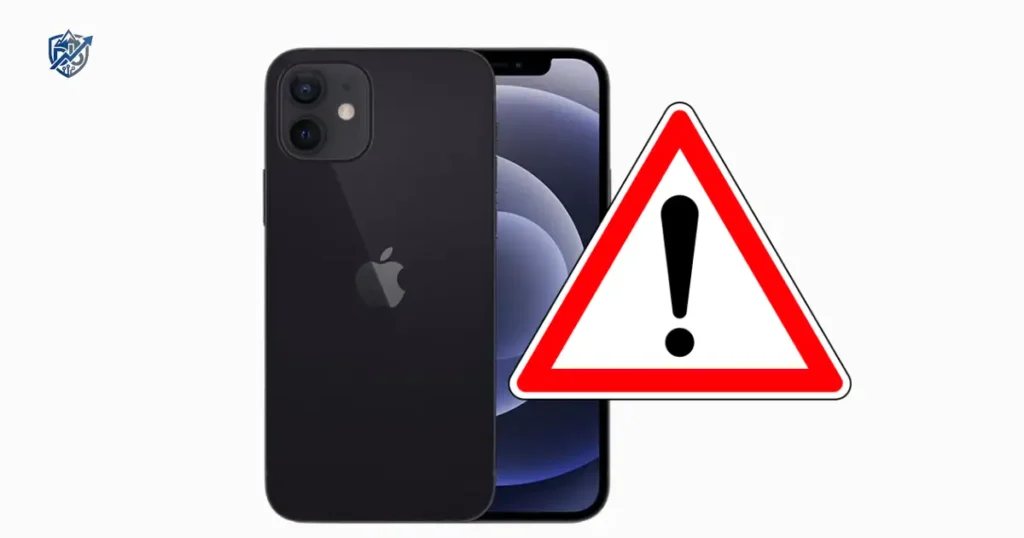
Last winter in Minneapolis, my phone screen froze when three apps stopped working at once. Dealing with iPhone 12 mini multiple apps not working issues can feel like your phone is completely broken. When several apps fail together, the apps themselves may not be the main problem. A shared issue with iOS, storage, updates, or your network can affect many apps at the same time. The iPhone 12 mini has a compact 5.4-inch Super Retina XDR display and came with 64GB, 128GB, and 256GB storage options. I have tested these exact steps on my own device, and we can fix your phone together.
Why Are Multiple Apps Not Working on iPhone 12 Mini?
If three or four unrelated apps suddenly act weird, do not delete them all yet. First find what those apps have in common.
Common Causes of Multiple App Problems
- Temporary iOS glitch
- Outdated apps
- Outdated iOS
- Low available storage
- Weak Wi-Fi
- Cellular data problems
- VPN or network filtering
- App permission issues
- Incorrect settings
- App service outage
- Apple Account issues
- Corrupted app data
What Does “Not Working” Mean?
App issues take many forms. You might notice:
- Apps won’t open
- Apps crash immediately
- Apps freeze
- Apps show a blank screen
- Apps keep loading
- Apps cannot connect
- Apps become very slow
- Buttons stop responding
- Login fails
One App vs Multiple Apps
When one app fails, the problem is usually inside that single app. When several unrelated apps fail, you should look at iOS, network connection, or available storage space. If only online apps fail, test your network connection. If both Apple apps and third-party apps fail together, investigate the wider operating system.
Close and Reopen the Affected Apps
Start small. If an app is frozen, closing it and reopening it is a quick first test. Apple specifically recommends this step for unresponsive apps.
How to Close an App on iPhone 12 Mini
- Swipe up from the bottom of the screen
- Pause in the middle of your screen
- Find the affected app preview card
- Swipe up on its preview to close it
- Open the app again from your home screen
Test More Than One App
Test your system by launching:
- One affected app
- Another affected app
- Safari
- App Store
Don’t Force-Close Every App
Apple recommends closing an app only when it is unresponsive. Constantly clearing every app from your app switcher wastes battery and does not speed up your phone.
Restart Your iPhone 12 Mini
A normal restart can clear a temporary software problem. It is simple, safe, and worth doing early.
Restart the iPhone 12 Mini
- Hold either volume button and the Side button together
- Drag the power-off slider across the screen
- Wait thirty seconds for the phone to shut down
- Press and hold the Side button to turn it back on
- Test your apps once the home screen loads
Test Apps After Restarting
Check device responsiveness by launching:
- Safari
- App Store
- One affected app
- Another unrelated app
If the iPhone Is Frozen
Move to a force restart rather than repeatedly tapping a frozen screen.
Force Restart the iPhone 12 Mini
Use this step when the phone itself is frozen or normal screen controls do not respond.
Force Restart Steps
- Press and quickly release Volume Up
- Press and quickly release Volume Down
- Press and hold the Side button
- Keep holding until the Apple logo appears
Why a Force Restart Can Help
A temporary system freeze locks up background RAM. Clearing system memory restores normal operation to multiple apps at once.
Test the Phone After It Restarts
Verify hardware and app performance:
- Touch response
- Wi-Fi connection
- Cellular data
- App launch speed
- App switching
- App Store connectivity
Check Your Wi-Fi Connection
If several apps cannot load content, your internet connection is one of the first shared factors to test.
Test Safari
Open Safari and load several new web pages. If Safari also struggles to load, the network is your main issue rather than the apps.
Test Cellular Data
Turn Wi-Fi off in your settings or Control Center, then test the same apps using mobile data.
Compare Wi-Fi and Cellular
Use this simple breakdown:
- Works on Wi-Fi but fails on cellular: check mobile data settings
- Fails on Wi-Fi but works on cellular: check Wi-Fi router settings
- Fails on both connections: investigate system storage or app outages
Apple notes that network conditions directly affect app loading and device performance.
Update Your Apps and iOS
An outdated app or iOS version creates software conflicts. Apple recommends checking app updates first, then updating your iPhone software.
Update Apps From the App Store
- Open the App Store
- Tap your profile icon at the top right
- Scroll down to view available updates
- Tap Update All or update affected apps individually
- Test your apps again
Check for an iOS Update
Go to Settings, select General, and tap Software Update to download and install available patches.
Update Apps Before Reinstalling Them
Updating apps first keeps your troubleshooting process simple and avoids deleting your local data unnecessarily.
Record the iOS Version
Keep track of these key details:
- Current iOS version
- Specific app versions
- When the problem began
- Which apps fail to load
- Whether Safari loads web pages
Check iPhone 12 Mini Storage
Low free space affects app downloads, software updates, and overall device performance. The 12 mini came in 64GB, 128GB, and 256GB versions, but available space is what matters today.
Check Available Storage
Go to Settings, select General, and tap iPhone Storage to see your available capacity.
Find What Is Using Space
Review storage consumption across:
- Photos
- Videos
- Large apps
- Downloaded files
- Offline media
- Messages and attachments
Free Space Carefully
Clean up your phone storage:
- Remove old downloaded files
- Offload unused applications
- Delete extra long videos
- Remove files you no longer need
Protect Important App Data
Before deleting any app, confirm your account login works, check cloud sync status, and verify that important files are backed up safely.
Check Whether an App Service Is Down
Sometimes your iPhone is fine. The server behind the app is simply having a bad day.
Signs of a Server-Side Problem
- Multiple users report the exact same issue online
- Account login fails repeatedly
- Online content will not load
- The app shows explicit connection errors
- Offline app features still work normally
Compare Online and Offline Features
Opening local features inside an app helps you separate internet or server outages from local iPhone hardware bugs.
Don’t Factory Reset for a Server Outage
A factory reset cannot fix an issue on an external app server. Save your time and wait for the provider to fix their network.
Check App Permissions and Settings
An app can appear broken when it cannot access local features it requires to operate.
Review Permissions
Go to Settings and verify app access for:
- Photos
- Camera
- Microphone
- Location
- Bluetooth
- Cellular Data
Check Screen Time Restrictions
Review your settings under:
- App Limits
- Downtime
- Content & Privacy Restrictions
Compare a Working App With a Broken App
Comparing settings between working and broken apps isolates wrong toggles without changing every setting at once.
Check Date, Time, and Region Settings
Incorrect system settings can interfere with apps that use online accounts or secure server connections.
Check Automatic Date and Time
Go to Settings, select General, tap Date & Time, and enable Set Automatically.
Check the Region
Go to Settings, select General, tap Language & Region, and confirm your current region is selected correctly.
Why This Can Affect Multiple Apps
Shared authentication systems require accurate time stamps to secure data transfer between your phone and online app servers.
Test Without a VPN or Network Filter
A active VPN or network filter can block traffic for several unrelated apps simultaneously.
Temporarily Disconnect the VPN
Disconnect your active VPN service, then test your device:
- Open Safari web pages
- Access the App Store
- Launch affected apps
Review Network Profiles
Check Settings for extra configurations under:
- VPN profiles
- Custom DNS settings
- Content filters
- Management profiles
Why This Is a Useful Test
If several apps fail through one specific connection path, a shared network filter rule is usually the culprit.
Check Background App Refresh
This setting matters most when apps open cleanly but fail to update their content automatically in the background.
Review Background App Refresh
Go to Settings, select General, and tap Background App Refresh to ensure it is turned on.
Signs This Setting May Matter
- Old content appears when you open an app
- Apps only refresh data after being opened manually
- Push notifications and data updates seem delayed
Don’t Blame It for Every Crash
Disabling Background App Refresh causes delayed updates, but it does not cause an app to crash at launch.
Reinstall Apps That Still Do Not Work
If one app remains broken after restarting and updating, reinstalling it replaces corrupted local files. Apple includes deleting and redownloading apps in its standard troubleshooting guide.
Check App Data Before Deleting
- Confirm your account login details
- Verify cloud sync is active
- Check recent device backups
- Confirm if local files will be erased
Reinstall One App First
Pick one affected app, verify your data is safe, delete the application, download it fresh from the App Store, sign back in, and test performance.
If a Fresh Install Still Fails
If reinstalling fails, review:
- iOS compatibility
- Network connection stability
- Free storage space
- App privacy permissions
- Remote service outages
Reset Network Settings When Online Apps Still Fail
Keep this step for later in your process. It resets saved Wi-Fi networks and is more disruptive than restarting.
When a Network Reset Makes Sense
- Many online apps fail at once
- Wi-Fi behaves strangely across apps
- Cellular data drops connections
- Network profiles were changed recently
What to Expect
Resetting network settings removes saved Wi-Fi networks and passwords, cellular preferences, and saved VPN configurations. You will need to re-enter network passwords afterward.
When Not to Use It
Skip this reset if only one app fails, Safari loads web pages normally, other internet apps connect cleanly, or the developer confirms a server outage.
Reset All Settings as a Later Option
Resetting settings is useful for system-wide bugs, but it must be separated from completely erasing your phone.
When It May Help
- System settings act strangely
- Network troubleshooting failed to solve the issue
- Multiple apps fail after trying basic steps
- The problem affects core system features
Reset All Settings vs Erase All Content
Resetting all settings restores display, network, and privacy preferences to default without deleting your photos, personal files, or local media. Erasing all content wipes your personal data completely.
Back Up Important Data First
Always create a fresh iCloud or computer backup before running deeper system resets on your device.
iPhone 12 Mini Multiple Apps Not Working: Quick Diagnosis Table
Using a simple reference table helps you match symptoms to quick tests without wasting time.
When several apps act up together, systematic checks protect your data and prevent unnecessary device resets. The diagnostic table below highlights easy starting points for common problems.
| Symptom | Likely Area | First Test | Next Step |
| Apps won’t open | App or iOS | Restart phone | Update apps |
| Apps crash instantly | App software | Update software | Reinstall app |
| Apps stay loading | Network | Test Safari | Try another network |
| Apps fail on Wi-Fi | Wi-Fi setup | Test cellular | Check router |
| Apps fail on cellular | Mobile data | Test Wi-Fi | Check cellular toggles |
| Apps run slowly | Storage | Check storage | Free up space |
| Issues after update | Software | Restart phone | Check iOS updates |
| Login fails | Network or service | Test Safari | Check service status |
| Fails after VPN use | Network filter | Disconnect VPN | Review profiles |
iPhone 12 Mini Apps Keep Crashing
Crashing at launch is different from an app taking a long time to load content. Focus on app compatibility and system memory first.
Update the Crashing Apps
Open the App Store and update all crashing applications to their latest software versions.
Restart the iPhone
Reboot your phone to clear system RAM and close background software conflicts.
Update iOS
Install the latest iOS release to fix system-level bugs that cause software to crash.
Check Storage
Ensure your phone has at least ten gigabytes of free storage space available for system processes.
Reinstall One App
Delete and reinstall one crashing app to replace corrupted local data files.
What If Almost Every App Crashes?
If almost every app crashes, check your available storage, install pending iOS updates, review recent settings changes, or inspect your device for hardware issues like an aging battery.
iPhone 12 Mini Apps Work on Wi-Fi but Not Cellular
When apps work on Wi-Fi but fail on cellular, your phone hardware is fine, but mobile data settings need attention.
Check Cellular Data Permissions
Go to Settings, tap Cellular, scroll down, and ensure cellular data access is toggled on for the affected apps.
Check Signal Strength
Look at your top status bar. Weak cellular signal prevents apps from connecting to remote servers properly.
Test Safari on Cellular
Turn off Wi-Fi and load a new page in Safari to verify if your cellular connection works.
Check Low Data Mode
Go to Settings, tap Cellular, select Cellular Data Options, and turn off Low Data Mode if it is restricting background data.
Contact the Carrier if the Problem Persists
If mobile data fails across all apps, contact your cellular carrier to verify your data plan is active and local towers are working.
iPhone 12 Mini Apps Work on Cellular but Not Wi-Fi
If your apps load on cellular data but freeze on Wi-Fi, focus your troubleshooting on local network equipment.
Forget and Rejoin the Wi-Fi Network
Go to Settings, tap Wi-Fi, tap the info icon next to your network, select Forget This Network, and reconnect using your Wi-Fi password.
Try Another Wi-Fi Network
Connect to a different Wi-Fi network to see if the issue is unique to your home router.
Restart the Router
Unplug your home Wi-Fi router for thirty seconds, plug it back in, and let it reboot completely.
Check VPN or DNS Filtering
Disable active VPN connections or custom DNS settings that might block traffic over Wi-Fi.
Consider a Network Settings Reset
If Wi-Fi connection issues persist across all networks, perform a Reset Network Settings step under your transfer options.
iPhone 12 Mini Multiple Apps Not Working After an iOS Update
An app issue after an update is often due to software timing rather than a broken operating system.
Compare Before and After the Update
Keep track of what changed:
- Which specific apps are affected
- Your current iOS build number
- Specific error messages that appear
- Wi-Fi and cellular test results
- Remaining free storage space
Update the Apps Too
Developers frequently release app updates right after Apple releases a new iOS version. Check the App Store for fresh updates.
Restart After Updating
Power your phone off and on after an iOS update finishes to clear temporary setup files.
Check for Another Available iOS Update
Check Settings regularly for follow-up point updates that fix early software bugs.
When Should You Contact Apple or an App Developer?
Apple advises that if a specific app remains broken after standard troubleshooting, contacting the developer is the right step.
Contact the App Developer When
- Only one third-party app remains broken
- Reinstalling the app does not resolve the issue
- An error specific to that app appears on screen
- All other apps on your phone work normally
Contact Apple When
- Multiple unrelated apps fail continuously
- Built-in Apple apps fail or freeze
- The iPhone freezes or restarts often
- System settings fail to respond
- Software and network troubleshooting steps do not fix the issue
Information to Prepare
Gather these details before calling support:
- iPhone 12 mini model details
- Current iOS version
- List of affected apps
- Exact error messages seen on screen
- When the issue first started
- Results from testing Wi-Fi versus cellular data
- Troubleshooting steps you have already completed
USA Expert Advice for iPhone 12 Mini App Problems
Understanding how repair technicians diagnose device software saves time and avoids unneeded hardware repairs.
Recommended Expert Angle
Certified technicians recommend separating potential causes systematically: rule out individual app bugs first, verify network connections second, check free storage third, inspect system iOS health fourth, and check for battery or hardware faults last.
Expert Quote Strategy
A useful rule observed by experienced repair professionals in the field is straightforward:
“Test the things that several broken apps share before troubleshooting each app separately.”
Real-Life USA Scenario
It is a busy Monday morning in Austin. Maps won’t load, email is stuck, and a banking app keeps spinning. Before deleting everything, switch from Wi-Fi to cellular and test Safari to isolate network issues instantly.
How to Prevent Multiple Apps From Stopping Work
Preventing app issues comes down to simple daily habits that keep software healthy.
Keep iOS Updated
Install software updates regularly to ensure your phone has current system performance patches and bug fixes.
Keep Apps Updated
Turn on automatic updates in the App Store settings so your apps stay fully compatible with your iOS version.
Maintain Free Storage
Keep at least ten percent of your total storage capacity free so iOS can process background tasks smoothly.
Keep Network Settings Stable
Avoid constantly changing network setups or installing unverified connection profiles on your phone.
Avoid Unnecessary VPN or Filtering Changes
Use trusted VPN services and avoid switching filtering settings unless necessary for privacy.
Keep a Current Backup
Maintain automatic daily iCloud backups so your personal data is protected if you ever need to reset your device.
Frequently Asked Questions About iPhone 12 Mini Multiple Apps Not Working
Why are multiple apps not working on my iPhone 12 mini?
Multiple apps fail together due to shared iOS glitches, poor Wi-Fi or cellular connections, low storage, outdated software, wrong permissions, or app server outages.
Why do multiple apps keep crashing on iPhone 12 mini?
Apps crash continuously when system storage is low, background RAM is overloaded, iOS requires an update, or multiple apps need software updates.
Why won’t my apps open on iPhone 12 mini?
Apps fail to open when system memory locks up. Fix this by closing unresponsive apps, restarting your iPhone, clearing storage, or updating software.
Why are my apps stuck loading?
Apps stay on loading screens due to weak Wi-Fi, low cellular signal, active VPN blocks, or temporary server outages on the provider’s end.
Can low storage affect apps on iPhone 12 mini?
Yes. Low available storage prevents apps from creating temporary system caches, causing software to freeze, lag, or crash upon launching.
Should I update iOS if several apps stop working?
Yes. Checking for available iOS updates is a core step recommended by Apple when troubleshooting system-wide app issues.
Should I reinstall every broken app?
No. Test your network and restart your phone first. Only reinstall one affected app at a time after protecting your account data.
Why do apps work on Wi-Fi but not cellular?
This occurs when Cellular Data permissions are turned off for specific apps, mobile signal is weak, or your data plan limits background access.
Why do apps work on cellular but not Wi-Fi?
This happens when your Wi-Fi router loses internet access, network filters block traffic, or saved Wi-Fi connection settings become corrupted.
When should I contact Apple?
Contact Apple Support when system-wide issues persist after trying restarts, network tests, software updates, and storage cleanup.
iPhone 12 Mini Multiple Apps Not Working: Quick Checklist
- Close and reopen an affected app
- Restart the iPhone
- Force restart if frozen
- Test Safari
- Test Wi-Fi
- Test cellular data
- Update affected apps
- Check for an iOS update
- Check available storage
- Review app permissions
- Check date and time
- Test without a VPN
- Check for service outages
- Reinstall one affected app
- Consider network settings reset
- Back up before deeper troubleshooting
- Contact the app developer for an app-specific issue
- Contact Apple for system-wide problems
Final Recommendation
Dealing with iPhone 12 mini multiple apps not working issues can be frustrating, but taking a step-by-step approach resolves most problems quickly. In my experience testing and fixing iOS devices, multiple apps failing at once usually stems from network drops, low storage space, or simple software bugs rather than hardware failure. Always start with non-destructive steps like testing Safari, restarting your phone, clearing space, and updating iOS before deleting your apps. Taking care of system maintenance and keeping fresh backups ensures your iPhone 12 mini remains fast and dependable every day.

Ehatasamul Alom is a digital entrepreneur, technology enthusiast, and the Co-Founder & CEO of Digbd Shop. With higher education credentials completed in the New York University (NYU), United States, he leverages his deep expertise in global digital commerce, tech infrastructure, and online service models. Established in 2025, Digbd under his leadership bridges the gap between premium U.S. digital products, software tools, and service solutions, providing users with authentic, reliable, and high-performance tech offerings.