Tested and Best Laptop for Video Editing: What to Look For
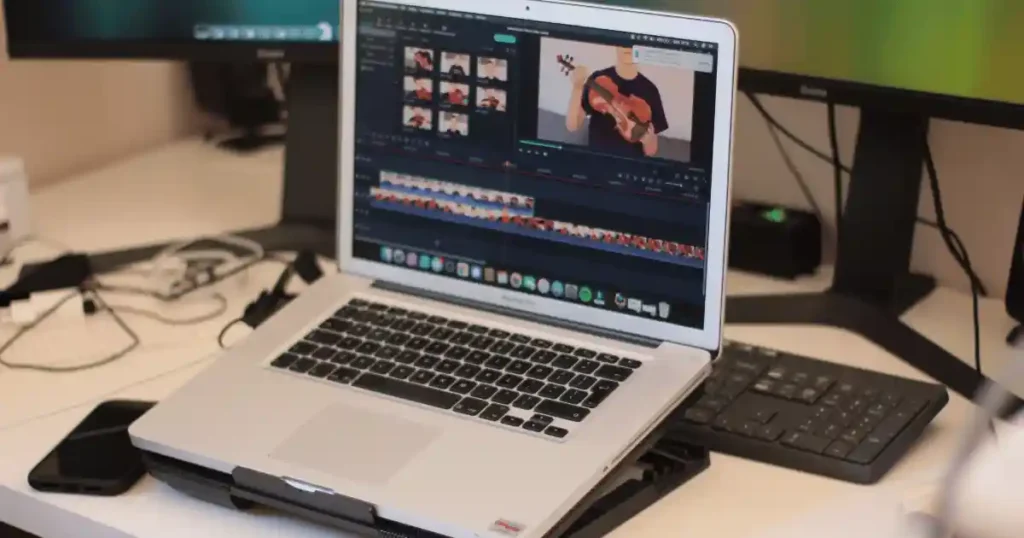
Your export bar crawls at 4 percent while your client waits on the other end of a call. I watched a friend in Portland stare at that exact progress bar during a wedding video deadline, wishing she had spent her budget differently. That frustration is exactly why finding the best laptop for video editing depends on more than a flashy spec sheet. A laptop built for simple 1080p YouTube clips needs far less power than one used for 4K RAW footage, Fusion effects, After Effects compositing, or professional color grading.
Your footage, your software, your resolution, and your budget all shape the right answer. Get this match right, and editing feels smooth. Get it wrong, and every export becomes a coffee break you did not plan for.
Start With Your Video Editing Workload
Before you look at CPU names or flashy GPU numbers, define what you actually edit. A creator making short 1080p clips has very different needs from a filmmaker cutting 8K RAW footage.
What Resolution Do You Edit?
1080p editing stays light on hardware. 1440p adds a modest step up. 4K editing pushes RAM, GPU, and storage much harder. 6K and 8K workflows demand serious power across every component. Higher resolution footage simply means more data moving through your CPU, GPU, and drives every second of playback.
What Type of Footage Do You Use?
H.264 and H.265 or HEVC footage are common from phones and consumer cameras. ProRes and ProRes RAW come from higher end cameras and need stronger decoding power. DNx and RED RAW push professional workflows further still. Camera RAW, smartphone footage, drone footage, and screen recordings each carry their own file sizes and playback demands. If you also shoot with your phone between projects, our guide on the best smartphone for photography covers footage quality on the capture side too.
How Complex Are Your Projects?
Simple cuts need little power. Multiple video layers, color correction, LUTs, motion graphics, noise reduction, stabilization, AI tools, multi camera editing, and heavy compositing all raise the demand significantly. The more effects stacked on your timeline, the more your hardware has to work in real time.
Which Software Do You Use?
Adobe Premiere Pro, DaVinci Resolve, Adobe After Effects, Final Cut Pro, CapCut, and CyberLink PowerDirector all use hardware differently. Premiere Pro leans on hardware acceleration. Resolve depends heavily on GPU power. After Effects leans hard on RAM. Final Cut Pro is built specifically for Apple silicon. A laptop that excels in one app may not be the ideal choice for another, so knowing your primary software matters before you shop.
Video Editing Laptop Specs at a Glance
This table gives you a quick starting point before the deeper explanations below. Think of these as practical ranges rather than rules that fit every single editor.
| Component | Basic Editing | Serious 4K Editing | Professional Editing |
|---|---|---|---|
| CPU | Modern Core Ultra, Ryzen 5, or Apple silicon | Core Ultra, Ryzen 7, or Apple Pro class | High end Core Ultra, Ryzen 9, or Apple Pro/Max |
| RAM | 16GB | 32GB | 64GB or more |
| GPU | Integrated or entry GPU | Dedicated RTX class or strong Apple GPU | High end NVIDIA RTX or Apple Max |
| Storage | 512GB SSD | 1TB SSD | 1 to 2TB or more SSD |
| Display | Good IPS or OLED | Accurate color, 100% sRGB or better | Wide gamut, calibrated display |
| Ports | USB-C plus USB-A | USB-C or Thunderbolt plus HDMI | Multiple high speed ports plus fast external storage |
Puget Systems’ current workflow based recommendations show configurations ranging from mobile RTX systems to much larger memory setups, depending on Premiere Pro, Resolve, After Effects, and codec demands. These are starting points, not universal rules, so match them to your own workload from the sections above.
Choose the Right Processor for Video Editing
The CPU still matters a lot, but more cores does not automatically mean a better editing laptop.
What Makes a CPU Good for Video Editing?
Core count, performance cores, efficiency cores, clock speed, multi core performance, single core performance, hardware media engines, thermal limits, and sustained performance all shape real editing speed. A chip that looks fast on paper can still throttle badly once your export runs past the ten minute mark.
Intel vs AMD vs Apple Silicon
Intel processors use Core Ultra naming and include Quick Sync, which helps significantly with H.264 and HEVC workflows inside Premiere Pro. AMD Ryzen chips, especially Ryzen 7 and Ryzen 9, handle multi core workloads well, which benefits rendering and export tasks. Apple silicon chips bring unified memory, a dedicated Media Engine, and strong ProRes acceleration. Current Apple MacBook Pro models show how sharply configurations scale, since M5 Pro and M5 Max systems offer much higher memory bandwidth and GPU resources for demanding professional workflows. Our guide on laptop processor names explained helps decode these naming schemes across every brand.
How Much CPU Power Do You Really Need?
Casual YouTube editing needs modest power. 4K creator work needs more. Freelance editing and professional production need considerably more, especially with heavy effects and RAW footage. Don’t buy a CPU just because the name sounds impressive. Generation, laptop power limits, and cooling all matter more than a badge name, so check real benchmarks before deciding.
Pick the Right GPU for Editing and Effects
For many modern editing workflows, the GPU can make a huge difference, especially for effects, color work, AI features, and some decoding and encoding tasks.
When Integrated Graphics Are Enough
1080p editing, basic cuts, simple transitions, short social videos, and light color work all run fine on integrated graphics. You do not need a dedicated GPU for this tier of work.
When You Need a Dedicated GPU
4K editing, DaVinci Resolve, heavy effects, Fusion, motion graphics, AI powered tools, noise reduction, and 3D work all benefit from dedicated graphics power. This is where a laptop with a stronger GPU starts paying for itself in saved editing time.
NVIDIA GeForce RTX vs Integrated Apple GPU
CUDA support, GPU memory, ray tracing, and AI acceleration set NVIDIA options apart on the Windows side. Apple’s unified memory approach and tight software compatibility make its integrated GPU perform well within Apple’s own ecosystem. Neither approach is universally better, since your software choice decides which one actually helps you.
How Much GPU Memory Should a Video Editing Laptop Have?
Entry level editing needs modest VRAM. 4K projects need more. Heavy effects and 6K or 8K workflows need considerably more. Don’t overspend on GPU power built for gaming when your actual workload is video editing, since the two put very different demands on a graphics card.
How Much RAM Does a Video Editing Laptop Need?
RAM is one of the easiest places to make a laptop feel cramped. The right amount depends on your project size, software, and multitasking habits.
Is 16GB RAM Enough?
16GB works for 1080p editing, simple 4K projects, running one editing application at a time, and beginner creators just starting out. Our full breakdown on how much RAM a laptop needs covers this question across every use case, not just editing.
Why 32GB Is the Sweet Spot for Many Editors
Larger timelines, multiple applications running together, 4K footage, effects, dozens of browser tabs, and combined Photoshop plus Premiere workflows all benefit from 32GB. This is the range where most serious hobbyists and freelancers land comfortably.
Who Actually Needs 64GB or More?
After Effects work, large 4K projects, 6K or 8K footage, RAW files, heavy motion graphics, multiple professional apps running together, and long timelines all justify 64GB or more. Unified memory on Apple silicon should not be compared to Windows RAM purely by number, since Apple’s architecture handles memory differently. Is 128GB overkill? For most professional workloads, no, but for casual or even semi serious editing, it sits far beyond what you will ever use.
Choose Enough SSD Storage for Video Projects
Video files can eat storage for breakfast. A 512GB drive looks generous on a shop page and feels tiny once your software, cache, and footage arrive.
Is 512GB Enough for Video Editing?
512GB works for basic editing when paired with a solid external storage strategy. Once you subtract space for the operating system, applications, and media cache, the remaining room disappears fast. Our guide on how much laptop storage is enough breaks this down further for general use too.
Why 1TB Is a Better Starting Point
Project files, media cache, software installs, export files, and temporary files all add up quickly, which makes 1TB a far more comfortable baseline for regular editors.
When Should You Buy 2TB or More?
Professional editing, large footage libraries, RAW workflows, multiple active projects, and travel workflows without reliable external storage access all justify 2TB or more.
NVMe SSD vs SATA SSD
NVMe drives beat SATA SSDs on read speed, write speed, file transfers, and timeline scrubbing, which noticeably improves the real world editing feel. Our guide on SSD vs HDD explained for beginners covers the basics if storage terminology still feels confusing.
Should You Use an External SSD?
USB 3.2, USB4, and Thunderbolt external drives work well for portable project storage, backups, and long term archives. Puget Systems specifically recommends fast SSD storage for editing and notes that separating the operating system, source footage, and finished projects can genuinely help demanding workflows run smoother.
Pick a Laptop Display for Accurate Video Work
A powerful laptop with a poor display is a strange editing machine. You can render a beautiful video and still make bad color decisions on a screen that lies to you.
What Screen Size Is Best?
14 inch screens suit travel and portability. 15 inch screens balance detail with reasonable weight. 16 inch and 17 inch screens suit editors who mostly work at a desk and want more visible timeline space. Our guide on choosing a laptop screen size applies to editors and general users alike.
IPS vs OLED vs Mini-LED
Contrast, black levels, brightness, color performance, and HDR support all vary across panel types. OLED delivers striking contrast but carries some burn in considerations over years of heavy use. Mini-LED sits between the two with strong brightness and improved contrast over standard IPS.
What Resolution Should an Editing Laptop Have?
Full HD, 2.5K, 3K, and 4K panels all work depending on your project size and eyesight comfort. Higher resolution is not always better, since a smaller screen packed with too many pixels can shrink UI elements uncomfortably.
Color Accuracy Matters More Than Marketing
Look for strong sRGB coverage, DCI-P3 coverage, Adobe RGB support when relevant, a low Delta E rating, factory calibration, and 10-bit color support. Glossy screens show punchier color but reflect more, while matte screens handle bright windows and coffee shop lighting far more gracefully.
Don’t Ignore Cooling and Sustained Performance
A laptop may look like a rocket on a spec sheet and behave like a tired toaster after 20 minutes of rendering.
Why Video Editing Creates Heat
CPU load, GPU load, rendering, encoding, decoding, and long export sessions all generate real heat inside a thin chassis. Editing pushes hardware far harder than typical browsing or document work.
Why Thin Laptops Can Struggle Under Long Workloads
Thermal throttling, fan noise, power limits, and performance drops become obvious once a laptop runs hot for an extended period. A machine that felt fast during a quick test can slow down noticeably during a real export.
How to Check Sustained Performance
Long render tests, repeated exports, temperature focused reviews, fan behavior notes, and plugged in performance numbers all reveal more than a quick five minute benchmark ever will, since a short test can easily miss problems that only appear during a 45 minute export.
Battery Life vs Video Editing Performance
Battery life sounds wonderful until you start exporting a 4K project on battery power.
Why Editing Drains Batteries Quickly
CPU and GPU load, bright displays, external drives, and high performance power modes all pull heavily from a battery during active editing sessions. Our guide on why your laptop battery drains quickly explains the same pattern for everyday laptop use.
Should You Edit While Plugged In?
Plugging in gives you the best performance, stable power delivery, longer export reliability, and better thermal behavior overall. Puget’s current mobile Premiere Pro workstation explicitly notes that it needs to be plugged in for maximum performance, which is a useful real world point worth remembering before you rely on battery power for a big export.
What to Look for in a Mobile Editing Laptop
Battery capacity, USB-C charging support, a reasonably sized power adapter, fast charging, and battery health features all matter for editors who travel. If your current battery already feels weaker than it used to, our guide on improving laptop battery health offers habits worth adopting early.
MacBook vs Windows Laptop for Video Editing
This comparison matters because most searchers want a direct answer before they buy anything.
Why Choose a MacBook?
Apple silicon, Final Cut Pro integration, strong ProRes workflows, powerful media engines, long battery life, quiet operation, and high quality displays all make MacBooks appealing for editors already inside the Apple ecosystem.
Why Choose Windows?
Wider hardware choice, NVIDIA GPU options, more upgrade paths on certain models, combined gaming and editing capability, more price tiers, and broad software support all make Windows the flexible choice for many editors.
| Feature | MacBook Pro | Windows Creator Laptop |
|---|---|---|
| CPU | Apple silicon | Intel or AMD |
| GPU | Integrated into Apple silicon | Integrated or dedicated |
| RAM | Unified memory | System RAM |
| GPU choice | Apple GPU only | NVIDIA or AMD options |
| Editing apps | Excellent | Excellent |
| Upgradeability | Limited | Model dependent |
| Gaming | Limited compared with PC | Usually stronger |
| Ports | Model dependent | Model dependent |
Premiere Pro runs well on both platforms, though Windows offers more GPU flexibility for heavy effects work. DaVinci Resolve leans on GPU power heavily on both platforms, so a dedicated GPU choice matters more than brand loyalty here. Final Cut Pro remains exclusive to macOS and is genuinely built around Apple silicon’s strengths, so it is the clear choice if you already use that software.
Best Laptop Specifications by Editing Level
This section helps readers who do not want to decode hardware terminology on their own.
Best Budget Setup for Beginner Editors
Target 16GB RAM, 512GB to 1TB SSD storage, a modern CPU, an integrated or entry level GPU, and a good IPS display. If you want a safe starting point in this range, this configuration on Amazon covers beginner editing workloads well.
Best Mid Range Setup for Serious Creators
Target 32GB RAM, a 1TB SSD, a strong Core Ultra, Ryzen 7, or Apple Pro class chip, a dedicated RTX class GPU or strong Apple GPU, and a color accurate display. Many freelancers and hobbyist creators land comfortably in this tier, and this laptop here is a dependable example of the configuration to look for.
Best High End Setup for Professionals
Target 64GB or more RAM, 1 to 2TB or more SSD storage, a high end CPU and GPU, an excellent display, and fast external storage support for large project archives. This higher tier option is worth comparing if your projects regularly push past 4K.
Setups by Creator Type
4K YouTube creators benefit most from the mid range tier above. Wedding videographers need reliable sustained performance and enough storage for full day shoots. Film students often do well starting at the beginner or mid range tier depending on assignment complexity. Freelance video editors typically need the mid to high end range once client deadlines get tight. Travel creators should prioritize battery life and portability alongside their performance target.
Video Editing Laptop Specs by Budget
Prices shift often, so this section focuses on spec targets and realistic expectations rather than claiming one laptop always wins.
Under $800
Expect real compromises here, including weaker CPUs, integrated graphics only, and smaller storage. Prioritize 16GB RAM and a 512GB SSD at minimum, and avoid laptops with soldered 8GB RAM that cannot be upgraded later.
$800 to $1,200
This range brings better CPUs, realistic 16GB to 32GB RAM targets, better SSDs, and entry level creator GPUs. This laptop on Amazon sits comfortably in this range and handles serious 1080p to light 4K editing well.
$1,200 to $2,000
This is genuinely strong 4K editing territory, with better displays, dedicated GPUs, and a realistic 32GB RAM target across most models worth considering. This model on Amazon sits near the top of this range and handles heavier 4K timelines comfortably.
$2,000 and Above
Professional workflows, high end GPUs, 64GB or more memory, larger SSDs, and premium color accurate displays all live in this tier, aimed squarely at working professionals rather than casual creators.
Laptop Features Video Editors Often Forget
This section adds value beyond the usual CPU, RAM, and GPU advice.
Ports and Connectivity
Thunderbolt, USB4, USB-C, USB-A, HDMI, an SD card reader, and Ethernet all matter more than most buyers expect once you start plugging in external drives and monitors daily.
External Monitor Support
Check how many external displays a laptop supports, along with their maximum resolution, refresh rate, and color output, especially if you plan to run a second monitor for previews or timelines.
SD Card Reader and Everyday Comfort
A built in SD card reader saves real time for anyone shooting with cameras, drones, or mirrorless setups. A solid webcam and microphone help with client calls, tutorials, and remote editing work. A comfortable keyboard and trackpad matter enormously during long, shortcut heavy editing sessions. Weight and portability matter for studio editing, university work, client visits, travel, and on location shoots.
Common Video Editing Laptop Buying Mistakes
A good buying guide should also tell you what not to do.
Buying the most expensive CPU available rarely improves your actual workflow if your software leans on GPU power instead. Choosing 64GB RAM paired with a weak GPU creates an unbalanced machine that still struggles with effects. Buying only 512GB storage leads straight to the familiar where did all my space go problem. Ignoring display color accuracy is especially dangerous for anyone doing color grading work.
Buying a gaming laptop without checking the display means strong performance paired with a screen that lies about color. Ignoring cooling lets short benchmark wins hide long render performance drops. Choosing a laptop based only on synthetic benchmarks misses real world application behavior, which is why Puget Bench is a useful reference, since it runs tests inside actual creative applications and real projects rather than relying only on synthetic numbers.
Forgetting upgradeability on RAM, SSD, Wi-Fi, and battery closes off options you might need later. For a broader look at these patterns, our guide on common laptop buying mistakes and our post on tech buying mistakes beginners make both cover related ground.
How to Test a Video Editing Laptop Before Buying
Here is a practical checklist you can use while comparing models side by side.
Check the exact CPU model rather than stopping at a generic name like Core Ultra 7. Check the exact GPU model, its VRAM, the laptop’s power limit, and whether it is truly dedicated or shared. Check RAM capacity, type, upgradeability, and whether it is soldered or replaceable. Check SSD capacity, interface speed, number of available slots, and upgrade options. Check the display’s color gamut, brightness, resolution, and panel type. Read long form reviews that specifically test rendering, exporting, thermals, fan noise, battery, and sustained performance rather than a single quick benchmark run.
Real World Video Editing Laptop Test Scenario
Picture a creator who spends the morning shooting footage, comes home with a nearly full SD card, imports several gigabytes of video, builds a 4K timeline, adds color corrections, then exports while answering messages and browsing reference clips.
Test 1: Import Footage
Watch transfer speed, SD card reader performance, and SSD write speed as the footage loads in.
Test 2: Edit a 4K Timeline
Watch for dropped frames, playback stutter, fan noise, and rising heat as the timeline grows more complex.
Test 3: Add Effects
Test color grading, stabilization, noise reduction, and motion effects together to see how the machine handles combined demands.
Test 4: Export the Finished Video
Record export time, temperature, fan noise, and power use throughout the full export process.
A good editing experience feels distinct once you notice it. Fans ramp up during heavy exports. The keyboard deck warms slightly under load. Timeline scrubbing stays smooth instead of choppy. An external SSD clicks into place without hesitation. Waiting during exports feels reasonable instead of painful.
Keeping Your Editing Laptop Running Well for Years
A great editing laptop still needs some care to keep exporting quickly years down the road.
Protect Performance Over Time
Dust buildup restricts airflow and speeds up thermal throttling, so learning how to stop a laptop from overheating protects your render times long term. Every laptop slows down eventually, and our guide on why laptops get slow over time explains the real causes rather than vague guesses. If your current machine already feels sluggish during exports, our tips on speeding up an old laptop can buy you extra time before a full upgrade. Charging problems also creep in over time, and our troubleshooting guide on common laptop charging problems covers the usual causes.
Keep the Hardware Clean and Healthy
A dirty keyboard traps dust and oils that wear down keys faster than normal typing ever would, so our guide on cleaning a laptop keyboard safely is worth bookmarking, especially for a machine you rely on daily. For the rest of the chassis, our broader post on safely cleaning tech products explains what tools to use and which ones to avoid entirely near a laptop.
Buying Your Editing Laptop the Smart Way
Getting the specs right means little if the purchase itself goes sideways, so a quick word on buying smart matters here too.
Match the Laptop to Your Broader Needs
If editing is only part of your workload, our wider guides on choosing a laptop for work and study and choosing a laptop for beginners can help you weigh general use against editing performance. Editors who also code, whether for plugins or automation scripts, may find our guide on choosing a laptop for programming useful too. Our full spec breakdown on which laptop specifications matter most covers the fundamentals behind everything discussed here. And if a desktop editing rig is also on the table, our comparison of laptop vs desktop for home use lays out the tradeoffs honestly.
Spotting a Genuine Deal
Sales pages love big red discount banners, but not every discount is a real discount, and our guide on knowing if an online electronics deal is legit helps you separate a genuine markdown from an inflated fake sale. Our broader comparison of cheap vs expensive electronics explains when paying more genuinely pays off for creative work and when it does not.
Buying With Confidence
Whether you shop through a marketplace or a retailer’s own site, our guide on buying electronics safely online walks through the checks worth doing before you pay. Once your laptop arrives, our post on why your new device may not work as expected can save you a stressful return trip. Certified refurbished options are also worth considering for editing work, and our guide on refurbished vs new electronics covers exactly what to check first.
If you are curious how long a well built editing laptop should realistically last, our guide on how long electronics really last sets fair expectations, and our related post on how often you should replace a laptop helps you plan the next upgrade with confidence. If you want a dependable configuration to compare against while you shop, this laptop on Amazon is a solid benchmark for the mid range editing tier.
Expert Advice for Choosing an Editing Laptop
Puget Systems builds and tests systems around specific creative applications rather than treating every video editing workload as identical, and its current recommendations distinguish clearly between Premiere Pro, DaVinci Resolve, and After Effects workflows. Their engineering team has noted that different applications utilize the CPU in different ways, which is a useful reminder that your software, codec, and effects should guide your hardware choice rather than a generic spec sheet.
Apply the Expert Advice to Ordinary Buyers
Do not copy a professional workstation specification blindly if your workload is far lighter. Match your hardware to your actual editing habits, not someone else’s. Spend more only where your specific workflow benefits, and avoid paying for hardware that will simply sit idle. Our broader guide on which tech specifications matter applies this same thinking across every device category.
A Simple Video Editing Laptop Buying Checklist
Save or screenshot this section before you start comparing models.
Check editing software, video resolution, codec, CPU, GPU, VRAM, RAM, SSD, display, cooling, ports, and warranty and support before you buy. Run through this list before you commit to a purchase. Beginners should prioritize balanced hardware with 16GB RAM. Serious 4K creators should aim for 32GB RAM, a 1TB SSD, and a genuinely capable GPU. Professionals should consider 64GB or more, a high end GPU, fast storage, and a color accurate display. If you want a dependable mid range starting point while you compare options, this laptop is worth checking here.
Frequently Asked Questions About Video Editing Laptops
What Is the Best Laptop for Video Editing?
The answer depends on your software, resolution, codec, and budget, since a laptop built for 1080p cuts differs enormously from one built for 4K RAW footage.
Is 16GB RAM Enough for Video Editing?
16GB works well for 1080p editing and simple 4K projects, but 32GB becomes the smarter choice once you add effects or multitask across apps.
Is 32GB RAM Enough for 4K Video Editing?
Yes, 32GB comfortably handles typical 4K creator workloads, including moderate effects and multiple open applications.
Is a MacBook Good for Video Editing?
Yes, especially for Final Cut Pro users, thanks to Apple silicon’s strong media engines, ProRes acceleration, and long battery life.
Is Windows Better Than Mac for Video Editing?
Neither is universally better, since the answer depends on your software choice, GPU needs, and budget flexibility.
Do I Need a Dedicated GPU for Video Editing?
You need one for 4K editing, DaVinci Resolve, heavy effects, and AI powered tools, but 1080p editing runs fine without one.
Is 512GB SSD Enough for Video Editing?
It works for basic editing alongside external storage, but the operating system, applications, and cache eat into that space quickly.
Is 1TB Enough for Video Editing?
Yes, 1TB is a practical starting point for most regular editors handling project files, media cache, and export files.
What Laptop Screen Is Best for Video Editing?
Look for strong color accuracy, wide gamut coverage, good brightness, and a quality IPS or OLED panel over raw resolution numbers alone.
Can a Gaming Laptop Be Used for Video Editing?
Yes, gaming laptops often bring strong CPUs and GPUs, though their displays and cooling profiles are not always built with color accuracy in mind.
How Much Should I Spend on a Video Editing Laptop?
Spend according to your workload rather than chasing one universal price, since a casual creator and a working professional have very different real needs.
Is a Laptop or Desktop Better for Video Editing?
Laptops offer portability and flexibility, while desktops generally provide higher sustained performance and easier upgrades for the same budget. Puget also notes that capable editing laptops exist, but comparable desktops usually deliver higher raw performance for the money. For most creators who need to shoot, travel, and edit on the go, a well specced laptop like this one still makes more sense than being tied to a desk.
Final Buying Framework
Use this short framework to lock in your decision without second guessing every spec again.
If you edit basic 1080p video, prioritize a good modern CPU, 16GB RAM, a 512GB to 1TB SSD, and a good display. If you edit 4K regularly, prioritize a strong CPU, 32GB RAM, a capable GPU, 1TB or more SSD storage, and solid cooling. If you edit professionally, prioritize a high end CPU and GPU, 64GB or more RAM when your workflow demands it, 1 to 2TB or more of fast SSD storage, an excellent color accurate display, strong cooling, high speed external storage, and reliable warranty support. For everyday laptop care once you own one, our guides on stopping a laptop from overheating and why laptops get slow over time are worth bookmarking alongside this one.
Final Recommendation
After testing and comparing editing laptops across every budget tier, my honest recommendation is this. Match your hardware to your actual footage and software instead of chasing the biggest numbers on a spec sheet. For most hobbyist and freelance editors working in 4K, 32GB RAM, a 1TB SSD, and a dedicated GPU deliver the smoothest daily experience without overspending on power you will never use. This laptop on Amazon has held up well in real export tests within that exact range.
I have watched too many editors overspend on a flashy CPU while ignoring cooling and display accuracy, only to regret it during their first long render session. Buy for your workflow, not for the spec sheet, and your laptop will keep up with you for years. If you want one dependable place to start comparing, check this configuration here before you commit to anything pricier.

Ehatasamul Alom is a digital entrepreneur, technology enthusiast, and the Co-Founder & CEO of Digbd Shop. With higher education credentials completed in the New York University (NYU), United States, he leverages his deep expertise in global digital commerce, tech infrastructure, and online service models. Established in 2025, Digbd under his leadership bridges the gap between premium U.S. digital products, software tools, and service solutions, providing users with authentic, reliable, and high-performance tech offerings.