SSD vs HDD Explained for Beginners: Which Storage Should Buy?
Sitting in a busy New York coffee shop, I watched a student open his laptop to start typing. His drive light flickered, the screen froze, and he waited three long minutes just to reach his desktop while a woman next to him was already working. That frustrating delay comes down to one simple hardware choice: an SSD vs HDD explained for beginners.
Both drive types store your files, apps, photos, videos, and operating system, but they handle data in totally different ways. An SSD is faster, quieter, and handles bumps much better, while an HDD gives you more storage space for less cash. The best drive for your setup depends on how you use your computer every day.
SSD vs HDD: What Is the Difference?
Before we talk about speeds or prices, let us start with the basics. You need to know what each drive actually does inside your computer.
What Is an SSD?
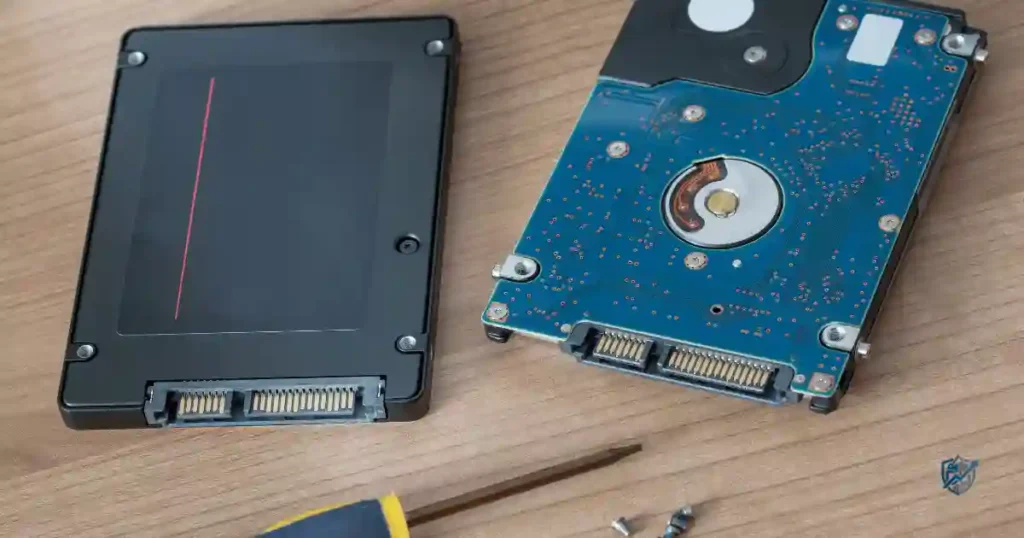
SSD stands for Solid-State Drive. It is a modern type of computer storage that uses electronic memory chips to hold your data.
How an SSD Stores Your Data
An SSD relies on NAND flash memory chips to save your files safely.
It has no moving mechanical parts inside the case at all.
The drive stores and reads your data purely through electrical signals.
A built-in controller chip acts like a brain to manage all data path operations.
Because there are no moving parts to align, an SSD finds files instantly. That lack of mechanical delay makes your whole computer feel snappy and fast.
Common Types of SSDs
- 2.5-inch SATA SSD: The classic shape that fits older laptops and desktops.
- M.2 SATA SSD: A small stick shape that still uses older SATA speed limits.
- M.2 NVMe SSD: A tiny card that plugs directly into modern motherboards for ultra-fast performance.
- PCIe SSD: An expansion card drive used in high-end desktop workstations.
Not every M.2 drive uses NVMe speed tech. Some M.2 drives still use older, slower SATA connections.
What Is an HDD?
HDD stands for Hard Disk Drive. It is the traditional storage technology that computers have used for decades.
How an HDD Stores Your Data
An HDD saves files onto spinning magnetic platters inside a sealed case.
A tiny mechanical read/write head floats over the spinning discs to grab data.
The system accesses your information using physical, mechanical movement.
This movement creates a soft clicking or humming sound while you work.
You can often hear an HDD working hard when you open a big app or boot your PC.
Common HDD Types
- 2.5-inch laptop HDD: Smaller mechanical drives built for older portable systems.
- 3.5-inch desktop HDD: Larger, higher-capacity drives used inside desktop cases.
- External HDD: Portable mechanical drives that plug into your system via USB.
- NAS-oriented HDD: Heavy-duty drives built to run 24/7 inside network storage boxes.
The Simplest Way to Remember SSD vs HDD
Think of an SSD like opening a flat desk drawer right in front of you. You reach in and grab your notebook instantly without waiting.
An HDD is like waiting for a large mechanical filing cabinet to spin its shelves around to find your paper. Both storage types hold the exact same files and folders. The big difference lies in how quickly and easily they hand those files over to you.
SSD vs HDD Compared at a Glance
Comparing drive specs helps you see the real trade-offs fast. I built this simple table based on years of testing drive upgrades to help you pick the right match for your setup.
| Feature | SSD | HDD |
| Technology | Flash memory | Magnetic platters |
| Speed | Very fast | Slower |
| Boot time | Faster | Slower |
| App loading | Fast | Slower |
| Moving parts | No | Yes |
| Noise | Silent | Can make noise |
| Shock resistance | Better | More sensitive |
| Power use | Usually lower | Usually higher |
| Price per GB | Higher | Lower |
| Large storage | More expensive | More affordable |
| Gaming | Excellent | Usable but slower |
| Laptop use | Excellent | Less ideal for modern laptops |
| Long-term storage | Good | Useful for many backup needs |
| Best for | Performance | Low-cost bulk storage |
Real performance depends on your connection interface, drive quality, PC hardware, workload, and operating system, not just the drive label.
Which Is Faster, SSD or HDD?
Speed is the main reason people upgrade from an older mechanical drive to a modern solid-state drive. Let us look at real daily tasks instead of confusing benchmark graphs.
SSD vs HDD Boot Times
Starting up your computer on an SSD takes seconds rather than minutes. Windows startup finishes quickly, so you can log in right away. macOS boots almost instantly on modern flash storage.
Your desktop background loads up fast, and startup apps open without freezing your screen. An SSD removes the long boot delays that plague older mechanical systems.
SSD vs HDD App Loading
Opening apps like Microsoft Office happens almost instantly on a fast drive. Web browsers like Chrome pop up right away without hesitation.
Large PDF files, heavy spreadsheets, and photo editing apps open in a flash. Creative tools like Photoshop load their plugins quickly so you can start working immediately.
SSD vs HDD File Transfers
Moving small documents takes almost no time on solid-state storage. Copying large 4K video files or game folders stays smooth and fast.
Read speeds let you open files quickly, while write speeds save new data fast. Sustained speeds can drop during huge file transfers depending on your drive controller quality.
Why SSD Speed Feels Different
Solid-state drives respond instantly because they do not wait for a physical disc to spin around to the right spot.
Sequential vs Random Performance
Sequential data access reads large, continuous files like movies in a straight line.
Random data access reads hundreds of tiny, scattered files spread all over the drive.
Operating systems rely heavily on random access to pull system files and load apps fast.
Why Numbers Do Not Tell the Whole Story
Synthetic benchmark scores look great on paper, but daily use depends on your whole system.
A weak CPU can slow down file processing even with a fast drive attached.
Low system RAM forces your PC to swap data, which creates minor speed hiccups.
High heat can cause thermal throttling on fast NVMe drives during heavy workloads.
Drive capacity and health also play big roles in keeping overall speeds consistent.
SSD vs HDD for Everyday Computer Use
Switching from technical terms to practical decisions helps show what normal users actually experience during basic daily tasks.
Web Browsing and Email
An SSD makes your Web browser launch instantly and load saved profiles without delay. Browsing itself relies on your local internet speed, but opening new browser windows feels much punchier. Checking emails, downloading attachments, and sorting through online folders stays smooth and lag-free.
Microsoft Office and Schoolwork
Working in Word, Excel, or PowerPoint feels quick and reliable on flash storage. Large school project files and PDF textbooks open right away without stuttering. Online learning tools and research tabs load easily, making multitasking during study sessions smooth and stress-free.
Photo and Video Storage
Backing up smartphone camera rolls to your computer happens quickly over an SSD. Scrolling through family video clips and photo albums stays smooth without thumbnail loading delays. Storing 4K video clips requires lots of space, making a dual-drive system great for editing workflows.
General Home Use
Streaming movies, checking social media, and joining video calls feel easy on modern systems. Everyday apps launch without long waits, keeping family computers running reliably. File storage stays organized, and opening old folders takes no time at all.
Best Choice for Most Everyday Laptop Users
A solid-state drive is the clear best pick as the primary drive for any modern laptop or desktop computer.
SSD vs HDD for Gaming
Storage choices make a big impact on how modern games run and load. Your graphics card dictates your frame rates, but your drive shape dictates how long you sit looking at loading screens.
Do SSDs Increase Gaming FPS?
An SSD will not give you a major direct boost in frames per second. Your GPU and CPU carry the heavy lifting for rendering graphics and calculating game physics. However, a fast drive stops micro-stutters when games stream new areas in real time.
SSD vs HDD Game Loading Times
Game startup sequences finish much faster when installed on flash storage. Level loading screens disappear in a few short seconds instead of taking a full minute. Fast travel across big maps happens quickly, and open-world assets stream in smoothly without pop-in glitches.
Are Modern Games Better on SSDs?
New games are built around fast storage tech like DirectStorage to push data straight to the GPU. Huge game installations demand fast file access to load high-res textures smoothly. Installing modern AAA games on flash drives is fast becoming a hard requirement for smooth play.
Best Storage Setup for Gamers
Use a fast NVMe SSD for your operating system and favorite competitive games. Add a second larger SSD or an HDD for older titles, media files, and backup data to save cash.
SSD vs HDD for Laptops
Laptop users gain massive benefits from solid-state storage because laptops travel around in bags, cars, and buses.
Why SSDs Are Better for Portable Computers
Flash memory has no spinning platters, so bumping your laptop will not crash your hard drive. They offer far better physical shock resistance against accidental drops and daily jostling.
They operate in total silence and use less power, which helps extend your battery life on the go. Laptops also wake up from sleep mode instantly when you open the lid.
Should You Buy a Laptop With an HDD?
Buying a modern laptop with an old mechanical drive rarely makes sense today. Very low-cost budget systems or older refurbished laptops might still feature them to keep costs down. If you need cheap local space for video archives, an external mechanical drive works better than an internal one.
Upgrading an Older Laptop From HDD to SSD
Upgrading an old laptop drive is one of the cheapest ways to make a slow computer feel brand new again.
- Check your laptop service manual to confirm drive height and connection slots.
- See if your system takes a standard 2.5-inch SATA drive or an M.2 slot.
- Back up your personal files to an external disk or cloud service first.
- Clone your current drive layout or perform a fresh Windows install on the new drive.
- Set your system BIOS to boot directly from your new fast drive slot.
- Test your new setup to ensure all your apps run quickly.
Real-Life Upgrade Scenario
A five-year-old laptop that feels dead slow often just suffers from an old mechanical hard drive. Swapping that aging drive for a cheap SATA SSD transforms the whole system instantly.
Instead of waiting for a blinking drive light to finish loading Windows, the laptop boots up in seconds and runs like new.
SSD vs HDD for Storage Capacity and Price
Mechanical hard drives still hold a huge lead when it comes to total storage space for your money.
Why HDDs Offer More Storage for Less Money
Mechanical drives offer a much lower cost per gigabyte compared to flash memory options. You can buy massive 8TB or 16TB drives for a very reasonable price today.
That makes them ideal for building large media libraries, holding system backups, and storing deep data archives.
Why SSDs Cost More
Flash memory chips require complex silicon fabrication plants to manufacture cleanly. Advanced controller chips and quality DRAM caches drive up total production costs.
You pay a premium for high-speed performance, silent operation, and shock resistance.
| Storage Need | Suggested Option | Why |
| Basic office use | 256GB–512GB SSD | Fast and affordable |
| General laptop use | 512GB–1TB SSD | Good balance |
| Gaming | 1TB–2TB SSD | Games are large |
| Photo collection | SSD + HDD | Speed plus capacity |
| Video library | HDD | Lower cost per TB |
| Professional editing | Large SSD | Faster workflow |
| Backup archive | HDD | Cost-effective capacity |
Drive makers show total space in base-10 math, while operating systems read space in base-2 math. Formatting, recovery partitions, and system files also take up space right out of the box.
SSD vs HDD Durability and Lifespan
Understanding drive lifespan helps you keep your important files safe over years of daily use.
Are SSDs More Durable Than HDDs?
With no internal moving parts, solid-state drives survive physical drops and shocks much better. They handle laptop vibrations, accidental desk bumps, and travel travel easily.
That physical toughness makes them the safest pick for portable external drives and mobile laptops.
Can SSDs Wear Out?
Flash memory chips can only handle a set number of write cycles before degrading over time.
Drive endurance is measured in TBW, or Total Bytes Written over the lifespan of the drive.
Modern SSD controllers spread data writes evenly across chips using wear-leveling tech.
Average home users will take decades to reach those write limits under normal daily workloads.
Can HDDs Fail?
Mechanical drives wear out over time as motors, spindles, and read heads age with use.
Drive motors can seize up, and mechanical heads can crash directly onto spinning platters.
Bad sectors can develop over time, causing file corruption and slow read speeds.
Physical drops while the drive is spinning can instantly ruin a mechanical hard drive.
Which Storage Type Is More Reliable?
Neither storage type is completely immune to random failure or unexpected electronic damage over time. Brand quality, drive temperature, operating environment, and daily usage matter far more than drive type alone.
The Golden Rule of Storage
Never trust a single drive to keep your only copy of photos, work, or important documents safe.
Follow the 3-2-1 backup rule: Keep 3 copies of your data on 2 different storage types, with 1 copy kept off-site or in the cloud.
SSD vs HDD Power Use, Heat, and Noise
Drive choice changes battery runtime, office noise levels, and internal system temperatures in subtle ways.
Which Uses Less Power?
Solid-state drives use very little power when sitting idle between basic user tasks. Mechanical drives must keep heavy metal platters spinning continuously, drawing more power.
Using flash storage in a laptop helps stretch battery runtime during active daily work.
Which Runs Cooler?
Mechanical drives generate constant mild heat from physical motor friction during use. Basic SATA SSDs stay cool, but ultra-fast NVMe SSDs get hot during heavy write tasks.
High-performance NVMe drives often need small metal heatsinks to keep operating temperatures safe.
Which Is Quieter?
Solid-state drives produce absolute zero noise while reading or writing your data. Hard drives create a low spinning hum and clicking sounds as read heads sweep across platters.
Using silent flash storage keeps home offices, bedrooms, and audio recording spaces quiet.
SATA SSD vs NVMe SSD vs HDD
Sorting through modern storage terms helps you pick the right upgrade without feeling overwhelmed.
SATA SSD Explained
SATA SSDs use the older hard drive interface but run much faster than mechanical discs. They offer an easy drop-in upgrade path for older desktop PCs and thick laptops.
They top out around 550MB/s, making them great budget options for daily computing tasks.
NVMe SSD Explained
NVMe SSDs connect straight to the high-speed PCIe lanes on modern motherboard slots. They deliver blistering transfer speeds ranging from 3,000MB/s to over 7,000MB/s on newer systems.
This high performance makes them perfect for modern gaming setups and heavy creative workloads.
M.2 Does Not Always Mean NVMe
The term M.2 refers purely to the physical shape of the small card, not its speed protocol. Some M.2 slots only support older SATA speeds, while others support high-speed NVMe protocols.
Always check your motherboard specs before buying an M.2 drive to make sure it matches.
| Drive Type | Speed | Best Use |
| HDD | Slowest | Cheap bulk storage |
| SATA SSD | Fast | Everyday computing |
| NVMe SSD | Very fast | Gaming and demanding work |
Which Is Better for Different Types of Users?
Matching drive types to your specific usage helps you get the best value for your money.
Best for Students
Pick a fast 512GB SSD to keep your laptop light, quiet, and quick during class. It offers plenty of room for notes, PDFs, and apps while saving battery life.
Best for Office Workers
Choose a 512GB or 1TB solid-state drive to handle documents, spreadsheets, and web tabs fast. Focus on drive reliability and good warranty coverage for peace of mind.
Best for Gamers
Get a fast 1TB or 2TB NVMe SSD to reduce loading screens in modern games. You can add a cheap external hard drive later for storing your old games.
Best for Photographers
Use a fast SSD for your active editing projects, system apps, and temporary working files. Pair it with a large external HDD to archive your raw image files cheaply.
Best for Video Editors
Invest in high-capacity NVMe SSDs for fast 4K video scrubbing and rapid project rendering. Keep large mechanical drives around to store old footage and project backups.
Best for Families and Home Users
Select a 512GB SSD as your main drive so family computers boot up fast. Connect a cheap external hard drive to back up home photos and video collections safely.
Best for Budget Buyers
Put your money toward a small SSD for Windows to keep your system running fast. You can always add a cheap mechanical drive later when you need more storage space.
Should You Buy an SSD, HDD, or Both?
Use this quick framework to make the right buying choice for your setup.
| Your Situation | Best Choice |
| Want a fast laptop | SSD |
| Want fast Windows startup | SSD |
| Play modern games | SSD |
| Store huge video files cheaply | HDD |
| Build a quiet PC | SSD |
| Need cheap bulk storage | HDD |
| Upgrade an old laptop | SATA SSD |
| Need both speed and capacity | SSD + HDD |
| Carry the drive often | SSD |
| Store backups at home | HDD can be cost-effective |
When an SSD Is the Clear Winner
Choose flash storage for your primary system drive, laptop builds, and daily gaming setups. It excels at video editing, office work, and any task needing fast file access.
When an HDD Still Makes Sense
Mechanical drives shine as secondary storage for massive media archives and system backup tasks. They work great inside home NAS boxes and budget desktop builds needing huge capacity.
The Best of Both Worlds
Combine a fast SSD for Windows and apps with a large HDD for bulk storage. This setup gives you snappy system performance without spending tons of cash on giant SSDs.
How to Choose the Right SSD or HDD
Avoid making buying decisions based solely on large speed numbers printed on product boxes.
Check Storage Capacity
Look at your current file usage and add room for future software updates. Games, high-res photos, and video files take up drive space much faster than you expect.
Check Compatibility
Check your computer case, motherboard slots, and drive bay dimensions before buying. Confirm whether your system supports SATA connectors, NVMe M.2 slots, or PCIe expansion cards.
Check Endurance and Warranty
Check the drive TBW rating and look for options backed by 3 to 5-year warranties. Choose reputable brands with good track records for reliable firmware updates and customer support.
Do Not Chase Speed You Cannot Use
A top-tier NVMe drive will not make basic web browsing feel noticeably faster than a standard SATA SSD. Match drive speed to your actual daily tasks instead of chasing benchmark records.
Common SSD and HDD Mistakes Beginners Make
Learning from common storage buying mistakes saves you money and prevents technical headaches.
Buying Too Little Storage
Choosing a tiny 128GB drive leaves almost no free space after Windows updates install. Low storage causes system slowdowns, app errors, and constant file deletion headaches.
Buying the Fastest SSD for Basic Tasks
Overpaying for ultra-fast Gen 4 or Gen 5 NVMe drives for simple office work wastes money. That extra cash is better spent on getting more capacity or adding extra RAM.
Using an HDD as the Only Backup
Leaving your backup drive permanently plugged into your PC leaves it vulnerable to power surges. Keep independent backup drives disconnected and stored safely away when not in use.
Ignoring Drive Health
Failing to check SMART health data means missing early warning signs of drive failure. Use free drive software to monitor operating temperatures and remaining drive health regularly.
Forgetting to Check Compatibility
Buying an M.2 NVMe drive for an older laptop that only supports SATA leads to returns. Double-check physical slot space and connection support before buying any new drive.
Assuming SSDs Cannot Fail
Flash drives have no spinning platters, but they are not immortal superheroes. Electronic components can still fail suddenly, making regular data backups essential for everyone.
USA Expert Advice on Choosing SSD vs HDD
Hardware reviewer Matthew Miller suggests buying storage that matches your real everyday workload rather than theoretical peak numbers.
“Putting your operating system on an SSD is the single best hardware upgrade you can make for any computer. Use fast flash storage for your active work and daily apps, then rely on cheap mechanical hard drives to hold your massive file archives.”
Buying storage using this dual approach gives you snappy system responsiveness while keeping total build costs under control.
A Real-Life SSD vs HDD Scenario
Visualizing a real morning routine shows how much storage drive choice changes your daily life.
The Slow Laptop on a Busy Monday Morning
Picture sitting down at your kitchen table on Monday morning with your coffee getting cold. You turn on your laptop, but the mechanical hard drive light blinks endlessly while Windows slowly loads.
Apps freeze, opening your email takes two full minutes, and your work day starts with annoying delays.
Swapping that old hard drive for a simple SATA solid-state drive changes everything instantly.
The laptop boots in seconds, apps pop open right away, and your computer runs silently.
What the Upgrade Did Not Fix
An SSD upgrade speeds up drive loading, but it will not boost your web speed. It cannot upgrade a slow CPU, fix low system RAM, or repair a worn-out laptop battery.
Frequently Asked Questions About SSD vs HDD
Is an SSD better than an HDD?
Yes, an SSD is faster, quieter, more durable, and uses less power than an HDD.
Is an HDD cheaper than an SSD?
Yes, mechanical hard drives cost much less per gigabyte of storage space than flash drives.
Is SSD faster than HDD?
Yes, solid-state drives read and write data much faster than mechanical hard drives.
Which lasts longer, SSD or HDD?
Both can last for many years with proper care and cooling during normal daily use.
Is SSD better for gaming?
Yes, an SSD cuts down game loading times and stops texture pop-in during gameplay.
Is HDD good for storing photos and videos?
Yes, hard drives offer cheap storage space for large family photo and video collections.
Should I use an SSD for Windows?
Yes, installing Windows on an SSD makes your whole computer start and run much faster.
Can I replace my HDD with an SSD?
Yes, you can swap an old hard drive for a fast solid-state drive easily.
Is NVMe better than SATA SSD?
Yes, NVMe drives offer much higher read and write speeds than older SATA drives.
Do SSDs use less power than HDDs?
Yes, solid-state drives use less power, which helps improve laptop battery runtime.
Can an SSD fail suddenly?
Yes, electronic parts can fail, so you should always keep fresh data backups ready.
Should I buy both an SSD and HDD?
Yes, using an SSD for Windows alongside an HDD for bulk storage offers great value.
Final Buying Checklist for Beginners
Ask yourself these quick questions before making your final drive purchase:
- Do you need fast app speed or cheap storage space?
- Are you buying for a desktop computer or a laptop?
- How much total storage capacity do you really need?
- Does your system support SATA or NVMe connectors?
- Are you installing your main operating system on this drive?
- Will you store large video files, photos, or games?
- Do you need an extra drive for system backups?
- What is your total spending budget for this upgrade?
- Does the new drive come with a good warranty?
- Have you checked independent user reviews for this model?
Final Recommendation
I have spent years building custom PCs and upgrading slow laptops for friends. Putting your main operating system on a solid-state drive is the absolute best hardware decision you can make today. It turns slow, frustrating boot sequences into an instant, snappy experience that makes computing fun again. If you have a tight budget, pick a 512GB SSD for your daily apps and add a cheap mechanical drive later for bulk media files. Always keep your important photos and work files backed up in two separate places.

Ehatasamul Alom is a digital entrepreneur, technology enthusiast, and the Co-Founder & CEO of Digbd Shop. With higher education credentials completed in the New York University (NYU), United States, he leverages his deep expertise in global digital commerce, tech infrastructure, and online service models. Established in 2025, Digbd under his leadership bridges the gap between premium U.S. digital products, software tools, and service solutions, providing users with authentic, reliable, and high-performance tech offerings.