How to Transfer Data From an Old Phone Without Losing Anything
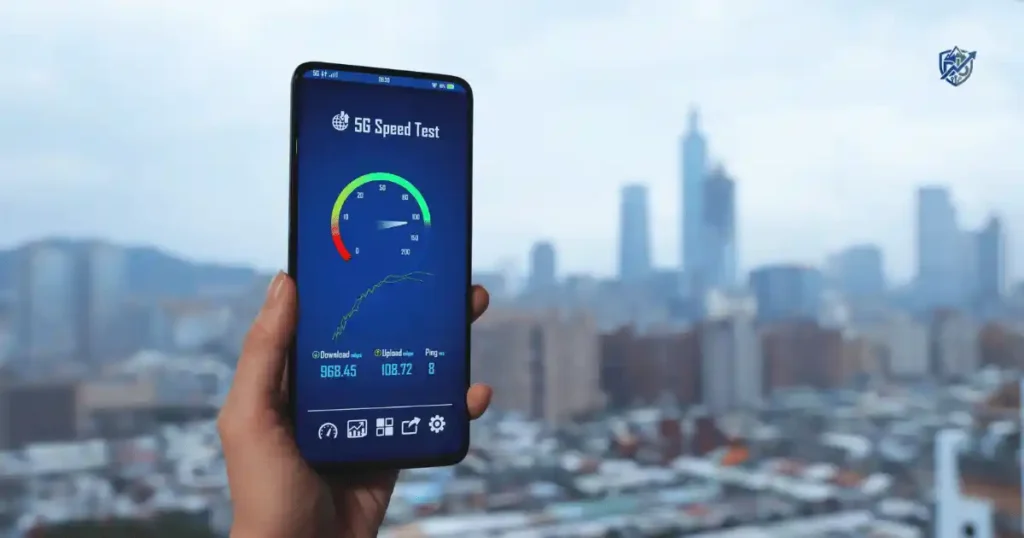
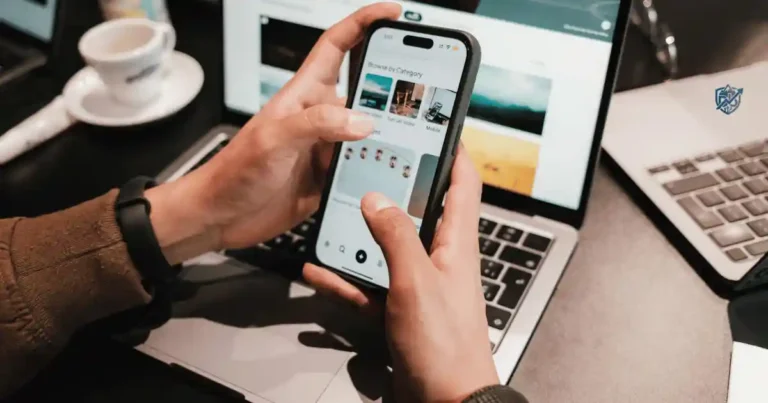
Sitting at my desk in New York, I held my new phone while my old device rested beside it. The new handset looked sleek, but my old cell held years of family photos, text chats, work contacts, and personal memories. Moving all those files without losing a single item can feel stressful. Modern operating systems offer direct migration paths, cloud tools, and wired options. Learning how to transfer data from an old phone keeps your valuable files safe throughout the entire setup process.
What Data Can You Transfer From an Old Phone?
Understanding what moves during migration helps you plan every step. Some files copy over in minutes, while other items need extra security checks.
Common data you can transfer
Most personal files move smoothly between modern mobile devices.
- Contact lists and saved address books.
- Photo albums and personal video clips.
- Text messages and cellular chat records.
- Past call history logs.
- Calendar events and scheduled reminders.
- Saved audio files and local music tracks.
- Personal documents and pdf files.
- Downloaded files stored in phone memory.
- Written notes and quick lists.
- Compatible mobile applications.
- Saved app data and user preferences.
- Device settings and system options.
- Saved Wi-Fi network passwords.
- Custom home screen wallpapers.
- System accessibility options.
Data that may need extra steps
Certain sensitive items require manual configuration on your new handset.
- WhatsApp chat backups and media files.
- Signal messaging history and keys.
- Mobile banking and finance apps.
- Two-factor authentication apps.
- Secure password manager vaults.
- Digital eSIM profiles and cellular plans.
- Offline music and map downloads.
- Saved game progress and achievements.
- Encrypted folders and hidden media.
- Digital rights managed media downloads.
Data that may not transfer directly
Some items cannot move across different mobile platforms due to security limits.
- Active app login sessions.
- Specific app data files.
- Saved credit card payment details.
- Platform-specific encrypted storage files.
- Apps missing from current app stores.
- Purchased content locked to specific accounts.
Why “transfer” does not always mean “clone”
Copying files creates duplicate copies on local storage. Restoring a backup rebuilds your system from a cloud file. Syncing cloud data updates information across all signed-in devices. Reinstalling apps downloads fresh software code from app stores. Moving account settings applies your preferences to new hardware.
Before You Transfer Data, Do These 10 Things
Preparing both phones prevents data loss and minimizes technical errors during setup.
1. Charge both phones
Keep both phone battery levels above fifty percent. Plug both devices into wall outlets during long file transfers. Avoid starting migration with weak phone batteries.
2. Connect to reliable Wi-Fi
Use a fast home Wi-Fi network for migration. Public Wi-Fi connections can drop and interrupt file copying. Keep both phones connected to the same wireless router.
3. Update both phones
Install pending system updates on both devices. Update your mobile apps through official app stores. Restart both phones before starting the transfer process.
4. Check available storage on the new phone
Check total storage space on your new handset. Compare your old file size with available internal memory. Ensure the new device has enough room for all your files.
5. Back up the old phone first
Create a complete cloud backup before moving files. Save important documents to a local computer. Use external flash drives if your phone supports them.
6. Check your account passwords
Verify your primary Apple Account or Google Account credentials. Write down passwords for email accounts and personal services. Ensure you can sign in without delays.
7. Protect your authentication apps
Export your authenticator app accounts using on-screen QR codes. Save account recovery codes in a safe place. Keep your old phone active until authentication works on the new one.
8. Check WhatsApp or other messaging apps
Run a fresh manual chat backup inside WhatsApp. Verify that the chat backup completed successfully. Confirm that your current phone number links to the correct chat account.
9. Check banking and payment apps
Prepare your sign-in details for online banking apps. Expect security verification codes during first-time sign-in. Keep access to your primary phone number for identity checks.
10. Keep the old phone
Hold on to your old device for several days. Do not erase internal memory until you test every app. Verify that all photos, contacts, and text messages match completely.
The Easiest Way to Transfer Data From Old Phone to New Phone
Built-in migration tools guide you through setup step by step.
Use the new phone’s built-in transfer tool
Turn on your new phone and select your language. Connect the handset to your home Wi-Fi network. Choose the option to copy data from an old device. Place both phones side by side or connect them with a cable. Select the file categories you want to copy. Start the transfer process and keep both phones powered on.
Why direct phone-to-phone transfer is usually best
Direct transfers copy files quickly between local devices. They eliminate the need to upload gigabytes of data to cloud servers. Modern direct tools preserve app layouts, system settings, and media files.
When direct transfer may fail
Scratched screens can prevent tapping setup buttons. Depleted batteries cause devices to shut down mid-transfer. Damaged cables interrupt local data streams. Dropped Wi-Fi signals pause wireless copying. Mismatched operating systems limit direct compatibility.
Do not interrupt the transfer
Keep both phones resting on a flat surface during copying. Do not disconnect transfer cables or force restart devices. Maintain steady wireless connections until the system confirms completion.
How to Transfer Data From Android to Android
Moving data between Android devices is fast when using built-in setup utilities.
Transfer Android data during new phone setup
Turn on your new Android phone and tap the start button. Sign in with the primary Google Account used on your previous device. Select the option to copy data from your existing phone. Follow the on-screen instructions to pair both Android devices. Choose your contacts, messages, apps, and photos, then begin migration.
Use a USB cable for a faster transfer
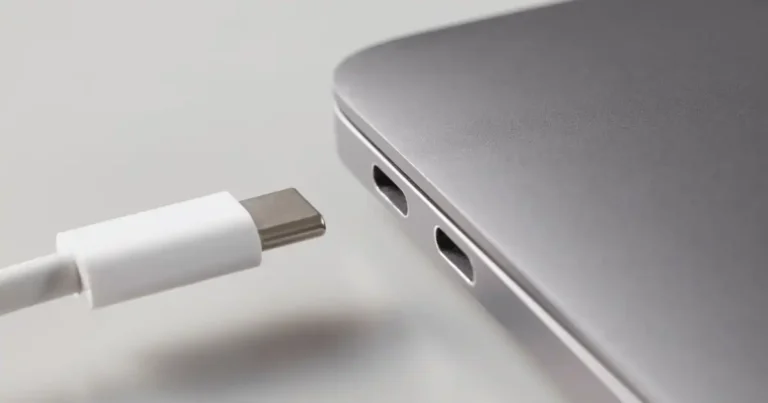
Connect a USB-C cable directly between both Android phones. Cable connections transfer large photo libraries faster than wireless networks. Wired migration reduces battery drain and prevents wireless signal drops.
Use Google backup when direct transfer is not available
Save your contacts, call logs, and system settings to Google Drive. Enable automatic backup inside Google Photos to store media online. Restore your cloud data during first-time setup on the new Android handset.
Manufacturer-specific transfer tools
Brands offer specialized utilities for quick phone setup:
- Samsung Smart Switch transfers messages, photos, and settings easily.
- Xiaomi Mi Mover migrates files wirelessly between handsets.
- OnePlus Clone Phone moves local storage content smoothly.
- Motorola Migrate helps transfer basic files between devices.
What may require manual transfer
Downloaded files inside local folders may require manual copying. Secure folders, private voice notes, and custom ringtones often stay behind. Copy these items manually using local storage cables or flash drives.
How to Transfer Data From iPhone to iPhone
Apple offers integrated tools that make upgrading between iPhones simple.
Use Quick Start
Turn on the new iPhone and place it beside your old device. Wait for the Quick Start prompt to pop up on your current screen. Scan the animation shown on the new iPhone using your old camera. Enter your current passcode and choose direct device migration. Keep both iPhones close together until the file transfer finishes.
Transfer using iCloud backup
Create a fresh iCloud backup on your current iPhone. Turn on the new device and follow setup steps until reaching the App & Data screen. Choose the option to restore from an iCloud backup. Select your latest backup file and wait for data to download.
Transfer using a computer backup
Connect your old iPhone to a Mac or Windows PC using a cable. Open Finder or the Apple Devices app to create a full local backup. Plug in your new iPhone and select the restore option from your computer screen.
What may need extra attention
Re-add credit cards inside the Apple Wallet app. Re-enable security keys inside two-factor authenticator apps. Download offline music tracks inside media apps after initial setup completes.
How to Transfer Data From Android to iPhone
Moving content across mobile platforms requires official migration utilities.
Use Apple’s Move to iOS
Download the Move to iOS app on your Android phone from the Google Play Store. Turn on the new iPhone and choose the option to move data from Android. Open Move to iOS on the Android device and enter the code shown on the iPhone screen. Select your contacts, message history, photos, and bookmarks, then start the transfer.
Data commonly transferred
- Saved contacts and address book details.
- Text message history and media attachments.
- Photos and camera roll videos.
- Calendar entries and scheduled events.
- Free mobile apps available on both platforms.
- Supported WhatsApp chat histories and attached media.
What may need manual setup
Paid apps must be repurchased or re-downloaded from the iOS App Store. Financial banking apps require fresh device verification steps. Custom documents and local music files require manual cloud downloads.
The app problem
Android apps do not install directly onto iPhones due to different code structures. The Move to iOS utility matches free Android apps with their iOS versions, downloading them from the App Store automatically.
How to Transfer Data From iPhone to Android
Switching from iOS to Android is straightforward using modern setup tools.
Use the Android setup transfer process
Power on your new Android phone and tap start. Select the option to copy data from an iPhone. Connect both phones using a Lightning-to-USB-C cable or pair them wirelessly. Scan the on-screen QR code and select the files you want to transfer.
Use a cable when possible
Wired transfers move large photo libraries and text histories without wireless signal drops. Connect high-quality cables directly between both phone ports.
Transfer photos and videos
Upload your iPhone photos to Google Photos before switching. Alternatively, use a USB cable during Android setup to copy your photo library directly to internal memory.
Do not forget iMessage
Deregister your phone number from iMessage before switching to Android. Turning off iMessage ensures text messages from iPhone users arrive as standard SMS texts on your new device.
Move WhatsApp carefully
Connect both phones using a cable during initial Android setup. Select WhatsApp chat transfer when prompted on screen. Scan the displayed QR code on your iPhone to start migrating chat records.
How to Transfer Photos and Videos From an Old Phone
Photo libraries often contain your most cherished memories and take up the most storage space.
Transfer using cloud storage
Upload your camera roll to Google Photos, iCloud Photos, or Microsoft OneDrive. Cloud storage keeps your photos backed up safely while making them accessible across all your devices.
Transfer using a computer
Plug your old phone into a computer using a USB cable. Open the internal DCIM folder to access your photos and videos. Copy the files to your computer drive, then transfer them to your new phone.
Transfer directly between phones
Use built-in migration tools during initial setup to copy photos directly. Alternatively, send individual albums using Nearby Share or AirDrop.
Watch for duplicate photos
Combining cloud storage sync with direct phone transfers can sometimes create duplicate photo libraries. Choose one primary transfer method to keep your photo collection organized.
Verify original photo quality
Check that high-resolution photos, motion shots, and 4K videos moved without quality loss. Confirm that file dates match your original media library.
How to Transfer Contacts, Messages, and Call History
Contact details and message records keep your everyday communications running smoothly.
Transfer contacts
Sync your contacts with a Google Account or iCloud account. Exporting your contact list as a vCard file lets you import address books manually whenever needed.
Move text messages
Use built-in phone setup tools to transfer SMS and MMS text histories. Cloud restoration tools also bring back text records when setting up a new device.
Transfer call history
Call logs move automatically when using direct phone setup tools on the same platform. Cross-platform moves may leave behind older call history logs.
Check contacts after transfer
- Search for duplicate contact entries.
- Verify saved phone numbers and email addresses.
- Confirm that custom contact names copied over correctly.
How to Transfer WhatsApp Chats to a New Phone
Moving WhatsApp chat records keeps your personal conversations and shared media intact.
Back up WhatsApp on the old phone
Open WhatsApp settings and navigate to the chat backup menu. Tap the option to create an immediate backup. Confirm that the backup completes before switching phones.
Android to Android
Log in to the same Google Account on your new Android phone. Download WhatsApp and verify your phone number. Tap the restore button when prompted to download your saved chats.
iPhone to iPhone
Sign in with your primary Apple Account on the new iPhone. Install WhatsApp and enter your phone number. Tap restore to download your chat history from iCloud.
Android to iPhone
Use the Move to iOS app during iPhone setup to transfer WhatsApp chats. Keep both devices connected until the chat migration screen confirms completion.
iPhone to Android
Connect both phones using a USB cable during initial Android setup. Select WhatsApp from the transfer menu and scan the displayed QR code to migrate chats.
Verify your chats before deleting the old phone
Open WhatsApp on your new device to confirm that chat threads, voice notes, and media files transferred successfully before erasing your old phone. For updated compatibility requirements, refer to the official WhatsApp Help Center.
How to Transfer Apps and App Data
Moving mobile applications requires downloading fresh software files onto your new handset.
Reinstall apps from official app stores
Open the Google Play Store or Apple App Store to view your library of previously installed apps. Download your essential applications directly to your new home screen.
Apps that usually need a fresh login
- Banking and credit card apps.
- Social media accounts.
- Work email and communication tools.
- Secure cloud storage services.
Apps that need special migration
Authenticator apps require manual export using built-in QR code tools. Digital wallets and password managers need primary account sign-ins before restoring vault data.
Check two-factor authentication before wiping the old phone
Verify that your authenticator app displays valid codes on the new phone. Save recovery keys in a safe location before clearing your old device.
Why banking apps may require verification
Financial apps flag new hardware to protect your accounts from fraud. Expect identity checks, SMS verification codes, or card details during first-time sign-in.
How to Transfer Data When the Old Phone Is Broken
You can still recover valuable files even if your old device has hardware damage.
If the screen still works
Connect the phone to a local computer to create an immediate backup. Use direct device setup tools before touch controls stop responding completely.
If the touchscreen does not work
Plug a USB mouse into your phone using an OTG adapter to navigate on-screen menus. Connect the handset to an external display if the screen is unreadable.
If the phone will not turn on
Try charging the phone with different power bricks and cables. If the device remains unresponsive, restore your data from existing cloud backups or consult a professional data recovery service.
If the phone was lost or stolen
Sign in to your cloud storage accounts from a browser to protect your files. Use Apple Find My or Google Find My Device to erase the missing phone remotely, then restore your data to a new device from a recent cloud backup.
Water-damaged phones
Avoid plugging a water-damaged phone into wall outlets. Allow the device to dry completely, seek professional repair help, and rely on existing cloud backups to recover your data.
Best Data Transfer Methods Compared
Different transfer methods offer distinct advantages based on your devices and network speed.
| Transfer Method | Best For | Speed | Internet Needed | Main Benefit |
| Direct cable | Large transfers | Fast | Usually no | Stable and quick |
| Wireless transfer | New phone setup | Medium | Often limited | Easy for beginners |
| Cloud backup | Backup and restore | Depends on connection | Yes | Protects data online |
| Computer transfer | Photos and files | Fast | No | Full file control |
| Manufacturer tool | Same-brand phones | Fast | Varies | Optimized brand support |
| Manual transfer | Specific files | Varies | No | Moves hidden files |
Common Data Transfer Problems and How to Fix Them
Simple fixes resolve most issues that pop up during phone migration.
The transfer keeps stopping
Charge both devices to at least fifty percent and restart them. Ensure both phones run updated software and maintain stable Wi-Fi connections throughout the process.
There is not enough storage
Delete unused apps, old video files, and duplicate photos from your old phone. Alternatively, back up media files to cloud storage to free up space.
Some photos are missing
Check hidden photo albums and cloud account settings. Look inside recently deleted folders on your old device to find missing image files.
Contacts did not transfer
Ensure your Google or iCloud account contacts sync settings are turned on. Alternatively, export your contacts as a vCard file and import them manually.
WhatsApp chats are missing
Verify that your old phone completed a full WhatsApp backup. Ensure you signed in with the exact same phone number on your new device.
Apps are missing
Open your app store account history to view previously installed software. Download missing applications manually onto your new home screen.
The old phone is not detected
Try using a different USB transfer cable and clean any dust out of the charging ports. Ensure your old phone is unlocked and set to trust the connected device.
How to Check That Everything Transferred Correctly
Reviewing your data prevents unexpected issues after setting up your new device.
Check your core data
- Review saved contact names and phone numbers.
- Open your photo gallery to check high-resolution images.
- Confirm that text messages and WhatsApp threads updated.
- Check calendar entries and scheduled reminders.
Check your accounts
Sign in to your primary email accounts, cloud storage services, and social media apps to verify account settings.
Check important apps
Open banking, work, and health apps to complete required identity verification steps. Confirm that two-factor authenticator apps generate valid codes.
Test the new phone
Place a test call, send a text message, snap a photo, and connect to Wi-Fi. Verify that mobile data, Bluetooth pairing, and charging work as expected.
Use the “three-day rule”
Keep your old phone powered off in a drawer for three days before erasing it. This buffer period gives you time to notice any missing files or unverified accounts while traveling or at home.
How to Safely Erase Your Old Phone After Transfer
Factory resetting your old device protects your personal data before selling, trading, or recycling it.
Back up one final time
Perform a final manual backup of your photos, contacts, and documents to ensure no recent files are lost.
Remove accounts
Sign out of your primary Google Account, Apple Account, and email services inside system settings before resetting the device.
Turn off device tracking
Disable Apple Find My or Google Find My Device to unbind the phone from your personal account.
Remove SIM or eSIM
Remove physical SIM cards from the drive slot and delete downloaded eSIM profiles after confirming cellular service works on your new phone.
Factory reset the phone
Open system settings and select the factory reset option. Confirm the master wipe to remove all personal data, files, and installed apps permanently.
If you plan to sell or recycle it
Clean the exterior frame, pack original accessories, and record device serial numbers before sending the phone for trade-in or recycling.
What to Do With Your Old Phone After Transferring Data
A functional old phone can serve several useful purposes after migration.
Keep it as a backup phone
Store your old phone as a emergency backup. It can serve as a travel device, alarm clock, or offline media player when needed.
Sell it
Clean the device, perform a factory reset, and list it for sale on trade-in platforms to offset the cost of your new phone.
Give it to a family member
Factory reset the device and set it up for a family member who needs a reliable secondary phone for calls and messaging.
Recycle it responsibly
Drop off unneeded mobile devices at certified electronics recycling centers to keep e-waste and lithium batteries out of landfills.
Direct Transfer vs Cloud Backup vs Computer Transfer
Selecting the right migration path depends on your available equipment and technical preference.
| Method | Ease | Best For | Risk | Recommended? |
| Direct transfer | Very easy | Full phone migration | Low when completed | Yes |
| Cloud backup | Easy | Backup and restoration | Depends on network | Yes |
| Computer copy | Medium | Photos and video files | User error | Yes |
| Manual copy | Medium | Specific local folders | Missing hidden files | Sometimes |
| Third-party apps | Varies | Unique transfer cases | Privacy concerns | Use caution |
USA Expert Advice for Safe Phone Migration
Industry experts emphasize creating complete backups before starting device migration.
Expert perspective to include
Data recovery specialists emphasize that maintaining recent backups is the most effective way to prevent permanent data loss during phone upgrades.
Expert insight
Professional repair technicians explain that the safest phone migration starts with a complete cloud backup rather than relying solely on direct device transfers. Taking time to verify two-factor authentication apps prevents lockouts after setup.
Data Transfer Checklist Before You Wipe Your Old Phone
Review this quick checklist before performing a final factory reset on your old phone.
Personal data
- Contacts and saved address book.
- Photo gallery and video clips.
- Text messages and chat attachments.
- WhatsApp conversations and media files.
- Notes, lists, and calendar events.
- Local downloads and PDF documents.
Accounts
- Google Account or Apple Account signed out.
- Email accounts verified on new device.
- Password manager vault restored.
- Social media profiles signed in.
Security
- Two-factor authenticator apps exported.
- Account recovery keys saved safely.
- Banking apps verified and working.
Connectivity
- Physical SIM moved or eSIM activated.
- Wi-Fi and Bluetooth paired on new phone.
- Test call and text message verified.
Final checks
- Essential photos and files confirmed.
- Cloud backups updated.
- Old phone kept safe for three days.
Frequently Asked Questions About Transferring Phone Data
What is the easiest way to transfer everything from an old phone to a new phone?
Using built-in phone setup utilities is the easiest option. Quick Start for iPhone and Google’s setup tool for Android copy most files automatically over Wi-Fi or cable.
Can I transfer data without Wi-Fi?
Yes, connecting both phones directly with a USB cable allows you to transfer data without an active internet connection.
Can I transfer data from Android to iPhone?
Yes, Apple’s official Move to iOS app transfers contacts, text messages, photos, calendars, and supported WhatsApp chats from Android to iPhone.
Can I transfer data from iPhone to Android?
Yes, connecting both phones with a cable during initial Android setup transfers contacts, photos, videos, and compatible message records.
How long does it take to transfer data to a new phone?
Transfer times range from fifteen minutes to over an hour, depending on total file size, connection type, and network speed.
Will my WhatsApp chats transfer to my new phone?
Yes, using WhatsApp’s built-in cloud backup or direct device transfer tools preserves chat histories across compatible devices.
Can I transfer data if my old phone is broken?
If the screen is unresponsive, connect a USB mouse via an OTG adapter to navigate menus, or restore your files from a recent cloud backup.
Should I erase my old phone after transferring data?
Yes, but only after verifying that all your photos, contacts, messaging apps, and banking accounts work on your new phone.
Final Step: Transfer First, Erase Later
Follow a clear step-by-step approach when setting up your new phone:
$$\text{Backup} \longrightarrow \text{Transfer} \longrightarrow \text{Verify} \longrightarrow \text{Use New Phone} \longrightarrow \text{Erase Old Phone}$$
Ask yourself these three questions before erasing your old device:
- Are all your important photos and videos visible in your new gallery?
- Can you sign in to every essential banking and work account?
- Do your two-factor authenticator apps generate valid codes on the new handset?
If you answered yes to all three, your data is safe and your new phone is ready to use.
Final Recommendation
As a tech specialist, I always advise customers to take a methodical approach when upgrading phones. The safest strategy is to create a complete cloud backup, perform a direct device-to-device transfer using a cable, and verify all your files before resetting the old handset. Pay close attention to messaging apps and two-factor authenticators, as these require manual steps. Following these guidelines ensures a smooth transition to your new phone without losing valuable data.

Ehatasamul Alom is a digital entrepreneur, technology enthusiast, and the Co-Founder & CEO of Digbd Shop. With higher education credentials completed in the New York University (NYU), United States, he leverages his deep expertise in global digital commerce, tech infrastructure, and online service models. Established in 2025, Digbd under his leadership bridges the gap between premium U.S. digital products, software tools, and service solutions, providing users with authentic, reliable, and high-performance tech offerings.