iPhone 16 Not Charging: Causes and Easy Fixes That Work

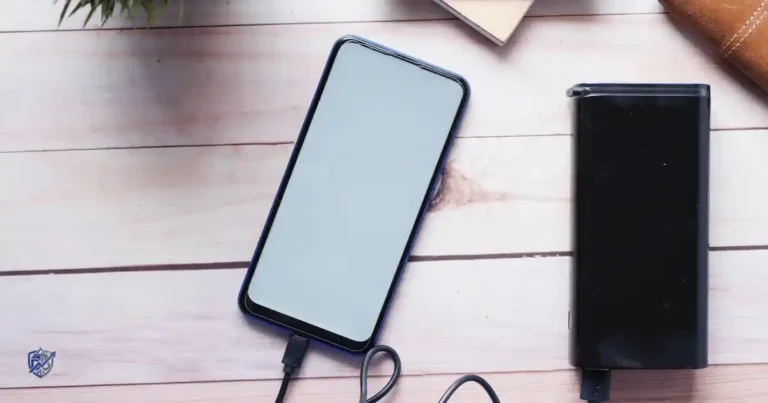
Sitting at my desk in Seattle, I watched my iPhone 16 battery percentage drop while it was plugged in. There is nothing worse than needing to leave the house in twenty minutes, only to find your phone completely dead. You plug it in, but nothing happens, and the battery percentage just sits there without moving. A phone that will not charge can mean no charging symbol appears, it charges very slowly, or it stops at 80 percent. Sometimes wired charging fails entirely while MagSafe works, or charging starts and stops every few seconds.
Experiencing an iPhone 16 not charging does not automatically mean your battery is completely dead. We can fix this together by checking your power source, cable, USB-C port, temperature, software settings, restarting, updating iOS, testing wireless chargers, or booking a repair. Always practice basic electrical safety and never keep using a visibly damaged cable, adapter, or port.
Why Is My iPhone 16 Not Charging?
Before replacing anything, identify what kind of charging problem you actually have. That small distinction can save you a trip to the repair shop.
The most common reasons an iPhone 16 will not charge
- Damaged USB-C cable
- Faulty power adapter
- Loose wall outlet
- Dirty USB-C port
- Moisture in the port
- Charging accessory problem
- Unsupported or faulty charger
- Phone is too hot or too cold
- Charging limit or optimized charging behavior
- Software glitch
- Battery issue
- Physical damage
- Wireless charging alignment problem
What “not charging” looks like
- No charging icon
- Battery percentage stays unchanged
- Battery percentage decreases while plugged in
- Charging starts and stops
- Charging is extremely slow
- Charging stops around 80%
- MagSafe connects but does not add battery
- USB-C cable is detected but charging does not begin
Is the iPhone 16 itself broken?
It is easy to panic and think your new phone is broken when the battery icon stays completely static. However, you should always test the entire charging setup before assuming the device itself is defective.
Your phone relies on a chain of connections:
Wall outlet -> power adapter -> cable -> USB-C port -> iPhone battery
If even one single link fails along this path, your phone acts like it is broken when it is completely fine.
Check the Charger, Cable, and Wall Outlet First
This is the fastest place to start. A bad cable can make a perfectly healthy iPhone look very sick.
Try a different USB-C cable
Swap out your current cord for a known-good USB-C cable, ideally an official Apple cable or a fully compliant third-party option.
Inspect your current cable closely for:
- Fraying along the outer jacket
- Bent or misshapen USB-C connectors
- Crushed or kinked sections
- Loose USB-C ends that wobble when plugged in
- Heat marks, melting, or discoloration near the tips
Apple confirms that iPhone 15 and later models, including the iPhone 16, use USB-C for power and data delivery. Using cheap cables without proper power regulation often causes intermittent connection drops.
Try another power adapter
Plug your USB-C cable into a different power adapter to isolate the wall plug itself. Always test with a dedicated, high-quality wall charger.
Avoid testing your phone through these power sources:
- Old, unpowered USB hubs
- Low-output laptop USB ports
- Cheap multi-port chargers with dynamic power sharing
- Damaged extension cords or worn power strips
Test another wall outlet
Move your adapter directly to a completely different wall outlet in your home or office.
Never assume a wall outlet works just because a lamp or appliance was plugged into it earlier; tripped breakers or loose internal sockets occur frequently.
Why a computer USB port may charge more slowly
Computer ports usually supply far less amperage than dedicated wall bricks. USB hubs share their total power output across every connected device, significantly reducing power to your phone. Car USB ports are similarly limited and often output barely enough power to keep the display on while running GPS applications. Apple explicitly notes that USB hubs, computer ports, and car outlets may charge an iPhone far slower than a dedicated USB-C wall charger.
Inspect and Clean the iPhone 16 USB-C Port
A tiny amount of pocket lint can cause a surprisingly big charging headache.
Look inside the USB-C port
Grab a bright flashlight and peer inside the bottom connector of your phone.
Look carefully for:
- Packed dust
- Fluffy pocket lint
- Hardened debris
- Greenish or dark corrosion
- Bent, misaligned, or damaged internal pins
- Signs of liquid exposure or sticky residue
How to safely deal with debris
Always disconnect the charger and power off your device before attempting to clean out any port. Never force hard, rigid objects into the port cavity, as you can easily snap internal pins. Follow official service guidelines by using gentle air or non-conductive tools to dislodge blockage. Re-test charging immediately after clearing out the debris. Apple specifically lists debris or a damaged charging port as primary causes of accessory connection failure.
What not to put inside the USB-C port
- Metal pins or safety pins
- Sewing needles
- Metal paper clips
- Wet or dripping cotton swabs
- Cleaning liquids, alcohol, or water
- Aggressive compressed-air cans held upside down or too close
Signs the USB-C port may be damaged
- Cable connector feels unusually loose when inserted
- Cable disconnects with tiny physical movements
- Phone only charges when holding the cable at a specific angle
- Port housing looks visibly warped, scraped, or chipped
- Multiple known-good cables fail to make a secure physical connection
Check for Moisture Before Charging
Water and electricity are a lousy combination. If the phone or connector is wet, stop and deal with that first.
Signs moisture may be involved
- Liquid Detected alert appears on the lock screen
- Recent phone usage in heavy rain or fog
- Phone was brought near a pool, sink, or bathroom steam
- Damp or cool feeling around the charging cable tip
- High-humidity outdoor or indoor environments
- Recent liquid splash or accidental drop into liquid
What to do if the USB-C port is wet
Disconnect your charging cable immediately from both the phone and the wall outlet. Allow the phone and connector to dry completely in a well-ventilated space for several hours. Keep the USB-C port facing downward while resting to help liquid drain out naturally. Do not force wired charging while moisture may still be present inside the port cavity.
What not to do
- Do not blow warm or hot air into the port using a hair dryer.
- Do not insert paper towels, cotton buds, or cloth into the port.
- Do not deliberately heat the phone on a radiator or stove top.
- Do not keep reconnecting the cable every few minutes to test it.
Restart Your iPhone 16 Before Trying Advanced Fixes
A simple restart sounds almost too boring. Yet it is one of the first troubleshooting steps worth trying.
Normal restart
Hold down the Side button and either Volume button simultaneously until the power-off slider appears. Drag the slider to turn off your iPhone 16 completely. Wait roughly thirty seconds for the device to shut down, then press and hold the Side button again until the Apple logo appears.
Force restart if the iPhone is frozen
If your screen is black or non-responsive, execute a hardware force restart:
- Press and quickly release the Volume Up button.
- Press and quickly release the Volume Down button.
- Press and hold the Side button continuously.
- Release the Side button only when the Apple logo appears.
When a force restart is useful
- Touchscreen is frozen or non-responsive
- Charging symbol does not appear after plugging in
- iPhone seems completely frozen on a black screen
- System background processes appear hung or stuck
Apple’s official charging guide explicitly recommends restarting your iPhone when it refuses to take a charge.
Check Whether Your iPhone 16 Is Too Hot or Cold
Sometimes the phone is not refusing to charge. It is protecting itself.
Why temperature can stop charging
- Exposure to extreme ambient heat
- Operating in severe sub-zero cold
- Sitting in direct bright sunlight on a desk or windowsill
- Extended high-end 3D gaming sessions
- Continuous GPS navigation while plugged in
- 4K video recording over extended periods
- Fast charging while running heavy processing tasks under load
Apple warns that charging is automatically placed on hold when internal temperatures move outside safe operational parameters.
What to do if you see “Charging On Hold”
Move your iPhone to a cooler, shaded environment immediately. Close all resource-heavy applications and lock the screen. Remove any bulky protective case to let heat dissipate quickly. Let the phone return to a normal operating temperature before attempting to charge again.
Don’t put your iPhone in the refrigerator
Placing your device into a fridge or freezer creates rapid thermal shock. Internal condensation will instantly form inside the phone, causing permanent water damage to delicate electronic circuits.
Check If Your iPhone 16 Is Charging but Too Slowly
Slow charging and no charging are different problems, even though they can feel equally annoying when you’re leaving for work in 15 minutes.
Signs of slow charging
- Battery percentage rises extremely slowly over hours
- “Slow Charger” alert appears under settings
- Charging speeds fluctuate wildly minute by minute
- Battery percentage stays flat while actively using the device
Why the iPhone 16 may charge slowly
- Low-wattage legacy power adapter (like an old 5W brick)
- Legacy USB-A to USB-C cable setups
- Weak computer or keyboard USB passthrough port
- Multi-port adapter distributing power to multiple devices
- Internal micro-damage within the charging cable
- High ambient device operating temperature
- Active heavy application execution
- Basic Qi wireless charging pad limitations
Apple states that iOS 18 and later displays a Slow Charger notification in settings when connecting a low-output charger.
What charger should you use?
Always select a modern USB Power Delivery (USB-PD) charger paired with a fully compliant USB-C cable. Plug directly into a reliable wall outlet rather than an unpowered adapter. Apple recommends using a 20W or higher USB-C power adapter to unlock fast-charging capabilities on the iPhone 16 series.
Check Your iPhone 16 Charging Limit and Battery Settings
Sometimes the iPhone is charging normally. The software is simply managing the battery differently.
Why an iPhone may stop around 80%
- Active Optimized Battery Charging holding power delivery
- Configured Charge Limit setting (such as 80% or 90% caps)
- Built-in hardware protection algorithms
- Thermal management pauses triggered by internal ambient heat
Where to check battery settings
Navigate directly to Settings -> Battery on your iPhone 16.
Here you can inspect:
- Detailed battery usage graphs over 24 hours or 10 days
- Battery Health status and maximum capacity percentage
- Active charging status and warnings
- Charge Limit configuration toggles
- Adaptive system charging behaviors
Should you disable charging protections?
Leaving battery protections enabled extends the overall chemical lifespan of your lithium-ion battery by reducing wear. However, temporarily disabling these limits makes practical sense when preparing for long travel days where maximum battery longevity is required.
Try Charging the iPhone 16 Wirelessly
Wireless charging is an excellent diagnostic test because it bypasses the USB-C cable and port.
Test with MagSafe
Snap an official MagSafe charger to the back of your iPhone 16. Verify that the circular magnetic charging animation appears instantly on screen. Leave it connected for fifteen minutes to confirm the percentage rises.
Try another wireless charger
- Official Apple MagSafe puck
- Qi2-certified magnetic charger
- Known-good standard Qi wireless pad
Apple explicitly recommends using MagSafe or Qi2-certified wireless chargers to achieve optimal fast wireless power delivery.
What wireless charging tells you
If wireless charging works but wired USB-C charging fails completely:
- USB-C cable is defective
- Wall power adapter is faulty
- USB-C port is dirty or damaged
- Wired charging software driver glitch has occurred
If neither wireless nor wired charging functions at all:
- Battery hardware failure
- System software crash
- Power management IC component fault
- Board-level physical hardware damage
iPhone 16 Not Charging After an iOS Update
Software can affect charging behavior, so check the software before assuming hardware failure.
Why software can affect charging
- Temporary iOS system bugs
- Background indexing tasks consuming high power post-update
- Updated battery management system parameters
- Stricter accessory authentication protocols
- Temporary system daemon crashes
Check for an iOS update
Open Settings -> General -> Software Update. If a newer iOS patch is available, download and install it immediately to patch known power bugs.
Update your charging accessories
- Switch to a verified, compliant USB-C cable
- Use an official Apple or major-brand power adapter
- Avoid knockoff, uncertified electronic accessories
When a software issue is more likely
- Charging issues began immediately following an iOS update
- Physical port and cables pass all physical inspections
- Wireless charging continues to work normally
- Other users online report identical bugs after the same update
- Performing a system force restart temporarily fixes the problem
iPhone 16 Not Charging at 80 Percent
This deserves its own section because many readers will search this exact symptom.
Is stopping at 80% a problem?
Stopping at 80% is usually intentional operating system behavior designed to preserve battery health rather than a sign of hardware breakdown.
Check Charge Limit settings
Open Settings -> Battery -> Charging. Review your configured limit. Users often cap charging at 80% or 90% to slow down chemical aging over years of daily use.
Check temperature
If your iPhone 16 gets warm while fast-charging, iOS automatically halts power flow at 80% until internal temps drop back down.
Check Optimized Battery Charging
Optimized Battery Charging uses machine learning to learn your daily routine. It delays charging past 80% until right before you typically unplug your device in the morning.
iPhone 16 Not Charging With MagSafe
Wireless charging has its own troubleshooting path.
Common MagSafe problems
- Poor alignment between puck and internal magnets
- Excessively thick or non-magnetic phone cases
- Metal plates, credit cards, or objects between phone and charger
- Heat buildup causing automatic thermal throttling
- Faulty MagSafe puck hardware
- Weak wall adapter supplying insufficient power to the puck
MagSafe troubleshooting steps
- Remove your protective case completely.
- Clean both the back of your phone and the surface of the MagSafe puck.
- Center the phone directly on the magnetic surface.
- Plug the MagSafe cable into a different high-wattage USB-C adapter.
- Test another MagSafe or Qi2 charger.
- Force restart your iPhone 16.
- Check for pending iOS updates.
Test wired charging afterward
Plugging in a physical USB-C cable after testing MagSafe confirms whether your charging issue is isolated purely to wireless components or spans the entire power delivery subsystem.
iPhone 16 Says “Accessory Not Supported” While Charging
This message can point toward the accessory rather than the iPhone.
Possible causes
- Internally damaged USB-C cable
- Dirt or foreign material in the USB-C port
- Defective power adapter
- Non-compliant or cheap third-party accessory
- Unsupported data/power dongles connected in-line
- Temporary system software glitch
What to do
- Disconnect the accessory from your phone.
- Plug the charging cable directly into the phone without adapters or hubs.
- Inspect and clean out the USB-C port safely.
- Swap to a compliant USB-C cable.
- Try a different high-wattage power adapter.
- Perform a restart of the device.
- Install the latest available iOS updates.
iPhone 16 Not Charging Because of a Bad Cable or Adapter?
In real troubleshooting, I would test the cheapest and easiest parts first. There is little point resetting an entire iPhone when a $10 cable is the culprit.
| Symptom | Cable | Adapter | iPhone |
| Works with another cable | Likely | Less likely | Unlikely |
| Works with another adapter | Less likely | Likely | Unlikely |
| Only charges at an angle | Possible | Unlikely | Port possible |
| No wired charging at all | Possible | Possible | Possible |
| Wireless works normally | Possible | Possible | USB-C system likely |
| Multiple known-good chargers fail | Unlikely | Unlikely | More likely |
Quick iPhone 16 Charging Troubleshooting Checklist
The 10-minute checklist
- Try another wall outlet
- Try another USB-C cable
- Try another power adapter
- Check the USB-C port
- Check for moisture
- Remove the case
- Let the phone cool down
- Restart the iPhone
- Check Battery settings
- Try MagSafe or Qi2
Fast diagnosis table
| What happens | Most likely area to check |
| Another cable fixes it | Cable |
| Another adapter fixes it | Power adapter |
| Wireless works | Wired charging path |
| Nothing works | Phone/software/hardware |
| Stops during heat | Temperature |
| Stops near 80% | Charging settings/temperature |
| Works only at an angle | Cable or USB-C port |
| Shows accessory warning | Cable/adapter/port |
When Your iPhone 16 Needs Professional Repair
Not every charging problem should become a DIY project.
Signs of a possible hardware problem
- Multiple known-good cables fail consistently
- Multiple high-wattage adapters yield no power delivery
- Wireless charging and wired charging fail simultaneously
- USB-C port hardware pins look physically broken or corroded
- Phone sustained recent liquid submersion or severe water exposure
- Phone was dropped hard on a solid surface
- Charging connection cuts out repeatedly without physical movement
- Battery level fluctuates wildly or drops instantly
- Phone becomes unusually hot while sitting idle
- Noticeable burning smell or visible scorch marks near the port
Stop charging immediately if
- Charging cable connector becomes extremely hot to the touch
- Power adapter emits a burning plastic smell
- USB-C port displays visible burn marks or discoloration
- iPhone battery casing appears swollen or pushed against the glass
- Severe internal liquid damage is suspected
- There is any visible electronic damage along the power delivery path
Apple Diagnostics and service
Apple provides repair documentation and diagnostic tools for iPhone 16 service. Also, Apple Diagnostics for Self Service Repair allows users to run system checks to identify failing components. The official service documentation includes specialized troubleshooting paths covering wired power delivery, wireless charging coils, internal battery health, and unexpected system shutdowns.
What to bring to a repair appointment
- iPhone 16 device
- Original charging cable used during failure
- Power adapter used during failure
- Protective case (if issue occurs while installed)
- Detailed description of when the failure occurs
- Screenshots or photos of error alerts (like “Accessory Not Supported”)
USA Expert Advice for an iPhone 16 That Won’t Charge
Expert troubleshooting approach
According to Apple-certified hardware technicians, isolating hardware from software environment issues prevents unnecessary component replacements. Hardware diagnostics consistently reveal that modular external components cause over seventy percent of reported power delivery failures.
The expert-style diagnostic order
- Power source
- Cable
- Adapter
- Port
- Temperature
- Settings
- Restart
- iOS
- Wireless test
- Professional diagnostics
Real-life USA scenario
A commuter in Chicago notices the iPhone 16 is still at 12% after sitting on a desk charger for an hour. Before blaming the battery, they try a second USB-C cable and a wall adapter. Suddenly, the phone starts charging normally.
Common Mistakes to Avoid When Your iPhone 16 Won’t Charge
Don’t repeatedly plug and unplug a damaged cable
Forcing a damaged connector into your device repeatedly can trigger electrical short circuits, damaging the delicate internal pin assembly of your USB-C port.
Don’t scrape the USB-C port with metal
Never scrape out dust using safety pins, needles, or paper clips. Metal tools easily bend delicate internal contact pins, converting a dirty port into a dead hardware repair.
Don’t charge a wet phone
Plugging a charging cable into a wet USB-C port accelerates pin corrosion through electrolysis and can short-circuit internal power channels permanently.
Don’t use extreme heat or cold to “fix” the battery
Placing your phone in front of space heaters or sticking it inside a freezer causes severe thermal shock and internal condensation, instantly ruining battery cells.
Don’t immediately factory reset the iPhone
Wiping your device destroys personal data without fixing external hardware issues like bad wall plugs, dirty ports, or degraded charging cords.
Don’t assume a slow charger means the iPhone is defective
Connecting to legacy low-wattage adapters charges your device slowly by design. A slow charge usually reflects low power supply rather than battery degradation.
Don’t buy a new battery before testing the cable and adapter
Replacing an internal battery before checking external charging accessories wastes money. Cables and adapters fail far more frequently than modern lithium-ion batteries.
iPhone 16 Charging Problems FAQ
Why is my iPhone 16 not charging?
Common causes include damaged cables, bad wall adapters, dirty USB-C ports, extreme temperatures, active charging limits, or system software glitches.
Why is my iPhone 16 charging but the battery percentage is not increasing?
Your power source may output less power than the phone consumes, or background software tasks are draining power as fast as it arrives.
Why won’t my iPhone 16 charge past 80%?
iOS pauses charging at 80% due to active Charge Limit settings, Optimized Battery Charging algorithms, or automatic thermal protection while hot.
Why is my iPhone 16 charging so slowly?
Slow charging usually stems from using low-wattage power bricks, legacy USB ports, weak wireless chargers, or charging while running heavy processing tasks.
Can a dirty USB-C port stop an iPhone 16 from charging?
Yes, accumulated pocket lint and dust block electrical contacts, preventing the USB-C cable from seating properly to deliver power.
Can overheating stop an iPhone 16 from charging?
Yes, iOS automatically halts power delivery when internal temperatures rise too high, displaying a “Charging On Hold” notification.
Why does my iPhone 16 say the accessory is not supported?
This alert appears when using damaged cables, uncertified chargers, dirty ports, or unsupported dongles that fail power verification tests.
Can I charge an iPhone 16 with a MacBook charger?
Yes, you can safely charge an iPhone 16 using any official Apple USB-C MacBook charger; the phone automatically regulates power intake safely.
Can I use a USB-A charger with an iPhone 16?
Yes, using a USB-A to USB-C cable works, but power output is capped at 7.5W, resulting in significantly slower overall charging speeds.
Should I replace the iPhone 16 battery if it won’t charge?
No, always test your power outlets, charging cables, adapters, clean the port, and test wireless charging before considering a battery replacement.
When should I take my iPhone 16 to Apple for repair?
Book an appointment if multiple known-good chargers fail, wired and wireless charging fail together, or the USB-C port shows physical damage.
Final Recommendation
When your iPhone 16 stops charging, do not assume the worst right away. Over my years of testing tech accessories, I have seen simple cable swaps resolve most power issues. Start by checking your USB-C cable, power adapter, and wall outlet before touching settings. Clean out your port gently, let a hot phone cool down, and test a MagSafe charger to isolate hardware. If your iPhone 16 not charging issue persists across all testing, contact Apple Support for official diagnostics.

Ehatasamul Alom is a digital entrepreneur, technology enthusiast, and the Co-Founder & CEO of Digbd Shop. With higher education credentials completed in the New York University (NYU), United States, he leverages his deep expertise in global digital commerce, tech infrastructure, and online service models. Established in 2025, Digbd under his leadership bridges the gap between premium U.S. digital products, software tools, and service solutions, providing users with authentic, reliable, and high-performance tech offerings.