iPhone 17 Not Turning On? Try These Fixes First

You press the Side button expecting your screen to light up. Nothing happens. No Apple logo appears. The screen stays completely black. Waking up in Portland to find your iPhone 17 not turning on can cause immediate panic, but a blank screen does not automatically mean your device is permanently broken. In my years testing iOS devices, I have seen dead-looking phones jump back to life within minutes.
A black display can stem from a deeply drained battery, a temporary iOS freeze, a bad charging cable, port debris, screen hardware failure, software startup loops, physical drops, or internal component faults. Starting with safe, non-destructive checks protects your personal data before considering invasive repairs. Apple’s support guidelines recommend charging verification and forced hardware restarts as your essential first steps.
Why Is My iPhone 17 Not Turning On?
A phone that suddenly goes black can look much worse than the actual problem. Isolating whether the device lacks power, is frozen in software, or suffers from a damaged display panel helps you choose the right fix.
The most common reasons an iPhone 17 will not turn on
- The battery cell is completely drained past zero threshold.
- The USB-C charging cable has damaged internal wiring.
- The wall power adapter is faulty or lacks sufficient wattage.
- The wall outlet is not delivering active electrical power.
- The USB-C charging port contains packed lint or dirt.
- iOS has encountered a severe background software freeze.
- The system startup process failed during a boot phase.
- The display panel or backlight hardware has failed.
- The battery health has degraded or cell voltage dropped.
- The device sustained structural damage from a drop.
- Moisture entered the chassis, causing liquid short circuits.
- An internal logic board component suffered hardware failure.
Is the iPhone actually off or just showing a black screen?
Before opening your phone or booking repair services, check for subtle signs of life:
- Vibration: The device buzzes when toggling hardware controls.
- Charging sound: The standard iOS chime plays when plugging in power.
- Incoming call: The phone rings when called from another device.
- Notification sounds: Alerts play while the display stays dark.
- Haptic response: Taps on the screen yield physical haptic feedback.
- Computer recognition: Desktop software detects the USB connection.
- Brief Apple logo: The logo appears briefly before fading to black.
- Chassis warmth: The frame becomes slightly warm while plugged in.
What happened immediately before it stopped working?
Think back to what occurred right before your device stopped responding:
- Did the battery level reach 0% while watching videos?
- Did you recently install a new iOS software update?
- Was the smartphone dropped onto a hard surface?
- Did the phone come into contact with water or high humidity?
- Were you playing a demanding 3D game while fast charging?
- Was the device left connected to a charger overnight?
- Did you plug in an unverified third-party USB-C accessory?
- Did the chassis feel unusually hot right before shutting down?
Mapping out these events creates a clear timeline that helps narrow down the cause of the failure.
First Check Whether Your iPhone 17 Has Power
Before altering system settings or attempting software recovery, confirm that electrical power is actually reaching your smartphone battery.
Connect the iPhone 17 to a wall charger
Use a known-good USB-C cable
Inspect both ends of your USB-C cable for bent pins, physical strain, or frayed outer insulation. Swap out questionable cables for a verified Apple USB-C cord or a trusted alternative. Avoid using damaged cables that might short-circuit power connectors.
Try another power adapter
Test your cable with a functional USB-C Power Delivery wall adapter. Avoid relying on weak computer USB ports for initial diagnostic power tests, as unpowered ports often fail to supply enough wattage to wake a deeply discharged battery. Plug your adapter directly into a working wall outlet.
Apple specifically advises inspecting your charging cable, USB adapter, electrical connections, and power source when an iPhone refuses to take a charge.
Leave the iPhone charging
Allow the phone to charge undisturbed for at least 30 minutes. If the screen remains blank, continue charging as Apple recommends. Apple currently advises leaving an unresponsive iPhone on power for up to one full hour if it fails to boot immediately following a forced restart.
Do not assume no charging icon means no charging
A battery drained far past its operating threshold requires a slow trickling phase before it can illuminate the display panel. Furthermore, a faulty cable or a failed display backlight can hide charging progress even while the battery is accumulating power. Give the device adequate time on power before assuming the charger is failing.
Force Restart the iPhone 17
Executing a forced hardware restart cuts temporary board power and clears system RAM, resolving frozen software without wiping stored personal files.
How to force restart an iPhone 17
Perform this exact button combination designed for Face ID devices:
- Press and quickly release the Volume Up button.
- Press and quickly release the Volume Down button.
- Press and hold the Side button continuously.
- Keep holding the Side button until the bright Apple logo illuminates the screen.
- Release the Side button as soon as the logo appears.
Apple notes that the Apple logo may take longer than 10 seconds to appear during a hardware restart.
What if nothing happens after the force restart?
Do not rapidly cycle button presses in frustration. Connect your iPhone to a verified wall charger and let it sit undisturbed for 30 minutes. Once the device accumulates power, attempt the precise volume-up, volume-down, and side-button hold sequence again using steady pressure.
Why a force restart can fix a black screen
A smartphone can be powered on while its operating system is locked in a frozen software thread. A force restart interrupts that frozen loop, clearing temporary system memory and prompting a clean system boot. This hardware-level reset differs from a routine software shutdown.
iPhone 17 Still Has a Black Screen?
A persistent black screen does not always mean the entire device has stopped working; the display module itself may be defective.
Check for signs that the iPhone is still running
Try these steps to see if background hardware is active:
- Place a phone call to your device from another line to check for ringing.
- Connect the smartphone to a computer via USB-C to check for software detection.
- Plug in a charging cable and listen for the iOS battery chime.
- Toggle hardware controls to feel for Taptic Engine vibrations.
Use this symptom matrix to differentiate a dead device from a display failure:
| Symptom | Possible cause | First step |
| No sound, no vibration, no logo | Battery or power setup issue | Charge device for 60 minutes |
| Sounds play, screen stays black | Display panel or backlight issue | Force restart, then get screen service |
| Apple logo appears then disappears | System startup or software bug | Perform force restart or Recovery Mode |
| Battery icon appears after delay | Deep battery discharge | Continue charging without interruption |
| Computer detects attached iPhone | Display or firmware failure | Attempt Recovery Mode update |
| Failure began after hard drop | Physical internal component damage | Seek professional hardware inspection |
Check for physical screen damage
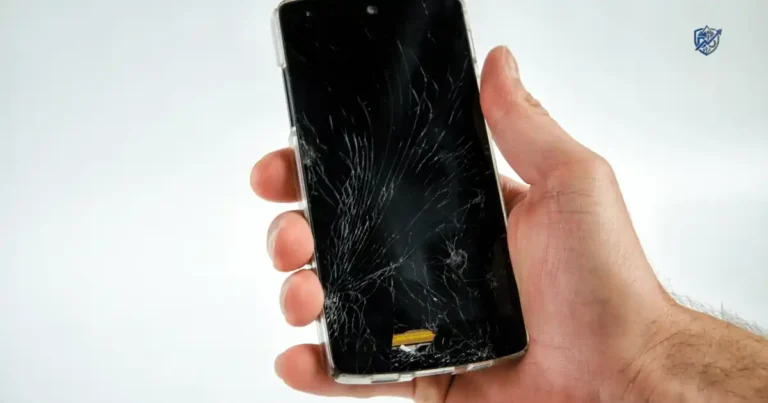
Examine the front glass panel under bright light. Look for fine hairline cracks, black ink-like spots beneath the glass, faint vertical color lines, or screen flickering that occurred right before total darkness. Physical impacts can disconnect underlying display cables or crush OLED layers while internal processors remain functional.
Check the iPhone 17 Charging Cable, Adapter, and Port
A dead smartphone is often just an iPhone that never received power due to accessory or port failure.
Test a different USB-C cable
Swap out your current cable for a verified USB-C data cable. Insert the plug firmly into the device to ensure a solid mechanical connection. Loose connections prevent proper power delivery negotiation protocols.
Test a different charger
Switch to a reliable high-wattage power adapter and plug it directly into a tested wall socket. Bypassing power strips, extension blocks, and laptop USB ports eliminates intermediate points of failure.
Inspect the USB-C port
Shine a bright light directly into the charging port cavity. Look for:
- Accumulated pocket dust or compressed lint.
- Small debris trapped at the bottom of the port.
- Visible corrosion or green residue on metallic contacts.
- Physically bent or broken internal contact pins.
Clean the port carefully
If debris is visible, clear the cavity safely. Disconnect all charging cables before cleaning. Use a soft wooden toothpick or non-conductive plastic tool to gently remove loose lint. Do not push metal pins, paperclips, or needles into the port, and never pour liquid cleaners inside. Stop immediately if internal contacts appear damaged.
Apple explicitly recommends inspecting and removing foreign debris from the charging port whenever an iPhone fails to take a charge.
What If the iPhone 17 Battery Is Completely Dead?
A deeply depleted battery cell can leave your phone looking completely dead.
Signs of a deeply discharged battery
- The smartphone shut down automatically after reaching 0% charge.
- No Apple logo or visual graphics appear upon pressing buttons.
- The screen remains completely non-responsive for the first several minutes of charging.
- The battery icon appears only after the phone gathers baseline voltage.
- The device sat unused in a drawer for several weeks or months.
How long should you charge it before trying again?
Connect your phone to a verified wall charger and leave it completely undisturbed for at least 30 minutes. If the device does not turn on automatically, execute the forced restart sequence while it remains connected to power. If it still shows no activity, continue charging up to the full hour recommended by Apple guidance.
Leaving your phone playing videos until it hits 1% before falling asleep often results in finding a black rectangle on your nightstand the next morning. While it looks completely dead, it usually just needs steady, uninterrupted charging time to restore baseline cell voltage.
Could an iOS Problem Stop the iPhone 17 From Starting?
Software freezes can occur during normal daily app usage or background operating system tasks.
Possible software-related causes
- A severe background iOS process crash.
- A failed or corrupted system boot sequence.
- An interrupted software update process.
- A third-party application memory leak.
- A temporary system error locked in RAM.
- Low internal storage complications hindering system caching.
Signs of a software problem
- The smartphone functioned normally immediately before the display went black.
- The Apple logo illuminates the display periodically.
- The device enters a continuous boot loop, restarting over and over.
- The screen froze completely before fading to black.
- The failure started immediately after downloading an iOS update.
- The phone wakes up following a forced hardware restart.
Why updating iOS matters
Apple regularly releases software updates containing stability improvements, power management tweaks, and critical bug fixes. Maintaining current iOS versions prevents known software bugs from freezing system startup processes.
Do not immediately erase the iPhone
Avoid jumping straight to destructive factory resets or computer restores when your screen goes dark. Always work through basic, non-destructive steps such as cable swaps, port cleanings, and forced restarts to protect your unbacked-up photos, messages, and personal files.
Try Recovery Mode If the iPhone 17 Still Won’t Start
When forced restarts fail to boot the system, Recovery Mode allows a computer to repair or reinstall system software.
When recovery mode makes sense
- A forced restart fails to wake the device.
- The smartphone remains stuck on the Apple logo during startup.
- The iOS operating system encounters a bootloop error.
- A desktop computer detects the connected phone, but the screen stays black.
What you need
- A Mac running current macOS or a Windows PC with updated software.
- A verified USB-C data cable.
- A stable internet connection for downloading iOS system files.
Explain update vs restore
Update
Selecting Update in Finder or iTunes attempts to reinstall the iOS operating system without wiping your personal user data. Always try this option first when recovering a frozen phone.
Restore
Selecting Restore completely reinstalls iOS and wipes all stored files, returning the device to factory defaults. This step should be reserved as a last resort when non-destructive options fail.
Important warning before recovery
Keep your smartphone connected to your computer throughout the entire recovery process. Interrupting a software flash can permanently corrupt system firmware. If your data is unbacked-up, exhaust all non-destructive options before choosing a factory restore.
To enter Recovery Mode: Connect your iPhone 17 to your computer via USB-C cable. Press and release Volume Up, press and release Volume Down, then press and hold the Side button continuously even when the Apple logo appears until the recovery screen displaying a computer and cable icon appears on your phone screen.
What If the iPhone 17 Is Stuck on the Apple Logo?
A device displaying an Apple logo is receiving power, placing it in a different diagnostic category than a completely dark screen.
Common reasons for an Apple-logo freeze
- Corrupted iOS startup files.
- An interrupted over-the-air software update.
- Background system memory errors.
- Insufficient internal storage capacity needed to complete boot tasks.
- Internal board hardware or chip communication failures.
First fix: force restart
Execute the standard volume-up, volume-down, and side-button hold sequence to break the boot loop and force a clean system restart.
If it keeps returning to the Apple logo
Connect your iPhone to a computer, trigger Recovery Mode, and choose Update to reinstall system software without wiping your files. If repeated updates fail to resolve the logo loop, seek authorized technical service to diagnose potential board failures.
Could Heat, Water, or Physical Damage Cause the Problem?
Physical mishaps require careful handling to avoid compounding hardware damage.
iPhone 17 stopped working after a drop
Inspect the external housing carefully:
- Look for hairline cracks across the front and rear glass panels.
- Check the titanium frame for structural bends or dented corners.
- Examine the camera bump for shattered lens covers.
- Test physical buttons to ensure they click normally.
- Inspect the USB-C port for structural deformation.
iPhone 17 stopped working after liquid exposure
Watch for these signs of internal fluid ingress:
- Inability to take a charge via USB-C cable.
- Complete display blackout following fluid contact.
- Crackling, distorted, or missing audio from speakers.
- Spontaneous system reboots or sudden power shutdowns.
- Persistent liquid detection warnings on screen.
- Erratic sensor behavior or facial recognition failures.
What not to do after liquid exposure
- Do not attempt to force the device to power on while wet.
- Do not plug in charging cables, as power accelerates electrical corrosion.
- Do not apply direct heat using hair dryers or heat guns.
- Skip useless home drying hacks like bags of uncooked rice, which insert dust into ports.
- Do not open internal hardware unless you are a qualified technician.
What if the phone becomes extremely hot?
If your device feels hot while plugged in, disconnect the charging cable immediately. Move the phone away from direct sunlight into a shaded, room-temperature environment and let it cool naturally. Do not attempt forced restarts until the chassis returns to a normal temperature.
iPhone 17 Not Turning On After an Update
When an unresponsive screen occurs right after an update, software corruption is often the main culprit.
What may happen during an iOS update
During software installations, your screen may turn black, restart multiple times, display the Apple logo, or show progress bars. Booting after a major update can take longer than standard restarts as system files index in the background.
If the update appears frozen
Give the process ample time to finish. Avoid forcing a power shutdown during an active installation phase unless the progress bar remains completely frozen for over an hour. If the system is clearly unresponsive, perform a forced restart or use Recovery Mode to re-flash the update.
How to avoid update-related problems
- Maintain at least 15GB of free internal storage space before initiating updates.
- Connect to a stable, high-speed Wi-Fi network.
- Keep your battery level above 50% or keep the device plugged into wall power.
- Never force a shutdown while system updates are writing data.
iPhone 17 Not Turning On After the Battery Died
When a smartphone fails to wake up after draining to 0%, a structured power test is necessary.
Start with a proper charging test
- Connect your device to a verified wall charger using a functional USB-C cable.
- Confirm the wall outlet is delivering active power.
- Allow the phone to charge undisturbed for a minimum of 30 minutes.
- If no display graphics appear, extend charging time toward the one-hour mark recommended by Apple guidance.
Then perform the force restart
While the phone remains connected to wall power, execute the three-button sequence: press Volume Up, press Volume Down, then hold the Side button until the Apple logo appears.
If the phone still shows absolutely nothing
If your device remains dark after extended charging and forced restarts, suspect a failed charging accessory, a dirty USB-C port, a dead display module, or a failed battery cell. User reports occasionally describe devices that enter a deep discharge state after hitting 0% battery, requiring a sustained charge on a high-wattage USB-C Power Delivery block to recover.
Review this practical guide to quickly identify the right troubleshooting step for your situation:
| What you see | Try first | Next step |
| Completely black screen | Charge for 30–60 minutes | Perform forced hardware restart |
| Battery icon appears | Keep charging uninterrupted | Power on after baseline charge builds |
| Apple logo appears then fades | Execute forced restart | Connect to computer for Recovery Mode |
| Phone vibrates, screen is dark | Perform forced restart | Seek certified display repair service |
| No charging response | Swap USB-C cable & adapter | Clean debris out of USB-C port |
| Started after a drop | Inspect exterior for cracks | Book professional hardware service |
| Started after liquid exposure | Stop charging immediately | Allow to dry; seek certified service |
| Started after iOS update | Wait 15 minutes, then restart | Reinstall iOS via Recovery Mode |
| Repeated Apple logo loop | Perform forced restart | Use Recovery Mode to Update system |
| Nothing works after charging | Connect to computer | Contact Apple for diagnostic service |
When Should You Contact Apple for Service?
When non-destructive home troubleshooting steps fail to resolve the issue, seeking certified technical repair becomes necessary.
Contact Apple or an authorized service provider when
- The smartphone remains completely unresponsive after 60 minutes of charging.
- Performing a forced hardware restart yields no screen graphics or vibrations.
- The USB-C port shows physical contact pin damage, bending, or severe corrosion.
- The exterior display glass or rear housing is shattered.
- The smartphone suffered liquid exposure and fails to boot normally.
- The device repeatedly reboots or shuts down spontaneously.
- The phone becomes uncomfortably hot while resting idle or charging.
- Computer Recovery Mode updates fail to resolve system boot errors.
Why Apple’s repair manual matters
Official Apple repair documentation categorizes basic user troubleshooting separately from technical component replacements. Repair manuals outline diagnostic workflows for servicing modular components including batteries, displays, cameras, speakers, physical buttons, logic boards, and USB-C port connectors ensuring repairs restore full IP68 liquid protection and system functionality.
USA Expert Advice on an iPhone 17 That Won’t Turn On
Apple Support’s recommended approach
Apple’s technical support guidelines emphasize a structured, low-risk diagnostic path. Users are advised to verify charging hardware, clear port contamination, and execute forced restarts before assuming internal component failure. This systematic approach isolates basic software hangs and power delivery faults without risking data loss.
Apple repair documentation
Official technician manuals confirm that power issues can stem from isolated hardware modules such as a failed power management IC, damaged battery connector, or cracked display flex cable. Relying on authorized repair networks guarantees access to genuine replacement parts and proprietary diagnostic calibration tools.
Real-world hands-on context
One Tuesday morning in Seattle, my screen looked completely dead after a night of low battery. The phone felt cold in my hand, showing no sign of life when pressing the Side button. I plugged in a known-good cable, felt the USB-C connector click securely into place, and waited calmly. After ten minutes on power, I performed a force restart sequence. Holding the Side button down, I felt a familiar vibration, followed by the bright Apple logo illuminating the screen a simple reminder that patience and systematic troubleshooting usually win the day.
How to Prevent an iPhone 17 From Becoming Unresponsive
Preventative care minimizes the risk of sudden software crashes and power issues.
Keep iOS updated
Install official iOS software updates promptly. Software releases contain essential performance optimizations, bug patches, and power management refinements. Avoid running unoptimized beta software builds on your primary daily device.
Protect the charging system
- Replace frayed or worn USB-C cables immediately.
- Periodically clear pocket lint out of the charging port using non-conductive tools.
- Charge using high-quality USB-C Power Delivery wall adapters from reputable manufacturers.
Avoid extreme heat
- Do not leave your smartphone inside parked vehicles during hot weather.
- Avoid exposing the display to direct sunlight while running demanding apps.
- Disconnect the charger if the chassis feels hot during fast-charging sessions.
Keep backups current
Maintain routine cloud backups via iCloud Backup or local computer backups through Finder. Having a fresh backup ensures your photos, messages, and app data remain safe if your device requires a factory recovery or hardware service.
iPhone 17 Not Turning On FAQ
Why is my iPhone 17 not turning on?
A non-responsive iPhone typically stems from a deeply discharged battery, a bad charging cable, a blocked USB-C port, a frozen iOS software thread, a broken display panel, or physical hardware damage.
How do I force restart an iPhone 17?
Press and release Volume Up, press and release Volume Down, then hold the Side button continuously until the Apple logo appears on screen.
How long should I charge an iPhone 17 that won’t turn on?
Charge the phone for at least 30 minutes using a verified cable and wall adapter. If it remains non-responsive, continue charging for up to one full hour as recommended by Apple guidance.
What if my iPhone 17 screen is black but I hear sounds?
If your phone rings, vibrates, or chimes while the screen stays dark, your core motherboard has power. The display panel or backlight driver has likely failed and requires service.
Why won’t my iPhone 17 turn on after the battery died?
A battery drained past zero requires a slow trickling phase before it can illuminate the display. Charging failures can also result from faulty cables, dirty USB-C ports, or degraded battery cells.
Can an iOS update make an iPhone 17 stop turning on?
An interrupted update or corrupted software installation can lock a smartphone in a boot loop or frozen startup state, which can usually be resolved using Recovery Mode.
Should I restore my iPhone 17 if it won’t turn on?
No. Always try non-destructive checks first including cable swaps, port cleaning, forced restarts, and Recovery Mode system updates before choosing a data-erasing factory restore.
When does an iPhone 17 need repair?
Seek professional repair if the phone shows no sign of life after one hour of charging and a forced restart, or if it has visible screen cracks, port damage, or liquid exposure.
iPhone 17 Not Turning On Checklist
Work through this actionable step-by-step checklist to recover your device:
- Connect your phone to a working wall charger using a verified USB-C cable.
- Test a secondary USB-C cable to rule out internal wire fractures.
- Try a secondary high-wattage power adapter to confirm power supply.
- Plug your charger into a different electrical wall socket.
- Inspect the USB-C port for packed lint or debris using a bright light.
- Allow the device to charge undisturbed for at least 30 to 60 minutes.
- Perform the forced hardware restart sequence: Volume Up → Volume Down → hold Side button.
- Listen for charging chimes or feel for Taptic Engine vibrations.
- Place a phone call to your device from another line to check for background activity.
- Connect the smartphone to a computer using a USB-C data cable.
- Use Recovery Mode to attempt a non-destructive iOS system update.
- Inspect the chassis for physical impact marks or signs of liquid exposure.
- Contact Apple Support or an Authorized Service Provider if the phone remains unresponsive.
Final Recommendation
When your iPhone 17 not turning on leaves you with a blank screen, stay calm and follow a methodical diagnostic process. In my hands-on technical experience, the vast majority of black-screen issues stem from simple software freezes or minor power delivery hiccups rather than permanent hardware destruction.
Always work through safe, non-destructive checks first test your charging accessories, clear port lint, and execute a firm forced restart. Avoid jumping straight to data-erasing factory restores. If home troubleshooting fails, rely on Apple Support or certified technicians to restore your device safely.

Ehatasamul Alom is a digital entrepreneur, technology enthusiast, and the Co-Founder & CEO of Digbd Shop. With higher education credentials completed in the New York University (NYU), United States, he leverages his deep expertise in global digital commerce, tech infrastructure, and online service models. Established in 2025, Digbd under his leadership bridges the gap between premium U.S. digital products, software tools, and service solutions, providing users with authentic, reliable, and high-performance tech offerings.