iPhone 11 Not Charging? Try These Easy Fixes Today
Sitting in a busy coffee shop in Seattle, I watched my iPhone 11 battery sit at two percent despite being plugged into the wall. My heart sank as the screen went black a minute later. An iPhone 11 not charging creates instant stress, but you should not blame the phone right away. A bad cable, dirty Lightning port, weak adapter, heat, software bug, or aging battery can all cause charging trouble. Apple recommends testing your power source and accessories before booking a repair appointment.
Why Is My iPhone 11 Not Charging?
Before changing any system settings, look for patterns in how your device behaves. A phone that charges slowly has a different underlying issue than one showing zero charging response.
Common Causes of iPhone 11 Charging Problems
- Damaged Lightning cable
- Faulty USB power adapter
- Bad wall outlet
- Dirty Lightning port
- Loose charging connection
- Unsupported or damaged accessory
- Battery wear
- iOS issue
- Excessive heat
- Very cold conditions
- Liquid or physical damage
- Charging from a weak USB source
What Does “Not Charging” Mean?
- Battery percentage does not increase
- No charging icon appears
- Charging starts and stops
- iPhone says “Accessory Not Supported”
- iPhone charges very slowly
- iPhone stops at 80%
- iPhone only charges at certain angles
- Wireless charging works but Lightning does not
One Simple Clue Can Save You Time
Paying attention to specific clues helps isolate the failure point quickly.
- Works with another cable: cable is suspect
- Works from another outlet: power source is suspect
- Wireless works, Lightning does not: wired charging path needs attention
- Stops when hot: temperature may be limiting charging
Check the Charger, Cable, and Wall Outlet
Start with external hardware. Apple begins its official troubleshooting flow by verifying the power source and attached charging accessories.
Try a Different Wall Outlet
Unplug your power brick and move to a different wall socket. Ensure the plug fits securely without slipping out. Avoid using old power strips or loose extension cords while testing.
Inspect the Lightning Cable
Look closely along the entire length of your cord.
- Fraying near connectors
- Bent pin connector
- Plastic casing cracks
- Loose wire connections
- Signs of heat damage or discoloration
Apple advises against using damaged charging accessories due to safety risks.
Test With a Known-Good Charger
Borrow a cord and wall brick that successfully power up another device. This confirms whether your original gear has failed.
Avoid Adding Extra Adapters During Testing
Remove USB hubs, dongles, or extension cords. Plug your cable directly into the power adapter to eliminate potential failure points.
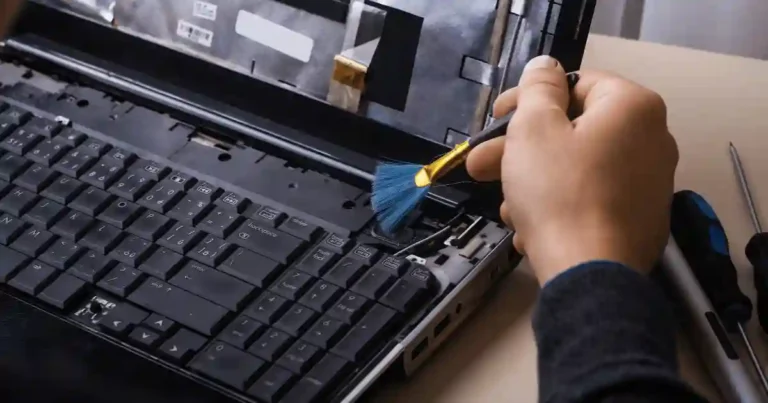
Clean and Check the iPhone 11 Lightning Port
Pockets and purses gather substantial lint over time. A blocked port prevents charging pins from touching cleanly.
Look Inside the Port
Shine a bright light into the bottom port. Look for packed dust, pocket lint, or tiny debris covering the gold contact pins.
Check Whether the Cable Fits Firmly
Insert your cord and check for a snug fit. If the plug wiggles or leaves a visible gap near the phone frame, debris is blocking full insertion.
Avoid Unsafe Cleaning
Never insert needles, paperclips, or metal picks into the port. Metal scrapes off pin coatings and creates short circuits. Do not spray liquid cleaners or canned air directly inside.
When a Port Needs Professional Service
- The port has bent or missing pins
- The cable wiggles loosely after cleaning
- Charging cuts out at slight angles
- Clearing debris does not restore power
Restart Your iPhone 11
A minor operating system glitch can freeze power management software. Apple lists restarting as a primary fix for power issues.
How to Restart iPhone 11
- Press and hold either Volume button and the Side button
- Drag the power-off slider across the screen
- Wait about 30 seconds for complete shutdown
- Hold the Side button until the Apple logo appears
Test Charging After Restarting
Plug the cable back in and monitor the screen for a response.
- Green battery icon on the lock screen
- Battery percentage rising over time
- Chime sound when power connects
- Lock Screen charging indicator text
If the iPhone Is Frozen
If the touch screen does not register your swipe on the power slider, move to a forced restart.
Force Restart the iPhone 11
A force restart cuts hardware power briefly to clear frozen system memory without deleting personal files.
Force Restart Steps
- Press and quickly release Volume Up
- Press and quickly release Volume Down
- Press and hold the Side button
- Keep holding until the Apple logo appears
When to Use a Force Restart
- Touch screen is completely frozen
- Physical buttons feel unresponsive
- Display stays black while plugged in
- Charging stopped following a system lockup
Try Wireless Charging
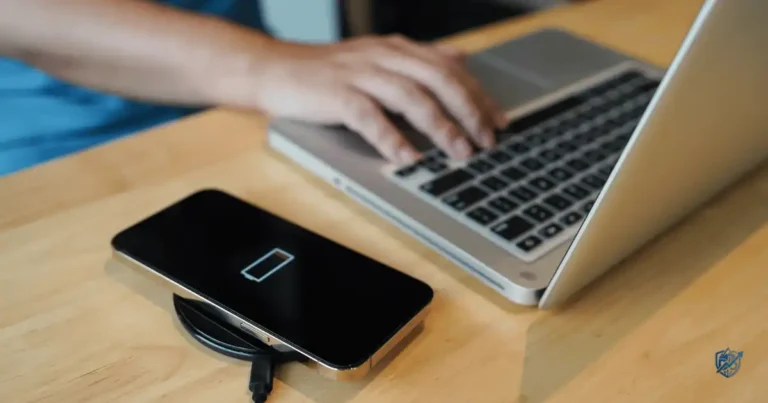
The iPhone 11 features built-in Qi wireless charging, providing an ideal diagnostic workaround.
Place the iPhone on a Qi Charger
Center your phone face-up on a powered Qi charging pad. Remove thick protective cases or magnetic card holders that block induction coils.
What Wireless Charging Can Tell You
If wireless charging works normally, your phone logic board and battery are healthy. The issue rests inside your cable, power adapter, or physical Lightning port.
If Wireless Charging Also Fails
- Internal battery degradation
- System software failure
- Faulty power source
- Logic board hardware damage
Check if Your iPhone 11 Is Too Hot or Too Cold
Thermal limits safeguard lithium-ion batteries. Apple notes that iOS slows or pauses charging when device temperatures cross safe thresholds.
Signs Temperature Is Affecting Charging
- Charging halts unexpectedly around 80%
- Back glass feels hot to the touch
- Charging resumes after the phone cools down
- A temperature warning alert appears on screen
Move the iPhone to a Cooler Place
Move your device away from direct sunlight, hot car dashboards, or warm electronics. Never leave a charging phone under pillows or heavy blankets.
Don’t Try to Cool It Too Fast
Let the phone cool down naturally at room temperature. Placing a hot phone in a refrigerator causes internal condensation that leads to permanent water damage.
Why This Matters
Apple equips iOS with thermal protection algorithms. These safety controls stop current flow to prevent chemical degradation and battery swelling.
Is Your iPhone 11 Stuck at 80 Percent?
Pausing power flow at 80 percent often indicates built-in battery management rather than broken hardware. Apple includes Optimised Battery Charging to delay full charges past 80% based on daily routines.
Check Optimised Battery Charging
Open Settings, tap Battery, and select Battery Health & Charging to check your current configuration.
Understand the Difference
- Normal pause: temporary delay during high app usage
- Optimised Charging: scheduled hold based on sleep patterns
- Thermal pause: emergency stop due to high heat
- Actual failure: power stops completely regardless of conditions
When 80% Is a Real Problem
If your phone stays at 80 percent constantly under cool conditions with Optimised Battery Charging turned off, test the battery and power path.
Check Your iPhone 11 Battery Health
The iPhone 11 launched in 2019. After years of daily charge cycles, chemical wear naturally lowers cell capacity.
Open Battery Health & Charging
Navigate to Settings, select Battery, and tap Battery Health & Charging to view diagnostic data.
Look at Maximum Capacity
Maximum Capacity measures battery performance relative to when the phone was brand new. Lower percentages indicate reduced runtime between charges.
Signs of an Aging Battery
- Rapid percentage drops during routine use
- Unexpected device shutdowns at low percentages
- Very slow charging speed across all chargers
- Erratic battery percentage readings
- Sluggish overall phone performance
When Battery Service May Be Needed
Consider a battery replacement when Maximum Capacity falls below 80 percent or when iOS displays an official service recommendation message.
Check for an “Accessory Not Supported” Alert
This error pop-up confirms your iPhone detects an accessory but cannot establish a stable electronic connection. Apple states these alerts stem from dirty ports, damaged cords, or non-certified power adapters.
Try Another Cable
Switch to an official Apple or MFi-certified Lightning cable to rule out knockoff accessory incompatibility.
Try Another Charger
Plug into a standard USB power adapter rated for at least 5W to 12W output.
Connect Directly to the Charger
Remove power strips, pass-through adapters, or unpowered USB hubs from your setup.
Check the Lightning Port
Clear away packed lint or dirt that prevents full pin alignment between your cord and device.
Restart the iPhone
Reboot your phone to clear temporary accessory detection errors inside iOS memory.
Check for an iOS Update
Install system updates to ensure your device maintains current accessory trust protocols.
Update iOS if Your iPhone Can Still Turn On
Software updates deliver bug fixes that resolve charging glitch behaviors and improve power manager performance.
Check for an iOS Update
Go to Settings, select General, and tap Software Update to search for available firmware downloads.
Update Before Doing Anything Destructive
Do not perform factory resets or device wipes before trying software updates. Most charging bugs resolve without erasing personal data.
Restart After the Update
Allow the phone to finish updating completely, then reconnect your charger to verify stable power input.
Test Charging From a Computer
Connecting to a computer USB port provides an alternate diagnostic power source.
Connect the iPhone to a Computer
Plug your cable into a powered USB port on a running Mac or Windows PC.
Compare Computer Charging With Wall Charging
Here is how technician triage isolates power source issues:
| Result | What It May Suggest |
| Wall works, computer doesn’t | Computer USB port power issue |
| Computer works, wall doesn’t | Wall adapter or outlet issue |
| Neither works | Cable, port, battery, or hardware issue |
| Charging is very slow | Low-power source or background drain |
Why This Is a Useful Test
Testing via a computer isolates whether your wall charger or home electrical outlet has failed without spending money on new gear.
iPhone 11 Not Charging While Turned Off
A completely drained battery lacks energy to illuminate the display right away.
Connect It to Power
Plug your phone into a verified wall charger and leave it alone.
Give It Time
Allow the device to charge undisturbed for at least 30 minutes before pressing any buttons.
Try a Force Restart
Perform the Volume Up, Volume Down, and Side button hold sequence if the display stays blank after 30 minutes.
Check for the Low-Battery Screen
A red battery icon on screen confirms your phone senses incoming electrical current.
iPhone 11 Not Charging After a Drop
Physical impacts can dislodge internal connectors, fracture screen traces, or bend charging port frames.
Look for External Damage
- Cracks on front or back glass
- Denting near the Lightning port
- Frame misalignment around buttons
- Loose internal components when shaken
Test Another Charging Method
Try Qi wireless charging to check if internal power delivery remains functional when wired paths break.
Don’t Open the iPhone Yourself
Opening a damaged casing exposes delicate ribbon cables to tearing and voids professional repair options.
iPhone 11 Not Charging After Getting Wet
Liquid exposure causes immediate short circuits and fast pin corrosion.
Disconnect the Charger
Unplug power cables immediately if your phone comes into contact with liquids.
Don’t Use Heat to Dry It
- Hair dryers
- Heat guns
- Ovens or microwaves
- Direct high heat sources
Seek Professional Assessment
Take water-exposed phones to qualified technicians for internal drying and ultrasonic board cleaning.
Why This Problem Can Be Tricky
Moisture traps inside sealed connectors, creating delayed corrosion long after external surfaces dry out.
iPhone 11 Charging Slowly: What It Means
Slow charging stems from lower current input, elevated heat, or heavy background app usage rather than broken logic board chips.
Check the Charger and Cable
Use high-wattage power bricks paired with certified fast-charging cables for optimal speed.
Stop Heavy Apps While Charging
Close graphic-heavy games, GPS navigation, and video recording apps while powering up.
Check Temperature
Keep the device cool to allow maximum current flow into the battery.
Try a Dedicated Wall Charger
Avoid low-power USB ports on computer monitors, keyboards, or cheap travel adapters.
Compare With Wireless Charging
Compare wired charging rates against wireless pads to isolate efficiency bottlenecks.
iPhone 11 Not Charging: Quick Diagnosis Table
This quick technician triage table helps pinpoint charging failures fast:
| What You Notice | Likely Area | First Test | Next Step |
| No charging icon | Power or cable | Try another setup | Check port |
| Charges only at an angle | Port or cable | Try another cable | Service |
| Stops at 80% | Optimization or heat | Check settings or temp | Test again |
| “Accessory Not Supported” | Cable, port, or accessory | Change cable | Inspect port |
| Wireless works, cable doesn’t | Wired path | Test cable | Inspect Lightning port |
| Very slow charging | Power, temp, or use | Use wall charger | Check heat |
| No charging after a drop | Hardware | Test wireless | Service |
| No charging after liquid | Hardware | Disconnect power | Service |
iPhone 11 Charging Problems by Symptom
Match your symptom to these targeted troubleshooting steps:
iPhone 11 Says It’s Charging but Percentage Doesn’t Increase
- Test a higher wattage wall adapter
- Close resource-heavy background applications
- Allow the phone to cool down in a shade spot
- Switch to an original Apple charging cord
iPhone 11 Charges Then Stops
- Check for thermal throttling from heat buildup
- Verify Optimised Battery Charging settings
- Test charging with a different wall outlet
- Inspect battery health for degradation warnings
This 11 Only Charges With One Cable
- Plug that cable into another device to test performance
- Replace non-certified third-party cables with MFi options
- Inspect port contacts for lint accumulation
iPhone 11 Charges Very Slowly
- Connect directly to wall outlets instead of computer ports
- Verify your adapter outputs at least 12 Watts
- Stop using the device while plugged into power
iPhone 11 Won’t Charge Wirelessly
- Reposition the phone squarely on the Qi pad center
- Remove thick protective cases or metal phone grips
- Test the Qi pad using another wireless-compatible phone
A iPhone 11 Not Charging After an iOS Update
System update glitches can temporarily disrupt power management configurations.
Record What Changed
Note error codes, battery drain speed, and accessory behavior following updates.
Restart the iPhone
Reboot to reset background software processes after system installs finish.
Test Another Charger
Try alternative power adapters to verify compatibility with updated iOS protocols.
Check for Another Available Update
Install subsequent patch updates issued to fix recognized system bugs.
Avoid a Factory Reset as Your First Move
Exhaust all non-destructive software steps before wiping device data.
When Should You Get the iPhone 11 Repaired?
Stop DIY troubleshooting when basic hardware checks point to physical failure.
Seek Professional Service When
- Multiple verified chargers yield no response
- The Lightning port shows visible structural damage
- Both wired and wireless charging fail completely
- The battery swells or shows severe wear alerts
- The device suffered water submersion or high drops
Apple recommends official service when basic power checks do not restore charging.
What Information to Give the Technician
- Exact model and iOS version
- Maximum battery capacity percentage
- Accessories and outlets tested
- Wireless charging test results
- Error messages displayed
- Drop or liquid exposure history
Don’t Guess the Failed Part
Let certified technicians run voltage diagnostics before paying for unnecessary screen or battery replacements.
USA Expert Advice on iPhone 11 Charging Problems
Expert Angle to Include
Professional repair technicians recommend isolating exterior variables before booking expensive repair services. Over half of all charging complaints brought into service centers resolve with port cleaning or cable replacements.
Use a Verified Expert Quote
“Our trained technicians will inspect your iPhone, explain your options and handle it from there,” states official Apple Support guidance regarding power and charging diagnostics.
Real-Life USA Scenario
It’s a hot afternoon in Phoenix. Your iPhone is plugged in, but the battery number is going nowhere. Before blaming the battery, move it out of the heat and test a known-good cable and wall adapter.
How to Prevent iPhone 11 Charging Problems
- Use MFi-certified charging accessories
- Keep the Lightning port clear of pocket debris
- Avoid charging in high-temperature environments
- Install regular iOS software updates
- Monitor battery capacity levels monthly
- Keep current iCloud or computer data backups
Frequently Asked Questions About iPhone 11 Not Charging
Why is my iPhone 11 not charging?
Faulty cables, dirty ports, bad wall adapters, software freezes, high heat, or worn batteries cause charging failures.
Why is my iPhone 11 charging but the battery percentage stays the same?
Weak power output, heavy app use while plugged in, or thermal limits prevent percentages from rising.
Why does my iPhone 11 stop charging at 80%?
iOS pauses charging at 80% due to heat protection or Optimised Battery Charging schedules.
Why won’t my iPhone 11 charge with a Lightning cable?
Damaged cables, clogged ports, broken pins, or non-certified accessories disrupt physical connections.
Can a dirty Lightning port stop an iPhone 11 from charging?
Yes. Packed lint prevents cable pins from connecting with port contacts. Apple recommends port checks for connection issues.
Can heat stop an iPhone 11 from charging?
Yes. iOS pauses charging to protect battery health when temperatures exceed safe limits.
Can I charge an iPhone 11 wirelessly?
Yes. The iPhone 11 supports standard Qi wireless charging pads.
Why does my iPhone 11 charge wirelessly but not with a cable?
This points to a broken cable, faulty power adapter, or clogged Lightning port rather than an internal logic board failure.
Should I replace the battery if my iPhone 11 won’t charge?
No. Test cables, adapters, outlets, ports, and software restarts before replacing internal hardware.
When should I take my iPhone 11 to Apple or a repair professional?
Seek repair if basic hardware checks fail or after physical impacts and liquid exposure.
iPhone 11 Not Charging — Quick Checklist
- Try another wall outlet
- Try another Lightning cable
- Try another power adapter
- Check the Lightning port
- Look for cable damage
- Restart the iPhone
- Force restart if needed
- Test wireless charging
- Check battery health
- Check whether the phone is hot
- Check for an 80% charging pause
- Check for an accessory warning
- Update iOS if possible
- Test charging from a computer
- Consider recent drops or liquid exposure
- Get professional service if the problem continues
Final Recommendation
Having diagnosed thousands of mobile power issues over my career, I always advise starting with the simplest tests first. An iPhone 11 not charging is rarely a catastrophic board failure; it is usually a worn cord, clogged port, or thermal pause. Clear out port lint, test a certified charger in a cool room, and force restart your system before scheduling repairs. If hardware issues persist after basic checks, let an authorized service provider evaluate the device safely.

Ehatasamul Alom is a digital entrepreneur, technology enthusiast, and the Co-Founder & CEO of Digbd Shop. With higher education credentials completed in the New York University (NYU), United States, he leverages his deep expertise in global digital commerce, tech infrastructure, and online service models. Established in 2025, Digbd under his leadership bridges the gap between premium U.S. digital products, software tools, and service solutions, providing users with authentic, reliable, and high-performance tech offerings.