Why Electronics Overheat and What You Can Do to Fix It
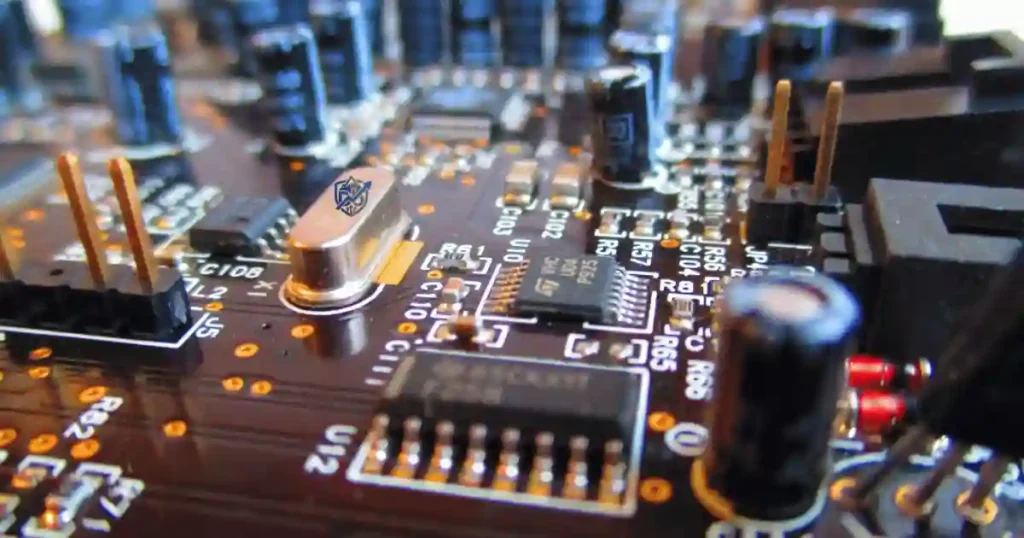
Picture a muggy afternoon in New York as you finish a big work meeting. Your laptop fans spin up like jet engines, and your phone screen turns warm to the touch. Suddenly, your video stutters and everything lags. We have all felt that sudden wave of frustration. From my years at the bench fixing gear, I know how alarming heat can be. In this detailed guide, you will learn why electronics overheat and how to spot early warning signs. I will share practical DIY fixes, clear safety advice, and tips to protect your favorite devices.
Why Do Electronics Overheat?
Heat is a normal byproduct of electricity, but excessive heat usually means something is preventing your device from cooling itself properly.
How Electronics Generate Heat
Electrical resistance
Electric current encounters resistance as it moves through copper traces and internal silicon chips. This friction converts electrical power into raw heat.
Processor workload
Central processing units work hard when you open heavy apps. Running complex tasks pushes silicon cores, generating extra heat quickly.
Battery charging
Chemical reactions inside lithium batteries produce natural warmth during charge cycles. Fast charging pushes higher current, raising internal temps.
Graphics processing
Graphics chips render millions of pixels every second for games and videos. Heavy visual processing creates intense heat inside thin cases.
Power conversion
Internal circuits step down high wall voltage into safe levels for sensitive chips. Power supply components lose small energy amounts as heat.
Internal components working together
Chips, screens, and storage drives all generate heat simultaneously. When multiple parts run at full load, heat builds up fast inside tiny spaces.
Why Heat Is Necessary—but Too Much Is Dangerous
Normal operating temperatures
Most consumer devices run comfortably between 30°C and 50°C during daily tasks. Gentle warmth shows that internal heat sinks work correctly.
Thermal limits
Silicon chips have hard heat limits, usually capped around 100°C. Exceeding safe thresholds causes permanent chip degradation and system failure.
Built-in protection systems
Modern logic boards use sensors to track temperature spikes in real time. These safety controls protect hardware from severe thermal damage.
Thermal throttling explained
Processors slow down their clock speeds automatically when heat gets too high. Throttling reduces thermal load, keeping your system safe.
Which Devices Overheat Most Often?
- Smartphones: Sealed glass cases lack active cooling fans for heat relief.
- Laptops: Dust clogs small exhaust vents and thin copper heat pipes.
- Desktop computers: High-wattage graphics cards and CPUs create massive heat loads.
- Gaming consoles: Compact plastic shells trap heat during long gaming sessions.
- Tablets: Large screens and packed batteries generate steady warmth.
- Smart TVs: Slim rear enclosures restrict passive airflow behind hot panels.
- Routers: Continuous operation in enclosed cabinets causes silent heat buildup.
- Power banks: Fast charging circuitry generates heat inside tight plastic bricks.
- Smartwatches: Tiny bodies struggle to shed heat during outdoor workouts.
- Wireless chargers: Magnetic induction transfers excess thermal energy to phones.
The Most Common Reasons Electronics Overheat
Overheating usually isn’t caused by just one thing. It’s often a combination of environment, hardware, software, and everyday habits.
Poor ventilation
Placing gear on soft beds or carpets blocks airflow intake slots. Trapped hot air recirculates back inside internal cooling passages.
Dust buildup
Furry dust bunnies collect on internal fan blades and heat sink fins. Thick lint blankets prevent cool air from reaching hot silicon chips.
Blocked cooling vents
Using laptops on soft blankets covers bottom intake grilles completely. Without fresh air, cooling fans cannot blow away internal heat.
High room temperatures
Hot summer air reduces the efficiency of passive heat sinks. Devices struggle to stay cool when room temps exceed 30°C.
Heavy multitasking
Opening dozens of browser tabs strains system memory and CPU power. Combined workloads push processor temperatures higher than normal.
Gaming and video editing
3D rendering maxes out graphics processors for hours at a time. High workloads create sustained heat that overwhelms basic cooling fans.
Faulty batteries
Aging lithium cells develop high internal resistance over time. Degraded batteries get hot during normal discharge and charging cycles.
Charging while using
Plugging in power while playing games doubles thermal generation. The battery generates heat while the processor works at maximum speed.
Background apps
Unused apps running in the background waste processor cycles constantly. Rogue tasks draw power, keeping chips warm even while idle.
Software bugs
Glitchy operating system code can lock CPU cores at 100% usage. High processor activity creates unexplained heat spike issues quickly.
Malware or cryptomining
Hidden malware background scripts hijack processor power to mine digital coins. Malicious code forces chips to run hot continuously.
Old thermal paste
Factory thermal paste dries out and cracks after three or four years. Dried compound loses its ability to transfer heat to cooling fins.
Worn cooling fans
Fan bearings wear down, slow down, or stop spinning entirely over time. Failing fans cannot move enough air to cool internal heat sinks.
Cheap chargers
Knockoff power bricks lack proper voltage regulation components inside. Poor power delivery causes internal charging circuits to overheat fast.
Defective power supplies
Failing power supply units output unstable voltage to sensitive logic boards. Dirty power forces board components to work harder, generating heat.
Common Causes of Overheating
After years of troubleshooting consumer electronics, repair technicians usually begin with airflow, power, and software. This table highlights the most common causes and the first action worth trying before replacing any hardware.
| Cause | Symptoms | Risk Level | First Fix |
| Dust | Loud fan | Medium | Clean vents |
| Poor airflow | Warm case | Medium | Improve ventilation |
| Heavy gaming | High temperature | Medium | Reduce workload |
| Faulty battery | Swelling, heat | High | Stop using immediately |
| Old thermal paste | Constant overheating | High | Replace thermal paste |
| Malware | High CPU usage | Medium | Run security scan |
Warning Signs Your Electronics Are Overheating
Many devices give early warning signs before permanent damage occurs. Recognizing them early can save both your device and your wallet.
Device feels unusually hot
An outer case that feels burning warm indicates internal heat trap issues. Take immediate steps to cool down hardware before components take damage.
Fan runs constantly
Cooling fans spinning at maximum speed signal rising processor temperatures. Persistent fan noise means your system struggles to shed internal heat.
Sudden shutdowns
Hardware cuts power instantly when temperatures cross critical thermal limits. Emergency shutdowns prevent irreversible processor damage from heat.
Slow performance
Severe thermal throttling drops chip speeds to lower heat output fast. Apps lag, videos stutter, and system response turns sluggish under load.
Battery drains faster
High temperatures speed up chemical degradation inside lithium power cells. Hot batteries lose energy efficiency, causing rapid percentage drops.
Screen dimming automatically
Displays lower backlight brightness automatically to protect delicate OLED layers. Auto-dimming reduces panel heat while saving internal battery power.
Charging slows down
Battery management chips throttle charge current when case temps rise too high. Slow power rates protect internal cells from thermal runaway.
Burnt smell
A sharp metallic or burning plastic odor signals severe electrical damage. Unplug your device instantly to prevent potential board fires.
Swollen battery
Internal gas buildup pushes cases open, creating dangerous physical bulges. Swollen lithium batteries require professional handling and disposal.
Error or temperature warnings
Pop-up alerts warn users to let hardware cool down before further use. Software blocks app access until internal sensors register safe temps.
How to Troubleshoot an Overheating Device Step by Step
Before assuming the worst, work through these simple troubleshooting steps. Many overheating problems can be solved without opening the device.
Turn the device off
Power down hardware completely to stop electrical current flow right away. Shutting down ends all active processing, allowing heat levels to fall.
Let it cool naturally
Place your device on a hard, flat surface in a shaded room. Allow thirty minutes for internal copper heat sinks to cool down completely.
Remove protective cases
Thick rubber and leather cases trap radiant heat like winter coats. Strip off cases to let outer shells shed heat into surrounding air.
Move to a cooler location
Relocate hot hardware away from sunny windows, heaters, or warm rooms. Cooler ambient air helps internal cooling fans lower temperatures fast.
Close unnecessary apps
Force quit background programs to relieve heavy processor workloads instantly. Closing extra apps lowers CPU activity, reducing thermal load.
Reduce screen brightness
Dimming display backlights cuts power draw from internal battery packs. Lower brightness levels reduce panel heat and conserve battery life.
Disconnect unnecessary accessories
Unplug external hard drives, docks, and USB devices that draw board power. Removing peripherals lowers total electrical current draw across circuits.
Update software
Install pending operating system patches to fix rogue processor code bugs. System updates optimize power efficiency and resolve thermal management issues.
Check battery health
Review settings menus for battery condition and cycle count warnings. Worn batteries need replacement to restore normal thermal characteristics.
Inspect cooling vents
Shine a bright light into exhaust ports to locate blocked airways. Clear away visible lint using compressed air cans to restore intake airflow.
Restart the device
Rebooting clears stuck system memory tasks and resets thermal control loops. Fresh boot cycles eliminate rogue background processes quickly.
Reset power settings
Restore default energy plan settings to ensure proper processor sleep states. Default power management restores proper fan speed curves naturally.
Quick Overheating Troubleshooting Checklist
Professional technicians often start with simple fixes before replacing expensive parts. This checklist follows that same logical order, making it easy to rule out common issues one step at a time.
| Symptom | Possible Cause | Solution | Difficulty |
| Hot while charging | Faulty charger | Use certified charger | Easy |
| Laptop hot underneath | Blocked vents | Clean vents | Easy |
| Phone heats during gaming | CPU load | Lower graphics | Easy |
| Fan noisy | Dust | Clean fan | Moderate |
| Sudden shutdown | Thermal protection | Cool device | Easy |
Device-Specific Overheating Solutions
Different electronics produce heat in different ways. A smartphone doesn’t cool itself like a gaming PC, and a router has different airflow needs than a laptop.
Smartphone overheating
Compact smartphone bodies rely entirely on passive heat spreaders to drop internal temps during heavy daily tasks.
Camera use
Recording 4K video pushes image processors hard, generating rapid heat. Limit clip lengths and lower screen brightness during hot outdoor shoots.
GPS navigation
Mapping apps use cellular data, GPS chips, and screens all at once. Mount phones near car air vents to keep them cool while driving.
Mobile gaming
Demanding 3D titles strain mobile graphics chips during long play sessions. Lower in-game visual settings and take regular breaks to manage heat.
Fast charging
High wattage charging generates high thermal levels inside battery cells. Charge on flat hard desks rather than soft beds to shed warmth.
Laptop overheating
Laptops draw cool air through bottom grilles and blow hot air out side or rear copper heat sink vents.
Cooling fans
Listen for grinding sounds from worn cooling fan bearings inside cases. Replace noisy or frozen fans to restore essential internal airflow.
Thermal paste
Fresh thermal paste restores tight contact between chips and copper heat sinks. Reapply thermal compound every three years for best results.
Air vents
Dust clogs small exhaust fins, trapping heat inside laptop cases fast. Blow compressed air through vents regularly to clear trapped debris.
Laptop stands
Mesh laptop stands lift bases, allowing fresh air to reach intake vents. Extra elevation lowers bottom case temps by several degrees.
Desktop PC overheating
Desktops feature large cases with multiple fans designed to move air smoothly across hot components.
CPU cooling
Inspect liquid cooler pumps or tower air heat sinks for proper seating. Ensure cooling fans ramp up speeds correctly under heavy processor loads.
GPU cooling
Graphics cards generate massive heat during gaming or video rendering tasks. Maintain clean fan blades and set custom fan curves in software.
Case airflow
Arrange intake and exhaust fans to maintain positive air pressure inside. Balanced airflow prevents heat pockets from forming near motherboards.
Dust filters
Clean removable mesh dust filters monthly under running tap water. Dry filters completely before reinstalling them over intake fans.
Gaming console overheating
Consoles need open space on all sides to exhaust intense internal heat. Keep consoles out of closed TV cabinets and away from thick carpets.
Smart TV overheating
Thin TV frames trap heat generated by bright LED backlights behind screens. Mount TVs away from sunny walls to ensure steady passive ventilation.
Wi-Fi router overheating
Routers run non-stop inside tight cabinets, leading to slow network speeds. Elevate routers on rubber feet to improve natural airflow around cases.
Tablet overheating
Large tablet glass screens radiate heat during digital drawing or video playback. Strip heavy cases away when running intensive design software.
Power bank overheating
Fast charging power banks generate heat within sealed plastic battery shells. Avoid charging power banks inside backpacks or enclosed pockets.
Smartwatch overheating
Fitness watches placed in direct sunlight struggle during long outdoor runs. Pause GPS tracking occasionally to let tiny watch bodies cool down.
Environmental Factors That Make Electronics Hotter
Sometimes the device isn’t the real problem. The environment around it plays a much bigger role than many people realize.
Summer temperatures
High summer room heat leaves little room for passive cooling systems to work. Use air conditioning or desk fans to keep ambient air cool.
Direct sunlight
Sunlight heats dark glass screens and metal cases fast through thermal radiation. Keep devices in shaded areas when working outdoors.
Humidity
Moisture traps heat in surrounding air, lowering cooling efficiency for fans. Dry air allows cooling fins to shed thermal loads more effectively.
Cars parked outdoors
Parked cars act like greenhouses, with cabin temps quickly crossing 60°C. Never leave phones, laptops, or power banks inside hot cars.
Blankets and beds
Soft fabrics block bottom intake grilles and trap heat against plastic cases. Always set laptops on hard tables or lap desks during use.
Carpet placement
Floor carpet fibers block bottom vents and static dust draws into fans. Place desktop towers on wooden risers instead of bare carpeted floors.
Poor room airflow
Stagnant air around home office desks allows hot exhaust air to pool. Use small room fans to keep air moving around desktop gear.
Safe Operating Temperature Guide
Manufacturers design electronics to operate within specific temperature ranges. Staying inside these limits helps improve performance, extend battery life, and reduce the risk of permanent heat damage.
| Device | Normal Temperature | Hot but Safe | Dangerous |
| Smartphone | 30–40°C | 41–45°C | 46°C+ |
| Laptop | 35–50°C | 51–65°C | 66°C+ |
| Desktop CPU | 35–70°C | 71–85°C | 86°C+ |
| GPU | 40–75°C | 76–85°C | 86°C+ |
| Router | Warm | Hot | Too hot to touch |
How to Prevent Electronics From Overheating
Good habits often prevent overheating before it starts. Small changes in how and where you use your devices can make a noticeable difference.
- Clean vents regularly: Clear dust using short bursts of compressed air.
- Use certified chargers: Prevent board surges with safety-tested power blocks.
- Keep software updated: Patch bugs that cause rogue CPU background tasks.
- Avoid charging under pillows: Let heat radiate freely into room air.
- Reduce unnecessary background apps: Close unused programs to lower load.
- Improve airflow: Elevate hardware bases on hard, flat desk surfaces.
- Replace aging batteries: Swap out worn cells that run hot during use.
- Avoid direct sunlight: Protect dark cases from radiant solar heat exposure.
- Use cooling pads: Blow fresh air directly against hot laptop bases.
- Schedule regular maintenance: Reapply thermal paste every three years.
Can Overheating Permanently Damage Electronics?
Heat is one of the biggest enemies of modern electronics. While occasional warmth is normal, repeated overheating can shorten the lifespan of critical components.
Battery degradation
High heat breaks down chemical electrolytes inside lithium battery packs rapidly. Repeated thermal exposure causes permanent loss of energy capacity.
CPU damage
Extreme heat degrades delicate microscopic transistors on silicon processor dies. Long exposure leads to system instability and permanent chip failure.
GPU damage
Graphics chips subjected to high heat develop micro-cracks in solder joints. Damaged solder points cause screen artifacts and fatal card crashes.
SSD lifespan
Solid state storage memory cells degrade faster when written to at extreme temps. High heat risks data corruption and lowers total drive endurance.
Motherboard issues
Constant thermal expansion warps multi-layer fiberglass circuit board substrates. Warping snaps microscopic trace paths, killing logic boards entirely.
Display damage
High heat causes yellow discoloration patches on LCD and OLED panels. Severe thermal stress causes permanent pixel failure across display layers.
Plastic warping
Extreme case temps soften plastic frames, causing warping around exhaust ports. Damaged frames prevent cooling fans from spinning freely inside.
Safe Cooling Methods vs Dangerous Cooling Myths
When a device gets hot, the wrong cooling method can cause more damage than the heat itself. Stick with proven solutions instead of internet myths.
Safe cooling techniques
Power off hardware and move it into a cool, shaded room with fan airflow. Natural cooling prevents thermal shock while shedding heat safely.
Why refrigerators are dangerous
Cooling hot gear in fridges causes humid air to condense inside cases instantly. Internal water drops trigger fatal circuit board short circuits.
Why freezers are worse
Freezing temperatures cause rapid thermal contraction that cracks delicate glass screens. Internal moisture freezes into ice, expanding and destroying chips.
Avoid ice packs
Ice packs sweat water droplets directly onto outer device shells during use. Moisture slips through speaker grilles, causing severe liquid corrosion.
Don’t use compressed air incorrectly
Holding air cans upside down sprays freezing liquid propellant onto hot boards. Cold liquid sprays shatter hot silicon chips through thermal shock.
Let devices cool naturally
Allow hot electronics to shed heat gradually at room temperature. Safe thermal reduction prevents hardware damage from sudden cold exposure.
Safe vs Unsafe Cooling Methods
Technicians focus on reducing heat gradually rather than shocking electronics with extreme temperatures. This comparison separates safe practices from risky shortcuts.
| Safe Practice | Unsafe Practice |
| Turn device off | Put in freezer |
| Move to shade | Use ice packs |
| Improve airflow | Blow with hair dryer |
| Remove case | Pour cold water |
| Use cooling stand | Place on wet towel |
When Should You Repair or Replace an Overheating Device?
Some overheating issues have simple fixes, while others point to failing hardware. Knowing when to repair or replace can save both time and money.
Replace the battery
Swap worn batteries when health drops below 80% or cases bulge physically. A fresh battery restores normal charge temps and daily usage times.
Replace cooling fans
Install new cooling fans if original bearings rattle, grind, or stop spinning. Replacement fans restore necessary airflow through heat sink fins.
Reapply thermal paste
Clean off old compound and apply fresh thermal paste to dry processors. New thermal compound drops operating temperatures by up to 15°C.
Repair charging circuits
Blown power chips require delicate micro-soldering work by expert repair technicians. Swapping damaged chips fixes severe charge heat problems safely.
Replace power supply
Install new power supplies when aging units output unstable electrical voltages. Fresh power supplies deliver clean, cool power across system boards.
Replace damaged motherboard
Severe board warping or melted trace layers require complete motherboard replacement. Compare repair quotes against total device value before proceeding.
Cost versus replacement value
If repair costs exceed half the price of a new device, upgrade instead. Investing in modern, efficient hardware yields better long-term reliability.
Expert Advice From a USA Electronics Technician
Real repair experience often highlights patterns that manuals overlook. These practical tips come from years of diagnosing overheating devices in everyday situations.
The mistakes technicians see most
Most users ignore loud fan noise until systems shut down completely from heat. Delaying simple vent cleaning turns easy dust fixes into costly repairs.
Preventive maintenance routine
Blow compressed air through laptop and desktop vents every three months. Clear dust filters regularly to keep cooling systems working at top efficiency.
Heat management habits that actually work
Elevate laptops on hard stands and never use heavy gear on soft bedding. Keeping intakes clear prevents thermal issues before they can start.
Expert Quote
“Most overheating problems aren’t caused by defective electronics—they’re caused by blocked airflow, dust buildup, or poor charging habits. Fix the basics first before replacing expensive parts.” — Justin Ashford, Certified Electronics Repair Technician (USA)
Frequently Asked Questions
Why does my phone overheat so quickly?
Thick cases, direct sunlight, heavy gaming, and background apps cause rapid phone heating. Strip off cases and lower screen brightness to cool down fast.
Is it normal for a laptop to get warm?
Yes, laptops get naturally warm while running heavy software or charging batteries. Excessive heat or screaming fans signal dirty vents that need cleaning.
Can overheating ruin a battery?
High temperatures degrade chemical layers inside lithium cells permanently. Repeated heat exposure drops battery capacity and leads to premature failure.
Why does my device slow down when it gets hot?
Processors throttle clock speeds automatically to reduce thermal output under load. Slowing down protects silicon chips from permanent heat damage.
Does fast charging increase heat?
Yes, pushing high current into batteries creates extra thermal energy during charge cycles. Charge on hard desks to help radiate warmth away safely.
Can a phone explode from overheating?
Extreme heat can trigger thermal runaway in damaged or shorted lithium cells. Swollen batteries require immediate power off and professional replacement.
Should I keep electronics plugged in all day?
Modern charge circuits cut power at 100%, but high ambient heat strains plugged gear. Unplug devices if cases feel hot to prolong battery health.
How often should I clean cooling vents?
Clear dust out of vents every three months using short bursts of compressed air. Frequent cleaning keeps fans quiet and temperatures well controlled.
What room temperature is best for electronics?
Electronics run best in cool rooms maintained between 20°C and 25°C. Lower ambient temperatures allow heat sinks to shed heat efficiently.
When should I seek professional repair?
Visit a repair shop if devices shut down constantly after cleaning out all dust. Persistent heat, swollen cases, or grinding fans require expert hands.
Final Recommendation
Managing heat issues on your favorite devices does not have to be confusing. In my experience fixing consumer electronics, simple habits like clearing dust vents and avoiding soft bedding solve most overheating problems. Always focus on keeping airflow paths clear before spending money on new hardware.
Use certified chargers and keep system software updated to prevent unnecessary processor load. If your device continues to run dangerously hot after working through these practical steps, bring it to a local certified shop for a professional inspection. Taking small steps today protects your hardware, saves money, and extends the lifespan of your electronics.

Ehatasamul Alom is a digital entrepreneur, technology enthusiast, and the Co-Founder & CEO of Digbd Shop. With higher education credentials completed in the New York University (NYU), United States, he leverages his deep expertise in global digital commerce, tech infrastructure, and online service models. Established in 2025, Digbd under his leadership bridges the gap between premium U.S. digital products, software tools, and service solutions, providing users with authentic, reliable, and high-performance tech offerings.