iPhone 16 Pro Max Problems: 15 Issues and Quick Fixes
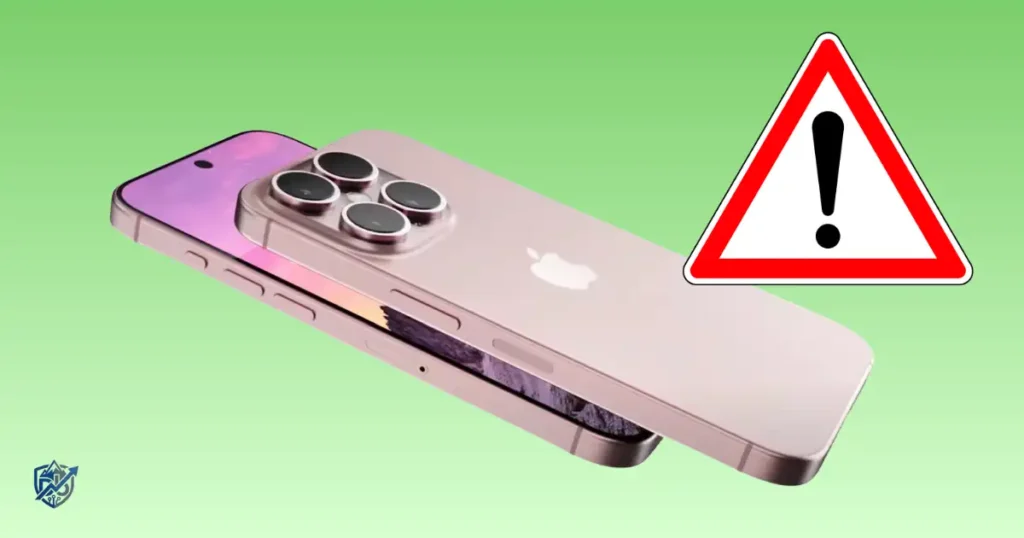
Running into iPhone 16 Pro Max problems can turn a great day into a total hassle, especially when your top-tier device freezes during a crucial moment. Having spent years fixing consumer tech and managing setups right here in Seattle, I have guided countless users through unexpected flagship glitches. Apple built a powerhouse with the iPhone 16 Pro Max, but even high-end hardware encounters software bugs or thermal limits.
Community reports show that many reported issues stem from setup indexing, extreme heat, or temporary system bugs rather than permanent hardware defects. This guide breaks down effective fixes to get your flagship back in top shape quickly.
What Are the Most Common iPhone 16 Pro Max Problems?
Every smartphone launch brings a mix of software bugs, accessory quirks, and user configuration errors. Experiencing a glitch on your unit does not mean all devices share the exact same flaw.
Most Reported iPhone 16 Pro Max Issues
- Overheating: Excessive warmth during routine tasks or high-load recording.
- Fast battery drain: Rapid power loss right after updates or long background syncs.
- Camera app freezing or crashing: Unexpected black screens or unresponsive shutter buttons.
- Camera Control problems: Unresponsive side sensor inputs or delayed mode shifts.
- Touchscreen glitches: Missed taps, typing lag, or sporadic display dead zones.
- Wi-Fi connection issues: Random network drops or slow internet throughput.
- Bluetooth or AirPods connection problems: Audio cutouts or failed accessory pairing.
- Lag and stuttering: Frame drops across user interface animations.
- Charging problems: Slow power intake or charging pauses at 80%.
- Slow performance: System throttling during app launches.
- App crashes: Third-party applications quitting to the home screen.
- Cellular signal problems: Dropped calls or weak data reception.
- iOS update-related bugs: Sudden system behavior changes after software updates.
- Screen dimming when hot: Display brightness cutting back automatically under thermal stress.
- Setup or data-transfer problems: Excessive heat or battery drain during initial iCloud restores.
Are These Hardware or Software Problems?
Software bugs are frequently mistaken for hardware failures because both can cause apps to lock up or make the device run hot. When an update alters your phone’s behavior, system code is usually responsible. True hardware failures persist across complete device restores, whereas software issues disappear after a fresh patch or system reset.
Which Problems Are Usually Easy to Fix?
- System restarts: Clears out temporary RAM glitches and frozen background daemons.
- iOS updates: Applies direct bug fixes and power patches from Apple developers.
- App updates: Solves coding conflicts between third-party software and new iOS builds.
- Storage management: Frees up internal space needed for liquid-smooth system caching.
- Wi-Fi toggles: Resets wireless chip handshakes with local network routers.
- Battery audits: Pinpoints misbehaving apps that drain background power.
- Case removal: Allows thermal heat to dissipate properly through the titanium frame.
iPhone 16 Pro Max Overheating
Thermal management is a frequent topic in user support forums. While a phone warming up under heavy workloads is normal, excessive heat during light browsing needs attention.
Why Does the iPhone 16 Pro Max Get Hot?
- Heavy 3D gaming sessions pushing peak GPU performance.
- Sustained 4K video recording at high frame rates.
- Extended FaceTime or high-definition video calls.
- Active GPS turn-by-turn map navigation.
- Fast charging while simultaneously running heavy applications.
- Direct exposure to sun beams outdoors.
- Leaving the device inside hot vehicles.
- Continuous background photo indexing and sync tasks.
- Background file processing following new iOS software updates.
Normal Warmth vs Real Overheating
A mild increase in temperature during fast charging or initial setup is completely normal. True overheating occurs when the chassis grows too hot to hold comfortably, the screen dims dramatically, performance stutters, or a temperature warning screen halts your use entirely to prevent thermal damage.
How to Fix iPhone 16 Pro Max Overheating
Close high-demand camera or gaming applications immediately when the frame grows warm. Move your phone into shaded, cooler areas out of direct sunlight. Remove thick protective covers temporarily so heat dissipates into the surrounding air. Allow the phone to cool down on its own without placing it near ice or cold appliances. Install pending iOS updates to get the latest power management fixes, and keep an eye on battery settings to catch runaway apps.
Why Bangladesh and Other Hot Climates Can Make Heat Worse
High ambient heat makes it much harder for phones to cool off naturally. Intense sunlight and humid weather compound internal chip temperatures quickly. Using GPS navigation inside a warm car or charging your phone in hot rooms pushes internal thermals to their safety limits much faster.
When Overheating Needs Professional Diagnosis
If your phone gets uncomfortably hot during simple text messaging, triggers temperature warnings constantly, shuts off without warning, or shows sudden battery drain alongside high heat, you should seek professional hardware testing.
iPhone 16 Pro Max Battery Draining Too Fast
Battery issues often coincide with system updates or high background activity. Diagnosing the root cause helps separate simple app bugs from real battery hardware problems.
Why Is My iPhone 16 Pro Max Battery Draining Fast?
- Display brightness set to high levels continuously.
- Cell tower search strain in weak signal areas.
- Continuous 5G data transfers instead of local Wi-Fi.
- Background location tracking by navigation or fitness apps.
- Frequent camera usage for photos and video clips.
- Extended gaming sessions running complex graphics.
- Unchecked background app refresh permissions.
- Background background indexing following a fresh iOS update.
- Heavy background file restores after initial phone setup.
- Natural battery degradation on older, heavily used units.
Check Battery Usage by App
Navigate to Settings > Battery to review your power consumption charts. Compare screen-on time against background execution time to spot anomalous apps. If an app you rarely open consumes a large portion of daily power, disable its background permissions or remove it.
Check Battery Health
Navigate to Settings > Battery > Battery Health & Charging to inspect your battery’s current Maximum Capacity percentage and cycle count. If your capacity drops significantly lower than normal thresholds or displays service warnings, contact Apple for a battery replacement.
Does a New iOS Update Cause Battery Drain?
Yes, temporary power drain often follows a major software update. iOS performs background tasks like re-indexing your photo library, updating local search databases, and syncing cloud data in the background. Give your phone two to three days on power and Wi-Fi to let these background tasks finish before assuming your battery is faulty.
iPhone 16 Pro Max Camera Problems
The camera system is a core flagship feature, making software freezes or launch delays particularly frustrating when capturing quick moments.
Camera App Freezes or Won’t Open
Force close the Camera app by swiping up from the bottom of your screen. If the display stays black, perform a standard system restart. Ensure your device is running the latest iOS version, and switch between Video, Photo, and Portrait modes to reset the sensor interface.
iPhone 16 Pro Max Camera Shows a Black Screen
Open a third-party app that uses the camera, like Instagram or WhatsApp, to verify if the camera hardware responds there. If alternative apps work fine, the stock Camera app is facing a software glitch. If both front and rear lenses render pitch black across all apps, inspect the physical camera bump for damage before seeking service.
Camera Stutters During Video
Lower your video recording resolution or drop frame rates down from 60fps to 30fps temporarily. Verify that your device has at least 15% free internal storage so high-bitrate video streams buffer cleanly. Allow the device to cool down if it feels hot, as thermal throttling forces dropped frames during video capture.
4K Video and Macro Camera Problems
Early software releases had minor bugs affecting macro lens switching and high-framerate 4K video recording. Apple cleared up these camera bugs through software patches, so updating your device resolves these early issues without needing a hardware replacement.
Camera Control Not Working Properly
Open Settings > Accessibility > Camera Control to adjust press light sensitivity or tap speed. Clean the capacitive sensor pad on the side of your frame using a soft microfiber cloth to remove oils. Ensure your phone case features an engineered conductive button pass-through rather than a raw, blocked cutout.
iPhone 16 Pro Max Touchscreen Problems
Unresponsive displays disrupt everyday use instantly, making simple typing or scrolling feel unreliable.
Common Touchscreen Symptoms
- Missed finger taps during fast screen navigation.
- Noticeable keyboard typing delays and sluggish responses.
- Phantom touch inputs registering without physical contact.
- Stuttering or choppy list scrolling animations.
- Keyboard inputs skipping specific character keys.
- Full screen unresponsiveness during incoming phone calls.
How to Troubleshoot Touch Problems
Clean the front glass using a dry microfiber cloth to clear away water drops or finger oils. Take off thick or damaged third-party screen protectors that might interfere with touch sensitivity. Restart your phone, install current iOS updates, and test touch inputs without charging cables attached to eliminate grounding interference.
Touchscreen Problems After an Update
If screen lag starts right after installing software, record when the taps fail and check for minor bug-fix patches. Test multiple system apps to confirm whether the issue spans the whole OS or rests inside a single un-updated third-party application.
iPhone 16 Pro Max Wi-Fi Problems
Network issues can stem from home router configurations, local interference, or device settings. Testing your connection systematically isolates the problem.
Common Wi-Fi Symptoms
- Wi-Fi connection drops unexpectedly during active use.
- Extremely slow web page loading speeds across browsers.
- Wi-Fi indicator shows connected status, but internet access fails.
- Network signal strength bars fluctuate wildly near routers.
- Online applications fail to sync data or stream media.
Quick Wi-Fi Fixes
Toggle Airplane Mode on for ten seconds, then turn it off to refresh your wireless radios. Restart both your iPhone and your home Wi-Fi router. Open Settings > Wi-Fi, tap your network name, select Forget This Network, and reconnect by re-entering your password.
How to Tell if the Router Is the Problem
Connect another smartphone, tablet, or laptop to the exact same Wi-Fi network. If other devices experience identical slowdowns or drops, your home router or internet service provider is at fault. If secondary devices perform fine while your phone struggles, focus on resetting your iPhone’s network settings.
iPhone 16 Pro Max Bluetooth and AirPods Problems
Bluetooth dropouts ruin wireless listening experiences, but most pairing bugs are simple software hiccups.
Common Bluetooth Problems
- Phone refuses to discover or pair with nearby accessories.
- Active Bluetooth connections drop unexpectedly mid-use.
- Audio stutters or cuts out while listening through headphones.
- AirPods disconnect randomly during phone calls.
- Saved Bluetooth devices vanish from the device list entirely.
How to Fix Bluetooth Problems
Toggle Bluetooth off and on inside Settings > Bluetooth. Restart your iPhone to clear out corrupted radio caches. Unpair the misbehaving accessory by tapping the i icon next to its name, selecting Forget This Device, and pairing it from scratch. Ensure your AirPods or third-party accessories are fully charged and updated with current firmware.
Test Another Bluetooth Device
Pair a secondary Bluetooth speaker or set of wireless headphones to your phone. If secondary audio gear streams smoothly without dropouts, the original accessory is likely low on battery or facing hardware faults.
iPhone 16 Pro Max Charging Problems
Power delivery issues involve your USB-C cable, power adapter, wall outlet, physical port cleanliness, or thermal safety features.
iPhone 16 Pro Max Not Charging
Swap out your USB-C cable for a known-good, certified line. Test a secondary USB-C Power Delivery wall brick and try a different electrical wall socket. Inspect the phone’s charging port for lint, and force restart your phone if it fails to acknowledge connected power lines.
iPhone 16 Pro Max Charging Slowly
Verify that your power brick outputs at least 20W to support fast charging. Keep the phone in a cool area while charging, and stop using heavy gaming or video recording apps while plugged in.
Charging Stops at 80%
Apple includes built-in battery protections that pause charging at 80% if the phone gets warm or if Optimized Battery Charging is active. Go to Settings > Battery > Battery Health & Charging to inspect your charging limit rules. This pause is normal protection, not a battery fault.
iPhone 16 Pro Max Lagging, Freezing, or Stuttering
System performance hitches point to background software stress, thermal limits, or low storage space.
Why Does My iPhone 16 Pro Max Lag?
- Ongoing iOS background photo and search indexing tasks.
- Storage capacity filled near its total limit.
- Thermal throttling kicking in due to high heat.
- Un-updated third-party applications misbehaving.
- Active data migration processing after setting up the phone.
- Fresh system updates running background optimization scripts.
- Background app processes eating up system RAM.
Fix iPhone 16 Pro Max Freezing
Restart your phone to flush temporary memory allocations. Install available iOS updates alongside fresh third-party app patches. Check Settings > General > iPhone Storage to clear out unused media files, keeping at least 15GB of free space available for system operations.
Keyboard Delay and Typing Lag
Open alternative messaging apps to see if typing delays happen everywhere or just in one app. Restart your phone, clear custom keyboard caches, or reset your keyboard dictionary under Settings > General > Transfer or Reset iPhone > Reset > Reset Keyboard Dictionary.
iPhone 16 Pro Max Cellular and Signal Problems
Weak signal bars and dropped calls are often tied to carrier network coverage or SIM setup issues.
Common Cellular Problems
- Weak cellular signal bars in familiar locations.
- Voice calls dropping unexpectedly mid-conversation.
- Mobile data failing to load web content or media streams.
- 5G and LTE networks failing to hand off connections smoothly.
- Complete “No Service” status shown in the top bar.
Quick Network Fixes
Toggle Airplane Mode on and off to force a fresh connection to nearby cell towers. Restart your device, install pending carrier setting updates under Settings > General > About, and re-seat your physical SIM card or re-profile your eSIM connection if cellular drops persist.
Compare With Another Phone on the Same Network
Place your phone side-by-side with another device on the exact same carrier. If both phones show low signal strength or dropped connections, local cell tower maintenance or geographic obstructions are responsible.
iPhone 16 Pro Max Screen and Display Problems
Display glitches usually stem from automatic brightness settings, high temperatures, or minor software bugs.
Screen Dimming Unexpectedly
Automatic screen dimming is often triggered by thermal safety routines rather than broken sensors. When internal temperatures rise, iOS dims the panel to reduce heat output. Move to a cooler area and stop demanding tasks to restore normal display brightness.
Display Flicker or Visual Glitches
Restart your iPhone to clear visual buffer corruptions. Open Settings > Display & Brightness to turn off True Tone or Auto-Brightness temporarily to see if software adjustments cause the flickering. Update to current iOS builds to apply display driver fixes.
Always-On Display or Lock Screen Issues
Inspect your display settings under Settings > Display & Brightness > Always On Display. Restart your device to clear frozen lock screen widgets, and test different wallpaper configurations to fix visual glitches.
iPhone 16 Pro Max Software and iOS Problems
System updates optimize phone performance, but minor bugs occasionally pop up in fresh releases.
Problems Reported After iOS Updates
- Short-term battery drain spikes.
- High thermal output during system indexing.
- Temporary third-party app crashes.
- Sudden camera launch delays.
- Temporary user interface animation stutters.
- Brief Wi-Fi or Bluetooth pairing drops.
Following major iOS releases, temporary system heat and power draw can occur as background routines re-index databases. These routines settle down after background tasks complete.
What to Do After an iOS Update
Restart your phone once system installation finishes. Open the App Store to update all installed applications to their newest builds. Keep your phone connected to Wi-Fi and power overnight to let background photo indexing wrap up cleanly.
When Should You Reset the iPhone?
Resetting your device should be treated as a software troubleshooting step of last resort. Try Reset All Settings first to clear misconfigured preferences without deleting media. If severe software bugs persist, complete an iCloud backup and perform a full factory erase to return the OS to a clean state.
iPhone 16 Pro Max Problems After Data Transfer
Restoring photos, messages, app caches, and accounts to a new device taxes internal processors heavily for the first day or two.
Why Data Transfer Can Cause Temporary Issues
- Photo library scanning and facial recognition background processing.
- Simultaneous background downloads of your app library.
- iCloud asset and attachment background synchronization.
- System-wide search database indexing across all app files.
- High background CPU loads raising overall device thermals.
Common Symptoms After Setup
- The phone casing feels warm during routine use.
- Battery percentage drains faster than expected.
- Apps feel sluggish or take longer to open.
- App Store apps show perpetual downloading status rings.
- Photos app displays persistent indexing status notices at the bottom.
What to Do
Keep your phone plugged into a fast charger and connected to home Wi-Fi overnight. Allow all background cloud data syncs and indexing routines to finish uninterrupted before judging daily battery life or thermal behavior.
iPhone 16 Pro Max Problems and Quick Fixes Table
Diagnose your phone issues quickly using this clear summary table:
| Problem | Likely Cause | First Fix | If It Continues |
| Overheating | High app load, ambient heat, or system indexing | Move to a cool area and stop heavy apps | Inspect battery usage settings |
| Fast battery drain | Background apps, poor signal, or fresh update | Review app usage in Battery settings | Allow 48 hours post-update to re-index |
| Camera freezes | Software bug or background system lag | Force close Camera and restart device | Update iOS to the latest build |
| Touch delay | Dirty display or bad screen protector | Clean front glass and remove protector | Force restart system software |
| Wi-Fi drops | Router glitch or network setting conflict | Toggle Airplane Mode and restart router | Reset Network Settings |
| Bluetooth fails | Corrupted pairing cache or accessory battery | Forget accessory and pair again | Test pairing with a secondary device |
| Charging issue | Damaged cable, dirty port, or high heat | Swap out USB-C cable and clean port | Test a 20W+ Power Delivery brick |
| Lag/freezing | Low free storage or heavy background tasks | Restart device and free up storage | Perform an iOS software update |
When Should You Take an iPhone 16 Pro Max to Apple?
When basic software steps fail to resolve persistent errors, hardware repairs may be necessary.
Signs of a Possible Hardware Problem
- The phone grows hot during light text messaging in cool environments.
- Camera app lenses display black screens across all installed apps.
- Display glass shows physical cracks or un-clearing visual lines.
- Touchscreen areas stay un-responsive following a factory reset.
- Wired charging fails using certified cables and working outlets.
- The phone reboots continuously or displays severe battery swelling.
What to Do Before Visiting Apple
Back up your phone to iCloud or a local computer so your data stays safe. Update to the latest iOS build if possible, and note down exactly when your technical issues occur. Bring along your daily charging accessories if power intake is the main problem.
USA Expert Advice
Have your device evaluated by an Apple Store Genius Bar or an Apple Authorized Service Provider. Certified technicians run official hardware diagnostics to check internal sensors, power chips, and battery health safely under warranty rules.
How to Prevent Common iPhone 16 Pro Max Problems
Regular maintenance keeps your flagship operating smoothly over time.
Keep iOS and Apps Updated
Install stable software updates promptly to secure fresh bug fixes and thermal patches. Open the App Store weekly to keep your app library optimized for current iOS code.
Keep the Phone Cool
Never leave your phone inside hot vehicles or sitting in direct sunlight on warm days. Remove thick protective cases during long gaming or 4K video recording sessions to aid thermal dissipation.
Protect the Charging Port and Display
Clear out dust from your USB-C port using dry, non-metallic tools. Avoid forcing charging plugs in at odd angles, and replace frayed cables immediately.
Monitor Battery Health
Check your Battery settings monthly to monitor health trends. Avoid draining your battery completely to zero percent regularly, and use smart charging features to protect longevity.
Frequently Asked Questions About iPhone 16 Pro Max Problems
What is the most common problem with the iPhone 16 Pro Max?
Overheating and fast battery drain right after initial setup or software updates are the most reported user issues.
Does the iPhone 16 Pro Max overheat?
It can warm up during 4K video recording, fast charging, or 3D gaming. Excessive heat during light browsing typically points to background indexing or software bugs.
Why is my iPhone 16 Pro Max battery draining so fast?
High display brightness, poor cell reception, unchecked background app refresh, or post-update system indexing are common culprits.
Why does my iPhone 16 Pro Max camera keep freezing?
Temporary app glitches, low available storage space, or system thermal limits can cause camera launch freezes.
Why is my iPhone 16 Pro Max so slow?
System thermal throttling, low storage space, or un-optimized third-party software can cause interface lag.
Why does my iPhone 16 Pro Max keep disconnecting from Wi-Fi?
Router configuration issues, network setting glitches, or wireless signal interference usually cause connection drops.
Why is my iPhone 16 Pro Max touchscreen not responding?
Damaged screen protectors, dirty front glass, or system RAM freezes can cause touch unresponsiveness.
Why is my iPhone 16 Pro Max not charging?
Damaged USB-C cables, dirty ports, weak power bricks, or thermal safety pauses are common causes.
Should I update my iPhone 16 Pro Max if it has problems?
Yes, installing new iOS patches resolves known software bugs, camera glitches, and battery optimization issues.
When should I replace my iPhone 16 Pro Max?
Consider official repair or replacement if diagnostic tests confirm physical hardware failure, severe liquid damage, or unresolvable board damage.
iPhone 16 Pro Max Troubleshooting Checklist
Work through this quick action checklist to solve issues fast:
- Restart your iPhone.
- Check for and install pending iOS updates.
- Update all installed third-party apps via the App Store.
- Audit battery consumption under Settings > Battery.
- Clear space so you have at least 15GB of free storage.
- Test Wi-Fi connectivity on a secondary network.
- Test cellular performance in a different area.
- Try charging with a secondary USB-C cable and wall brick.
- Inspect and gently clean your USB-C port.
- Move the phone to a cool place if it feels warm.
- Force close and relaunch the stock Camera app.
- Unpair and reconnect misbehaving Bluetooth accessories.
- Create a full data backup to iCloud or a computer.
- Contact Apple Support if hardware issues persist.
Final Recommendation
Dealing with iPhone 16 Pro Max problems can be annoying, but simple fixes like restarting, updating software, and clearing out your USB-C port resolve most glitches fast. Based on my hands-on technical experience, systematically testing external accessories and giving post-update indexing a day or two to settle clears up the majority of user complaints.
Always start with basic software troubleshooting steps before suspecting hardware faults. If serious issues like total touch failure or severe overheating persist across complete device restores, set up an appointment with Apple Support or an authorized provider for official diagnostic testing.

Ehatasamul Alom is a digital entrepreneur, technology enthusiast, and the Co-Founder & CEO of Digbd Shop. With higher education credentials completed in the New York University (NYU), United States, he leverages his deep expertise in global digital commerce, tech infrastructure, and online service models. Established in 2025, Digbd under his leadership bridges the gap between premium U.S. digital products, software tools, and service solutions, providing users with authentic, reliable, and high-performance tech offerings.