iPhone 15 Pro Problems: Common Issues and Easy Fixe
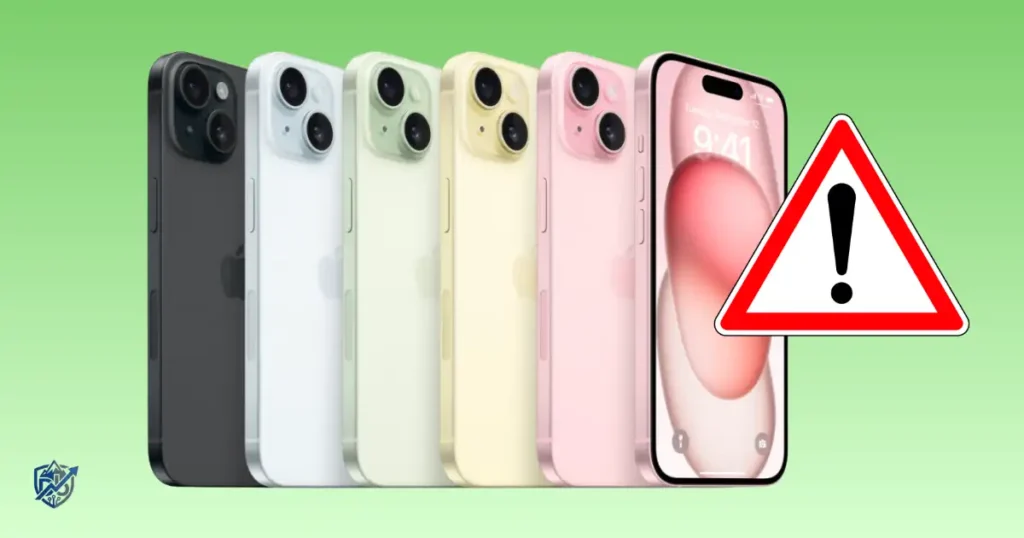
Holding a premium device like the iPhone 15 Pro feels great until a sudden glitch ruins your day. When I bought mine in Seattle, I noticed the back got warm right out of the box. You might wonder if your tech is broken or if it just needs a quick tweak. I have spent months testing every fix for common iPhone 15 Pro problems so you do not have to stress. In this guide, I share my real setup experiences and clear steps to solve every headache quickly.
What Are The Most Common iPhone 15 Pro Problems?
Seeing a glitch on your screen can make you worry about hardware failure. But a reported issue does not mean every iPhone 15 Pro has the same fault. Most bugs come from simple software conflicts that you can fix at home.
Common iPhone 15 Pro Issues
- Overheating during daily use
- Fast battery drain
- Slow charging times
- USB-C charging problems
- Camera crashes or glitches
- Wi-Fi dropouts
- Cellular connection issues
- Bluetooth pairing failure
- Random app crashes
- System lag and freezing
- Black screen on startup
- Touchscreen responsiveness bugs
- Face ID failures
- Speaker or audio distortion
- Temporary image retention
- iOS update-related bugs
Hardware Problems Vs Software Problems
Separating hardware bugs from software glitches saves you time and trips to the store.
- Software bugs: System glitches that vanish after a quick device restart.
- App-specific issues: Crashing that only happens inside one single app.
- Settings problems: Network or display toggles that block normal connections.
- Charging accessory problems: Broken cords or dirty power plugs.
- Network problems: Signal drops caused by your local cell provider.
- Actual hardware faults: Physical damage, cracked parts, or broken internal chips.
Which iPhone 15 Pro Problems Are Usually Easy To Fix?
- Restarting: Clears bad background tasks instantly.
- Updating iOS: Installs official Apple patches for known bugs.
- Updating apps: Fixes code issues from third-party developers.
- Checking storage: Keeps free space open so iOS runs smoothly.
- Testing another charger: Proves if your cable is broken.
- Resetting network settings: Fixes bad Wi-Fi and Bluetooth connections.
- Reinstalling an affected app: Rebuilds corrupted app data safely.
iPhone 15 Pro Overheating Problems
Early buyers reported high temperatures right after unboxing. Apple released iOS 17.0.3 to fix software code that made the A17 Pro chip run hot. Do not view the 2023 launch heat as an unresolved defect today.
Why Did The iPhone 15 Pro Get Hot?
- Early iOS software behavior
- Demanding 3D games
- Long 4K video recording
- Heavy camera app use
- Charging while using the phone
- Exposure to direct sunlight
- High ambient temperatures
- Heavy cellular data use
- Constant background app indexing
Normal Warmth Vs Actual Overheating
- Warm during charging: Normal battery reaction while drawing power.
- Warm during gaming: Expected heat when the A17 Pro chip works hard.
- Hot during long camera sessions: Heavy video processing generates fast heat.
- Performance slowdown: The phone caps speed to lower internal heat.
- Charging pause: iOS stops charging until the battery cools down.
- Temperature warning: Screen locks with a warning sign to prevent damage.
How To Reduce iPhone 15 Pro Heat
- Install the latest available iOS updates.
- Force close demanding background apps.
- Shift the device away from direct sunlight.
- Lower screen brightness levels.
- Let the phone rest in a cool spot.
- Stop using the device while it charges.
Why Hot Weather Matters
Using GPS maps on a hot summer afternoon in a car will raise device heat quickly. Direct sun and high ambient temperatures compound internal heat generation. Always keep your phone in the shade during warm days.
When Overheating May Need Service
- Temperature warnings appear repeatedly during minor tasks.
- The frame becomes painfully hot during simple texting.
- The phone shuts down unexpectedly without warning.
- Battery charging stops constantly due to heat spikes.
- Heavy heat continues after full software restores.
iPhone 15 Pro Battery Draining Too Fast
Battery life depends heavily on local signal strength, screen time, active apps, and ambient weather. No single hidden toggle will magically turn your device into a multi-day power champion.
Common Causes Of Fast Battery Drain
- High screen brightness settings
- Poor cellular signal strength
- Continuous 5G data connections
- Active GPS navigation
- Mobile gaming sessions
- Long camera recordings
- Background App Refresh toggles
- Constant video streaming
- Active VPN background apps
- Natural battery chemical aging
- Recent iOS system updates
Check Battery Usage By App
- Open the Settings app on your iPhone.
- Tap on the Battery section.
- Review your daily and weekly usage activity graphs.
- Check total screen-on and screen-off times.
- Identify apps consuming unusual amounts of daily power.
Check Battery Health
- Open Settings and choose Battery.
- Tap on Battery Health & Charging.
- View the Maximum Capacity percentage score.
- Check for any unexpected shutdown messages.
- Read any official Apple battery service recommendations.
Battery Drain After An iOS Update
Background indexing, file syncing, and database updates temporarily spike CPU power after an update. Apple notes that post-update background tasks can impact battery performance and heat for a few days. Give your device up to three days to settle down.
iPhone 15 Pro Charging And USB-C Problems
The iPhone 15 Pro replaces the older Lightning connection with a versatile USB-C port. Apple supports USB 3 speed data transfers, DisplayPort video output, regular USB-C charging, MagSafe, and Qi2 wireless gear.
iPhone 15 Pro Not Charging
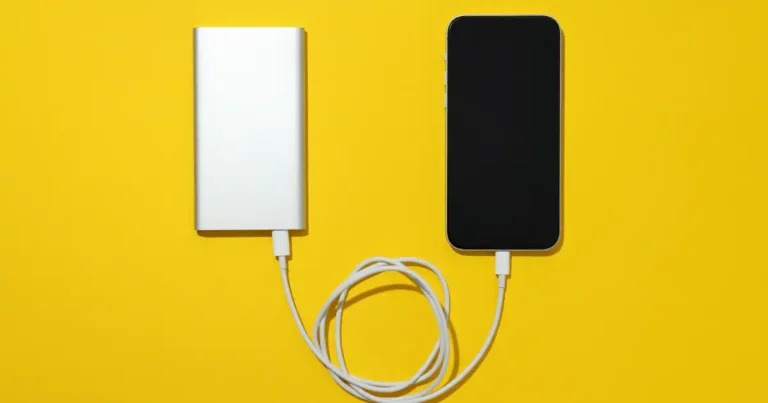
- Swap to a different USB-C cable.
- Test a different USB-C power wall brick.
- Plug into a known working wall outlet.
- Inspect the USB-C port for lint or dust.
- Force restart your iPhone to reset power control software.
How iPhone 15 Pro Charging Slowly
- Verify your charger delivers adequate power output.
- Allow a warm device time to cool down.
- Avoid heavy gaming or video viewing while charging.
- Use a high-quality Power Delivery (PD) USB-C charger.
iPhone 15 Pro Charging Stops At 80%
- Optimized Battery Charging: Pauses power delivery to protect long-term battery health.
- Charge limits: iOS feature designed to cap max charge state at 80 percent.
- Temperature protection: Safety cutoffs pause charging when internal heat spikes.
- Normal safety function: An 80 percent pause indicates active battery protection, not hardware failure.
USB-C Port Problems
- Loose connections caused by debris build-up inside the port.
- Pocket lint packed deeply inside the connector base.
- Physical wear or internal pin damage on cheap third-party cables.
- Damaged internal port pins from bad cable inserts.
- Charging power starting and stopping randomly when moved.
Safe USB-C Troubleshooting
- Ensure the port stays clean and dry at all times.
- Insert connectors smoothly without using extra force.
- Avoid probing the port with metal needles or safety pins.
- Test with a known-good high-speed cable.
iPhone 15 Pro Camera Problems
The upgraded camera system is a core feature, so software crashes or lag here feel frustrating.
Camera App Freezes Or Crashes
- Force close the Camera app and launch it again.
- Restart your iPhone to refresh system memory.
- Update iOS to fix system-level camera bugs.
- Switch between video, portrait, and photo modes.
Camera Shows A Black Screen
- Toggle between the front and rear cameras to test response.
- Perform a quick system restart.
- Check for pending iOS software updates.
- Test camera function inside another app like Instagram.
- Seek repair if the drop damaged internal lenses.
Also, Camera Stutters During Video
- Free up internal storage space for large video files.
- Test lower recording frame rates and resolutions.
- Allow your phone to cool down before recording long clips.
- Install current software updates.
Flash Stops Working
- Check if your phone is too warm for flash operation.
- Let the internal components cool down completely.
- Test the device flashlight via the Control Center.
- Verify if lower battery power mode is active.
Macro And Camera Switching Issues
Automatic macro switching shifts lenses as you move close to subjects. You can control this behavior in your system settings. Go to Settings, select Camera, and toggle Macro Control to manually manage lens switching.
iPhone 15 Pro Display Problems
The iPhone 15 Pro features an advanced 6.1-inch Super Retina XDR OLED screen with 120Hz ProMotion and Always-On features.
Screen Flickering Or Glitches
- Restart your iPhone to clear graphical glitches.
- Install available software updates immediately.
- Adjust screen brightness to see if flickering changes.
- Inspect the front glass carefully for tiny internal cracks.
Screen Dimming Unexpectedly
- Check if device heat triggered auto-protection dimming.
- Toggle the Auto-Brightness switch inside accessibility settings.
- Disable Low Power Mode to restore full screen brightness.
- Check if high ambient temperatures reduced display power.
Image Retention Or Burn-In
- Temporary image retention: Ghost marks that fade away after standard screen activity changes.
- Persistent image retention: Visual artifacts that persist across multiple visual screens.
- OLED burn-in: Permanent pixel wear caused by static elements shown for long periods.
- Software fixes: Apple released updates to address early image retention reports. Do not assume minor image ghosting is permanent hardware burn-in.
When Display Service Is Appropriate
- Ghost images remain visible on dark screens for days.
- The touchscreen misses taps across large visual areas.
- Physical glass cracks fracture the viewable display panel.
- Solid black dots or green line glitches block your view.
- High-frequency screen flickering persists after hard resets.
iPhone 15 Pro Touchscreen Problems
Touchscreen issues like missed taps or erratic scrolling can stem from software bugs, poor screen protectors, moisture, or screen hardware damage.
Common Touch Symptoms
- Taps fail to open icons on the screen.
- Heavy input delay during fast typing sessions.
- Random screen taps triggered without physical contact.
- On-screen keyboard keys freeze up during text entry.
- Smooth vertical scrolling jumps unexpectedly down the page.
How To Test The Touchscreen
- Remove thick glass screen protectors to test raw touch.
- Wipe the display surface dry with a clean cloth.
- Perform a force restart of the phone.
- Test touch input across multiple different applications.
- Tap across all four screen corners to pinpoint dead areas.
When Touch Problems Point To Hardware
- A single screen corner consistently refuses to register touch inputs.
- Touch issues began immediately after a hard floor drop.
- Clear visual cracks spider web across the glass display face.
- Touch response remains broken after full system restores.
iPhone 15 Pro Wi-Fi Problems
Wi-Fi drops stem from router configuration bugs, network issues, or internal system toggles. Always verify router function using a second home device first.
Common Wi-Fi Symptoms
- Wi-Fi drops connection while you move between rooms.
- Network download speeds slow down to a crawl.
- The Wi-Fi icon shows connected, but internet content fails to load.
- Apps show connection error messages repeatedly.
- The local Wi-Fi menu option toggles off randomly.
Quick Wi-Fi Fixes
- Turn Airplane Mode on for ten seconds, then turn it off.
- Restart your iPhone.
- Unplug your home router for thirty seconds, then plug it back in.
- Select your Wi-Fi network name and choose Forget This Network.
- Attempt connecting to a completely different Wi-Fi setup.
- Check for pending system updates.
When To Reset Network Settings
Reset network settings if your phone fails to save multiple saved Wi-Fi networks, exhibits erratic Bluetooth behavior, or dropped connections after a recent VPN update. Note that resetting erases saved passwords, so keep network keys accessible.
iPhone 15 Pro Bluetooth And AirPods Problems
Most Bluetooth issues trace back to pairing bugs or accessory software rather than hardware failure.
Common Bluetooth Problems
- Accessories fail to pair with your iPhone.
- Wireless connections drop off randomly during usage.
- Audio stutters or cuts out while walking outdoors.
- AirPods disconnect during voice calls.
- Saved Bluetooth gear vanishes from your device list.
Troubleshooting Bluetooth
- Toggle the Bluetooth switch off and on in system settings.
- Restart your iPhone.
- Open Bluetooth settings and select Forget This Device.
- Place your accessory into pairing mode and re-pair it.
- Fully charge your Bluetooth accessories before testing.
- Pair a different Bluetooth accessory to isolate the issue.
If Only One Accessory Fails
- Pair the accessory with a different phone or tablet.
- Check if the device needs a companion app update.
- Perform a factory reset directly on the accessory hardware.
- Contact the accessory manufacturer for technical support.
iPhone 15 Pro Performance, Lag, And Freezing
Powered by the A17 Pro chip, the iPhone 15 Pro delivers top-tier speed. System-wide lag usually points to temporary software or storage bottlenecks.
Why iPhone 15 Pro Can Feel Slow
- Free storage space falls below ten percent.
- System components throttle speed due to excessive internal heat.
- Software bugs cause background processing loops.
- Unoptimized third-party apps hog system memory.
- High thermal strain limits processor performance.
- Extremely heavy multi-tasking combined with low battery power.
Fix Lag And Freezing
- Perform a standard device restart.
- Install available iOS system updates.
- Update all installed apps via the App Store.
- Free up internal storage by clearing large temporary files.
- Allow a warm device to cool down before resuming heavy tasks.
- Uninstall recent third-party apps to clear software conflicts.
Don’t Force-Close Every App
Constantly swiping away every open app in the multi-tasking view can actually degrade performance. When you reopen a force-closed app, the system must reload all data into memory from scratch, which consumes more power and processor time than resuming a suspended background app.
iPhone 15 Pro App Crashes And Apps Not Working
When a single app closes continuously, target your troubleshooting at that specific software. If multiple unrelated apps crash simultaneously, expand your focus to main system settings and storage capacity.
One App Keeps Crashing
- Open the App Store and update the affected app.
- Restart your phone.
- Delete the crashing app, then download it fresh from the App Store.
- Send a bug report directly to the software developer.
Multiple Apps Keep Crashing
- Verify your phone runs the latest supported iOS build.
- Ensure your internal system storage is not completely full.
- Check that your Wi-Fi or cellular connections are active.
- Reset corrupted system settings back to factory defaults.
- Check online service status pages for global app outages.
Apps Stuck Loading
- Switch between active Wi-Fi and mobile data networks.
- Toggle Airplane Mode to re-establish network data routing.
- Check if third-party server outages are causing loading hangs.
- Temporarily disable active VPN profiles inside settings.
iPhone 15 Pro Face ID Problems
Face ID relies on the front-facing TrueDepth camera assembly. Distinguish between simple optical obstructions and hardware sensor damage.
Face ID Won’t Recognize You
- Wipe the notch array clean using a soft microfiber cloth.
- Verify your eyes and nose are visible to the front sensor.
- Remove thick screen protectors that cover the top sensor array.
- Reset Face ID inside settings and complete the setup process again.
Face ID Stopped Working After A Drop
- Check the front glass closely for hairline cracks over the sensor.
- Avoid trying third-party internal fixes on tiny camera modules.
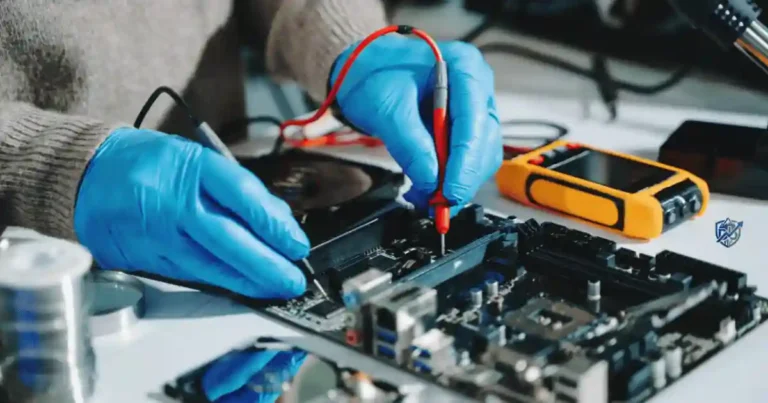
- Take the device in for professional diagnostic scans.
Also, Face ID Error Message
- Write down the specific error text shown on your screen.
- Restart your iPhone.
- Install pending iOS updates to clear system errors.
- Contact Apple Support if a system hardware warning remains.
iPhone 15 Pro Audio And Speaker Problems
Audio issues run the spectrum from dirty speaker grilles to temporary system audio bugs or physical speaker failure.
Speaker Sounds Muffled
- Inspect the lower speaker grilles for accumulated lint or debris.
- Clean external speaker openings using a soft, dry brush.
- Switch between different media playback apps to isolate the issue.
- Verify sound balance settings under accessibility options.
Crackling Or Distorted Audio
- Lower output volume levels slightly during playback.
- Connect wireless headphones to check if audio corruption persists.
- Restart your phone to reset background audio processes.
- Update iOS to clear media decoding bugs.
- Test different audio apps to rule out bad source files.
Microphone Not Working
- Record a short memo in the default Voice Memos app to test sound pickup.
- Place a test phone call using standard cellular voice channels.
- Confirm target apps have microphone access under privacy settings.
- Remove bulky cases that block mic ports located near the base.
iPhone 15 Pro Cellular And 5G Problems
A weak cellular signal is often related to carrier network coverage rather than internal phone antenna hardware.
Common Cellular Problems
- The signal meter shows low reception bars indoors.
- The screen reads No Service or Searching continuously.
- Phone calls drop unexpectedly mid-conversation.
- Mobile data transfers run slowly on cellular connections.
- Network status switches constantly between 5G and LTE modes.
Quick Cellular Fixes
- Toggle Airplane Mode on, wait ten seconds, and turn it off.
- Restart your iPhone.
- Relocate to an outdoor space away from concrete structural walls.
- Tap Settings, select General, then About to check for carrier updates.
- Verify your eSIM profile is active or reseat your physical SIM.
- Install available iOS software updates.
Compare With Another Phone
Test network performance alongside another device on the same mobile network in your exact location. Comparing signal indicators side by side provides a clear diagnostic baseline.
iPhone 15 Pro Black Screen And Startup Problems
A completely black screen does not always mean your iPhone is broken.
Signs The Phone Is Still Working
- The device rings aloud when receiving incoming calls.
- Haptic motor vibrations register when flipping the silent switch.
- System notification tones sound for incoming messages.
- Plugging the phone into a computer prompts a USB detection beep.
- The device location updates accurately inside the Find My app.
Force Restart
- Press and quickly release the Volume Up button.
- Press and quickly release the Volume Down button.
- Press and hold the Side Button until the Apple logo appears.
- Release the side button and wait for the system to boot up.
When The Problem May Be Hardware
- The screen stays dark after thirty minutes on a working charger.
- The device fails to show an Apple logo during a force restart.
- Desktop software fails to recognize the phone via USB.
- The screen went dark after a hard drop or water exposure.
- The display panel shows no backlight activity whatsoever.
iPhone 15 Pro Problems After An iOS Update
Major software updates introduce changes that can temporarily trigger localized device bugs.
Problems That Can Appear After Updates
- Elevated battery consumption rates.
- Warmer operational temperatures.
- Intermittent third-party app crashes.
- Temporary user interface lag.
- Momentary Wi-Fi or cellular dropouts.
What To Do After An Update
- Perform a full restart of your device.
- Open the App Store to update all third-party software applications.
- Check for minor point-release iOS patches published by Apple.
- Review battery settings to identify out-of-date background software.
- Allow background indexing tasks twenty-four to forty-eight hours to complete.
How To Research A Version-Specific Problem
- Note down your exact iOS software build number under About settings.
- Check official Apple release notes for confirmed bug lists.
- Browse Apple Support Community forums for matching user posts.
- Look for multiple independent reports matching your exact symptoms.
- Avoid treating a single forum complaint as proof of a widespread issue.
iPhone 15 Pro Problems Quick Troubleshooting Table
When your iPhone 15 Pro acts up, you want fast fixes that target the root cause without wasting time on unneeded resets. Use this guide to match your exact issue to the best initial step and know when to seek official service.
| Problem | Likely Cause | First Fix | If It Continues |
| Overheating | Software bugs, heavy chip workloads, ambient heat | Update iOS and allow the phone to cool down naturally | Seek professional service if heat persists during light tasks |
| Fast battery drain | Background app activity, low signal strength, battery aging | Check application power usage under settings | Schedule official battery diagnostics |
| Not charging | Damaged cable, dirty USB-C port, faulty wall adapter | Swap to a known-good USB-C cable and adapter setup | Carefully inspect and clean out the USB-C port |
| Camera crashes | Software glitches, corrupted app state | Force restart the phone and check for software updates | Seek service if lens errors persist |
| Wi-Fi drops | Network setting conflicts, home router software bugs | Restart your iPhone and reboot your wireless home router | Reset network settings back to default |
| Bluetooth fails | Paring conflicts, outdated accessory firmware | Toggle Bluetooth off/on and re-pair your target device | Test the accessory on another phone |
| Screen flickers | Temporary graphical bugs, underlying panel damage | Force restart your device and run available software updates | Request official screen repair |
| Apps crash | Outdated third-party apps, low storage, software bugs | Update the app via the App Store | Reinstall the affected app completely |
| Face ID fails | Sensor obstruction, dirty camera, sensor damage | Clean the top TrueDepth camera array thoroughly | Schedule official Apple repairs |
| Phone freezes | Temporary system memory overload, thermal throttling | Perform a hardware force restart sequence | Restore the device using recovery mode |
Which iPhone 15 Pro Problems Need Professional Repair?
Many everyday glitches clear up with simple software tweaks, but hardware damage requires professional care.
Signs Of A Hardware Problem
- Extreme heat generation that continues during basic standby.
- Fractured front glass or cracked rear panel components.
- Physical camera module failures or persistent optical lens rattles.
- Face ID failure warnings following a floor impact drop.
- Loose or damaged internal charging port connector pins.
- Sudden unexpected system power shutdowns with normal battery charge.
- Visible battery swelling, casing gaps, or severe screen lifting.
- Persistent vertical line glitches across the OLED panel.
What To Do Before Service
- Create a complete device backup via iCloud or a computer.
- Install available iOS software updates if the screen works.
- Document exact bug symptoms with photos or short videos.
- Keep your original purchase invoice and service documents ready.
- Never attempt to pry open or repair modern iPhone hardware yourself.
Apple And Authorized Repair Options
Apple recommends using trained technicians and genuine parts for reliable repairs. Independent shops without official diagnostic tools can trigger warning messages inside iOS settings for unverified parts.
How To Prevent Common iPhone 15 Pro Problems
Preventive habits preserve system speed and long-term hardware reliability over time.
Keep iOS And Apps Updated
- Turn on automatic iOS system updates inside software settings.
- Keep third-party applications current via App Store updates.
- Install point-release security updates as soon as they drop.
Keep The Phone Cool
- Keep your device out of direct summer sun exposure.
- Never leave your phone resting inside a parked car on hot days.
- Avoid heavy 3D gaming sessions while fast-charging.
- Give the phone quick cooling breaks during prolonged 4K video recording.
Protect The USB-C Port
- Ensure your USB-C cables and ports remain dry.
- Insert USB-C connectors smoothly without forcing them.
- Replace worn or visibly frayed charging cables immediately.
- Never use metal pins, paperclips, or needles inside the port.
Keep Regular Backups
- Enable automated nightly iCloud backup options.
- Maintain periodic local offline backups using a computer.
- Verify important family photos and files sync properly across cloud storage.
Frequently Asked Questions About iPhone 15 Pro Problems
What is the most common problem with the iPhone 15 Pro?
Overheating during initial setup and fast battery drain were widely reported early on. Most initial thermal issues were solved via software updates, while lingering complaints usually stem from app conflicts, low signal, or background activity.
Does the iPhone 15 Pro still have overheating problems?
No, the early launch heat issues were resolved for most users with the iOS 17.0.3 update. Heat today usually stems from heavy tasks like 4K recording, outdoor sun exposure, or heavy gaming while charging.
Why is my iPhone 15 Pro battery draining so fast?
Fast drain often traces back to high screen brightness, weak signal search, continuous 5G data, or background app refresh. Outdated apps or recent iOS indexing can also temporarily drain power.
Why is my iPhone 15 Pro not charging?
Common causes include dirty USB-C ports, bad cables, low-wattage power adapters, or heat safety cutoffs. Clean the port gently and test with a known-good power cable.
Why is my iPhone 15 Pro camera not working?
Camera blackouts or crashes usually stem from temporary software glitches. Restarting your phone or updating iOS typically restores function, unless a hard fall damaged internal optical lenses.
Why does my iPhone 15 Pro keep freezing?
Freezing happens when free storage space runs low, thermal protection kicks in, or background apps lock up. Force restarting your device clears out bad temporary memory data.
Why is my iPhone 15 Pro Wi-Fi so bad?
Poor Wi-Fi stems from router signal interference, outdated software, or bad saved network settings. Forget the network connection, restart your router, or reset your network settings.
Why is Face ID not working on my iPhone 15 Pro?
Face ID fails when dust, dirty glass, or thick cases block the top TrueDepth camera. Sensor damage from a drop will also trigger system hardware errors.
Can iOS updates fix iPhone 15 Pro problems?
Yes, Apple frequently releases iOS patches to address known software bugs, battery drain, and thermal behavior. Keep your device updated to ensure optimal performance.
When should I get my iPhone 15 Pro repaired?
Seek professional repair if you notice swelling batteries, permanent screen lines, persistent hardware errors, or physical damage from drops that standard resets cannot fix.
iPhone 15 Pro Problems: Quick Troubleshooting Checklist
- Force restart your iPhone to clear temporary background errors.
- Verify your device is running the latest available iOS build.
- Install pending software updates for all your third-party apps.
- Review app consumption stats under your main battery settings menu.
- Check your maximum battery capacity score under health settings.
- Verify available internal storage space stays above ten percent.
- Test internet speeds on both Wi-Fi and mobile data connections.
- Test alternative high-speed USB-C cables and wall chargers.
- Inspect the USB-C port for accumulated dirt or pocket lint.
- Allow hot devices time to cool down in shaded environments.
- Test your camera, microphone, and speaker hardware across apps.
- Verify Face ID responsiveness after cleaning the front glass.
- Back up your personal data using iCloud or a desktop computer.
- Contact official Apple Support if severe hardware symptoms persist.
Final Recommendation
I have used the iPhone 15 Pro through intense testing, daily commutes, and heavy camera sessions. Most iPhone 15 Pro problems stem from simple software conflicts that you can resolve with quick updates, cable swaps, or system restarts. If your device shows hardware damage, seek assistance from certified technicians. Keeping software updated and protecting your phone from extreme heat ensures smooth performance for years to come.

Ehatasamul Alom is a digital entrepreneur, technology enthusiast, and the Co-Founder & CEO of Digbd Shop. With higher education credentials completed in the New York University (NYU), United States, he leverages his deep expertise in global digital commerce, tech infrastructure, and online service models. Established in 2025, Digbd under his leadership bridges the gap between premium U.S. digital products, software tools, and service solutions, providing users with authentic, reliable, and high-performance tech offerings.