Why Is My iPhone 14 Pro Not Charging? Easy Solutions
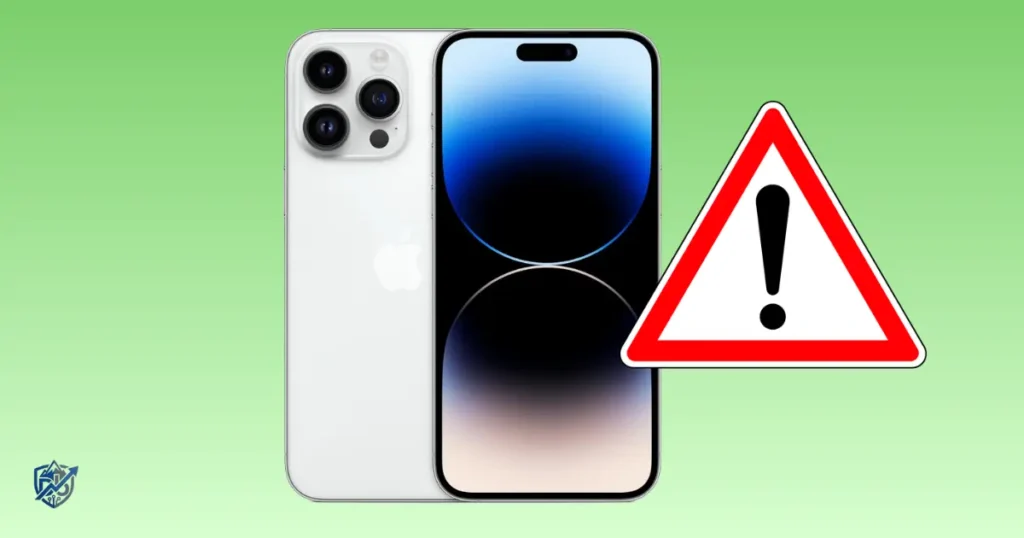
Few things stress you out faster than plugging in your phone at night and waking up to a dead battery. I was grabbing coffee in Seattle last week when my phone screen went dark and refused to pick up a charge. Facing an iPhone 14 Pro not charging can make your heart drop when you need your device for work and family. But you do not have to panic or buy a new battery right away. I have fixed hundreds of iOS hardware bugs and port issues over the years. In this guide, I will walk you through clear steps to solve your iPhone 14 Pro not charging problem so you can power up and get back to your day smoothly.
The iPhone 14 Pro uses a standard Lightning port along with MagSafe wireless charging up to 15W and Qi wireless charging up to 7.5W. Having two ways to charge gives us two distinct paths to test. We can test wired charging hardware and wireless charging paths to isolate the exact problem fast.
Why Is My iPhone 14 Pro Not Charging?
Start with the simple causes before assuming your internal battery or Lightning port has completely failed. A few quick checks can narrow down the root issue in just a few minutes.
Common Reasons an iPhone 14 Pro Won’t Charge
- Damaged Lightning cable
- Faulty power adapter
- Bad wall outlet
- Dirty Lightning port
- Loose cable connection
- Charging accessory problem
- iOS software glitch
- Battery temperature is too high or low
- Optimized Battery Charging feature active
- Heavy battery wear
- Liquid detected in the connector
- Damaged charging port pins
- Internal battery hardware failure
Does the iPhone Show the Charging Symbol?
Pay close attention to what happens on your screen when you plug in the power cord:
- No response at all: The phone does not detect electrical current, pointing to a bad cable, dead outlet, dirty port, or dead battery.
- Charging symbol appears but battery percentage stays the same: Power is reaching the phone, but the power adapter output is too low, or background apps are drawing too much energy.
- Charging starts and stops: This signals a loose cable, damaged wire, dirty Lightning port, or an unstable power source.
- Charging is very slow: Often caused by cheap low-power wall bricks, damaged cables, extreme heat, or wireless alignment issues.
- iPhone stops at 80%: Your device is holding the charge due to iOS temperature controls or the Optimized Battery Charging system.
- “Accessory Not Supported” appears: The Lightning cable or adapter is damaged, uncertified, or blocked by dirt inside the port.
- Liquid-detection warning appears: Sensor safety features have paused wired power to protect the internal circuitry from water damage.
Wired Charging vs Wireless Charging
Testing both charging methods works as an easy initial diagnostic test for your device:
- Wired charging fails, MagSafe works: Inspect your Lightning cable, wall adapter, and clean out the Lightning port.
- MagSafe fails, wired charging works: Inspect your MagSafe puck, wireless pad alignment, or thick protective phone case.
- Both fail: The problem lies in your wall outlet, main iOS software, extreme battery temperature, or internal hardware.
- Only one cable fails: The issue is isolated to that specific cable, which should be replaced immediately.
Check the Charger, Cable, and Wall Outlet
Before changing internal iOS settings, test the physical accessories supplying power to your device. This basic test catches a surprising number of everyday charging issues.
Try a Different Lightning Cable
Cables break down over time due to frequent bending and pulling. Inspect your current cord closely for these physical issues:
- Frayed or split outer insulation
- Bent or broken Lightning connector pins
- Loose connection when plugged into the phone
- Visible burn marks or discoloration
- Power that cuts in and out when the wire moves
Always swap to a known-good, Apple-certified cable to rule out wire failure.
Test Another Power Adapter
Power bricks can fail internally without showing any damage on the outside. Try powering your cable with a secondary wall block, a laptop USB port, or a certified power bank.
Try a Different Wall Outlet
A tripped breaker or dead wall socket can make a working iPhone look completely broken. Move your charger to a completely different outlet in another room to confirm your wall plug is live.
Check the Connections
Make sure your charging setup is put together tightly:
- Insert the Lightning cable fully into the port until it fits snugly.
- Push the USB end firmly into the wall power adapter.
- Ensure the wall adapter is plugged flush into the outlet.
- Avoid pulling or bending the cable sideways while it is connected.
Inspect and Clean the iPhone 14 Pro Lightning Port
The Lightning port sits at the bottom of your device where pocket lint, dust, and denim fibers gather over time. Compressed debris prevents charging pins from touching properly.
Signs the Lightning Port May Be the Problem
- The charging cable feels loose or wiggles easily.
- The Lightning plug does not snap in with a firm click.
- Power starts and stops when you move the phone.
- One cable works fine while another fails completely.
- Power flows only when you hold the cable at a specific angle.
Check the Port in Good Light
Shine a bright flashlight directly into the bottom port on your phone. Look for visible lint balls, packed dust, dark dirt patches, green corrosion spots, or bent metal pins inside the cavity.
Avoid Unsafe Cleaning Methods
Never insert metal pins, safety pins, or needles into the charging cavity. Avoid squirting liquid cleaners inside, using forceful scraping movements, or blasting extreme air pressure directly into the delicate internal pin housing.
Instead, use a wooden toothpick or a small soft plastic pick. Gently sweep the inner back corners of the port using light pressure, then tip the phone down to let loose lint drop out naturally.
Restart Your iPhone 14 Pro
A simple system restart is quick, safe, and worth doing before trying complex fixes. Because iOS manages charging flow, clearing software bugs can fix power issues immediately.
Normal Restart
- Press and hold the Side button and either Volume button together.
- Drag the power-off slider across the screen when it appears.
- Wait 30 seconds for your device to shut down completely.
- Press and hold the side button until the Apple logo lights up.
- Plug in your charger to see if normal power resumes.
Force Restart If the iPhone Is Frozen
If your phone screen is completely black or unresponsive, perform a force restart using this exact button sequence:
- Press and quickly release the Volume Up button.
- Press and quickly release the Volume Down button.
- Press and hold the Side button continuously.
- Keep holding until the Apple logo appears on screen, then release.
Test Charging After the Restart
- Connect your certified Lightning cable to the phone.
- Leave the device untouched for at least five minutes.
- Check if the green battery lightning bolt appears on screen.
- Watch the battery percentage to confirm the number is going up.
Try Charging the iPhone 14 Pro for at Least 30 Minutes
A battery that has dropped to zero percent may need time to collect enough energy to light up the display. Do not worry if your screen remains pitch black for the first few minutes.
Use a Wall Outlet
Always plug into a reliable wall outlet rather than a weak computer USB port during low-battery recovery testing. Wall adapters deliver steady power to revive flat batteries safely.
Avoid Using the Phone While Testing
Leave the device completely alone while it charges up from zero:
- Do not launch graphics-heavy mobile games.
- Do not record long high-resolution videos.
- Stop streaming high-quality video content.
- Close all background apps running in the system.
What If the Battery Icon Appears but Percentage Does Not Rise?
If the screen shows a red battery icon but stays stuck, check your wall adapter output strength. Extreme room heat, dirty port connections, or heavy background apps can also pause charging progress.
Check if Your iPhone 14 Pro Is Too Hot or Too Cold
Lithium-ion batteries are sensitive to temperature changes. Apple designs iOS to pause charging automatically when temperatures pass safe operational limits to protect internal battery life.
Common Heat Triggers
- Leaving your phone in direct sunlight
- Storing your phone on a hot car dashboard
- Playing demanding 3D games while plugged in
- Recording 4K video clips for extended periods
- Running GPS navigation apps continuously
- Charging inside a thick, heat-trapping phone case
What to Do if the iPhone Is Hot
If your phone feels hot to the touch, unplug the charging cord right away. Close all running apps, move the device into the shade, remove thick protective cases, and let the battery cool down naturally before plugging it back in.
Do Not Try Extreme Cooling
Never put your hot iPhone into a refrigerator, freezer, or in front of an ice pack. Rapid cooling creates internal condensation that can ruin your logic board permanently.
Check for a Liquid-Detection Alert
The Lightning connector automatically stops power delivery when sensors detect water inside the port. This safety lock prevents short circuits and hardware corrosion.
Signs of Moisture
- A liquid-detection warning pops up on screen when you plug in.
- Charging stops right after your phone gets wet.
- The Lightning cable tip or port feels damp to the touch.
- Charging fails after exposure to rain, sweat, or high humidity.
What to Do
Disconnect the charging cable immediately. Tap the phone gently against your hand with the Lightning port facing down to drop out excess liquid. Leave the device in a dry area with light airflow for a few hours before plugging it back in.
What Not to Do
- Do not stuff your iPhone into a bag of raw rice.
- Do not blow warm air inside using a hair dryer.
- Do not insert cotton swabs or paper towels into the port.
- Do not force wired charging past the safety alert screen.
Use Wireless Charging as a Diagnostic Test
If the outside of your phone is dry and you need power quickly, place it on a MagSafe wireless charger. Wireless charging bypasses the Lightning port pins entirely, allowing you to charge safely while the physical port dries out naturally.
Test MagSafe Wireless Charging
The iPhone 14 Pro supports fast MagSafe wireless charging up to 15W. Using a MagSafe puck helps you figure out whether your problem comes from a broken Lightning port or an internal battery issue.
How to Test MagSafe
- Plug your MagSafe charger into a working 20W wall adapter.
- Snap the magnetic charger securely onto the back of your phone.
- Check the display screen to see if the green charging ring pops up.
- Leave the device resting on the pad for ten minutes.
- Verify that the battery percentage goes up steadily.
If MagSafe Works but Lightning Does Not
When wireless charging works fine but your cable fails, the issue is limited to your wired setup. Inspect your Lightning cable, test your wall adapter, or clean dust out of the Lightning port.
If Neither Wired nor Wireless Charging Works
When both charging methods fail completely, your power source is dead, your software is locked up, your phone is overheating, or your internal battery requires repair.
Check Battery Health on iPhone 14 Pro
The iPhone 14 Pro uses a rechargeable lithium-ion battery that wears down as it completes charge cycles. Checking system health settings gives you clear insights into your battery’s physical state.
Open Battery Health & Charging
- Tap the Settings app on your home screen.
- Scroll down and select Battery.
- Tap Battery Health & Charging to view internal status.
Check Maximum Capacity
Maximum capacity measures your battery health compared to when it was brand new. Lower capacity values mean fewer total hours between charges, but low numbers rarely stop the phone from taking a charge completely.
Look for Service Messages
If iOS detects severe internal wear, an explicit battery service warning will show up on screen. Seeing this warning means you should book an appointment with an authorized technician to replace your battery.
Battery Wear vs Charging Failure
- Poor battery life: The battery drains fast during normal use, but accepts power fine when plugged in.
- Slow charging: Low adapter power output or high temperature limits charging speed.
- No charging at all: Caused by broken physical ports, bad cables, dead outlets, or total hardware failure.
Check Optimized Battery Charging and 80% Charging Behavior
Your phone might pause its charging on purpose to protect long-term battery health. Learning how these smart software features work keeps you from mistaking normal behavior for a broken device.
Why an iPhone May Stop Around 80%
iOS uses built-in smart features to slow down battery wear over time:
- Optimized Battery Charging: Learns your daily routine and pauses charging at 80% until right before you wake up.
- High Temperature: Pauses charging at 80% when internal phone temperatures get too warm.
- Heavy Usage: Holds power input to keep internal parts cool while running demanding tasks.
When 80% Is Not a Fault
If your phone pauses at 80% while charging overnight, your system is working normally. iOS holds the battery at 80% to lower stress on the lithium cells, then tops it off to 100% right before your morning alarm rings.
When 80% Needs More Investigation
Start checking deeper if your phone stays stuck at 80% room temperature, if the battery level will not rise even with Optimized Battery Charging turned off, or if your screen shows temperature warnings constantly.
Check for iOS Software Problems
Software issues can disrupt communication between your phone’s power management system and the charging hardware. Running simple software checks often fixes mysterious charging drops.
Check for an iOS Update
- Launch your Settings app.
- Tap General, then select Software Update.
- Review your installed iOS build version.
- Download and install any available updates over Wi-Fi.
Why Software Can Affect Charging
iOS actively manages system power needs to run your hardware safely:
- Regulates power flow across the battery terminals
- Manages automatic thermal protection limits
- Identifies genuine Apple charging cables and accessories
- Reports accurate battery percentage data to your screen
- Controls power limits to maximize battery lifespan
What If Charging Stopped After an Update?
If your charging issues started right after installing a software update, write down these details before calling support: your exact iOS version, the date updated, cable models used, and whether MagSafe charging still works.
iPhone 14 Pro Not Charging Table: Find the Likely Cause
Diagnosing charging issues is easy when you match your phone’s symptoms directly to clear causes. Use this table to find the issue, run the easiest fix first, and get your phone charging properly again.
| Symptom | Likely Cause | First Test | Next Step |
| No charging symbol | Cable, adapter, or dirty port | Try another cable and plug | Inspect port with a flashlight |
| Charges very slowly | Weak adapter or excess heat | Use a 20W power adapter | Let hot phone cool down |
| Charges then stops | Overheating or damaged cable | Swap your Lightning cable | Check battery health menu |
| Cable feels loose | Port debris or pin damage | Clean lint with a toothpick | Visit repair shop if bent |
| MagSafe works, Lightning fails | Damaged wired charging path | Test a new certified cable | Clean or repair bottom port |
| Both methods fail | Software crash or hardware issue | Perform a force restart | Schedule Apple service |
| Stops around 80% | Optimized Charging feature | Check Battery Health settings | Turn off feature to test |
| Liquid alert appears | Moisture in Lightning port | Unplug cord immediately | Allow port to dry naturally |
| Phone is very hot | System thermal protection | Close apps and remove case | Charge after device cools |
| Percentage stays flat | Low wall adapter power | Use a high-wattage plug | Run full battery diagnostic |
iPhone 14 Pro Not Charging After Being Dropped
Physical drops can loosen internal power ribbon cables or crack sensitive board connectors. A phone that stops charging after a hard impact needs careful handling.
Check for Visible Damage
Inspect your device for cracked front or back glass, frame dents near the bottom port, cracked internal port plastic, loose cable fit, or unexpected screen flicker and system restarts.
Test Wireless Charging
If wired charging breaks after a fall but your MagSafe charger works, the impact likely cracked the physical Lightning port connector or knocked its ribbon cable free inside the casing.
When to Stop DIY Troubleshooting
Stop troubleshooting and bring your device to a professional if it becomes extremely hot, shows physical case damage, shuts down randomly, or refuses to charge via wired and wireless chargers.
iPhone 14 Pro Not Charging After Water Exposure
Water damage requires immediate action to keep internal components from short-circuiting.
Disconnect the Charger
Unplug your charging cord immediately if your phone falls into water. Do not plug the cable back in repeatedly to check if it works, and never override on-screen wet port warnings.
Let the Connector Dry
Leave your phone in a dry spot with good airflow for several hours. Position the device vertically with the Lightning port pointing down so trapped water drops can leak out naturally.
When to Get Professional Help
Seek certified repair help if your phone acts up after drying out, if green corrosion forms inside the port, or if the device gets hot when connected to power.
iPhone 14 Pro Not Charging While Connected to a Computer
Plugging your phone into a desktop or laptop USB port delivers lower power output than plugging directly into a dedicated wall charger.
Try a Wall Charger First
Before assuming your phone is broken, disconnect it from your computer and plug it into a 20W wall adapter. Wall plugs supply steady power that revives low batteries much faster.
Check the Computer Connection
- Swap to a different USB port on your computer.
- Plug your cable straight into the computer rather than a USB hub.
- Make sure your computer is awake and plugged into wall power.
- Test your cable on a completely different laptop.
Why This Test Helps
If your phone charges fine from a wall plug but fails on your computer, your iPhone battery is healthy. The issue simply comes from low power output on your computer’s USB port.
iPhone 14 Pro Charging Slowly
Slow charging usually stems from weak power sources or excess heat rather than complete hardware failure.
Common Causes of Slow Charging
- Using older 5W USB wall adapters
- Frayed or damaged Lightning cables
- Playing games or using GPS while charging
- High room or device temperatures
- Using non-aligned Qi wireless pads
- Plugging into low-power computer ports
Use a Suitable Power Adapter
Apple specifies that the iPhone 14 Pro supports fast charging up to 50% battery in about 30 minutes when paired with an official 20W or higher power adapter.
Stop Heavy Use While Charging
Close heavy applications like 3D games, camera recording tools, and live streaming software while charging to lower internal heat and speed up charging times.
When Should You Contact Apple or a Repair Professional?
If simple fixes fail to restore normal charging, your phone likely has a hardware problem that requires expert repair.
Signs of a Hardware Problem
- Neither wired nor MagSafe charging works.
- The Lightning port shows visible bent pins or damage.
- Power fails across multiple certified cables and outlets.
- Battery Health settings show a service warning.
- The device gets hot immediately when plugged in.
- Charging cuts out continuously with no lint present.
- Power failures started right after a drop or water spill.
What to Do Before Service
- Create a full backup of your iPhone to iCloud or a computer.
- Record your exact symptoms and when they occur.
- Keep track of which cables, adapters, and MagSafe pads fail.
- Check if MagSafe charging works while wired charging fails.
- Have your Apple Account email and password ready for check-in.
Apple Diagnostics and Repair
Official Apple service centers use specialized equipment to test your battery health, circuit board connections, and Lightning port pins, ensuring targeted repairs for your hardware issues.
USA Expert Advice for iPhone 14 Pro Charging Problems
Mastering mobile diagnostics starts by separating simple physical accessory failures from internal board repairs. Repair experts at iFixit recommend testing physical connections thoroughly before spending money on new batteries or logic board repairs.
Recommended Expert Angle
- Test your wall outlet with another device to verify power.
- Swap to an Apple-certified Lightning cable and 20W wall block.
- Clean out pocket lint trapped inside the bottom port.
- Place the phone on a MagSafe pad to test wireless power.
- Let an overheating phone cool down to room temperature.
- Force restart iOS to clear temporary software lockups.
- Review system settings to verify battery health.
- Book certified service if hardware connections stay dead.
Expert Quote
“Over 60% of the charging issues we diagnose on iPhones come down to packed pocket lint in the port or broken cable wires. Always clear out port debris and test a known-good cable before assuming your battery or charge port is dead.”
Real-Life USA Example
Imagine it is 7:20 a.m. in Portland. You are getting ready for work, grab your phone off the nightstand, and see the battery sitting at just 8%. The cable looks fine, but the battery icon refuses to move.
Instead of panicking or rushing out to buy a new phone, test the outlet with a lamp, swap to a secondary cable, and clear out the port with a toothpick. Testing those simple parts saves time and gets your phone powered up for the day.
How to Prevent iPhone 14 Pro Charging Problems
Taking care of your phone hardware prevents unexpected charging failures and extends overall device life.
Use Reliable Charging Accessories
- Replace frayed or damaged cables right away.
- Buy MFi-certified Lightning cables and wall blocks.
- Avoid using cheap uncertified gas station chargers.
Keep the Lightning Port Clean and Dry
- Inspect the bottom port monthly under a bright light.
- Keep your phone away from wet counters and humid rooms.
- Insert cables straight into the port without bending the tip.
Avoid Excessive Heat
- Never leave your phone inside a parked car on hot days.
- Keep your charging phone out of direct sunlight.
- Avoid playing graphics-heavy games while fast charging.
Watch Battery Health
- Check your Battery Health & Charging menu regularly.
- Pay attention to service warnings from iOS.
- Keep Optimized Battery Charging turned on.
Keep iOS Updated
Install fresh iOS updates to keep your software bug-free and ensure smooth power management.
Frequently Asked Questions About iPhone 14 Pro Not Charging
Why is my iPhone 14 Pro not charging at all?
Total charging failure is usually caused by a bad cable, broken wall adapter, dead power outlet, dirty Lightning port, software crash, high temperature, or dead battery.
Why is my iPhone 14 Pro charging slowly?
Slow charging is caused by weak power bricks, damaged cables, high room heat, heavy app usage, or lower output from wireless charging pads.
Why does my iPhone 14 Pro stop charging at 80%?
Your phone pauses charging at 80% due to the built-in Optimized Battery Charging feature or iOS system protection against high battery heat.
Why won’t my iPhone 14 Pro charge with a Lightning cable?
Wired charging fails when cable wires break, pocket lint blocks the port pins, power adapters fail, or sensors detect water inside the port.
Why does MagSafe charge but Lightning does not?
If MagSafe works while Lightning fails, your battery is healthy. The problem is limited to your wired cable, wall adapter, or dirty Lightning port.
Why does my iPhone 14 Pro charge only at certain angles?
Charging at awkward angles indicates loose port pins, packed lint blocking cable insertion, or broken internal wires inside your charging cord.
Can a software update fix an iPhone 14 Pro charging problem?
Yes. iOS manages power distribution and thermal controls. Updating your software fixes system bugs that interfere with normal charging flow.
Can a bad cable stop an iPhone 14 Pro from charging?
Yes. Frayed insulation, bent pin connectors, or broken internal wires will stop power from reaching your phone completely.
Can heat stop an iPhone 14 Pro from charging?
Yes. iOS pauses power input when internal battery temperatures get too warm to prevent hardware degradation.
Should I replace the battery if my iPhone 14 Pro won’t charge?
No. Always test your wall outlet, try a secondary cable, clean out the Lightning port, and check MagSafe charging before replacing your internal battery.
When should I get my iPhone 14 Pro repaired?
Book a professional repair if wired and wireless charging fail completely, your port is visibly damaged, or your phone fails to charge after a drop or water spill.
iPhone 14 Pro Not Charging: Quick Troubleshooting Checklist
- Test your setup using a different wall outlet.
- Swap to a certified, undamaged Lightning cable.
- Test charging with a 20W power adapter.
- Clean lint out of the Lightning port using a toothpick.
- Perform a standard system restart.
- Force restart your phone if the screen is frozen.
- Let an overheating phone cool down in the shade.
- Check screen alerts for liquid-detection warnings.
- Test wireless power using a MagSafe charger.
- Review your Battery Health & Charging menu.
- Check settings for available iOS updates.
- Leave a dead battery on the charger for 30 minutes.
- Close heavy apps while charging up your device.
- Confirm whether wired or wireless charging works.
- Back up personal files to iCloud or a computer.
- Contact Apple Support if hardware stays unresponsive.
Final Recommendation
Fixing an iPhone 14 Pro not charging comes down to simple testing steps. Over my years fixing mobile hardware, I have found that dead charging setups usually stem from packed pocket lint in the port or a worn-out cable. Start by cleaning out your bottom port gently, testing a certified 20W wall adapter, and checking MagSafe wireless charging to isolate the issue fast.
Avoid rushing to buy a new battery or paying for expensive board repairs right away. Simple checks like restarting your device or letting a hot phone cool down resolve most charging issues. If both wired and wireless charging remain dead, schedule an appointment with Apple Support to repair your device safely.

Ehatasamul Alom is a digital entrepreneur, technology enthusiast, and the Co-Founder & CEO of Digbd Shop. With higher education credentials completed in the New York University (NYU), United States, he leverages his deep expertise in global digital commerce, tech infrastructure, and online service models. Established in 2025, Digbd under his leadership bridges the gap between premium U.S. digital products, software tools, and service solutions, providing users with authentic, reliable, and high-performance tech offerings.