How to Clean a Smartphone Charging Port Safely at Home
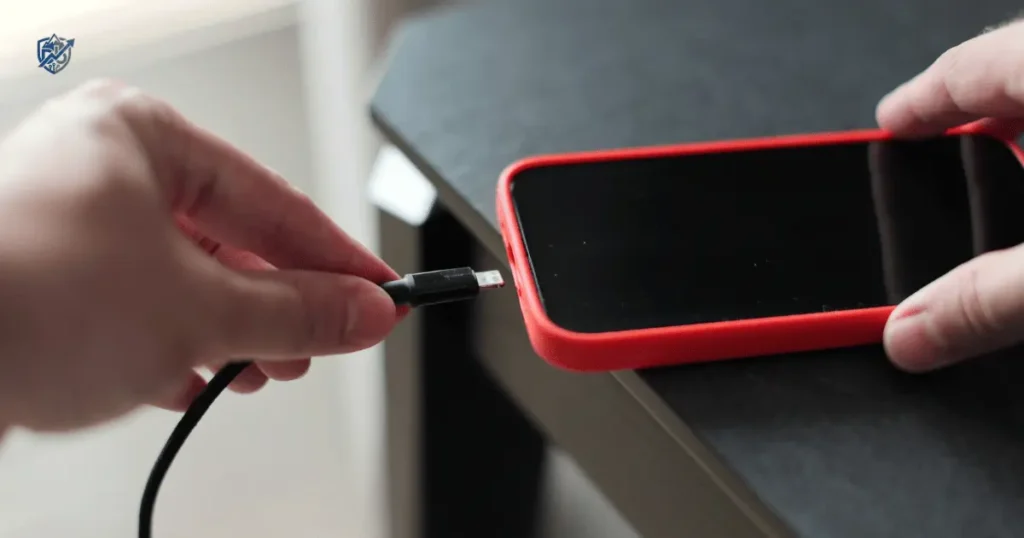
Your phone screen shows the charging icon for a second, then goes black. You wiggle the cord in frustration while walking down a busy street in New York. It works briefly, then dies again. Before you buy a new cable or rush to a repair shop, check the port. A tiny accumulation of pocket lint is often the real culprit. Learning how to clean a smartphone charging port safely at home takes just five minutes and saves you money.
Why Does Your Smartphone Charging Port Get Dirty?
Smartphones live in tight spaces like pockets, purses, and backpacks. Every time you slide your device away, tiny bits of debris enter the open jack. Over months of daily use, this space acts like a miniature vacuum cleaner bag.
Your pocket is a dust trap
Denim pockets contain thousands of loose cotton fibers. Bags accumulate grit, crumbs, and fine dust. The open design of modern jacks makes them ideal collection points for everyday waste.
- Pocket lint
- Dust particles
- Fabric fibers
- Stray hair
- Fine sand
- Small debris
- Skin oils
- Dirt from bags and surfaces
Why lint gets packed inside the port
Inserting your charging cord pushes loose dust deep into the bottom of the cavity. Each plug-in compresses the material into a hard layer. Movement in your pocket packs it tighter. Ambient humidity or skin oils bind the particles into a solid plug.
Why the dirt can cause charging problems
Electricity needs clear contact between metal surfaces to flow. Compressed debris forms a physical barrier between the cord pins and the port contacts.
- Cable not seating fully
- Loose connection
- Intermittent charging
- Slow charging speed
- Charging that stops when the phone moves
The “works when I hold the cable at an angle” clue
Holding your cord sideways pushes the metal pins past the packed lint layer. This trick works temporarily, but it places extreme strain on delicate internal solder joints.
- Packed lint blocking bottom pins
- Damaged or frayed cable wire
- Worn charging port housing
- Bent internal contact points
Signs Your Smartphone Charging Port Needs Cleaning
Do not guess whether your device is dirty. Look for clear physical symptoms before starting any maintenance work on your phone.
Your charging cable keeps falling out
A clean jack allows the plug to seat deeply with a sharp click. If the cord pops out at the slightest bump, debris is preventing full entry.
The phone charges only at certain angles
If power flows only when propping the cord against a book, lint is likely blocking one side of the connection.
Charging starts and stops
Frequent reconnect chimes usually indicate a loose physical connection caused by accumulated dust inside the cavity.
The phone charges very slowly
Partial contact lowers current delivery. Your phone may display power receiving status, but the battery level barely rises.
The cable does not click or sit firmly
Modern cables feature spring-loaded clips designed to snap into port grooves. Packed dirt fills these side grooves, making the fit feel soft and springy.
You can see visible lint or dust
Shine a bright light directly into the opening. If the bottom looks grey, fuzzy, or uneven, it needs attention.
Your computer does not recognise the phone
Data transfer requires clean connections on all pin channels. Debris can block data pathways while still allowing basic power flow.
Not every charging problem is caused by dirt
Rule out hardware failures before assuming dust is the sole issue.
- Bad cable
- Faulty charger
- Damaged wall adapter
- Worn charging port
- Battery issue
- Software problem
- Liquid damage
What You Need Before Cleaning a Smartphone Charging Port
Gathering gentle, non-conductive tools prevents accidental damage to fragile metal pins inside your device.
Recommended tools
Simple household items work best when used with care.
- Bright flashlight
- Wooden toothpick
- Plastic pick
- Soft, dry brush
- Smartphone flashlight from another device
- Compressed air, used cautiously if appropriate
Optional tools
Specialized gear makes inspection easier if you perform maintenance often.
- Magnifying glass
- Anti-static brush
- Professional electronics cleaning brush
What you should avoid
Never insert harsh or conductive tools into delicate electronics.
- Metal needles
- Paper clips
- Safety pins
- Sharp blades
- Wet cotton swabs
- Excessive liquid
- Household vacuum cleaners directly on delicate components
Why metal tools are risky
Metal tools conduct electricity and can short-circuit delicate power controllers inside your phone.
- Scratching gold-plated contacts
- Bending thin internal pins
- Creating electrical shorts
- Damaging the port housing
Before You Clean, Turn Off Your Smartphone
Safety comes first when working with electronic connections. Turning off your phone protects its internal circuitry.
Shut down the phone completely
Disconnect the cord immediately. Press and hold the power button to shut down the device fully. Remove protective cases for a clearer view.
Let the phone cool down
Warm batteries are more susceptible to damage. Wait ten minutes if your phone was heavy gaming or fast charging recently.
Work in a bright, clean area
Set up your workspace on a clear table under bright overhead light. Wash and dry your hands to remove skin oils before handling small tools.
Do not clean while the phone is charging
Working on a live circuit creates serious risks of electrical shorts, heat generation, or permanent logic board failure.
How to Inspect a Smartphone Charging Port Safely
Visual inspection reveals exactly what is happening inside the jack before you insert any tools.
Shine a light into the port
Angle a light directly into the opening while looking inside.
- Compact lint
- Dust
- Sand
- Corrosion
- Bent components
- Foreign objects
Identify the port type
USB-C ports feature a center circuit tongue. Lightning ports have smooth hollow cavities with side pins. Micro-USB ports feature an asymmetrical tab.
Look at the charging cable too
Inspect the cord end for bent metal shields, dirt build-up, or dark burn marks on gold pads.
Use another cable for comparison
Test a fresh, working cord before cleaning. If the new cord fits firmly, your original cable is the source of the issue.
How to Clean a Smartphone Charging Port Step by Step
Follow these exact steps to remove dirt without scratching sensitive connection pins.
Step 1 — Turn off the phone
Disconnect all cables and shut down power completely.
Step 2 — Shine a light into the port
Examine the inner walls and bottom surface to locate packed dirt.
Step 3 — Hold the phone with the port facing down
Gravity allows loosened dust particles to fall outward naturally rather than settling deeper into the housing.
Step 4 — Use a wooden or plastic pick gently
Insert your toothpick along the side wall. Carefully drag it along the bottom edge, pulling debris outward toward the opening.
Step 5 — Remove loose debris
Use a soft, dry brush to sweep away remaining surface dust from the port opening.
Step 6 — Inspect again
Shine your light back inside to check if gold contact pins are clean and clear of obstruction.
Step 7 — Reconnect the charging cable
Plug your cable in gently. It should seat deeply with a distinct, firm click.
Step 8 — Test charging
Power on the phone. Verify that power flows consistently without dropping out when moved.
The most important rule
Never scrape aggressively. Gentle, controlled sweeps are all you need to clear packed cotton fibers.
How to Clean a USB-C Charging Port
USB-C ports require extra care because they contain a delicate center circuit board called a tongue.
Identify the USB-C port structure
The central tongue holds sensitive contact pins on both sides. Dirt typically packs into the deep grooves surrounding this center tab.
Remove packed lint carefully
Work your plastic pick around the perimeter walls. Keep the tool flat against the outer shell to avoid touching the delicate middle section.
Avoid the centre contact area
Applying side pressure to the center tongue can snap internal board traces and permanently ruin the jack.
Check whether the USB-C cable clicks properly
A proper fit feels solid. If the plug feels loose, fine dust remains trapped in the deep side corners.
How to Clean an iPhone Charging Port
iPhones feature either Lightning or USB-C connectors depending on the generation.
Lightning port cleaning
Older iPhones feature hollow ports with pins along the inner bottom roof. Slide your pick along the back wall to pull out lint safely.
USB-C iPhone charging ports
Newer iPhone models use standard USB-C jacks. Follow perimeter cleaning methods to protect the center pin board.
Check for liquid detection warnings
If your screen displays a liquid detection warning, unplug the phone immediately. Allow it to air dry completely before attempting any physical cleaning.
Do not confuse debris with liquid damage
Greenish crust, white powder, or dark spots indicate liquid exposure rather than harmless pocket dust.
Can You Use a Toothpick to Clean a Charging Port?
Yes, a wooden toothpick is one of the safest home tools available because wood is non-conductive and soft.
Why a wooden toothpick may work
Wood will not short-circuit electronics or scratch gold contact pads if used with moderate hand pressure.
How to use one safely
Shave the tip slightly with your fingernail if it feels too thick for narrow side gaps.
- Use a clean, dry toothpick
- Apply very little pressure
- Work around the edges
- Pull debris outward
What not to do
Avoid aggressive twisting or jamming actions that can snap the tip inside the phone.
- Jam it deep into the port
- Twist aggressively
- Scrape internal contacts
- Break the toothpick inside the port
Better option: a plastic pick
A thin plastic dental pick offers superior strength, flexibility, and precision control without the risk of splintering.
Should You Use Compressed Air to Clean a Charging Port?
Compressed air clears surface dust quickly, but high pressure can damage delicate internal phone parts if misused.
Potential benefits
Air bursts dislodge loose particles without requiring physical contact with metal pins.
Potential risks
Can pressure can drive loose dust deeper into phone speaker grilles or force moisture into internal seals.
If using compressed air
Hold the air can upright at a safe distance and use brief blasts.
- Follow device and can instructions
- Keep the can upright
- Use short, gentle bursts
- Keep a safe distance
- Never insert the nozzle into the port
Do not use your mouth to blow into the port
Human breath contains microscopic water droplets. Blowing directly into an electronic port introduces moisture that causes long-term pin corrosion.
What Not to Use When Cleaning a Charging Port
Avoiding harmful cleaning practices protects your device from permanent electrical and physical damage.
Do not use metal objects
Metal tools instantly scratch protective plating off contact pins and risk shorting internal circuits.
- Needle
- Pin
- Paper clip
- SIM ejector tool
- Knife
Do not pour liquid into the port
Never pour liquids into phone openings. Moisture corrodes metal contacts rapidly.
- Water
- Alcohol poured directly into the port
- Household cleaners
- Soap
Do not use excessive force
Poking aggressively damages internal retaining clips, making future cable connections loose forever.
Do not poke blindly
Always use a strong light source. Poking blindly risks snapping internal components.
Do not clean while connected to power
Cleaning a live circuit can cause sparks, electrical shorts, or damage to your home charger.
The “tiny port, big repair bill” rule
A single hasty poke with a metal pin can turn a simple free cleaning job into an expensive hardware replacement bill.
Charging Port Cleaning Tools Comparison
Choosing the right tool prevents accidental damage to delicate internal components.
This tool comparison helps you choose safe, effective options based on my hands-on repair experience.
| Tool | Best Use | Risk Level | Recommendation |
| Wooden toothpick | Packed lint | Low if gentle | Good for careful cleaning |
| Plastic pick | Compact debris | Low | Excellent option |
| Soft dry brush | Loose dust | Very low | Good for surface debris |
| Anti-static brush | Fine dust | Very low | Good specialist option |
| Compressed air | Loose dust | Medium | Use cautiously |
| Metal needle | Not recommended | High | Avoid |
| Paper clip | Not recommended | High | Avoid |
| Liquid cleaner | Not recommended | High | Avoid direct application |
For most people, a light, a wooden toothpick, and a soft dry brush are all you need. Expensive tool kits are rarely necessary.
How to Clean a Charging Port Without Damaging It
Follow these safety principles to clean your device without causing harm.
Use less force than you think
Gentle friction dislodges lint easily. If you feel hard resistance, you are hitting structural port walls rather than dust.
Work from the outside inward only when necessary
Sweep tools along outer walls first, dragging debris up and out toward the opening.
Pull debris out rather than pushing it deeper
Use a hooking motion to lift compressed lint balls up and out of the cavity.
Keep tools dry
Ensure every tool you use is completely dry before touching internal electronics.
Use good lighting
Clear visibility ensures you touch only packed debris and avoid sensitive pins.
Stop if you meet resistance
Never force a tool past a firm obstacle inside the port.
Signs you should stop immediately
Stop working if you observe structural defects or unusual resistance inside the cavity.
- Something looks bent
- You see corrosion
- The port is loose
- The tool catches on internal components
- The phone has liquid damage
- Cleaning does not improve charging
What to Do If Your Charging Port Is Wet
Water damage requires a completely different approach than removing dry dust lint.
Disconnect the charger immediately
Unplug the phone at once to prevent electrical short circuits.
Turn off the phone if appropriate
Power down the device immediately to protect motherboard circuitry from short circuits.
Let the port dry naturally
Set the phone in an open area with good airflow for several hours to let moisture evaporate naturally.
Keep the port facing downward when practical
Positioning the phone vertically helps water drain out of the opening naturally.
Do not force a cable into a wet port
Plugging in a wet phone pushes water deeper into internal pins, accelerating corrosion.
Avoid rice as a repair method
Uncooked rice is ineffective for drying phones. Rice starch enters ports, mixes with moisture, and forms a sticky glue inside.
Wait for the manufacturer’s recommended drying process
Follow official manufacturer guidelines and allow your phone to dry naturally for up to 24 hours.
Charging Port Cleaning vs Liquid Damage
Distinguish between simple dust accumulation and liquid damage before attempting repairs.
This comparison table highlights key differences between dust accumulation and liquid damage based on practical diagnostics.
| Symptom | Likely Cause | Recommended Action |
| Cable feels loose | Lint or worn port | Inspect and clean gently |
| Visible dust | Debris | Careful cleaning |
| Charging stops randomly | Debris or cable | Test cable and port |
| Corrosion visible | Liquid exposure | Seek professional help |
| Liquid warning appears | Moisture | Stop charging and dry safely |
| Port feels physically loose | Hardware damage | Repair assessment |
| No charging after cleaning | Cable, charger, battery, or port | Troubleshoot further |
Cleaning removes dust easily. However, it cannot fix rusted pins, bent metal housings, or fried circuit components caused by liquid contact.
How to Test Your Phone After Cleaning the Charging Port
Verify that power flows reliably once you complete the cleaning process.
Test with a known-good cable
Use an original manufacturer cord known to work on other devices.
Test with a reliable charger
Plug your cable into a trusted wall adapter rather than a low-power laptop port.
Check whether the phone recognises charging
Verify that the battery icon changes to charging state as soon as you connect the cable.
Check charging stability
Gently wiggle the cable near the plug. The charging indicator should stay solid without flickering.
Test data transfer if relevant
Connect your phone to a computer to ensure data sync pins are working alongside power lines.
Watch for overheating
Touch the back of the phone during the first ten minutes. It should feel slightly warm, never uncomfortably hot.
Test for 10–15 minutes
Monitor the battery level over 15 minutes to confirm steady power delivery without unexpected disconnections.
What If Your Phone Still Won’t Charge After Cleaning?
If your port is completely clean but power still fails, move on to logical component troubleshooting.
Try another charging cable
Cables fail internally due to wire strain long before their outer plastic sleeves show damage.
Try another power adapter
Wall blocks can fail without notice. Swap to a secondary adapter to test power delivery.
Try another wall outlet
Test a different wall socket to rule out home wiring or tripped breaker issues.
Restart the phone
A system reboot clears software glitches that temporarily freeze battery charging controllers.
Check for software updates
Install pending system updates to fix power management bugs.
Inspect the charging port again
Check with a flashlight to verify no tiny loose threads remain trapped in the deep corners.
Test wireless charging if supported
If your phone supports Qi wireless charging, use a charging pad to keep your phone powered while arranging repairs.
Possible hardware problems
If basic troubleshooting fails, an internal component likely requires professional service.
- Damaged charging port
- Broken internal connector
- Battery failure
- Charging IC problem
- Liquid damage
Could a Bad Cable Be the Real Problem?
Faulty charging cords cause many power issues incorrectly blamed on clean phone ports.
Signs of a bad cable
Cords undergo thousands of bends during their lifespan. Internal copper wires break over time, causing intermittent connections.
- Frayed outer coating
- Bent connector
- Intermittent charging
- Slow charging
- Cable works only in one position
Test with a known-good cable
Borrow a working cable from a friend to isolate whether your cord or your phone is at fault.
Use compatible certified accessories
Use original or MFi-certified accessories to protect your device from voltage spikes.
Why testing the cable first can save money
Replacing a damaged ten-dollar cord is much cheaper than paying for unnecessary port repair services.
USA Expert Advice on Cleaning Smartphone Charging Ports
Industry repair professionals emphasize gentle inspection and simple tools for home maintenance.
Expert reference: Kyle Wiens of iFixit
Repair experts recommend starting with the least invasive troubleshooting steps first. Inspecting a port with a flashlight costs nothing and often reveals simple lint blockages that are easy to clear at home.
Manufacturer guidance
Major manufacturers like Apple, Samsung, and Google advise against inserting sharp metal tools or liquids directly into charging ports. They recommend using soft, non-metallic tools alongside gentle visual inspection.
Expert recommendation to include
“The safest repair is often the one that starts with the least invasive step.”
Why this matters
Taking a gentle approach prevents turning a minor dust issue into an expensive hardware repair.
Real-Life Charging Port Cleaning Scenarios
These everyday scenarios show how simple cleaning resolves common charging headaches quickly.
The phone that only charged at an angle
A phone user noticed their cord fell out constantly unless propped at a side angle. Inspection revealed packed pocket lint at the bottom of the jack. Clearing the lint with a toothpick restored a firm click instantly.
The beach day problem
After a trip to the beach, a phone stopped accepting charging cords. The owner inspected the jack with a flashlight, spotted fine sand grains, and swept them out gently using a dry brush without scratching internal pins.
The New York commute problem
Carrying a phone in coat pockets during daily city commutes exposes it to heavy fabric lint. Over several months, this material packs tight inside the port, causing charging interruptions until cleaned out gently with a wooden pick.
The phone that got wet
A phone exposed to rain displayed a wet port warning screen. Instead of inserting tools, the user powered off the device, pointed the jack downward, and let it air dry completely before charging safely.
A small everyday lesson
Your charging port is tiny, but your pocket accumulates debris daily. Regular inspection prevents power headaches before they start.
How Often Should You Clean Your Smartphone Charging Port?
Clean your charging port only when symptoms appear or visible dirt collects inside.
Clean when symptoms appear
If your cord feels loose or charging becomes intermittent, inspect the port right away.
Inspect more often if you:
Certain environments expose devices to higher dust levels than normal.
- Carry your phone in pockets
- Work outdoors
- Spend time at beaches
- Work in dusty environments
- Carry your phone in bags with loose debris
Preventive habits
Simple daily habits reduce dirt buildup without requiring constant maintenance.
- Keep the phone in a clean pocket
- Avoid placing it in dusty areas
- Use a protective case
- Keep charging cables clean
Do not over-clean
Avoid poking inside a clean port unnecessarily. Unneeded tool contact increases the risk of damaging internal pins.
How to Prevent Dirt From Building Up in Your Charging Port
Preventing dust entry keeps your phone charging reliably without frequent maintenance.
Keep your pockets clean
Turn your pants pockets inside out periodically to clear accumulated lint and dust.
Clean charging cables regularly
Wipe down cable tips with a dry cloth to prevent transferring grime into your phone port.
Avoid dusty surfaces
Never rest your phone with its bottom port touching dusty counters or workbench surfaces.
Use a protective case
Choose a phone case with built-in port flaps if you work in dusty outdoor environments.
Keep the phone away from sand
Keep your phone sealed inside a protective bag when visiting sandy beaches.
Store it properly when not in use
Keep your phone in a dedicated clean pouch when storing it inside crowded backpacks or purses.
Avoid unnecessary port plugs
Inexpensive silicone port plugs keep dust out, but cheap, ill-fitting options can snap off inside the cavity. Choose soft, high-quality plugs if you decide to use them.
Common Mistakes People Make When Cleaning Charging Ports
Avoid these frequent mistakes to clean your device safely without damaging components.
Using a metal needle
Metal needles scrape away gold contact plating and can short-circuit internal battery lines.
Scraping too hard
Excessive force bends internal contacts, causing permanent connection failures.
Pushing debris deeper
Jamming tools straight into the bottom compresses lint into a harder plug that is difficult to remove.
Pouring alcohol into the port
Pouring liquids directly inside risks damaging internal display layers and board seals.
Using a wet cotton swab
Swabs shred against sharp internal pins, leaving behind far more cotton fibers than they remove.
Blowing with your mouth
Human breath introduces moisture, accelerating long-term pin corrosion.
Cleaning while charging
Cleaning a live port introduces serious risk of electrical short circuits.
Assuming every charging problem is dirt
Assuming all failures stem from dust leads to over-cleaning damaged ports that actually require hardware repair.
The biggest mistake
The biggest error is attempting to fix visible physical damage by cleaning harder. Damaged pins require component replacement, not more poking.
When You Should Stop Cleaning and Get Professional Help
Know when home maintenance ends and professional repair service is needed.
Seek professional help if:
If basic cleaning fails to restore function, professional diagnosis is the safest choice.
- Port is physically damaged
- Charging pins appear bent
- Corrosion is visible
- Phone was exposed to liquid
- Port is loose inside the phone
- Charging remains unreliable after cleaning
- Phone becomes unusually hot
- Battery is swollen
Do not attempt DIY repair if
Complex internal repairs require specialized tools and trained technician expertise.
- You need to open the phone
- The battery is swollen
- Liquid damage is extensive
- You cannot identify internal components
Signs of a potentially dangerous battery problem
If you observe battery swelling, excessive heat, or chemical odors, stop using the phone immediately and seek qualified repair support.
- Swelling
- Strong chemical smell
- Excessive heat
- Smoke
- Unusual noises
Charging Port Cleaning Troubleshooting Table
Match your device symptoms with safe next steps using this quick diagnostic guide based on standard repair workflows.
| Problem | First Thing to Try | If It Fails |
| Cable feels loose | Inspect for lint | Test another cable |
| Charging stops | Clean visible debris | Check cable and adapter |
| Slow charging | Try another charger | Check battery health |
| No charging | Test cable and outlet | Inspect port for damage |
| Liquid warning | Stop charging | Follow drying guidance |
| Phone gets hot | Stop charging | Seek support if persistent |
| Port looks corroded | Do not clean aggressively | Seek professional repair |
| Charging works only at angle | Inspect port | Repair assessment |
FAQs About Cleaning a Smartphone Charging Port
Can I clean my phone charging port with a toothpick?
Yes, a wooden toothpick is safe because wood is non-conductive and soft enough not to scratch metal contacts when used gently.
Is it safe to use a toothpick in a USB-C port?
Yes, provided you work around the outer edges and avoid applying sideways pressure to the delicate center circuit tongue.
Can I use compressed air to clean my charging port?
Yes, but hold the can upright at a safe distance and use brief, gentle bursts to dislodge surface dust dislodged.
Can I use rubbing alcohol to clean my charging port?
Never pour alcohol directly inside. Dampen a brush slightly if needed, ensuring no liquid pools inside the port.
Why is my charging cable not staying in the port?
Packed lint at the bottom of the cavity usually prevents the cable clips from snapping into place properly.
Why does my phone charge only at an angle?
Angling the cord forces pins past packed dust. This indicates you need to clear trapped lint out of the port.
How often should I clean my phone charging port?
Clean it only when symptoms like loose cables appear or when you see dislodged dirt inside during inspection.
How do I clean lint out of a USB-C port?
Use a thin plastic pick to scoop lint from the side walls, carefully avoiding the delicate center tongue.
How do I clean an iPhone charging port?
Power off the phone and drag a wooden toothpick gently along the back wall of the port to pull trapped lint outward.
How do I know if my charging port is damaged?
Visible signs include bent pins, green corrosion, burnt contacts, or a jack that feels loose inside the phone body.
What should I do if my charging port gets wet?
Unplug the phone immediately, power it down, and let it air dry facing downward for up to 24 hours.
Can dust stop a phone from charging?
Yes, dense lint creates a physical barrier that prevents electrical contacts on the cable from touching the port pins.
Can I use a metal pin to clean my charging port?
No, metal tools can scratch gold contacts, bend delicate pins, and create electrical short circuits inside your device.
What should I do if my phone still won’t charge after cleaning?
Test with another cable and wall charger. If power still fails, consult a technician to inspect for internal hardware damage.
Final Recommendation
I have fixed hundreds of charging issues over the years, and most problems come down to simple packed lint. Taking five minutes to inspect your device with a light and clean it gently with a toothpick will save you time and money. Always choose patience over force when working on delicate electronics. Keep your tools dry, work under bright light, and seek professional help if you spot physical port damage.

Ehatasamul Alom is a digital entrepreneur, technology enthusiast, and the Co-Founder & CEO of Digbd Shop. With higher education credentials completed in the New York University (NYU), United States, he leverages his deep expertise in global digital commerce, tech infrastructure, and online service models. Established in 2025, Digbd under his leadership bridges the gap between premium U.S. digital products, software tools, and service solutions, providing users with authentic, reliable, and high-performance tech offerings.