Why Phone Battery Drains Overnight and How to Stop It
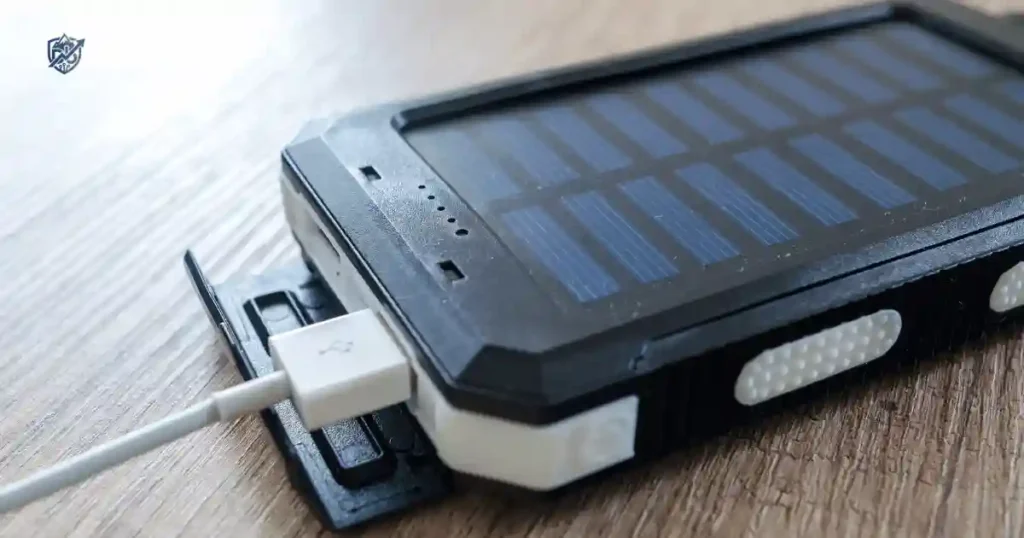
Sitting in my apartment in New York last month, I woke up to a dead phone. I put my phone down at night with 82% battery, but in the morning it said 47%. Nothing feels more annoying than waking up to a device that spent the night working overtime. A small amount of power loss is normal when you sleep, but a big drop is not something you should accept. If your phone battery drains overnight, this guide will help you find the cause and fix it fast.
Why Does My Phone Battery Drain Overnight?
When your screen goes dark, your device does not stop working. Power loss happens because system tasks and apps stay active in the background all night long.
Phones are still working while you sleep
Your device runs many tasks while you rest:
- Sync email accounts
- Receive new push notifications
- Check for instant messages
- Run background apps and services
- Back up photos to the cloud
- Update software and installed apps
- Track location data in the background
- Search for a better cellular signal
- Connect to nearby Wi-Fi and Bluetooth
- Process internal operating system tasks
A small overnight battery drop is normal
There is no fixed percentage that applies to every single device. Daily power loss depends on several hardware and software factors:
- Phone model
- Battery capacity
- Overall battery health
- Cellular signal strength
- Active Wi-Fi connection
- Background app activity
- Screen and display settings
- Operating system version
- Installed apps
- Room temperature
When overnight drain becomes a problem
A sudden drop in power deserves a quick check. Watch for these warning signs:
- Battery loses much more power than usual overnight.
- Phone feels warm to the touch while idle.
- Battery drops fast even in Airplane Mode.
- Unusually high drain started after a new app or system update.
- Phone shuts down without any warning.
- Battery health indicator shows a low percentage.
The simple answer
The phone is rarely doing nothing while you sleep. Something usually draws power in the background, or the battery itself is getting old.
How Much Battery Drain Overnight Is Normal?
Understanding normal power loss helps you spot real hardware or software issues quickly.
Why there is no single “normal” percentage
No two phones lose charge at the exact same rate:
- Different phones have different battery sizes.
- Android and iPhone handle background tasks differently.
- Cell signal strength varies by location and building type.
- Older batteries lose charge faster than new ones.
Factors that affect overnight drain
Many daily settings impact your battery life while you rest:
- Wi-Fi connections
- Mobile data usage
- 5G network activity
- Weak cellular signals
- Active Bluetooth links
- GPS location services
- Background app activity
- Always-On Display mode
- Continuous push notifications
- Connected smartwatches or trackers
- Active mobile hotspot
- Overall battery health
Compare your phone with itself
Track these numbers to find your phone baseline:
- Battery percentage before going to sleep
- Battery percentage right when you wake up
- Total screen-on time during the day
- Top battery usage by individual apps
Create a personal baseline
Record your overnight battery loss for three separate nights:
- Night 1: Use your normal settings.
- Night 2: Turn on Airplane Mode.
- Night 3: Turn on Wi-Fi only.
This simple test highlights clear patterns in battery loss.
The Most Common Reasons Your Phone Battery Drains Overnight
Finding the main source of power loss makes troubleshooting much easier.
Background apps
Apps like social media, messaging, cloud backup, fitness tools, and video streaming often stay active. Some apps run background tasks even when the screen is off.
Weak cellular signal
A weak signal forces your phone modem to work harder. The device uses extra power searching for cell towers in basements or rural areas.
5G and mobile data
5G offers fast speeds, but continuous network switching drains power. Poor 5G coverage keeps the mobile modem running at maximum strength.
Wi-Fi problems
Unstable Wi-Fi causes your device to reconnect constantly. Weak signals force the Wi-Fi chip to use more energy overnight.
Location services
Maps, weather, ride-sharing, and fitness apps track your position continuously. Find My Device features also ping your location in the background.
Push notifications and syncing
Email accounts, messaging apps, social networks, and cloud services check for new data constantly. Frequent sync cycles prevent your phone from staying in deep sleep.
Always-On Display
Always-On Display keeps the clock, date, and notifications visible. Even on efficient screens, keeping pixels lit draws steady power all night.
Bluetooth devices
Connected smartwatches, fitness bands, wireless earbuds, and car audio systems maintain constant links that prevent full idle mode.
Hotspot or tethering
A forgotten mobile hotspot keeps cellular radios and Wi-Fi transmitters working continuously, draining the battery very fast.
Automatic backups and uploads
Services like Google Photos, iCloud, and OneDrive upload photos and files at night. Large file transfers use significant processor and network power.
A phone can lose battery without showing obvious activity
Screen-off time does not mean zero power use. System processes still consume energy in the background.
How to Check What Is Draining Your Battery Overnight
You do not have to guess what causes power loss when built-in software tools show exact usage details.
Check battery usage on iPhone
- Open Settings.
- Tap Battery.
- Review Battery Usage and Activity.
- Check Screen On and Screen Off times to spot unusual background apps.
Check battery usage on Android
- Open Settings.
- Tap Battery or Battery Care.
- Select Battery Usage.
- Review App usage since full charge to find hungry apps. Menu names vary slightly by manufacturer.
Look for unusual patterns
- One app uses a large percentage of battery overnight.
- Background activity time exceeds active screen-on time.
- High power loss occurs while you are not using the phone.
- Sudden battery drain starts right after installing a new app.
What to check first
Review this list to isolate the problem fast:
- Battery usage graph
- Top battery-consuming app
- Total background activity time
- Screen-on time metrics
- Maximum battery capacity
- Cellular signal strength
Can Background Apps Drain Your Phone Overnight?
Background tasks are often the top cause of overnight power loss.
What does “background activity” mean?
Background activity includes tasks an app runs when you are not actively using it on screen. This includes data syncing, notifications, location checks, and cloud uploads.
Apps that commonly use background power
- Social media apps
- Navigation software
- Fitness tracking apps
- Cloud storage tools
- Email clients
- Video streaming services
How to restrict background activity
- iPhone: Go to Settings > General > Background App Refresh and turn off unwanted apps.
- Android: Go to Settings > Apps, select an app, tap Battery, and choose Restricted.
- Enable built-in battery optimization settings.
Do not disable everything
Turning off every background task can delay instant messages, pause email syncing, and break location alerts. Restrict non-essential apps while keeping crucial services active.
Can a Weak Signal Drain Your Phone Overnight?
Cellular signal strength plays a major role in how long your battery lasts overnight.
Why poor signal uses more power
When cell signal drops, your phone boosts transmitter power to maintain a stable connection. The modem works continuously, drawing extra current from the battery.
Common locations with weak signals
- Basements and underground rooms
- Rural areas far from cell towers
- Buildings with thick concrete or metal walls
- Remote cabins or camping spots
How to test if signal is the problem
- Turn on Airplane Mode overnight.
- Turn off mobile data and use Wi-Fi only.
- Leave the phone in a room with better reception.
- Switch off 5G temporarily in mobile settings.
The overnight signal test
Run this simple three-night test to verify signal impact:
- Night 1: Leave phone on normal settings.
- Night 2: Enable Airplane Mode.
- Night 3: Enable Wi-Fi only with mobile data off.
Compare your morning battery levels to see the difference.
Does 5G Drain Battery Overnight?
5G network connections can increase battery drain under specific coverage conditions.
How 5G can affect battery life
5G modems require more power during active data transfers. Frequent switching between 4G LTE and 5G networks increases modem workload and battery loss.
When 5G may be more noticeable
- Areas with weak 5G coverage
- Constant network switching between 4G and 5G
- Poor indoor 5G reception
Should you turn off 5G?
Switch to 4G LTE in network settings for two nights. If battery life improves noticeably, keep 5G off until coverage improves in your area.
Practical advice
Do not turn off 5G permanently without testing. Only disable it if your local 5G signal is unstable.
Does Wi-Fi Drain Battery Overnight?
Wi-Fi is generally energy efficient, but network issues can still drain power.
Wi-Fi connected vs mobile data
Also, Wi-Fi uses much less power for data transfers than cellular networks. Staying on stable Wi-Fi overnight preserves battery life compared to mobile data.
Weak Wi-Fi and repeated reconnections
If your router is far away, weak Wi-Fi forces your phone to reconnect continuously. Frequent connection drops consume extra power all night.
What happens when Wi-Fi disconnects?
When Wi-Fi drops, your phone automatically switches to mobile data. If cell reception is poor, power loss increases rapidly.
Simple Wi-Fi test
- Charge your phone to a set level before bed.
- Leave Wi-Fi on for one night.
- Use Airplane Mode with Wi-Fi enabled on night two.
- Compare your morning battery numbers.
Does Always-On Display Drain Battery Overnight?
Always-On Display offers convenient information, but keeping the screen active uses extra power.
What Always-On Display does
Always-On Display keeps the time, date, weather, notification icons, and lock screen widgets visible while your device is locked.
Why OLED and AMOLED phones handle it differently
OLED and AMOLED screens light up individual pixels. Pure black areas turn off completely, saving energy compared to old LCD displays. However, lit pixels still draw steady power.
How to test Always-On Display
Turn off Always-On Display for two nights. Check your morning battery percentage to see how much power the screen uses overnight.
Practical compromise
- Schedule Always-On Display to turn off while you sleep.
- Enable tap-to-wake or raise-to-wake features.
- Turn the phone face down on your nightstand.
Could Your Battery Health Be Causing Overnight Drain?
When your phone loses charge quickly while idle, the battery itself may be wearing out.
Lithium-ion batteries age over time
Lithium-ion batteries degrade with age, heat, and charge cycles. As chemical aging occurs, total energy capacity drops and internal resistance rises.
Signs of an ageing battery
- Rapid percentage drops during light use
- Unexpected shutdowns at 15% or 20%
- Poor overall battery runtime
- Sudden jumps in battery percentage readings
- Phone getting warm during basic tasks
- Shorter daily screen-on time
Check battery health
- iPhone: Go to Settings > Battery > Battery Health & Charging to see Maximum Capacity.
- Android: Open Settings > Battery or use manufacturer diagnostic apps like Samsung Members.
Battery health is not the whole story
A battery showing good health can still lose charge overnight if rogue background apps or poor network signals drain power.
Can a Bad App Cause Overnight Battery Drain?
A single poorly coded app can prevent your phone from entering idle sleep mode.
Signs of a problematic app
- Heavy power loss starts right after installing the app.
- The app sits at the top of your battery usage list.
- High background activity time with zero screen time.
- Phone feels warm while sitting idle.
What to do
- Update the app in your app store.
- Force stop the app in system settings.
- Restrict its background battery usage.
- Uninstall the app for two days to test battery life.
- Restart your phone completely.
Check recently installed apps
Pay special attention to these app categories:
- Free VPN apps
- Third-party battery booster apps
- Utility and cleaner tools
- Social media clients
- Fitness and tracking apps
Avoid fake battery-saving apps
Third-party cleaner and booster apps run constant background processes. They often cause more battery drain than they prevent.
Could a Software Update Cause Overnight Battery Drain?
Increased power loss after a system update is common and often temporary.
Why battery drain can increase after updates
System updates trigger background tasks like file indexing, photo library scanning, app optimization, and cloud syncing. These processes use significant processing power.
Temporary post-update drain
Higher battery drain usually lasts 24 to 48 hours after a major update. Give your phone a couple of days to complete background setup tasks.
Persistent drain after an update
If power loss continues after three days:
- Restart your phone.
- Update all installed apps.
- Check battery usage for system bugs.
- Install subsequent software patches.
- Contact manufacturer support if needed.
Do not immediately factory reset
Try basic steps like app updates and system restarts before wiping your device completely.
Does Temperature Affect Overnight Battery Drain?
Room temperature directly impacts phone battery performance and chemical stability.
Hot environments
Leaving a phone in a hot room, under direct sunlight, near a heater, or under heavy bedding traps heat. High heat accelerates internal battery degradation and increases power loss.
Cold environments
Extremely cold temperatures slow down chemical reactions inside lithium-ion cells. Voltage drops quickly, causing temporary capacity loss and inaccurate percentage readings.
Best sleeping environment for your phone
Keep your phone on a flat surface at normal room temperature with good airflow, away from direct heat sources.
A real-life example
A phone resting on a nightstand in a cool New York bedroom loses far less charge overnight than one left inside a hot car in Phoenix.
Overnight Battery Drain Comparison Table
This quick guide helps you match your specific symptoms with the right cause and fix.
| Symptom | Possible Cause | First Test |
| Large drain with weak signal | Cellular modem searching for signal | Turn on Airplane Mode overnight |
| One app uses most power | Unrestricted background activity | Restrict or uninstall the app |
| Sudden drain after app download | Problematic or buggy app | Remove the app temporarily |
| Phone feels warm while idle | Active background process or sync | Check system battery usage |
| High drain right after system update | Temporary system indexing | Wait 48 hours and restart device |
| Steady drain with screen clock | Always-On Display pixels lit | Turn off Always-On Display |
| High drain while travelling | Continuous cell tower switching | Use Airplane Mode or Wi-Fi |
| Heavy drain despite no app activity | Advanced battery chemical aging | Check battery health status |
| Fast drop in a very hot room | High ambient temperature | Move phone to a cooler spot |
| Sudden drop to zero percent | Battery hardware failure | Run built-in diagnostic tools |
Expert note: Always test one change at a time. Changing multiple settings simultaneously makes it impossible to identify the original cause.
How to Stop Your Phone Battery From Draining Overnight
Follow these practical troubleshooting steps in order of ease and impact to fix overnight battery loss.
Step 1: Check battery usage
Open system battery settings to identify top power-consuming apps, background activity times, and screen-off usage.
Step 2: Restart your phone
Rebooting clears temporary system files, stops stuck background processes, and resets system memory.
Step 3: Update apps
Open your app store, install all pending updates, and apply recent bug fixes for your installed software.
Step 4: Restrict background activity
Limit background refresh for non-essential social media, shopping, and entertainment apps.
Step 5: Check your signal
Connect to stable Wi-Fi or turn on Airplane Mode overnight if your local cell coverage is weak.
Step 6: Turn off unnecessary features
Disable Bluetooth, GPS location services, mobile hotspots, and Always-On Display while sleeping.
Step 7: Check battery health
Review maximum capacity metrics in system settings to see if your battery requires physical replacement.
Do not change everything at once
Adjust one setting per night so you can confirm which fix solved the problem.
The Best Overnight Battery-Saving Settings
Configure these core settings before going to bed to keep your device quiet and energy efficient.
Keep Wi-Fi on if your connection is stable
Wi-Fi uses less energy than cellular data for receiving notifications and background syncs.
Turn off unnecessary Bluetooth connections
Disconnect smartwatches and wireless accessories if they keep your phone awake.
Disable hotspot
Ensure your mobile hotspot is turned off completely before going to sleep.
Reduce Always-On Display use
Schedule Always-On Display to turn off during night hours or disable it entirely.
Restrict unnecessary background apps
Prevent non-essential apps from running background syncs while you rest.
Use Battery Saver or Low Power Mode when needed
Enable Low Power Mode or Battery Saver at night to pause background activity automatically.
Keep the phone updated
Install official operating system updates to receive late-breaking power optimization fixes.
Avoid extreme temperatures
Charge and store your phone in a cool, well-ventilated room on a hard surface.
Recommended overnight setup
- Wi-Fi: On
- Mobile Hotspot: Off
- Bluetooth: Optional
- Location Services: Essential apps only
- Always-On Display: Scheduled or Off
- Low Power Mode: On if needed
- Background Apps: Restricted selectively
Should You Turn Your Phone Off at Night?
Shutting down your phone completely eliminates power loss, but it comes with trade-offs.
Benefits of turning it off
- Zero background app activity
- No active cellular or Wi-Fi radio draw
- Zero incoming notifications
- Maximum battery preservation
Downsides
- Missed emergency calls and text messages
- Scheduled alarms may not ring on certain modern devices
- Inconvenient boot-up time every morning
Airplane Mode as an alternative
Airplane Mode disables cellular, Wi-Fi, and Bluetooth radios while keeping your phone powered on. Alarms continue to work normally, making it a great middle ground.
Who should consider it?
Airplane Mode works exceptionally well for secondary devices, travel, areas with weak reception, and battery testing.
Should You Charge Your Phone Overnight?
Modern smartphones handle overnight charging safely without damaging internal components.
Modern phones manage charging automatically
Smartphones use built-in charge controllers to stop power flow once the battery reaches 100%. Features like Optimized Battery Charging delay final charging until right before you wake up.
Heat is the bigger concern
Avoid charging your phone under pillows, on soft sofas, or in direct sunlight. Trapped heat strains battery chemistry.
Charging limits
Many Android and iOS devices allow you to cap maximum charging at 80% or 85%. This reduces chemical stress and extends battery lifespan over time.
Safe overnight charging habits
- Use certified chargers and cables from reputable brands.
- Place your phone on a hard, flat surface like a nightstand.
- Keep the phone in a cool, well-ventilated space.
- Replace frayed or damaged cables immediately.
Why Your Phone Loses Battery Overnight Even in Airplane Mode
If your phone drains rapidly in Airplane Mode, external network factors are not the cause.
Background system activity
Operating system processes, local database indexing, and app glitches can run continuously even without network access.
Battery ageing
A worn battery with high internal resistance loses voltage quickly while idle, regardless of wireless settings.
Poor battery calibration
Inaccurate system calibration causes the battery percentage display to drop unexpectedly, even when physical capacity remains stable.
Hardware problems
Defective power management ICs, short circuits, or liquid damage cause continuous hardware power leakage.
The Airplane Mode diagnostic test
- Charge your phone to 100% and enable Airplane Mode.
- Unplug the device and leave it idle overnight.
- If battery loss exceeds 10%, review battery health or seek hardware repair.
USA Expert Advice on Overnight Battery Drain
Expert technicians offer clear guidance on diagnosing hardware aging versus software bugs.
Recommended expert reference: Kyle Wiens
Kyle Wiens, CEO of iFixit, highlights that lithium-ion battery aging is an inevitable physical process. Replacing a worn battery restores original runtime and keeps functional devices out of landfills.
Expert perspective to include
Lithium-ion cells degrade naturally over time. High heat accelerates wear, while software bugs can simulate hardware failure by keeping processor cores awake. Distinguishing between software issues and chemical aging saves time and money.
Manufacturer guidance
Apple, Google, and Samsung recommend checking built-in battery diagnostic menus regularly. They advise keeping devices in moderate room temperatures and utilizing adaptive charging features to extend overall battery health.
Quote handling
Referencing established guidance from manufacturers and repair experts helps confirm whether your device requires a simple settings tweak or a battery replacement.
Real-Life Overnight Battery Drain Scenarios
Relating these common scenarios to your daily routine makes identifying power problems straightforward.
The commuter in New York
A commuter leaves 5G data enabled in an apartment with poor cell coverage. The phone modem works at max power all night searching for cell towers, resulting in a 35% battery drop.
The student in Texas
A student leaves background video apps active, cloud photo backups running, and Always-On Display enabled. Multiple minor background tasks combine to drain 25% battery overnight.
The traveller in rural Bangladesh
A traveller stays in a remote area with unstable network coverage. The phone continuously switches between 3G, 4G, and emergency networks, draining half the battery before morning.
The mobile gamer in California
A user plays demanding 3D games while fast-charging before bed. The battery gets hot, and high chemical degradation causes a 30% drop overnight despite no active background apps.
A little humour
Your phone may look like it is sleeping, but it is sometimes pulling a very busy overnight shift!
When Overnight Battery Drain Means You Need a New Battery
Separating normal chemical wear from temporary software bugs helps you make the right repair decision.
Signs of battery ageing
- Battery health capacity drops below 80%.
- Phone shuts down unexpectedly with 15% charge remaining.
- Battery percentage drops rapidly within minutes of unplugging.
- Device feels warm during basic tasks like web browsing.
When battery replacement makes sense
- The phone performance still meets your daily needs.
- The device receives active operating system updates.
- Battery degradation is the sole hardware issue.
- Replacement costs are much lower than buying a new phone.
When replacing the phone may make more sense
- Official software update support has ended.
- Multiple hardware components are failing simultaneously.
- Battery replacement parts are unavailable.
- Repair costs approach the value of a replacement phone.
Repair vs replace decision
Understanding when to repair or replace your phone saves money while restoring daily reliability.
| Situation | Recommended Action |
| Good phone condition, battery health below 80% | Replace the battery |
| Old unsupported device, multiple hardware bugs | Consider upgrading to a new phone |
| Visible battery swelling or glass lifting | Stop using immediately and seek service |
| One rogue app causing overnight power loss | Restrict or uninstall the app |
| Weak cell reception driving battery drain | Use Airplane Mode or Wi-Fi calling |
| High drain right after a system update | Troubleshoot software and wait 48 hours |
| Excessive battery loss in Airplane Mode | Run hardware diagnostics or seek repair |
Expert note: A worn battery does not mean your entire phone is useless. A quick battery replacement often adds two more years of reliable life to a great device.
Common Myths About Overnight Battery Drain
Clearing up common misconceptions helps you focus on fixes that actually work.
Myth: Turning off Wi-Fi always saves battery
Wi-Fi uses far less energy for data syncs than a weak cellular network connection.
Myth: Closing every app saves lots of battery
Force-closing apps you use regularly causes extra drain, as the processor uses more power reopening them from scratch.
Myth: Airplane Mode fixes every battery problem
Airplane Mode resolves network-related drain, but it cannot fix background app bugs or aged battery hardware.
Myth: A new battery will always fix overnight drain
If a rogue background app or weak signal causes the power draw, a new battery will still drain quickly overnight.
Myth: You should never charge overnight
Modern charge controllers manage power flow safely, protecting your device from overcharging while you sleep.
Myth: Battery percentage is always perfectly accurate
The display percentage is an estimate calculated by software and can occasionally drift without physical battery damage.
The Overnight Battery Drain Test
Use this simple four-night diagnostic test to isolate the cause of battery loss without installing extra apps.
Night 1 — Normal settings
Record your starting battery percentage, morning percentage, and background usage graph under normal conditions.
Night 2 — Airplane Mode
Enable Airplane Mode before bed. Compare morning power loss against Night 1 to gauge network impact.
Night 3 — Wi-Fi only
Turn off mobile data and run on Wi-Fi only. Compare results to see if cellular signals are driving the drain.
Night 4 — Disable Always-On Display
Turn off Always-On Display and restrict background app refresh. Compare the final numbers.
How to interpret the results
- Major improvement in Airplane Mode: Cell signal or network data is the primary culprit.
- Major improvement after restricting apps: Background software is causing the drain.
- High drain across all four nights: Chemical battery aging or hardware failure is likely.
Overnight Battery Drain Test Table
This step-by-step test framework helps you isolate exact causes systematically.
| Test | What to Change | What It Can Reveal |
| Baseline | Leave all standard settings on | Establishes your normal overnight drain rate |
| Airplane Mode | Turn on Airplane Mode overnight | Isolates cellular modem and network power draw |
| Wi-Fi Only | Turn off mobile data, keep Wi-Fi on | Compares Wi-Fi energy use against cellular networks |
| Background Apps | Restrict top power-draining apps | Identifies rogue background app sync issues |
| Always-On Display | Turn off screen clock display | Measures exact display panel energy consumption |
| Battery Saver | Enable Low Power Mode overnight | Assesses system-wide background activity impact |
| Cool Environment | Keep phone on a hard, cool surface | Highlights heat-related battery voltage loss |
| Battery Diagnostics | Run built-in software diagnostics | Confirms physical battery health status |
Short expert note: Isolate one variable at a time. Changing every setting at once fixes the issue, but leaves you guessing about the true cause.
When to Contact the Manufacturer or Repair Shop
Recognize when simple home troubleshooting ends and professional hardware repair begins.
Contact support if
- Overnight battery loss remains above 20% after software resets.
- Phone gets hot while sitting idle in a cool room.
- Battery health indicator drops below 80%.
- Phone shuts down unexpectedly with plenty of charge remaining.
- Charging pauses repeatedly due to thermal warnings.
Seek urgent attention for
- Visibly swollen battery pushing against the screen or frame
- Smoke or burning smells near the charging port
- Physical sparks or melted cable connectors
- Unusually hot surface temperatures while idle
Do not attempt risky battery repairs
Puncturing or bending a lithium-ion battery can trigger thermal runaway, releasing toxic fumes and causing severe fire hazards. Always rely on certified technicians.
Overnight Phone Battery Drain FAQs
Why does my phone battery drain overnight when I’m not using it?
Phones process background syncs, receive notifications, update location data, and maintain network connections while you sleep.
How much battery should a phone lose overnight?
A healthy phone with good signal strength typically loses between two and five percent of its charge overnight.
Why does my phone lose 20% battery overnight?
A 20% drop usually points to a weak cell signal, rogue background app activity, active mobile hotspot, or an aging battery.
Why does my iPhone battery drain overnight?
iPhone drain is often caused by Background App Refresh, iCloud photo syncing, weak cellular coverage, or low Maximum Capacity health.
Why does my Android battery drain overnight?
Android drain is typically linked to unrestricted background apps, Google account syncing, 5G network searching, or Always-On Display settings.
Does Airplane Mode stop battery drain?
Airplane Mode disables all cellular, Wi-Fi, and Bluetooth radios, significantly reducing network-related power loss overnight.
Does 5G drain battery overnight?
Yes, maintaining a connection to weak 5G towers or constant switching between 4G and 5G increases modem power draw.
Does Wi-Fi drain battery overnight?
Stable Wi-Fi uses very little power, but a weak or disconnecting Wi-Fi network forces your phone to search for connections continuously.
Can background apps drain my battery while I sleep?
Yes, apps running background syncs, location checks, and cloud uploads consume significant processor energy while your screen is off.
Can a bad battery cause overnight drain?
Yes, chemically aged lithium-ion batteries lose voltage quickly while idle, resulting in rapid percentage drops overnight.
Does Always-On Display drain battery overnight?
Yes, keeping lock screen elements lit consumes roughly one to two percent of battery power per hour overnight.
Should I turn off my phone at night?
Turning your phone off stops all battery drain, but you will miss emergency calls, messages, and scheduled alarms.
Should I charge my phone overnight?
Yes, modern smartphones feature built-in charge controllers that stop power flow safely once the battery reaches full charge.
How do I find out what is draining my phone battery?
Check system battery settings on iOS or Android to see a detailed breakdown of power usage by app and background activity.
When should I replace my phone battery?
Replace your battery when maximum capacity drops below 80%, or when your phone experiences sudden shutdowns and high overnight drain.
Final Recommendation
Having managed dozens of mobile devices through busy daily work schedules, I know how frustrating it is to wake up to a drained phone. In my experience, fixing overnight battery loss comes down to basic setup habits: turn on Airplane Mode or stable Wi-Fi in weak signal areas, restrict hungry background apps, and keep your device away from hot bedding. If your phone battery continues to drop rapidly overnight despite clean settings, have a certified technician check your battery health.

Ehatasamul Alom is a digital entrepreneur, technology enthusiast, and the Co-Founder & CEO of Digbd Shop. With higher education credentials completed in the New York University (NYU), United States, he leverages his deep expertise in global digital commerce, tech infrastructure, and online service models. Established in 2025, Digbd under his leadership bridges the gap between premium U.S. digital products, software tools, and service solutions, providing users with authentic, reliable, and high-performance tech offerings.