iPhone 16e Multiple Apps Not Working? Try These Fixes
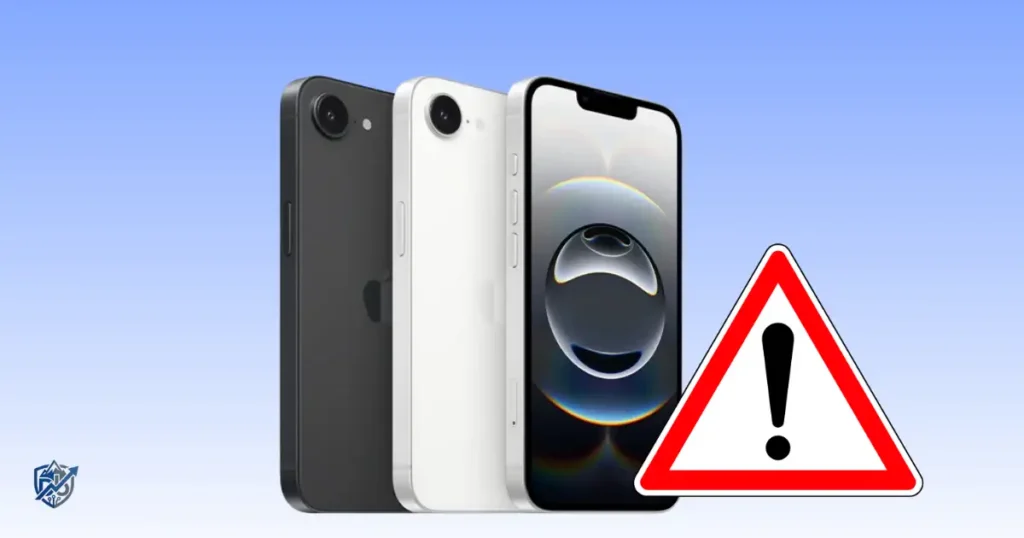
Facing an iPhone 16e multiple apps not working situation can stall your entire day, especially when core utilities fail back-to-back. Working with iOS hardware right here in Portland, I frequently help users troubleshoot sudden multi-app crashes across their devices. Apple recommends checking app updates, restarting your phone, verifying available storage, and updating iOS when apps fail to open or stay responsive.
When several unrelated programs freeze at once, the root cause usually lives within system-level network routing, low memory space, or temporary operating system bugs. This guide provides a step-by-step diagnostic strategy so you can isolate shared system bottlenecks quickly without blindly deleting your data.
Why Are Multiple Apps Not Working on iPhone 16e?
When several unrelated applications fail simultaneously, the issue rarely stems from a single bad file. Looking for shared system dependencies helps identify the bottleneck fast.
Common Causes of Multiple App Problems
- iOS software glitch: Temporary operating system memory freeze.
- Outdated apps: Missing patch compatibility for current iOS builds.
- Poor Wi-Fi or cellular connection: Network timeouts blocking data sync.
- Low available storage: Insufficient local disk space for app cache creation.
- App compatibility problem: Legacy app code conflicting with systemic APIs.
- Incorrect date and time: SSL security certificate validation errors.
- Background app issues: Exhausted RAM due to hung background tasks.
- Apple service outage: Central cloud or authentication server downtime.
- Account or authentication problem: Invalid iCloud sync token state.
- Corrupted app data: Damaged temporary database cache files.
- Recently installed iOS update: Unfinished background indexing tasks.
- Device performance or thermal issue: Processor throttling from excessive heat.
One App vs Multiple Apps: Why It Matters
Isolating the scope of the problem dictates your troubleshooting approach.
- One app fails: Indicates a specific developer bug, corrupted app cache, or missing local permission.
- Several apps fail: Points toward network configurations, system memory pressure, or outdated system updates.
- Almost every app fails: Signals severe storage depletion, critical system file corruption, or major iOS faults.
- Only online apps fail: Confirms your issue is rooted in Wi-Fi, cellular data, or server paths.
- Apps open but immediately crash: Points toward insufficient system memory or iOS framework conflicts.
What Does “Not Working” Actually Mean?
“Not working” covers distinct technical behaviors across your device:
- App won’t open: Tapping the icon produces no visual action.
- App opens then closes: Splash screen appears briefly before dropping back to the home screen.
- App freezes: User interface becomes completely unresponsive to touch inputs.
- App stays on a loading screen: Content spinner runs endlessly without populating data.
- Buttons do nothing: Visual elements render, but interactive touch handlers fail.
- Login fails: Authentication requests time out or reject credentials.
- Content won’t load: Application shell opens, but internal data feeds show blank space.
- App is extremely slow: Frame rates drop severely during simple navigation.
- App shows an error message: Popup dialogs alert you to missing connections or system faults.
Restart the iPhone 16e First
A basic system reboot clears active RAM allocations and terminates hung background threads affecting multiple programs.
Restart iPhone 16e Normally
- Press and hold the Side button along with either Volume button until the power slider appears.
- Drag the slide to power off control to the right.
- Wait 30 seconds for the hardware to power down completely.
- Press and hold the Side button until the Apple logo displays.
- Test two or three previously broken apps.
When a Force Restart May Help
Execute a hardware-level force restart under these specific conditions:
- The iPhone display is completely frozen.
- Touchscreen taps register no visual response.
- Applications lock up the system interface continuously.
- The standard software power slider refuses to appear.
To force restart your iPhone 16e: press and quickly release Volume Up, press and quickly release Volume Down, then press and hold the Side button until the Apple logo appears.
Test Apps After Restarting
Begin your checks by opening a built-in application like Stocks or Weather to verify core system stability. Next, launch one affected third-party app to see if it loads correctly. Finally, open a second affected app to confirm whether system performance has stabilized.
Check Your Internet Connection
Applications heavily reliant on remote cloud databases often lock up or fail when local network connections degrade.
Test Wi-Fi
Open Safari and load two separate, highly active web pages like news portals. If web pages fail to load or throw network errors, your Wi-Fi router may be dropping packets. Try switching to a different Wi-Fi frequency band or power-cycle your local wireless router.
Test Cellular Data
Open Settings, select Wi-Fi, and turn it off to isolate your carrier connection. Open one of the failing apps while running on active cellular data. If the app loads instantly, your cellular connection is fine and your Wi-Fi network is the true culprit.
If Apps Work on Wi-Fi but Not Cellular
Inspect these specific network access configurations:
- Cellular Data permissions: Verify the app toggle is enabled under Settings > Cellular.
- Network coverage: Ensure your signal bar shows sufficient cellular reception.
- Carrier issues: Check if your mobile network is experiencing temporary regional outages.
- Low Data Mode: Disable Low Data Mode inside your active cellular plan options.
- App-specific cellular settings: Check for data saver toggles inside the app’s internal menus.
If Apps Work on Cellular but Not Wi-Fi
Check these local router parameters:
- Verify active internet connectivity on other devices connected to the same Wi-Fi.
- Check for weak Wi-Fi signal strength caused by distance or physical walls.
- Inspect custom DNS configurations or corporate Wi-Fi security profiles.
- Verify your router firewall is not blocking specific app ports or domains.
Update All Apps on the iPhone 16e
Outdated application code fails when system APIs change, causing multiple unpatched apps to crash simultaneously.
How to Check for App Updates
- Launch the App Store from your home screen.
- Tap your profile icon in the top-right corner.
- Scroll down to the Upcoming Automatic Updates or Available Updates section.
- Tap Update All at the top, or update affected apps individually.
- Launch the updated apps to verify stability.
Why Several Apps Might Need Updates
- New iOS compatibility: Adjustments for recent core software frameworks.
- Security fixes: Patching data leaks and vulnerability vectors.
- Bug fixes: Developers resolving documented crash patterns.
- API changes: Updating deprecated remote server communication code.
- Server compatibility: Maintaining sync alignment with cloud backends.
- Performance improvements: Optimizing RAM usage for better stability.
What If No App Updates Are Available?
If all installed software shows up-to-date in the App Store, your issue is not caused by outdated third-party code. Move forward to check for system-level iOS software updates, inspect available device storage, run detailed network diagnostic tests, or reinstall specific failing applications.
Update iOS on Your iPhone 16e
The iPhone 16e utilizes Apple’s A18 chip, meaning system stability depends on up-to-date iOS software releases optimizing underlying system hardware.
Check for an iOS Update
- Open the Settings app on your iPhone 16e.
- Select General, then tap Software Update.
- Allow the system to check Apple servers for pending builds.
- If an update is available, tap Download and Install while connected to Wi-Fi and power.
Why an iOS Update Can Fix Multiple Apps
- System bug fixes: Resolves OS-level memory leaks that cause apps to close.
- App framework changes: Restores underlying system libraries required by third-party developers.
- Security fixes: Resolves low-level permissions blocks affecting software execution.
- Compatibility improvements: Keeps core system processes aligned with modern app code.
- Memory management patches: Optimizes RAM allocation across background tasks.
What If the Problems Started After an Update?
If multiple apps began crashing right after installing a major iOS release, establish a precise diagnostic timeline:
- Did the crashes happen immediately after rebooting, or hours later?
- Are all crashing apps built by different third-party development teams?
- Does built-in software like Safari continue to function normally?
- Does performing a standard force restart alter the crash frequency?
- Have developers pushed fresh app updates since the iOS release?
Check iPhone 16e Storage Space
Low local storage severely impedes iOS, causing the system to force-close background apps and refuse temporary cache allocations.
How to Check Available Storage
- Open Settings on your device.
- Tap General, then select iPhone Storage.
- Review the color-coded storage bar at the top of the screen.
- Check the list of apps sorted by total file size.
What to Remove First
- Old videos: Large 4K video clips stored inside your Photos app.
- Large downloads: Offline movies, music albums, or podcast files.
- Unused apps: Offload or delete heavy games and social media apps.
- Duplicate media: Clear out repeated screenshots and bulk media files.
- Browser caches: Clear history and web data inside Safari settings.
Don’t Delete Everything at Once
Always create a fresh backup using iCloud or your computer before removing large app databases, photo libraries, or local document archives. Deleting files in haste can lead to permanent data loss.
Why Storage Matters for Apps
Applications require temporary flash memory storage to expand updates, write active cache files, and store operational data. Keeping at least 10% to 15% of your total storage free ensures iOS has sufficient workspace to run active processes without crashing.
Check Whether Apple’s Services Are Having Problems
When cloud authentication servers undergo maintenance or outages, multiple apps linked to those services fail simultaneously.
Signs of a Service-Side Problem
- Multiple online-dependent apps fail to load content simultaneously.
- Account sign-in requests reject valid passwords continuously.
- Content streams and social media feeds fail to refresh across apps.
- Outage tracking websites show spike reports for specific online platforms.
- Apps operate normally when used in offline modes.
Test an Offline Function
To isolate system faults from cloud outages, open an affected app and test features that require zero internet access. For example, try editing an existing local document or opening locally stored offline media. If offline functions work smoothly, your iPhone hardware is healthy, pointing the problem straight to external server outages.
Don’t Reset the iPhone for a Server Outage
Erasing your device or wiping network settings during a remote cloud outage will not restore online services. Always verify server health on Apple’s System Status page before attempting invasive system restores.
Check App Permissions on iPhone 16e
When system permissions are denied, applications can freeze or shut down instantly upon attempting to access blocked hardware components.
Review Common Permissions
- Cellular Data: Allows internet connectivity when off Wi-Fi network lines.
- Location Services: Enables real-time GPS tracking for navigation and local utilities.
- Photos & Camera: Permits viewing, capturing, and saving image media.
- Microphone: Allows audio recording for messaging and voice features.
- Bluetooth: Enables local hardware communication with nearby accessories.
- Background App Refresh: Permits apps to sync content while running in the background.
When Permissions Cause Problems
- A camera utility crashes instantly if access to the physical camera lens is blocked.
- Photo editing applications close automatically when denied storage read access.
- Navigation software fails to render maps when Location Services are disabled.
- Chat applications fail to deliver updates when background notification access is turned off.
Compare Permissions Between Working and Broken Apps
Open Settings > Privacy & Security to compare permission configurations between a fully functional app and one that keeps failing. Use the working app’s permission profile as a baseline guide rather than toggling global privacy switches off and on blindly.
Check Date, Time, and Region Settings
Incorrect system date or time settings ruin secure SSL/TLS server handshakes, causing online apps to fail authentication checks.
Use Automatic Date and Time
- Open Settings on your iPhone.
- Tap General, then select Date & Time.
- Toggle the switch for Set Automatically to the ON position.
- Verify your device displays the correct local time zone.
Check Region and Language
Navigate to Settings > General > Language & Region to verify your country settings match your actual location. Incorrect region configurations can cause regional app features or App Store content validation checks to fail.
Turn Off VPN and Test Network Filters
Third-party Virtual Private Networks (VPNs) and DNS content filters route network traffic through remote servers that can drop packets or block app connections.
Temporarily Test Without a VPN
- Launch Settings on your iPhone 16e.
- Toggle the main VPN switch to the OFF position.
- Open the affected apps to test if performance normalizes.
- If apps function properly without the VPN, update your VPN software or change connection servers.
Check Content and Network Restrictions
- Open Settings > Screen Time > Content & Privacy Restrictions to ensure specific apps are not locked.
- Check for security profiles installed under Settings > General > VPN & Device Management.
- Inspect custom DNS configurations under your active Wi-Fi settings menu.
Why This Can Affect Multiple Apps
Custom network rules, security extensions, and VPN routes apply globally across the entire operating system. If a single proxy server fails, every application routing data through that path will freeze or drop connections at the exact same time.
Check Background App Refresh
Background App Refresh allows suspended applications to fetch new content in the background, but mismanaged processes can drain memory.
Check Background App Refresh
- Navigate to Settings > General > Background App Refresh.
- Ensure the main setting is set to Wi-Fi & Cellular Data.
- Scroll through the list and disable background refresh for non-essential applications to free up system resources.
Don’t Force-Close Every App Constantly
Force-closing every app via the App Switcher degrades performance instead of helping. iOS is designed to freeze background apps safely without consuming CPU or RAM. Constantly force-closing forces your phone to reload code from scratch, wasting battery and CPU power.
When Force-Closing an App Makes Sense
- An app locks up visually on screen.
- Touch inputs inside a specific app stop responding completely.
- An app gets stuck loading a video or document feed endless loop.
- You need to force a clean re-initialization of an active app session.
Delete and Reinstall the Affected Apps
If an application’s internal database cache becomes corrupted, deleting and reinstalling the software provides a completely fresh installation.
Before Deleting an App
- Confirm your personal data is backed up to cloud servers or account profiles.
- Verify you know your account login credentials for the app.
- Save any locally stored files or export unsynced documents.
- Ensure the app is still available for download on the App Store.
Reinstall One App First
Avoid deleting multiple applications at once. Test a single affected program using these steps:
- Touch and hold the app icon on your home screen.
- Tap Remove App, then select Delete App to confirm.
- Restart your iPhone to flush leftover temp files.
- Open the App Store, search for the app, and tap the download icon.
- Open the fresh app, sign into your account, and test for stability.
What If Reinstalling Does Not Help?
If multiple reinstalled applications continue to crash instantly upon opening, the problem is not isolated to app file corruption. Shift your troubleshooting back to system-wide factors including iOS software integrity, available storage space, global network settings, or underlying hardware faults.
Reset Network Settings if Online Apps Keep Failing
Corrupted cellular configurations, broken saved Wi-Fi keys, or bad network profiles can prevent internet-dependent apps from connecting properly.
When to Consider a Network Reset
- Multiple internet-dependent apps fail to load content simultaneously.
- Wi-Fi connections drop offline randomly or refuse valid passwords.
- Cellular data connections become unstable or drop signal frequently.
- Network profiles fail after updating iOS versions.
What a Network Reset Changes
Resetting network settings deletes all saved Wi-Fi networks and passwords, removes custom cellular data preferences, and clears out installed VPN profiles. It resets all network configurations back to factory defaults without erasing your personal app data, photos, or documents.
Back Up Important Information First
Write down essential Wi-Fi passwords before triggering a network reset, as you will need to reconnect to your home and work wireless routers manually afterward.
Reset All Settings on iPhone 16e
When system settings conflict across iOS software without clear causes, performing a global settings reset restores default system parameters.
When Reset All Settings Makes Sense
- Multiple unrelated applications fail despite applying app updates.
- Network troubleshooting steps fail to fix app connectivity issues.
- System permissions or audio controls behave erratically.
- Hardware components function fine, but iOS settings exhibit bugs.
What This Is Not
Resetting all settings is not a factory wipe; it will not erase your photos, contacts, message histories, or downloaded apps. It simply resets system preferences—such as Wi-Fi passwords, Bluetooth pairings, Home Screen layouts, and privacy permissions—back to default factory configurations.
Back Up Before Major Troubleshooting
Always maintain an up-to-date iCloud or computer backup before performing major system setting resets. Having a recent backup ensures you can restore your preferred device configuration if needed.
Quick Diagnosis Table
Use this diagnostic table to match app symptoms to quick troubleshooting steps:
| Symptom | Likely Cause | First Test | Next Step |
| Several apps won’t open | iOS software glitch or app bug | Restart the iPhone 16e | Update iOS and apps |
| Apps open but won’t load | Local network failure | Test web pages in Safari | Switch Wi-Fi to cellular data |
| Apps crash instantly | Corrupted cache or app bug | Check App Store for app updates | Reinstall affected app |
| Only cellular fails | Cellular data permissions | Test performance on Wi-Fi | Review cellular data toggles |
| Apps became slow | Low storage space | Check iPhone Storage menu | Delete unused video files |
| Problems after update | Background indexing tasks | Perform a hardware force restart | Check for fresh app updates |
| Login fails everywhere | Apple service outage | Test offline app features | Check Apple System Status |
| One app fails | Isolated developer app bug | Force close and reopen app | Contact the app developer |
iPhone 16e Multiple Apps Not Working After an iOS Update
Installing a new iOS version updates core code frameworks, which can temporarily cause unpatched applications to freeze or exit.
Compare Before and After the Update
- Identify which specific applications began failing after the update.
- Note whether all affected applications crashed at once or over several hours.
- Check whether executing a hardware force restart fixes the crash loop.
- Verify whether built-in Apple apps operate smoothly.
Update the Apps Too
Following a major iOS release, app developers push compatibility updates to align their software with new system APIs. Open the App Store and update all pending apps to prevent system-level code conflicts.
Allow Background Work to Finish
After installing an iOS update, your iPhone runs intensive background maintenance—including file indexing and battery calibration—for several hours. Give your device time to finish these tasks before assuming an update broke your apps.
iPhone 16e Multiple Apps Not Working Because of Low Storage
When available storage drops below critical limits, iOS cannot allocate virtual memory caches, causing applications to close abruptly.
Signs Storage May Be the Problem
- Applications take several seconds to launch or freeze mid-session.
- App Store app updates fail to finish downloading.
- Media files fail to download inside messaging apps.
- The camera app displays warnings when taking photos.
- Overall system performance feels sluggish.
Free Space Safely
Check Settings > General > iPhone Storage and aim to free up at least 10% of total storage capacity. Offload large unused applications, delete old 4K videos, clear browser caches, and back up media libraries to iCloud.
Check Apps Again
After freeing up device storage space, force restart your iPhone 16e. Relaunch the affected applications to confirm that clearing system cache allocations resolved the crashes.
iPhone 16e Apps Crash Immediately After Opening
Instant crashes upon opening usually point to software integrity conflicts, bad app updates, or missing permissions.
Try the App Update First
- Launch the App Store.
- Tap your profile icon at the top right.
- Check for an available update for the crashing app.
- Install the update and re-test.
Restart the iPhone
Force-close the crashing app from the App Switcher. Reboot your iPhone to flush active memory spaces. Once your phone reboots, relaunch the app to test its startup sequence.
Reinstall the App
- Long-press the app icon and select Delete App.
- Re-download the app fresh from the App Store.
- Log back into your account and test functionality.
If Every App Crashes
If every single application crashes instantly—including core system tools like Settings or Safari—you are dealing with a severe system fault. Check for pending iOS updates, clear storage space, or prepare to contact Apple Support.
When Should You Contact Apple Support or the App Developer?
Knowing who to contact saves time when troubleshooting reaches advanced stages.
Contact the App Developer When
- The crash issue is isolated to a single third-party app.
- Reinstalling the app fails to fix the issue.
- The app throws specific server-side developer error codes.
- Other users report identical bugs on the developer’s support forum.
Contact Apple When
- Multiple unrelated applications fail across the system.
- Built-in Apple apps freeze or crash continuously.
- The iPhone reboot loop occurs frequently or freezes.
- Network resets and system settings resets fail to fix app access.
USA Expert Advice
When evaluating multi-app failures, Apple-authorized technicians first determine whether the crashes share a common system framework or network dependency. Isolating software bugs from underlying hardware faults ensures repairs focus on the exact component causing instability.
How to Prevent Multiple App Problems on iPhone 16e
Practicing simple device maintenance helps prevent software conflicts and system freezes:
Keep iOS Updated
Enable automatic software updates under Settings > General > Software Update to receive system stability patches promptly.
Keep Apps Updated
Turn on automatic app updates under Settings > App Store so third-party software stays aligned with current iOS code.
Keep Some Storage Available
Check iPhone Storage monthly to ensure you maintain at least 10% to 15% free disk space for background cache operations.
Avoid Excessive Force-Closing
Allow suspended applications to stay in background memory. Only force-close an app when it becomes frozen or unresponsive.
Keep a Recent Backup
Enable automatic daily iCloud backups under your account settings so your app data stays protected.
Frequently Asked Questions About iPhone 16e Multiple Apps Not Working
Why are multiple apps not working on my iPhone 16e?
Systemic app failures are typically caused by iOS software bugs, low local storage, corrupted network settings, unpatched app versions, or global cloud server outages.
Why do all my apps keep crashing on iPhone 16e?
When every app crashes, your phone is likely experiencing severe RAM exhaustion, critical storage depletion, or OS-level file corruption.
Why won’t apps open on my iPhone 16e?
Apps often fail to open due to corrupted local cache files, incomplete software updates, or missing system permissions.
Why are my apps stuck loading on iPhone 16e?
Endless loading screens point to local Wi-Fi router issues, unstable cellular data, active VPN proxy interference, or remote server outages.
Can low storage make apps stop working?
Yes, iOS requires free local storage space to handle virtual memory swap files and write temporary app caches.
Should I update iOS if multiple apps stop working?
Yes, installing the latest iOS release applies stability patches that resolve background system framework bugs.
Should I delete and reinstall every broken app?
No, test a single app first. If multiple unrelated apps fail, the issue is system-wide, making mass deletion unnecessary.
Why do apps work on Wi-Fi but not cellular data?
This pattern points to disabled cellular permissions for specific apps, restricted carrier coverage, or active Low Data Mode settings.
Why do apps work on cellular but not Wi-Fi?
This indicates your local Wi-Fi router is dropping packets, blocking app ports, or experiencing DNS routing failures.
When should I contact Apple about multiple apps not working?
Contact Apple Support if system-wide app crashes persist after testing network resets, clearing storage space, and updating iOS.
Quick Checklist
Follow this checklist to diagnose app issues step-by-step:
- Restart your iPhone 16e.
- Test internet connectivity by loading web pages in Safari.
- Switch between Wi-Fi and cellular networks to isolate connection issues.
- Check the App Store and install all available app updates.
- Check Settings > General > Software Update for pending iOS releases.
- Verify your available space in Settings > General > iPhone Storage.
- Review app permissions under Privacy & Security settings.
- Confirm Date & Time settings are set to automatic update mode.
- Turn off active VPN connections and test apps again.
- Reinstall one failing application to check cache integrity.
- Reset Network Settings if internet-dependent apps fail continuously.
- Contact Apple Support if multiple system apps continue to freeze.
Final Recommendation
Fixing an iPhone 16e multiple apps not working issue starts with finding shared system dependencies before taking invasive steps. In my hands-on tech repair experience, performing a simple restart, updating pending apps, and freeing up storage space resolves the vast majority of multi-app crashes within minutes.
Always test your network connections and rule out remote server outages before deleting personal applications. If system-wide instability persists despite applying software updates and clearing cache files, schedule an official diagnostic appointment with Apple Support or an authorized repair center to inspect system integrity.

Ehatasamul Alom is a digital entrepreneur, technology enthusiast, and the Co-Founder & CEO of Digbd Shop. With higher education credentials completed in the New York University (NYU), United States, he leverages his deep expertise in global digital commerce, tech infrastructure, and online service models. Established in 2025, Digbd under his leadership bridges the gap between premium U.S. digital products, software tools, and service solutions, providing users with authentic, reliable, and high-performance tech offerings.