iPhone 12 Pro Problems: Common Issues and Easy Fixes
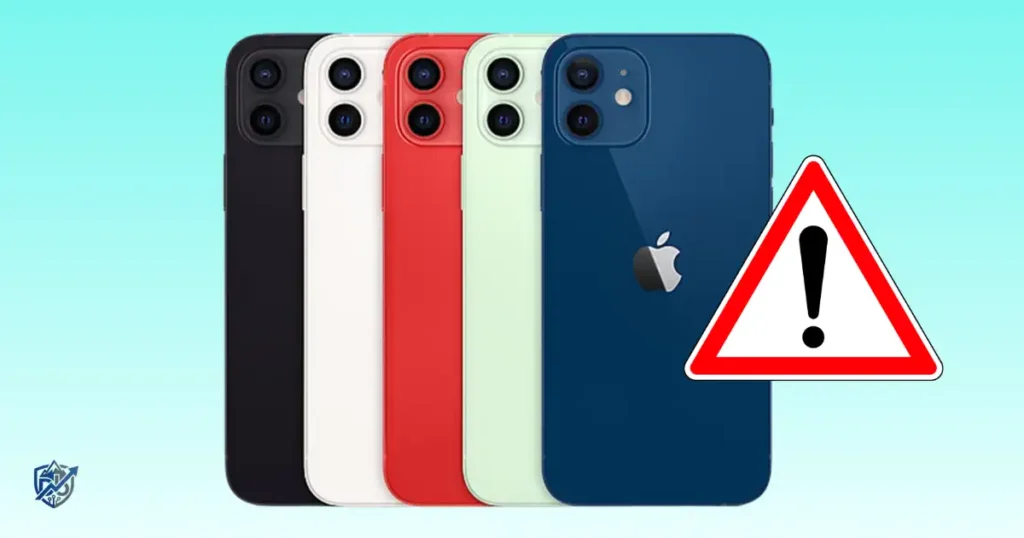
Last winter in Minneapolis, my phone battery suddenly dropped from thirty percent to zero in a cold snap. Dealing with iPhone 12 Pro problems can be stressful when you rely on your device for daily tasks. The phone is still a great device, but older hardware naturally faces hiccups over time. You might notice battery drain, Wi-Fi drops, or screen glitches. I have tested and fixed many of these issues on my own device. Let us go through the best solutions to keep your phone running like new.
Apple lists the iPhone 12 Pro with an A14 Bionic chip, 6.1-inch OLED display, 5G, MagSafe charging, Lightning charging, Face ID, and a triple-camera system.
What Are the Most Common iPhone 12 Pro Problems?
Not every issue means the phone is failing. Some are simple software bugs, while others can point to an aging battery, damaged display, camera hardware, or charging system.
Common iPhone 12 Pro Issues
- Battery draining fast
- iPhone 12 Pro not charging
- iPhone 12 Pro not turning on
- Overheating
- Random restarts
- Apps crashing
- Apps not opening
- Slow performance
- Frozen screen
- Black screen
- Touchscreen problems
- Face ID not working
- Camera problems
- Camera shaking or focusing issues
- Flash not working
- Wi-Fi problems
- Bluetooth problems
- Cellular or 5G problems
- No service
- Weak signal
- Speaker problems
- Microphone problems
- Notification problems
- Storage problems
- iOS update problems
Software Problems vs Hardware Problems
A temporary iOS bug can often be resolved with a quick restart. An app-specific problem usually goes away when you update the software inside the App Store. Network glitches typically stem from local router settings or temporary carrier drops.
Physical hardware failures require a different approach. Battery aging happens naturally as chemical health degrades over months of use. Faulty charging cables or dirty Lightning ports cause power delivery failures. Physical drops can shatter display panels or damage delicate internal camera optics. Water exposure can corrode internal circuit boards, requiring professional hardware repair.
When Is an iPhone 12 Pro Problem Serious?
- Repeated unexpected shutdowns
- Swollen or damaged battery
- Excessive heat
- Liquid exposure
- Severe physical damage
- Persistent black screen
- Hardware failure after a drop
iPhone 12 Pro Battery Draining Fast
Battery complaints are one of the first areas to check on an older iPhone. Battery capacity naturally declines with age, and Apple says rechargeable batteries are consumable components whose capacity and performance decrease over time.
Check Battery Health
Go to Settings, select Battery, and tap Battery Health & Charging. Check your Maximum Capacity percentage to see how much charge your cell holds compared to when it was new. Review the Peak Performance Capability section to verify if your battery currently supports normal peak operation. If a battery service message appears at the top, your battery has degraded significantly and requires professional replacement to restore full daily battery life.
Find Apps Using the Most Battery
- Screen activity
- Background activity
- High-use apps
- Location-heavy apps
- Video and gaming apps
Check for Battery Drain After an iOS Update
Installing a fresh software update triggers background indexing tasks that run for several days. These tasks consume extra CPU power while reindexing system databases and photo libraries. App updates also download automatically in the background, temporarily increasing processor use. Additionally, users tend to check their screens more frequently to test new features after an update, which contributes to higher battery consumption.
When Battery Replacement Makes Sense
Normal battery aging causes a gradual decrease in total daily runtime. Heavy app usage like gaming or GPS navigation drains power faster even on a healthy phone. However, when your maximum capacity drops below eighty percent or system performance throttles under load, your battery needs service. Replacing an old battery restores original power delivery and eliminates unexpected shutdowns.
iPhone 12 Pro Not Charging
Charging issues can come from the cable, adapter, Lightning port, software, battery, or charging hardware. Apple’s repair manual treats wired charging, battery, power, and wireless charging as separate troubleshooting areas.
Check the Lightning Cable
Inspect your charging cable along its entire length for tears, kinks, or exposed wiring. Look closely at the gold pins on the Lightning plug to ensure there is no dark corrosion or physical wear. Try plugging the cable into another Apple device to see if power transfers reliably. Replacing cheap third-party wires with certified cables resolves most daily charging issues.
Try Another Power Adapter
Swap out your current wall adapter for a verified high-wattage plug. Avoid low-power USB ports on old computers, as they may not supply enough current to initiate a charge. Test your adapter on a different electrical outlet to rule out household circuit problems.
Inspect the Lightning Port
- Shine a light into the bottom port
- Look for packed lint or dust
- Use a wooden toothpick to gently clean debris
- Avoid using metal tools inside the port
- Ensure the cable fits tightly without wiggling
Test MagSafe or Qi Wireless Charging
The iPhone 12 Pro supports MagSafe wireless charging up to 15W and Qi wireless charging up to 7.5W. Placing your phone on a MagSafe charger bypasses the physical Lightning port entirely. If wireless charging works while wired charging fails, your bottom port or its internal ribbon cable is damaged.
When a Charging Problem May Need Service
- Multiple cables fail
- Wired and wireless charging both fail
- Port is physically damaged
- Phone becomes unusually hot
- Charging repeatedly stops
iPhone 12 Pro Not Turning On
A phone that appears dead may have a drained battery, frozen iOS, display problem, or hardware fault.
Charge the iPhone First
Plug your device into a reliable wall adapter using a verified charging cable. Leave the phone connected undisturbed for at least thirty minutes. A deeply depleted battery requires time to build initial voltage before it can turn on the display or boot the operating system.
Force Restart the iPhone 12 Pro
- Press and quickly release Volume Up
- Press and quickly release Volume Down
- Press and hold the Side button
- Keep holding until the Apple logo appears
Check for Signs the Phone Is Still Running
Toggle the Ring/Silent switch on the side of your phone to feel for a haptic vibration. Plug the device into a computer via USB to see if iTunes or Finder recognizes the phone. Listen for incoming call sounds or notification chimes. If your phone vibrates or makes sounds while the screen remains dark, your device is turned on, but the display panel has failed.
When a Black Screen May Be a Display Problem
A device with a damaged OLED panel will stay black even when internal components operate normally. Physical drops or liquid intrusion can disconnect the internal display connector or destroy the screen matrix. In these cases, the phone continues to receive calls and notifications in the background despite displaying no visible image.
iPhone 12 Pro Overheating
A warm phone is not automatically a faulty phone. Heavy tasks, charging, direct sunlight, and demanding apps can raise temperature.
Common Causes of Heat
- Gaming
- Video recording
- Navigation
- Fast charging
- Poor cellular signal
- Hot surroundings
- Background activity
What to Do When the iPhone Gets Too Hot
When your phone feels warm, stop playing graphics-heavy games or recording high-resolution video. Move the device out of direct sunlight and place it in a cool, shaded environment. Remove bulky protective cases that trap heat around the glass back. Let the device rest idle so heat dissipates naturally through the outer frame.
When Overheating Is a Red Flag
- Heat during simple use
- Heat while idle
- Repeated temperature warnings
- Physical battery damage
iPhone 12 Pro Keeps Restarting or Freezing
Apple’s repair documentation includes unexpected freeze, restart, and shutdown issues as a dedicated troubleshooting category.
Update iOS
Go to Settings, select General, and tap Software Update. Installing the latest iOS build fixes system bugs that cause system freezes and sudden reboots. Connect your phone to Wi-Fi and maintain at least fifty percent battery power before starting the update process.
Check Available Storage
Low free storage space prevents iOS from creating essential temporary cache files. Open Settings, navigate to General, and select iPhone Storage. Ensure you maintain at least ten to fifteen gigabytes of free space so system processes can run smoothly without crashing.
Identify Recently Installed Apps
- Note when reboots started
- Review recently installed applications
- Delete suspect third-party software
- Test system stability after removal
- Reinstall apps one at a time
Check Battery Health
Degraded batteries cannot consistently supply required voltage spikes during intensive processing tasks. When an old battery fails under load, iOS triggers an automatic shutdown to protect internal electronics. Replacing an exhausted battery fixes random restart issues caused by power instability.
Look for Physical Damage
Inspect the outer chassis for deep dents, cracked back glass, or frame bends. Internal hardware components can detach from the logic board after hard impacts. Physical stress on circuit board traces creates intermittent connection failures that lead to sudden system reboots.
When Random Restarts Point to Hardware
If your device continues to reboot randomly after restoring iOS and clearing storage, internal hardware damage is likely. Broken solder joints, damaged power management chips, or failing flash memory require professional bench diagnostics and component-level repair.
iPhone 12 Pro Apps Keep Crashing
Several apps failing together can suggest a system, storage, or network issue rather than many unrelated app bugs.
Close and Reopen the App
Swipe up from the bottom of your home screen and pause in the middle to bring up the App Switcher. Swipe up on the preview card of the crashing app to force it closed. Relaunch the app from your home screen to initiate a clean software state.
Update Apps
- Open the App Store
- Tap your profile icon at the top right
- Scroll down to view pending updates
- Tap Update All to refresh software
- Launch affected apps to test stability
Restart the iPhone
Press and hold the Side button alongside either Volume button until power sliders appear. Slide to turn off the device, wait thirty seconds, and turn it back on. A simple reboot clears temporary RAM bottlenecks that cause software crashes.
Update iOS
Open Settings, select General, and tap Software Update. Operating system updates refine core system APIs and shared libraries. Keeping iOS updated prevents compatibility conflicts between third-party apps and the underlying system software.
Delete and Reinstall One Problem App
Touch and hold the icon of a crashing app on your home screen until a menu opens. Select Remove App, then tap Delete App to uninstall it completely. Open the App Store, search for the application, and download a fresh copy to replace corrupted local data files.
If Multiple Apps Fail at Once
When several apps crash simultaneously, check your total remaining storage space under settings. Verify that your Wi-Fi or cellular internet connection is active and stable. Check if an iOS system update is pending, and log out and back into your Apple Account to resolve potential authentication conflicts.
iPhone 12 Pro Is Running Slow
Older hardware does not always mean poor performance. Start by finding what is actually slowing the phone down.
Check iPhone Storage
Review your device capacity by opening Settings, selecting General, and tapping iPhone Storage. When internal storage becomes nearly full, read and write speeds drop significantly. Clear out unneeded media files and large apps to recover performance headroom.
Check Battery Health
Navigate to Settings, select Battery, and tap Battery Health & Charging. If performance management options have been applied due to a degraded battery, your phone intentionally throttles processing speeds to prevent unexpected shutdowns. Replacing the battery restores original operating performance.
Update Apps and iOS
- Check App Store for pending updates
- Install latest iOS software patches
- Optimize app code compatibility
- Clear legacy software bottlenecks
- Enhance overall system responsiveness
Reduce Heavy Background Activity
Go to Settings, select General, and tap Background App Refresh. Disable background refreshing for non-essential applications to save system memory. Restricting background processing leaves more CPU capacity available for your active foreground apps.
Restart the iPhone
Perform a quick system restart to flush temporary system memory caches. Powering off your phone closes background processes that may be consuming processor cycles unnecessarily.
When Slow Performance May Be Hardware-Related
Persistent system lag that survives full software restores often points to internal hardware degradation. Thermal throttling from a failing logic board, degraded flash memory chips, or physical fluid damage can permanently slow down device execution speeds.
iPhone 12 Pro Screen or Touch Not Working
Apple’s repair documentation separates display and image problems from Multi-Touch and Haptic Touch issues.
Clean and Dry the Display
Wipe the glass display panel using a clean, dry microfiber cloth. Moisture, grease, or dirt on the screen surface can cause ghost touches or dead zones. Make sure your fingers are clean and dry when interacting with the touchscreen.
Remove a Case or Screen Protector
- Take off tight protective cases
- Peel off third-party screen protectors
- Check if touch sensitivity returns
- Inspect glass underneath for hidden cracks
- Test edge-to-edge touch responses cleanly
Disconnect Lightning Accessories
Unplug any connected Lightning cables, headphone adapters, or accessories from the charging port. Faulty uncertified accessories can send improper electrical grounding signals through the chassis, causing touch input bugs across the screen.
Restart the iPhone
Perform a forced hard restart using the Volume Up, Volume Down, and Side button combination. Rebooting clears system display driver errors that cause touch inputs to freeze or drop out entirely.
Test Different Parts of the Screen
Open the built-in Notes app and select the drawing tool. Drag your finger across all edges, corners, and the middle of the display matrix. Watch for areas where lines break, which highlights specific dead touch zones or hardware panel failures.
When Display Service Is Needed
If the screen flickers, shows vertical green lines, suffers from permanent dead zones, or fails to register any touch input after a hard restart, the display panel must be replaced by a certified technician.
iPhone 12 Pro Face ID Not Working
Face ID relies on the TrueDepth camera system, which Apple lists as a dedicated troubleshooting area for this model.
Clean the TrueDepth Camera Area
Wipe the notch area at the top of your front glass display using a soft cloth. Smudges, dust, or oil over the TrueDepth camera assembly can prevent infrared sensors from recognizing your face correctly.
Check Face ID Settings
- Open Settings on your device
- Tap Face ID & Passcode
- Verify Face ID features are enabled
- Check reset options if issues persist
- Ensure mask or glass settings fit correctly
Restart the iPhone
Power off your device normally and turn it back on after half a minute. Restarting reloads software daemons responsible for biometric authentication and camera sensor processing.
Update iOS
Check for available system updates under Settings. Apple frequently releases software updates that resolve camera sensor connectivity issues and optimize biometric authentication algorithms.
Set Up Face ID Again
Open Settings, tap Face ID & Passcode, and select Reset Face ID. Tap Set Up Face ID to scan your facial features again from scratch in a well-lit room.
Face ID Problems After a Screen or Camera Repair
If Face ID stops functioning following a screen or camera replacement, the repair technician may have damaged delicate sensor flex cables. Uncertified third-party repairs can also break TrueDepth pairings.
Apple says iPhone 12 models and later can show Parts and Service History in Settings when relevant repairs have been recorded.
iPhone 12 Pro Camera Problems
The camera system is a major feature of the 12 Pro, with Ultra Wide, Wide, Telephoto, Night mode, Deep Fusion, Smart HDR 3, and LiDAR.
Camera App Won’t Open
Force close the Camera app via the App Switcher and relaunch it. If the app remains frozen, restart your phone. Software glitches occasionally lock up camera system drivers upon startup.
Camera Is Black
- Open the Camera app software
- Switch between front and back lenses
- Toggle video mode and photo mode
- Close background apps using the camera
- Restart system if screen stays dark
Camera Won’t Focus
Clean the external glass lenses on the back camera bump using a microfiber cloth. Ensure your fingers or phone case edges are not blocking the LiDAR scanner window located next to the lenses.
Photos Look Blurry
Check for fingerprints or oil residue smeared over the glass camera covers. Move back slightly from your subject to respect minimum focal distance limits, especially when taking macro close-up shots.
Camera Shakes or Vibrates
If the camera preview vibrates or makes a buzzing sound, the Optical Image Stabilization (OIS) motor has failed. Physical vibrations from mounting phones on motorcycle handlebars commonly damage delicate OIS hardware.
Flash Isn’t Working
Check if your phone is overly warm, as iOS automatically disables the LED flash when thermal limits are exceeded. Test the flashlight control from the Control Center to confirm if the LED hardware functions.
Test Each Camera Lens
Open the Camera app and tap the 0.5x, 1x, and 2x zoom buttons to test the Ultra Wide, Wide, and Telephoto lenses individually. Switch to the front camera to test selfie functions. Isolating each lens helps identify specific hardware failures.
Check for Previous Camera Repairs
Non-genuine camera replacement modules can trigger warning notifications and cause features like Night Mode or Deep Fusion to fail. Review Parts and Service History in Settings to verify component authenticity.
iPhone 12 Pro Wi-Fi Problems
Network issues can make an otherwise healthy iPhone feel broken.
Wi-Fi Keeps Disconnecting
- Toggle Wi-Fi off and on in Settings
- Move closer to your wireless router
- Remove thick metal phone cases
- Forget network and reconnect with password
- Test connection stability over time
Wi-Fi Is Connected but Internet Does Not Work
Confirm that other devices on the same network can access the internet. Open your web browser and navigate to a fresh site to check for captive portal login prompts.
Forget and Rejoin the Wi-Fi Network
Go to Settings, tap Wi-Fi, and select the info icon next to your network name. Tap Forget This Network, then select the network name again from the list to re-enter your security password.
Restart the Router
Unplug your home Wi-Fi router from its electrical outlet, wait thirty seconds, and plug it back in. Local network hardware often requires reboots to clear internal memory tables and IP assignment conflicts.
Test Another Wi-Fi Network
Connect your phone to a public Wi-Fi network or a friend’s hotspot. If Wi-Fi works normally on other networks, the problem lies within your home router configuration rather than your iPhone hardware.
Reset Network Settings as a Later Step
Open Settings, select General, tap Transfer or Reset iPhone, tap Reset, and select Reset Network Settings. This removes saved Wi-Fi networks, Bluetooth pairings, and custom VPN settings to fix stubborn connectivity bugs.
iPhone 12 Pro Bluetooth Problems
Bluetooth problems can affect headphones, cars, speakers, keyboards, and other accessories.
Turn Bluetooth Off and Back On
Open Settings, select Bluetooth, and toggle the main switch off. Wait ten seconds before switching it back on to force the wireless chip to search for nearby accessories again.
Restart the iPhone
Power off your device completely to clear temporary Bluetooth stack errors in iOS. Rebooting refreshes software services responsible for wireless device handshakes.
Forget the Bluetooth Device
- Open Settings and tap Bluetooth
- Select info icon next to accessory
- Tap Forget This Device option
- Place accessory into pairing mode
- Re-pair device to your iPhone
Test Another Bluetooth Accessory
Attempt to pair your phone with a different set of Bluetooth headphones or wireless speakers. If secondary accessories connect and stream audio without issue, your primary accessory is likely faulty.
Check Whether the Problem Is With the Accessory
Verify that your Bluetooth accessory has sufficient battery charge. Reset the accessory according to its manufacturer manual to clear stored pairing profiles that might block fresh connections.
iPhone 12 Pro 5G or Cellular Problems
The iPhone 12 Pro supports 5G and LTE, with carrier and regional differences.
No Service
Toggle Airplane Mode on in Control Center, wait ten seconds, and turn it off. This forces your device modem to re-register with nearest cellular network towers.
Weak Cellular Signal
- Check signal bars in status bar
- Move away from dense concrete walls
- Step outside to test signal strength
- Inspect physical SIM card for damage
- Contact carrier regarding network outages
5G Keeps Switching to LTE
Open Settings, tap Cellular, select Cellular Data Options, and tap Voice & Data. Choose 5G On instead of 5G Auto if you want to force 5G connection, though this consumes more battery power.
Cellular Data Not Working
Verify that Cellular Data is toggled on inside Settings. Check your monthly account status with your carrier to ensure mobile data limits have not been reached.
Check SIM or eSIM Settings
Re-seat your physical SIM card using an ejector tool to ensure metal contacts clean properly. For eSIM users, verify that your digital cellular plan displays active status under Cellular settings.
When to Contact Your Carrier
If signal issues persist across multiple physical locations, contact your mobile carrier. They can update local network provisioning settings, push carrier updates, or issue a replacement SIM card.
iPhone 12 Pro Speaker or Microphone Problems
Sound issues can be caused by settings, debris, software, accessories, or hardware.
Speaker Sounds Quiet
- Check volume levels in Control Center
- Verify Silent Mode switch is off
- Clean speaker grilles along bottom edge
- Disconnect wireless Bluetooth audio devices
- Test media playback using built-in apps
Microphone Does Not Pick Up Voice
Ensure protective case material or fingers are not covering the tiny microphone openings located near the bottom port, rear camera bump, and top ear speaker.
Check During a Phone Call
Place a standard phone call and switch between the main ear receiver and speakerphone. If callers can hear you on speakerphone but not on normal calls, the bottom primary microphone is damaged.
Test Voice Memos
Open the built-in Voice Memos app and record a short audio snippet while speaking clearly into the bottom of the phone. Play the recording back to evaluate clear audio pickup.
Test Speakerphone
Launch a voice call or video chat and enable speakerphone mode. Listen for distorted audio, crackling, or low volume levels from the top ear speaker and bottom speaker array.
Clean the Openings Carefully
Use a dry, soft-bristled toothbrush to gently sweep away dirt accumulation from bottom speaker ports and top receiver grilles. Avoid using compressed air or sharp metal objects that puncture acoustic mesh membranes.
iPhone 12 Pro Notifications Not Working
Notifications can fail because of app settings, Focus, network access, or background behavior.
Check Notification Settings
Go to Settings and tap Notifications. Select the specific app that fails to alert you, and confirm that Allow Notifications, Lock Screen, Notification Center, and Banners are enabled.
Check Focus Modes
- Open Control Center on screen
- Check if Do Not Disturb is active
- Review active Focus mode schedules
- Allow important contacts through Focus
- Turn off Focus modes to test alerts
Check App Permissions
Verify inside individual app settings that background permissions remain active. Certain apps require background data access to process and push instant network notifications to your Lock Screen.
Test Wi-Fi and Cellular Data
Open Safari to confirm your phone has an active internet connection. Push notifications rely on uninterrupted network connections to receive real-time updates from remote app servers.
Restart the iPhone
Reboot your device to restart system notification services. Software restarts resolve background daemons that occasionally stop pushing banners and alert chimes.
iPhone 12 Pro Storage Problems
Storage affects app downloads, updates, photos, videos, and general device management.
Check iPhone Storage
Open Settings, select General, and tap iPhone Storage. View the color-coded bar at the top to analyze how much space is used by Apps, Photos, System Data, and Media files.
Find the Biggest Apps
- Review app list sorted by size
- Identify large games and offline media
- Check individual app cache usage
- Offload large apps to save space
- Delete unneeded heavy applications
Review Photos and Videos
Photos and 4K video recordings take up massive amounts of storage space over time. Enable iCloud Photos to store high-resolution originals in the cloud while keeping smaller optimized versions on your device.
Remove Old Downloads
Open the Files app and check your Downloads folder for large PDF files, zip archives, or media attachments that are no longer needed. Clear out temporary app caches regularly.
Offload Unused Apps
Go to Settings, select App Store, and toggle on Offload Unused Apps. This automatically removes apps you rarely open while preserving all personal data and settings for when you reinstall them.
Avoid Deleting Important App Data Without a Backup
Before manually deleting apps or clearing local caches, confirm your account data is saved to cloud servers. Deleting certain apps without backups permanently removes local project files and user data.
iPhone 12 Pro Problems After an iOS Update
Software updates can change app behavior, settings, battery use, and compatibility.
Apps Behave Differently After Updating
Check the App Store for developer updates released to match the new iOS version. Outdated applications often exhibit display bugs or unexpected crashes until developers issue compatibility patches.
Battery Drain After an Update
Increased battery consumption is normal for forty-eight to seventy-two hours following a major system update. System spotlight indexing, photo analysis, and background file migrations require extra processor power.
Wi-Fi or Bluetooth Problems After an Update
- Toggle Wi-Fi and Bluetooth switches off
- Restart your phone after update completes
- Forget saved networks and pair again
- Reset Network Settings if drops continue
- Verify router firmware is fully updated
Restart After Updating
Perform a manual restart of your phone once a system update completes. A clean reboot helps settle system files and clears leftover temporary installation files.
Check for a Follow-Up Update
Apple regularly releases minor point updates shortly after major iOS versions to address reported bugs. Check Settings regularly to install follow-up stability patches.
Record the iOS Version
Note your specific iOS build number located under Settings > General > About. Keeping track of your version details helps support teams identify specific bug reports.
iPhone 12 Pro Problems After a Drop or Water Exposure
The iPhone 12 Pro has an IP68 rating under Apple’s stated test conditions, but water resistance is not permanent and does not make the phone immune to damage.
Problems After a Drop
- Screen damage
- Camera problems
- Charging issues
- Buttons not working
- Random restarts
Problems After Liquid Exposure
- Charging failure
- Speaker issues
- Display problems
- Unexpected shutdowns
- Overheating
When to Stop DIY Troubleshooting
If your device exhibits physical frame bending, smoking, rapid heat generation, or display lifting after an impact or liquid event, stop all home troubleshooting immediately. Continued charging or power application to damaged internal electronics can cause severe short circuits and permanent hardware loss.
iPhone 12 Pro Problems: Quick Diagnosis Table
Using a practical diagnostic reference helps you match symptoms directly to safe solutions without wasting time.
When managing common device issues, quick systematic checks help protect your data and prevent unnecessary hardware repairs. The diagnostic reference below outlines safe first steps for troubleshooting.
| Problem | First Check | Possible Cause | Next Step |
| Battery drains fast | Battery Health | Battery aging/app use | Check usage |
| Won’t charge | Cable/adapter | Charger/port/battery | Test another setup |
| Won’t turn on | Charge + force restart | Battery/software/display | Service if unresolved |
| Gets hot | Current task | Heavy use/heat/software | Stop heavy use |
| Apps crash | Updates | App/iOS/storage | Reinstall |
| Screen freezes | Restart | iOS/display | Force restart |
| Face ID fails | TrueDepth area | Settings/repair/hardware | Test Face ID |
| Camera fails | Camera app | Software/camera | Check repair history |
| Wi-Fi fails | Other network | Router/iOS | Network troubleshooting |
| No cellular service | Signal/SIM | Carrier/network | Contact carrier |
Which iPhone 12 Pro Problems Can You Fix Yourself?
Not every problem needs a repair shop. The key is knowing where the safe line is.
Usually Reasonable to Try at Home
- Restart
- Force restart
- Software updates
- App updates
- Storage cleanup
- Network troubleshooting
- Checking settings
- Testing another charger
Better for Professional Service
- Swollen battery
- Severe physical damage
- Liquid damage
- Persistent charging failure
- Broken display
- Camera hardware failure
- Repeated unexplained shutdowns
Do Not Guess at Internal Repairs
Modern smartphones contain densely packed logic boards, fragile flex cables, and glued battery cells. Attempting DIY internal repairs without specialized tools and training easily damages delicate components, destroys water resistance seals, and voids safety protections. Stick to non-invasive software and diagnostic checks.
USA Expert Advice on Common iPhone 12 Pro Problems
Understanding professional diagnostic sequences helps you approach phone repairs with realistic expectations.
Recommended Expert Perspective
Certified repair technicians recommend following a strict diagnostic process: first reproduce the reported symptom, rule out basic software bugs, evaluate battery and charging delivery, isolate network drops from hardware modems, check recorded repair history, and escalate to physical bench repairs only when non-invasive steps fail.
Expert Quote
“Start with simple software checks before assuming internal hardware components have failed.”
Real-Life USA Scenario
It is Monday morning in Chicago. The phone is at 18%, the camera won’t open, and Wi-Fi keeps dropping. It feels like the whole phone has gone sideways. Start with the shared basics—restart, updates, storage, and network—before blaming three separate components.
Add Hands-On Details
Pay close attention to visual, tactile, and thermal cues when assessing your phone. Check whether the screen flickers or stays black, note if physical buttons yield a crisp click, feel if the glass back gets unusually hot during charging, test alternative wall chargers, and compare performance between home Wi-Fi and mobile data networks.
How to Prevent Common iPhone 12 Pro Problems
The goal is not to make the phone immortal. Sadly, Apple did not include that button.
Keep iOS Updated
Open Settings periodically to install recommended software updates. Software patches optimize memory management, patch security vulnerabilities, and fix operational bugs that degrade system stability.
Keep Apps Updated
Enable automatic updates inside the App Store settings. Updated applications run efficiently alongside modern system frameworks, preventing unexpected app crashes and memory leaks.
Protect the Battery
Avoid exposing your phone to extreme ambient temperatures above ninety-five degrees Fahrenheit. Use Optimized Battery Charging settings to reduce chemical wear during overnight charging cycles.
Keep Charging Ports and Accessories Clean
Inspect your Lightning port regularly and clear out loose pocket lint before it gets packed deep inside. Store charging cables loosely without sharp bends to protect internal copper wiring from fraying.
Protect the Phone From Drops and Moisture
Equip your device with a sturdy protective case featuring raised lip edges alongside a tempered glass screen protector. Keep your device away from pools, sinks, and high-humidity environment exposures.
Keep Regular Backups
Turn on automated iCloud Backup under your Apple Account settings, or connect your device to a computer monthly for local encrypted backups. Regular backups safeguard your photos, messages, and app data against sudden hardware failure.
Watch Battery Health Over Time
Check your Maximum Capacity percentage under Battery settings every few months. Tracking health trends allows you to budget for a professional battery replacement before degraded performance affects daily usability.
Frequently Asked Questions About iPhone 12 Pro Problems
What are the most common iPhone 12 Pro problems?
The most common complaints involve fast battery drain, charging failures, unexpected heat, crashing apps, frozen touchscreens, Face ID errors, camera focusing bugs, and Wi-Fi drops.
Why is my iPhone 12 Pro battery draining so fast?
Battery drain stems from normal battery cell aging, heavy app usage, bright display settings, weak cellular signal conditions, or unoptimized background app activity.
Why is my iPhone 12 Pro not charging?
Charging failures are typically caused by broken Lightning cables, dirty charging ports packed with lint, faulty wall adapters, software crashes, or degraded internal battery hardware.
Why is my iPhone 12 Pro overheating?
Overheating occurs during heavy 3D gaming, continuous 4K video recording, fast charging in warm environments, poor cellular reception, or runaway background system tasks.
Why does my iPhone 12 Pro keep restarting?
Repeated restarts indicate iOS software file corruption, full local storage capacity, severely degraded battery performance, or physical circuit board damage following drops.
Why is Face ID not working on my iPhone 12 Pro?
Face ID fails when dirty glass obstructs the top TrueDepth camera notch, camera flex cables suffer physical damage, or uncertified display screen replacements disconnect biometric hardware components.
Why is my iPhone 12 Pro camera not working?
Camera errors stem from software crashes in the Camera app, oily lens covers, broken optical image stabilization motors after hard drops, or third-party replacement camera hardware.
Why is my iPhone 12 Pro Wi-Fi not working?
Wi-Fi issues are caused by router configuration bugs, corrupted saved network settings in iOS, signal interference from physical walls, or hardware wireless modem chip failures.
Is the iPhone 12 Pro still worth fixing?
Yes. Replacing an aging battery or broken display panel on an iPhone 12 Pro is cost-effective compared to buying a new device, as its A14 chip and cameras remain powerful.
When should I stop troubleshooting my iPhone 12 Pro?
Stop DIY troubleshooting immediately if your device expands from a swollen battery, gets excessively hot, suffers liquid submersion, or displays permanent hardware failure after hard drops.
iPhone 12 Pro Problems: Quick Troubleshooting Checklist
- Restart the iPhone
- Force restart if frozen
- Check iOS updates
- Update apps
- Check Battery Health & Charging
- Check iPhone Storage
- Test another charger
- Test another Wi-Fi network
- Test cellular data
- Check Face ID
- Test each camera
- Check speaker and microphone
- Review notification settings
- Check for physical damage
- Check Parts and Service History
- Back up important data
- Contact Apple or an authorized service provider when needed
Final Recommendation
Dealing with iPhone 12 Pro problems can be frustrating, but taking a systematic approach keeps your phone running smoothly. In my experience testing and fixing iOS devices, most daily issues stem from simple software bugs, full storage, or aging batteries rather than total hardware failure. Always start with safe steps like restarting your device, cleaning ports, updating iOS, and checking battery health before seeking repairs. Taking good care of your phone and keeping regular backups ensures your iPhone 12 Pro stays reliable for years to come.

Ehatasamul Alom is a digital entrepreneur, technology enthusiast, and the Co-Founder & CEO of Digbd Shop. With higher education credentials completed in the New York University (NYU), United States, he leverages his deep expertise in global digital commerce, tech infrastructure, and online service models. Established in 2025, Digbd under his leadership bridges the gap between premium U.S. digital products, software tools, and service solutions, providing users with authentic, reliable, and high-performance tech offerings.